
Smart thermostats are designed to simplify home climate control, optimize energy use, and enhance comfort through automation. But when they start behaving unpredictably—turning on at odd times, failing to respond to commands, or displaying incorrect temperatures—it can disrupt daily life and raise concerns about system reliability. The good news is that most issues stem from fixable causes like connectivity problems, sensor errors, or outdated firmware. Understanding the root causes and knowing how to methodically troubleshoot them can save time, prevent unnecessary service calls, and extend the lifespan of your device.
Common Signs Your Smart Thermostat Is Acting Up
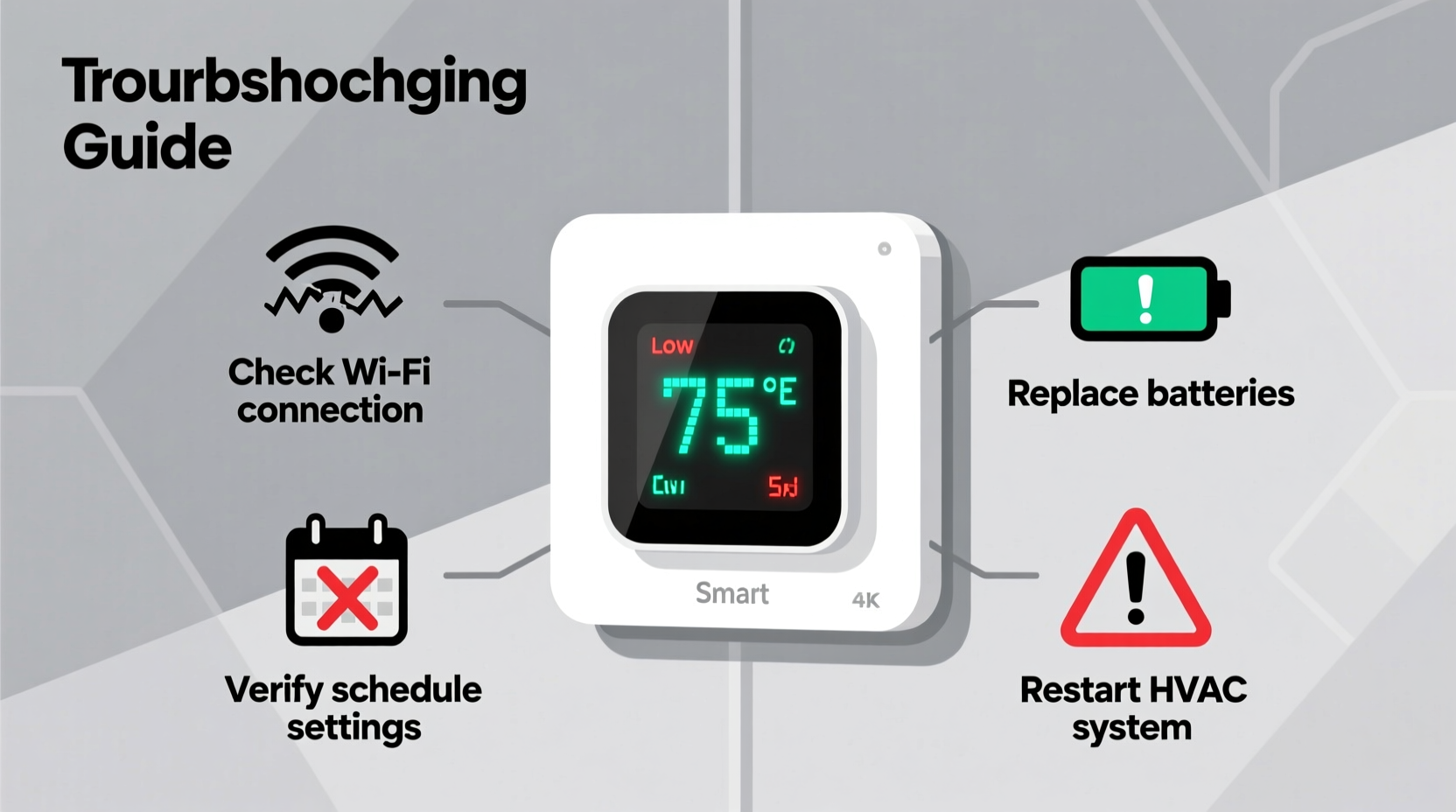
Before diving into fixes, it’s important to recognize what \"acting weird\" actually means. These behaviors often point to underlying technical or environmental factors:
- Inconsistent temperature readings: The thermostat shows a room temperature significantly different from a standalone thermometer.
- Unscheduled heating or cooling cycles: The HVAC system turns on or off without following programmed schedules.
- Unresponsive touchscreen or controls: Taps or button presses don’t register, or the interface freezes.
- Wi-Fi disconnections: Frequent loss of connection to your network or mobile app.
- Incorrect mode switching: Automatically switches from heat to cool (or vice versa) without user input.
- Delayed responses to app commands: Adjustments made remotely take minutes—or fail entirely—to apply.
These symptoms may seem random, but they typically fall into predictable categories: hardware limitations, software bugs, installation flaws, or environmental interference.
Step-by-Step Troubleshooting Guide
Follow this structured approach to isolate and resolve the issue efficiently. Start with the simplest solutions before moving to more complex diagnostics.
- Check power and wiring: Ensure the thermostat has consistent power. If it’s battery-powered, replace the batteries. For hardwired models, verify that the C-wire (common wire) is properly connected and delivering continuous voltage. A loose or missing C-wire is a leading cause of erratic behavior.
- Restart the thermostat: Perform a soft reset by turning it off at the wall plate or removing power for 30 seconds. This clears temporary glitches in memory or software loops.
- Verify Wi-Fi connectivity: Confirm the thermostat is connected to your 2.4 GHz network (not 5 GHz, which many models don’t support). Reboot your router and re-enter Wi-Fi credentials if needed.
- Update firmware: Manufacturers release updates to patch bugs and improve stability. Check the companion app or web portal for available updates. Do not skip this step—even minor updates can resolve major issues.
- Inspect for physical obstructions: Make sure nothing is blocking airflow around the thermostat. Avoid placing electronics, lamps, or curtains nearby that emit heat or block sensors.
- Test HVAC system independently: Bypass the thermostat by manually connecting wires at the furnace or air handler (e.g., R to G for fan, R to Y for cooling). If the system runs normally, the issue lies with the thermostat—not your HVAC equipment.
When to Consider a Factory Reset
If basic steps fail, a factory reset may be necessary. This erases all settings and returns the device to default state. Proceed with caution:
- Back up your schedule preferences before resetting.
- Access the reset option via the device menu or manufacturer’s app.
- After reset, reconfigure Wi-Fi, time zone, and temperature settings carefully.
Note: Some thermostats require re-pairing with smart home platforms like Google Home or Alexa after a reset.
Environmental and Installation Factors That Cause Issues
Even a perfectly functioning thermostat can behave poorly if installed incorrectly or exposed to misleading environmental cues.
One of the most overlooked problems is poor placement. Installing a smart thermostat near a window, door, kitchen appliance, or direct sunlight can skew its internal temperature sensor. For example, radiant heat from afternoon sun may trick the thermostat into thinking the room is warmer than it actually is, causing unnecessary cooling.
| Installation Factor | Impact on Performance | Solution |
|---|---|---|
| Direct sunlight exposure | False high temperature readings | Relocate or install shading cover |
| Near heat-generating devices (TV, lamp) | Overcooling due to localized heat | Move thermostat to neutral wall |
| Poor insulation behind wall plate | Air leaks affect sensor accuracy | Seal gaps with foam or caulk |
| Missing or faulty C-wire | Power fluctuations, rebooting | Install C-wire or use an adapter kit |
| Old or corroded wiring | Intermittent signal loss | Inspect and replace damaged wires |
“Thermostat performance isn't just about the device itself—it's equally about where and how it's installed. A $250 smart thermostat placed next to a toaster oven will perform worse than a $50 model in the right location.” — Daniel Ruiz, HVAC Systems Engineer
Software Glitches and App Integration Problems
Smart thermostats rely heavily on cloud-based services and mobile apps. When these components malfunction, users experience delayed updates, inaccurate data, or complete loss of remote access.
Common software-related issues include:
- Firmware bugs introduced in recent updates
- App crashes or login failures
- Synchronization delays between device and server
- Geofencing inaccuracies (thermostat doesn’t detect when you leave/arrive)
To address these:
- Ensure your smartphone app is updated to the latest version.
- Log out and back into your account to refresh authentication tokens.
- Disable and re-enable location permissions for accurate geofencing.
- Clear the app cache (on Android) or reinstall the app (iOS) if responsiveness lags.
If multiple users manage the thermostat, confirm that conflicting schedules or overrides aren’t being set remotely. One family member adjusting the temperature via the app while another uses voice commands can create scheduling chaos.
Mini Case Study: The Phantom Cooling Cycle
Mark in Denver noticed his Nest thermostat was triggering the AC every night around 2 a.m., even though the house was already cool. He checked the schedule—no programming matched the behavior. After ruling out app overrides and confirming stable Wi-Fi, he used a non-contact thermometer to measure the wall surface behind the thermostat. It read 78°F, while the room was only 69°F. Further inspection revealed recessed lighting above the thermostat was generating heat that radiated down the wall. Once Mark added insulation between the light fixture and ceiling, the false triggers stopped. The lesson: internal sensors react to microclimates, not whole-room conditions.
Troubleshooting Checklist
Use this actionable checklist to systematically diagnose and resolve smart thermostat issues:
- ✅ Verify power source (battery level or C-wire connection)
- ✅ Restart the thermostat and HVAC system
- ✅ Confirm Wi-Fi signal strength and correct network (2.4 GHz)
- ✅ Check for and install firmware updates
- ✅ Inspect thermostat location for heat sources or drafts
- ✅ Test HVAC operation by bypassing thermostat
- ✅ Review recent schedule changes or remote overrides
- ✅ Update or reinstall mobile app if interface is unresponsive
- ✅ Perform factory reset if all else fails
- ✅ Contact manufacturer support with error codes or logs
Frequently Asked Questions
Why does my smart thermostat keep disconnecting from Wi-Fi?
Weak signal strength, router congestion, or using a 5 GHz band (which most smart thermostats don’t support) are common culprits. Try relocating your router, adding a Wi-Fi extender, or ensuring the thermostat connects to the 2.4 GHz network. Also, check if your router assigns static IP addresses or uses aggressive sleep modes that may interfere with always-on devices.
Can a dirty air filter cause thermostat problems?
Indirectly, yes. A clogged air filter restricts airflow, causing the HVAC system to run longer cycles. This may lead the thermostat to misinterpret system performance, especially if it uses adaptive recovery or learning algorithms. While the thermostat itself isn’t malfunctioning, the resulting discomfort may make it seem like it’s not working correctly. Replace filters every 1–3 months for optimal operation.
Should I call an HVAC technician or the thermostat manufacturer?
Start with the manufacturer’s support team—they can guide you through device-specific diagnostics and firmware fixes. If the thermostat passes all tests but the HVAC still doesn’t respond properly, then involve an HVAC professional to inspect wiring, relays, or system compatibility.
Prevent Future Issues with Proactive Maintenance
Like any connected device, smart thermostats benefit from routine maintenance. Schedule quarterly checks to:
- Replace batteries (if applicable)
- Verify Wi-Fi connectivity and signal strength
- Review and refine temperature schedules
- Check for new firmware updates
- Clean the exterior gently with a dry microfiber cloth (avoid liquids)
Additionally, consider enabling usage reports and alerts in your thermostat app. Many models offer notifications for extreme temperature shifts, prolonged runtime, or communication errors—early warnings that help prevent bigger issues.
Conclusion: Take Control of Your Smart Climate System
A smart thermostat should make life easier, not add frustration. Most “weird” behaviors have logical explanations rooted in setup, environment, or software. By applying systematic troubleshooting—from checking power and Wi-Fi to evaluating placement and updating firmware—you can restore reliable performance and regain confidence in your home’s climate control. Don’t accept erratic behavior as normal. With the right knowledge, nearly every issue is solvable without replacing hardware or paying for costly repairs.




 浙公网安备
33010002000092号
浙公网安备
33010002000092号 浙B2-20120091-4
Comments
No comments yet. Why don't you start the discussion?