
Smart thermostats are designed to make life easier—automating heating and cooling, learning your schedule, and even saving energy. But when they start behaving unpredictably—turning on at odd times, failing to respond to commands, or showing incorrect temperatures—it’s easy to assume the worst. Before you reach out to customer support or consider a replacement, it's worth taking a few methodical steps to diagnose the issue. Many problems stem from simple, fixable causes like connectivity glitches, power fluctuations, or misconfigured settings.
This guide walks through practical, step-by-step diagnostics that most homeowners can perform in under 30 minutes. By identifying the root cause early, you’ll not only save time but also avoid unnecessary service calls and potential repair costs.
Check Your Power Source and Wiring
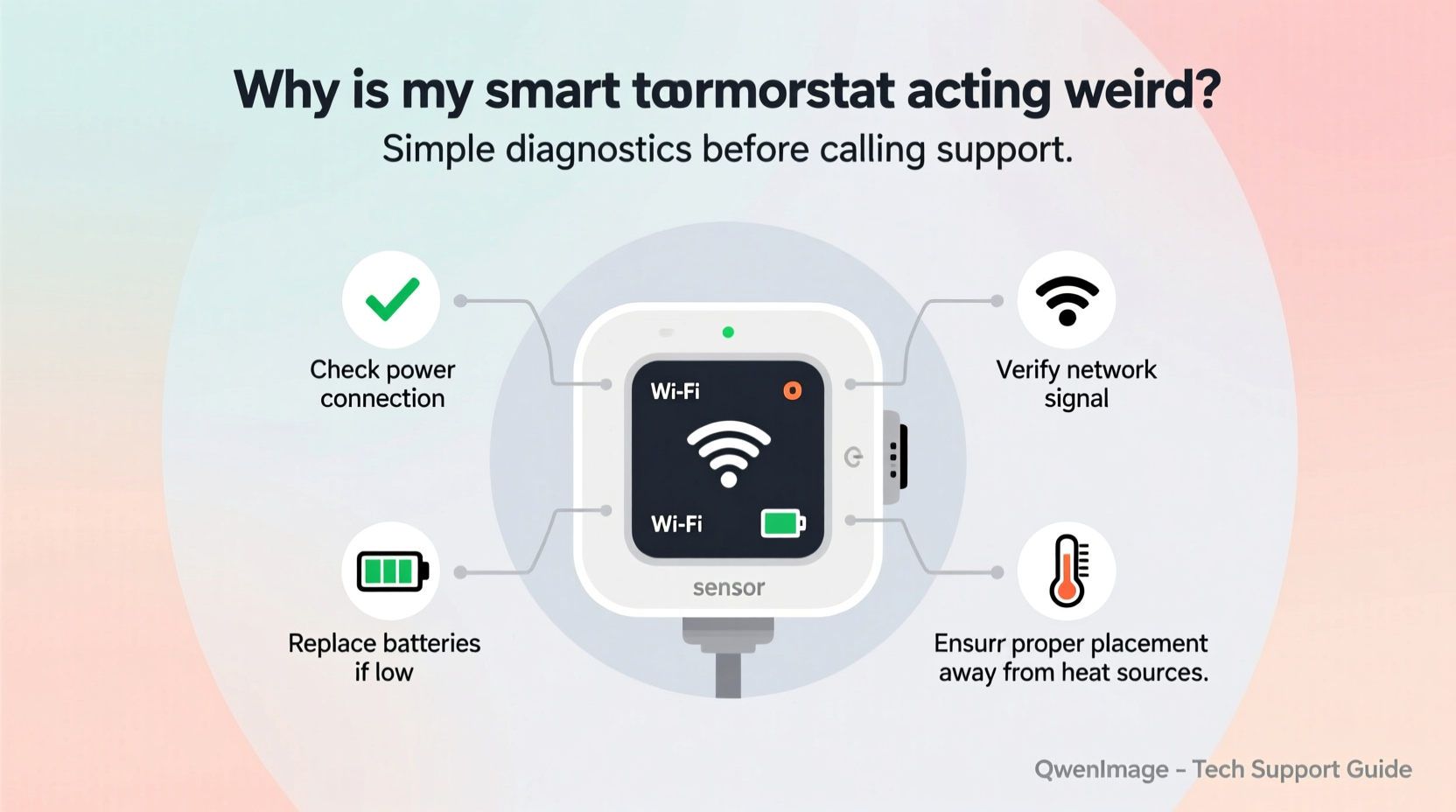
One of the most overlooked reasons for erratic thermostat behavior is an unstable power supply. Unlike traditional thermostats, smart models require consistent power to maintain Wi-Fi connections, run internal processors, and communicate with HVAC systems. If your thermostat keeps rebooting, displays a blank screen, or loses connection frequently, begin here.
First, confirm whether your thermostat has a built-in battery or relies on the HVAC system for power (typically via a C-wire). Units without a C-wire may draw power from the heating/cooling cycle itself—a process known as \"power stealing\"—which can lead to intermittent shutdowns, especially in milder seasons when the system runs infrequently.
To check wiring:
- Turn off HVAC power at the circuit breaker.
- Remove the thermostat faceplate gently.
- Inspect all wire connections—are they secure and corrosion-free?
- Look for a blue or black wire labeled “C” connected to the terminal. If missing, your system may lack a common wire.
- Reattach any loose wires and ensure terminals are tight.
If no C-wire exists, consider using a power extender kit compatible with your model (such as those offered by Ecobee or Nest). These kits provide stable voltage and prevent brownouts during operation.
Verify Wi-Fi and Network Stability
A smart thermostat depends on a reliable internet connection for remote access, software updates, and integration with voice assistants or home automation platforms. When the device appears unresponsive in its app or fails to follow scheduled changes, network issues are often the culprit.
Start by checking if other devices on the same network experience connectivity problems. Then, test signal strength near the thermostat. Walls, metal ductwork, and large appliances can interfere with Wi-Fi signals, especially on the 5 GHz band. Most thermostats only support 2.4 GHz networks—ensure you're not accidentally connecting to a 5 GHz-only SSID.
“Over 60% of reported smart thermostat malfunctions we see are related to poor or inconsistent Wi-Fi rather than hardware failure.” — Jordan Lin, HVAC Systems Technician, SmartClimate Solutions
To improve connectivity:
- Move your router closer to the thermostat if possible.
- Use a Wi-Fi extender rated for IoT devices.
- Restart your modem and router to refresh DNS and IP assignments.
- Forget and re-add the thermostat to your network through the app.
You can also test this by temporarily connecting the thermostat to a mobile hotspot. If it works flawlessly on the hotspot, the issue lies within your home network configuration.
Review Scheduling and Automation Settings
Sometimes, what seems like malfunctioning behavior is actually the result of misunderstood automation rules. For example, a thermostat that turns on unexpectedly might be responding to a geofencing trigger based on your phone’s location—or adjusting due to a weather-based pre-heating feature.
Open your thermostat’s companion app and navigate to the settings menu. Carefully review the following:
| Setting | Potential Issue | Recommended Action |
|---|---|---|
| Auto-Schedule / Learning Mode | Thermostat adjusts temps unpredictably | Pause learning mode temporarily to regain manual control |
| Geofencing | Heating turns off while you’re still home | Check phone GPS accuracy; disable if unreliable |
| Vacation Mode | System ignores regular schedule | Exit vacation mode manually after return |
| Smart Response / Pre-Conditioning | AC starts hours before scheduled time | Adjust sensitivity or disable if too aggressive |
It’s not uncommon for users to enable features during initial setup and forget about them later. Disabling non-essential automations one at a time can help isolate which setting is causing confusion.
Step-by-Step Reboot and Reset Procedure
Like any electronic device, smart thermostats benefit from periodic restarts. A full reboot clears temporary memory, resets network handshakes, and reloads firmware processes—often resolving minor software hiccups.
Follow this timeline to perform a complete diagnostic reset:
- Soft Reboot (Day 1): Remove the thermostat from its base for 30 seconds, then snap it back. Wait two minutes for reboot. Test responsiveness.
- App Refresh (Day 1): Close the thermostat app completely, clear cache (if on Android), then reopen and check status.
- HVAC System Restart (Day 2): Turn off power to your furnace/air handler at the breaker for 60 seconds. Restore power. This resets communication between thermostat and equipment.
- Factory Reset (If Needed): In the app or directly on the device, select “Reset” → “Restore Factory Settings.” Note: This erases all schedules and preferences.
- Reconfigure from Scratch: After reset, go through setup again—connect to Wi-Fi, set time zone, recreate schedule.
After completing these steps, monitor the thermostat for 24–48 hours. If behavior normalizes, the issue was likely software-related. If problems persist, proceed to deeper diagnostics.
Assess Temperature Accuracy and Sensor Interference
If your thermostat displays a temperature significantly different from other rooms or a standalone thermometer, don’t assume it’s broken. Several environmental factors can skew readings:
- Direct sunlight hitting the unit
- Heat emitted from nearby electronics (TVs, lamps, routers)
- Airflow from vents blowing directly onto the sensor
- Location near kitchens, bathrooms, or exterior doors
Smart thermostats use internal sensors that are sensitive but localized. They measure only their immediate surroundings—not average home temperature. Placing a thermostat in a poorly insulated hallway or next to a drafty window leads to inaccurate feedback and inefficient cycling.
To verify accuracy:
- Place a calibrated digital thermometer next to the thermostat.
- Wait 30 minutes in a stable environment (no active heating/cooling).
- Compare both readings. A difference of ±1–2°F is normal.
If discrepancies exceed 3°F, recalibration may be needed. Some models allow manual offset adjustments in the settings menu. For example, if the thermostat reads 74°F but the actual room is 71°F, apply a -3°F sensor correction.
“Sensor placement matters more than people realize. I’ve seen thermostats installed right above radiators—no wonder they never shut off!” — Maria Tran, Building Efficiency Consultant
Mini Case Study: The Phantom Heating Cycle
Consider the case of Daniel R., a homeowner in Portland, Oregon, who noticed his Nest thermostat turning on the heat every night around 2:17 AM—even though the house was already at the target temperature. He suspected a defect and nearly scheduled a technician visit.
Instead, he ran through basic diagnostics:
- Checked for loose wires—none found.
- Verified Wi-Fi stability—solid signal.
- Reviewed schedule—no overnight heating event programmed.
Then he discovered the issue: a smart humidifier plugged into the same circuit as the furnace was causing minor electrical noise. Though not enough to trip breakers, this interference briefly disrupted communication between the thermostat and control board, triggering a safety reset that initiated a default heating cycle.
Daniel resolved it by plugging the humidifier into a different outlet. The phantom cycles stopped immediately. This highlights how external devices—even unrelated ones—can indirectly affect thermostat performance.
Frequently Asked Questions
Why does my thermostat turn on when I’m not home?
This is often due to geofencing or scheduling errors. Check if your phone’s location services are accurate and whether vacation mode is accidentally enabled. Also, verify that no one else in your household modified the schedule via the app.
Can a dirty thermostat cause problems?
Yes. Dust buildup inside the unit can insulate sensors and disrupt airflow over internal components, leading to overheating or false temperature readings. Gently clean around the edges with a dry microfiber cloth or compressed air once every six months.
How do I know if my thermostat needs replacement?
If you’ve completed all diagnostics—checked power, reset the device, confirmed network stability, and verified correct installation—and the unit still behaves erratically (e.g., random shutdowns, unresponsive touch screen, persistent error codes), it may be faulty. Consult the manufacturer’s warranty and consider professional evaluation.
Final Checklist Before Calling Support
Before contacting technical support, complete this checklist to ensure you’ve ruled out common issues:
- ✅ Thermostat has consistent power (battery charged or C-wire connected)
- ✅ All wires are securely attached and undamaged
- ✅ Device is connected to a stable 2.4 GHz Wi-Fi network
- ✅ No conflicting automations or geofencing inaccuracies
- ✅ Unit is not exposed to direct heat, sunlight, or drafts
- ✅ Firmware is up to date (check in app settings)
- ✅ Full reboot performed (thermostat and HVAC system)
- ✅ Factory reset completed if necessary
Having this information ready will speed up any support interaction and increase the chances of a quick resolution.
Conclusion
Smart thermostats enhance comfort and efficiency, but like any technology, they occasionally act up. Jumping straight to a support call may seem efficient, but many issues can be resolved quickly with careful observation and systematic troubleshooting. From checking wiring integrity to reviewing automation logic, the solutions are often simpler than they appear.
By applying the diagnostics outlined here, you gain better control over your home’s climate system and deepen your understanding of how it works. Don’t let a glitch undermine confidence in your smart investment. Take charge, run through the checks, and restore smooth operation—often without ever picking up the phone.




 浙公网安备
33010002000092号
浙公网安备
33010002000092号 浙B2-20120091-4
Comments
No comments yet. Why don't you start the discussion?