
Smart thermostats promise convenience, energy savings, and precise climate control. But when yours starts turning the heat on at random hours, refuses to connect to Wi-Fi, or displays inaccurate temperatures, it can quickly go from a high-tech helper to a household headache. If you’ve found yourself asking, “Why is my smart thermostat acting weird?” you’re not alone. Thousands of homeowners experience similar glitches each year—many of which are simple to resolve with the right approach.
This comprehensive guide walks through the most common causes of erratic smart thermostat behavior and provides actionable solutions. Whether your device is cycling too frequently, failing to respond to commands, or showing inconsistent readings, this step-by-step resource will help you regain control of your home’s comfort system.
Common Signs Your Smart Thermostat Is Acting Up
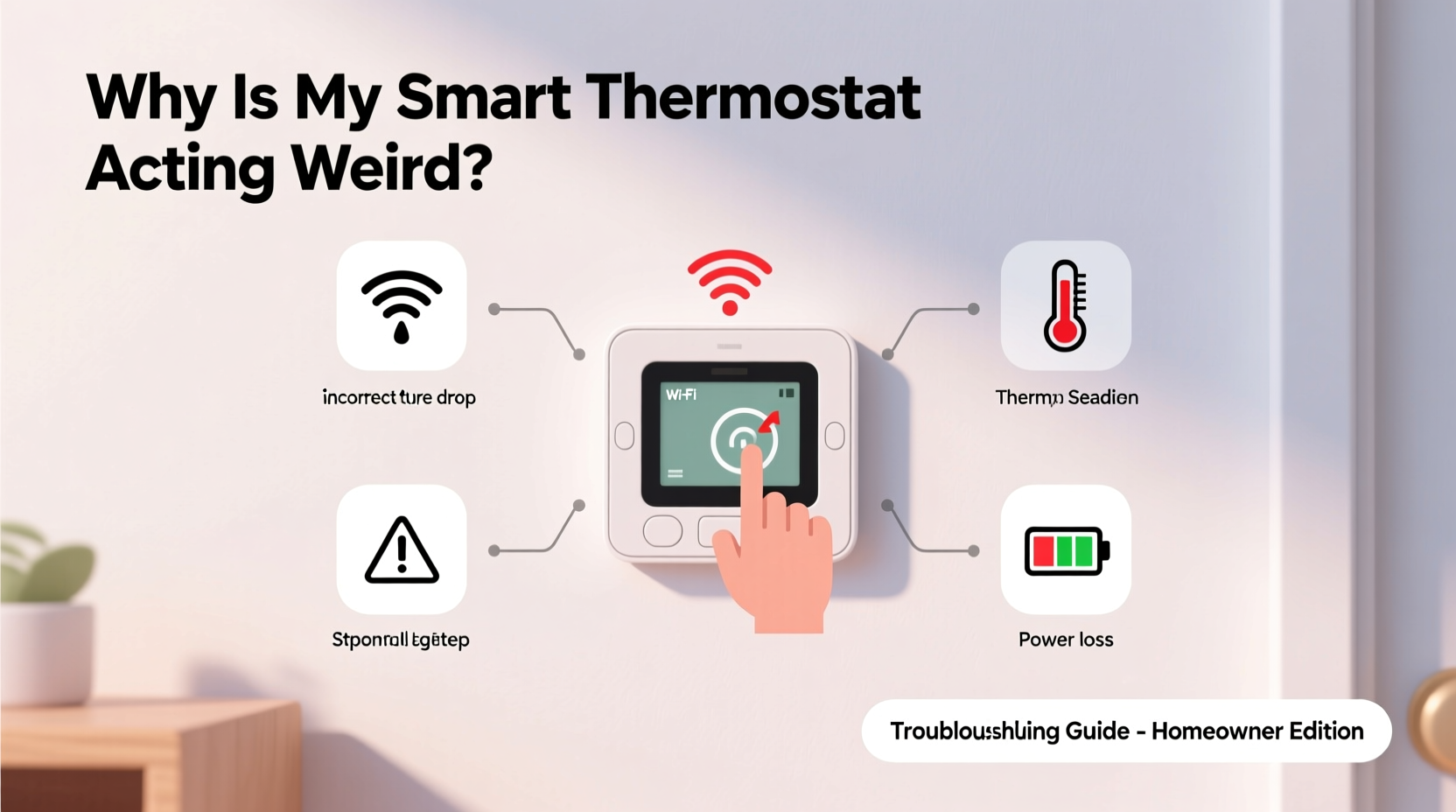
Before diving into fixes, it's important to recognize what \"acting weird\" actually means. Not every fluctuation is a malfunction—some behaviors fall within normal operation. However, persistent or disruptive patterns may indicate an underlying issue.
- Inconsistent temperature readings: The thermostat shows 72°F, but the room feels much colder or warmer.
- Frequent cycling: The HVAC system turns on and off every few minutes instead of running in steady cycles.
- Unresponsive controls: Touchscreen lags, buttons don’t register, or app commands fail.
- Wi-Fi disconnections: The thermostat drops connection repeatedly, preventing remote access.
- Scheduling errors: It ignores programmed settings or reverts to default modes.
- No power or blank screen: The display is dark despite being wired or charged.
These symptoms can stem from hardware, software, environmental, or HVAC compatibility issues. Identifying the root cause is key to applying the correct fix.
Step-by-Step Troubleshooting Process
When your smart thermostat misbehaves, follow this logical sequence to isolate and resolve the problem. Start with the simplest checks before moving to more complex diagnostics.
- Check power supply: Ensure the thermostat has consistent power. For battery-powered models, replace batteries. For hardwired units, verify that the circuit breaker is on and wires are secure.
- Restart the device: Perform a soft reset by turning it off and on again. Many temporary software glitches clear after a reboot.
- Verify Wi-Fi connectivity: Confirm your router is online and other devices can connect. Reconnect the thermostat to Wi-Fi if needed.
- Update firmware: Log into the manufacturer’s app and check for available updates. Outdated software often causes bugs.
- Inspect sensor placement: Avoid locations near windows, vents, or appliances that emit heat. These can skew internal temperature readings.
- Review HVAC compatibility: Some older heating and cooling systems lack a C-wire (common wire), leading to intermittent power loss.
- Test with manual override: Bypass scheduling and manually set the temperature to see if the system responds correctly.
Do’s and Don’ts When Troubleshooting Smart Thermostats
| Do’s | Don’ts |
|---|---|
| Double-check wiring connections, especially the C-wire | Ignore blinking status lights—they often indicate specific error codes |
| Keep the thermostat away from direct sunlight or drafts | Assume the HVAC system is faulty without testing the thermostat first |
| Use the manufacturer’s mobile app to monitor performance | Install third-party firmware or hacks unless officially supported |
| Clear the cache in the app if remote access fails | Force restart by removing power for extended periods without checking warranty terms |
| Contact customer support with error codes and logs | Over-tighten mounting screws, which can damage internal components |
Real-World Example: The Case of the Phantom Heating Cycles
Homeowner Lisa M. in Columbus, Ohio, noticed her Nest thermostat was turning on the furnace multiple times per hour, even when the house was already warm. She checked the schedule and confirmed no changes had been made. After ruling out external factors like open windows, she reviewed the thermostat’s activity log via the app and discovered repeated triggers labeled “Heat On – Manual.”
Further investigation revealed that her cat had been jumping onto the shelf where the thermostat was mounted, brushing against the screen and accidentally activating the heat function. Once she relocated the thermostat to a higher, inaccessible spot, the phantom cycles stopped immediately.
This case illustrates how physical interference—a factor many overlook—can mimic software malfunctions. Always consider environmental influences before assuming a technical fault.
“Many so-called ‘smart device failures’ are actually due to placement, user error, or minor connectivity hiccups. A methodical approach prevents unnecessary service calls.” — Carlos Mendez, HVAC Systems Technician with 15 years of field experience
Addressing Connectivity and App Issues
One of the biggest advantages of smart thermostats—their internet connectivity—is also a frequent source of problems. When your thermostat won’t connect to Wi-Fi or the app stops responding, try these steps:
- Ensure your router supports 2.4 GHz networks (most smart thermostats don’t work on 5 GHz).
- Move the thermostat closer to the router or install a Wi-Fi extender if signal strength is weak.
- Forget and re-add the thermostat in the app—sometimes pairing gets corrupted.
- Reboot your router and modem to refresh network settings.
- Check if your firewall or parental controls are blocking device communication.
If the app freezes or displays outdated data, clear its cache or reinstall it. Also, ensure your smartphone’s operating system is up to date, as outdated OS versions can interfere with app functionality.
Hardware and Installation Pitfalls
Poor installation is responsible for nearly 30% of smart thermostat issues reported to customer support teams. Even experienced DIYers can make mistakes when upgrading from a traditional thermostat.
The absence of a C-wire (common wire) is one of the most common culprits behind intermittent power, flickering screens, or sudden shutdowns. While some thermostats offer power-stealing technology or adapter kits, these aren’t always reliable—especially in homes with older HVAC systems.
If your unit keeps losing power:
- Confirm whether your system has a C-wire connected at both the thermostat and furnace.
- If missing, consider installing a common wire adapter (like the Nest Power Connector) or run a new C-wire from the furnace.
- Check voltage levels using a multimeter; low voltage (<24V AC) indicates a transformer or wiring issue.
Additionally, mismatched HVAC configurations—such as dual-fuel systems, multi-stage heating, or heat pumps with auxiliary strips—require proper setup during installation. Incorrect configuration leads to inefficient cycling, incorrect mode activation, or system lockouts.
Troubleshooting Checklist
Use this checklist to systematically identify and resolve smart thermostat issues:
- ✅ Verify thermostat has power (battery level or wired connection)
- ✅ Check that the HVAC breaker is on and furnace switch is enabled
- ✅ Restart the thermostat via settings or temporary power disconnect <4>✅ Confirm stable Wi-Fi signal and correct network password
- ✅ Update thermostat firmware and mobile app to latest version
- ✅ Inspect for obstructions or heat sources near the thermostat
- ✅ Review system settings for correct HVAC type and stage configuration
- ✅ Test HVAC operation by manually calling for heat or cooling
- ✅ Examine error codes in the app or on-screen indicators
- ✅ Contact manufacturer support with logs, model number, and symptoms
Frequently Asked Questions
Why does my smart thermostat show a different temperature than my other thermometer?
Smart thermostats measure ambient air temperature at their location. If placed near a vent, window, or appliance, readings can be skewed. Place a standalone digital thermometer nearby to compare. For accuracy, position the thermostat on an interior wall, away from airflow and direct sunlight.
Can a smart thermostat damage my HVAC system?
No, not if installed correctly. Smart thermostats operate within standard electrical parameters and communicate using low-voltage signals. However, improper wiring (e.g., connecting R to C directly) can short the system’s control board. When in doubt, hire a licensed HVAC technician.
How often should I recalibrate my smart thermostat?
Most modern units self-calibrate and don’t require manual adjustment. If you suspect inaccuracies, use the offset feature in settings to adjust the reading by a degree or two. For example, if the room is 70°F but the thermostat reads 73°F, apply a -3°F offset.
When to Call a Professional
While many smart thermostat issues can be resolved at home, certain situations warrant professional help:
- You smell burning or notice discoloration on wires.
- The HVAC system fails to turn on even after bypassing the thermostat.
- Multiple error codes persist after resets and updates.
- You’re unsure about electrical safety or lack a multimeter to test voltage.
Licensed HVAC technicians can verify system compatibility, test low-voltage circuits, and ensure safe integration. They can also help configure advanced features like humidifier control, ventilation scheduling, or geofencing based on occupancy patterns.
Conclusion: Take Control of Your Home Comfort
A smart thermostat should simplify your life—not complicate it. When it starts behaving erratically, the solution is often simpler than it appears. From ensuring a stable power supply to optimizing placement and keeping software updated, most issues can be resolved with patience and a structured approach.
By following the troubleshooting steps outlined here, you’ll not only fix current problems but also build confidence in managing your home’s smart ecosystem. Don’t let a glitchy display or spotty Wi-Fi discourage you from enjoying the benefits of intelligent climate control.




 浙公网安备
33010002000092号
浙公网安备
33010002000092号 浙B2-20120091-4
Comments
No comments yet. Why don't you start the discussion?