
Smart thermostats are designed to make home climate control more efficient, convenient, and energy-saving. But when your thermostat starts adjusting the temperature without your input, it can feel more like a nuisance than a convenience. You set 72°F in the morning, only to find it’s climbed to 78°F by noon — and you didn’t touch a thing. This kind of behavior raises concerns about comfort, energy bills, and even system reliability.
The truth is, unexpected temperature shifts are rarely random. Most are caused by predictable factors tied to settings, connectivity, or environmental triggers. Understanding these causes empowers you to regain control and optimize your system for both comfort and efficiency.
Common Reasons Your Smart Thermostat Changes Temperature Automatically
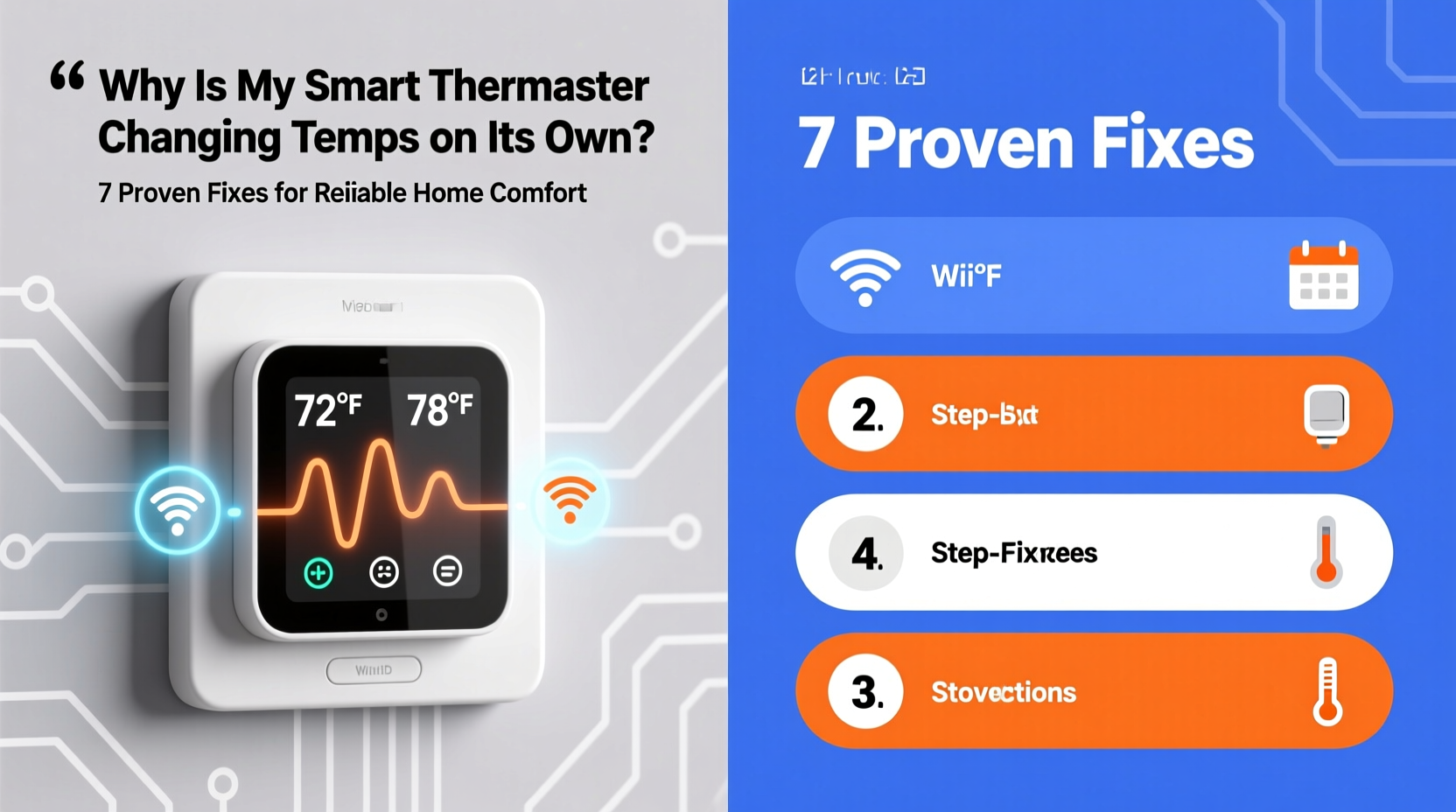
Before jumping to conclusions, recognize that many smart thermostats are built to adapt. They use sensors, learning algorithms, and scheduling features to modify temperatures based on habits, occupancy, and time of day. While this is intended to save energy, misconfigurations or misunderstandings about how these systems work can lead to confusion.
- Scheduled programming: Many users forget they’ve set up daily schedules that automatically adjust temperatures during certain hours (e.g., lowering heat at night).
- Auto-schedule or learning mode: Devices like the Nest or Ecobee learn your preferences over time and begin making adjustments autonomously.
- Geofencing: If enabled, your thermostat detects when your smartphone leaves or returns home and adjusts accordingly.
- Away mode activation: Motion sensors or app-based detection may trigger “Away” mode if no activity is sensed for several hours.
- Firmware updates: Some updates reset settings or alter default behaviors temporarily.
- Incorrect sensor readings: Poor placement near drafts, sunlight, or appliances can cause inaccurate ambient temperature detection.
Step-by-Step Guide to Diagnose and Fix Unwanted Temperature Changes
Follow this structured approach to identify and resolve the root cause behind erratic thermostat behavior.
- Review your schedule settings. Open your thermostat’s menu or companion app and navigate to the “Schedule” section. Ensure the programmed times and temperatures align with your expectations. Disable or edit any entries you don’t recognize.
- Check for geofencing or location services. In the app settings, look under “Home/Away Assist” or “Location.” Confirm whether multiple devices are linked and whether their presence affects thermostat behavior. Test disabling geofencing temporarily to see if the issue stops.
- Verify Away mode triggers. Some thermostats use motion sensors or lack of interaction to assume the house is empty. If your unit has a built-in occupancy sensor, ensure it’s not blocked or poorly positioned. Consider disabling automatic Away mode if false triggers persist.
- Inspect recent firmware updates. Visit the manufacturer’s support page or app dashboard to check for update logs. Sometimes new versions introduce bugs or reset preferences. Reapply custom settings after an update.
- Test manual override stability. Manually set a temperature and observe for 30–60 minutes. If it reverts, note the conditions (time, device location, HVAC status) to help pinpoint triggers.
- Reboot the thermostat. Power down the device through the app or circuit breaker for 30 seconds, then restore power. This clears temporary glitches and resets communication with your HVAC system.
Do’s and Don’ts When Troubleshooting Smart Thermostat Behavior
| Do | Don’t |
|---|---|
| Regularly review your temperature schedule monthly. | Assume all changes are due to malfunction—most are intentional settings. |
| Keep the thermostat away from direct sunlight, vents, or kitchen heat sources. | Install the thermostat near windows or exterior doors where temperature fluctuates. |
| Update firmware promptly but back up settings first. | Ignore software notifications—they often signal important changes. |
| Use the mobile app to monitor real-time status remotely. | Disable Wi-Fi permanently; doing so limits key smart features and remote diagnostics. |
| Label each HVAC stage in system settings correctly (e.g., heat pump vs. gas furnace). | Guess system type during setup—incorrect configuration leads to erratic cycling. |
Real Example: How One Homeowner Fixed Erratic Cooling Cycles
Sarah, a homeowner in Austin, Texas, noticed her Ecobee was turning on the AC midday despite being set to 75°F. She wasn’t home, and no one had adjusted the thermostat. After ruling out children or pets tampering with the device, she reviewed her app settings.
She discovered that “Smart Recovery” was enabled—a feature designed to pre-cool the house before her expected return time. The thermostat used historical data and weather forecasts to start cooling earlier on hot days. While well-intentioned, it clashed with her goal of minimizing afternoon AC usage to reduce peak demand charges.
Solution: Sarah disabled Smart Recovery and adjusted her schedule to allow a gradual cooldown starting one hour before arrival. She also fine-tuned her geofencing radius to prevent premature detection. These changes eliminated unwanted cooling cycles while maintaining comfort upon arrival.
“Most smart thermostat issues stem from misunderstood features, not defects. Users benefit most when they treat these devices as tools that require calibration—not magic boxes.” — David Lin, HVAC Systems Engineer with 12 years of smart home integration experience
Advanced Fixes: When Basic Steps Aren’t Enough
If standard troubleshooting fails, consider deeper technical or environmental factors.
Check Sensor Interference and Placement
Thermostats rely on accurate ambient temperature readings. Units placed too close to:
- Windows receiving afternoon sun,
- Kitchen ovens or refrigerators,
- Vents blowing heated or cooled air,
- Or electronics generating heat (like routers)
—can register false highs or lows, prompting unnecessary adjustments.
Moving the thermostat just a few feet can dramatically improve accuracy. Ideal placement is on an interior wall, at eye level, away from airflow obstructions and heat sources.
Investigate Multiple User Access
In households with shared access via apps, one family member might unknowingly override settings. Review user permissions in the app and disable unused accounts. Set up change notifications so you’re alerted whenever a new adjustment is made.
Reset and Reconfigure the Device
If problems persist, perform a factory reset:
- Back up your current settings (schedule, humidity control, etc.).
- Navigate to Settings > Reset > Factory Reset (exact path varies by brand).
- Wait for reboot and go through initial setup again.
- Re-enter your preferred schedule and disable automation features one at a time to isolate the culprit.
This process eliminates corrupted configurations and ensures a clean operational baseline.
Upgrade Wiring or Add a C-Wire
Some thermostats behave erratically due to unstable power supply. Older homes without a common wire (C-wire) force smart thermostats to “steal” power from heating circuits, causing intermittent resets or communication drops. These micro-outages can disrupt scheduled modes or disengage Wi-Fi, leading to inconsistent behavior.
Solution: Install a C-wire or use a power extender kit (available from most manufacturers). This provides continuous power and stabilizes performance.
FAQ: Common Questions About Autonomous Temperature Changes
Why does my thermostat change temperature at night?
This is typically due to a programmed sleep schedule or Eco mode kicking in. Many users set lower heat or higher cooling during sleeping hours for energy savings. Check your schedule settings to confirm timing and values. You can customize or disable nighttime adjustments based on your comfort needs.
Can someone else control my smart thermostat remotely?
Yes—if you’ve granted access via the app or linked accounts (e.g., Google Home, Amazon Alexa). Unauthorized access is rare but possible if credentials are compromised. Secure your account with two-factor authentication, change passwords regularly, and audit connected devices monthly. Remove any unfamiliar users immediately.
Does weather affect my smart thermostat’s behavior?
Absolutely. Advanced models pull local weather data to optimize pre-heating or pre-cooling. For example, if a heatwave is forecast, your thermostat may start cooling earlier to maintain comfort without spiking energy use. While helpful, this proactive behavior can seem unpredictable. You can usually toggle predictive features on or off in the app settings.
Final Checklist: Stop Unwanted Temperature Changes for Good
Use this checklist to systematically eliminate causes and stabilize your smart thermostat:
- ✅ Review and edit temperature schedules in the app
- ✅ Disable Auto-Schedule or Learning Mode if unwanted
- ✅ Turn off Geofencing or test its accuracy
- ✅ Confirm Away mode isn’t triggering falsely
- ✅ Ensure thermostat is properly mounted and located
- ✅ Verify stable Wi-Fi and power supply (consider adding a C-wire)
- ✅ Update firmware to the latest version
- ✅ Audit user access and enable change notifications
- ✅ Perform a factory reset if issues continue
- ✅ Consult HVAC professional if hardware or wiring issues are suspected
Conclusion: Take Control of Your Comfort
Your smart thermostat should enhance your lifestyle, not complicate it. Unplanned temperature shifts are frustrating, but they’re almost always solvable with careful inspection and informed adjustments. By understanding the logic behind automated behaviors—from scheduling to geofencing—you transform confusion into confidence.
Start by reviewing your current settings, then methodically test and refine until the system behaves as intended. Remember, smart doesn’t mean autonomous. The best results come when technology serves your preferences, not the other way around.




 浙公网安备
33010002000092号
浙公网安备
33010002000092号 浙B2-20120091-4
Comments
No comments yet. Why don't you start the discussion?