
Smart thermostats promise comfort, energy savings, and intelligent climate control. But when the temperature on the display doesn’t match what you’re feeling—or what another thermometer says—trust in the system begins to erode. Inaccurate readings can lead to uncomfortable rooms, inefficient heating and cooling cycles, and higher utility bills. The good news: most issues are fixable with a few targeted steps. Understanding why your smart thermostat might be misreading room temperature allows you to diagnose problems quickly and restore accurate performance.
Common Causes of Inaccurate Temperature Readings
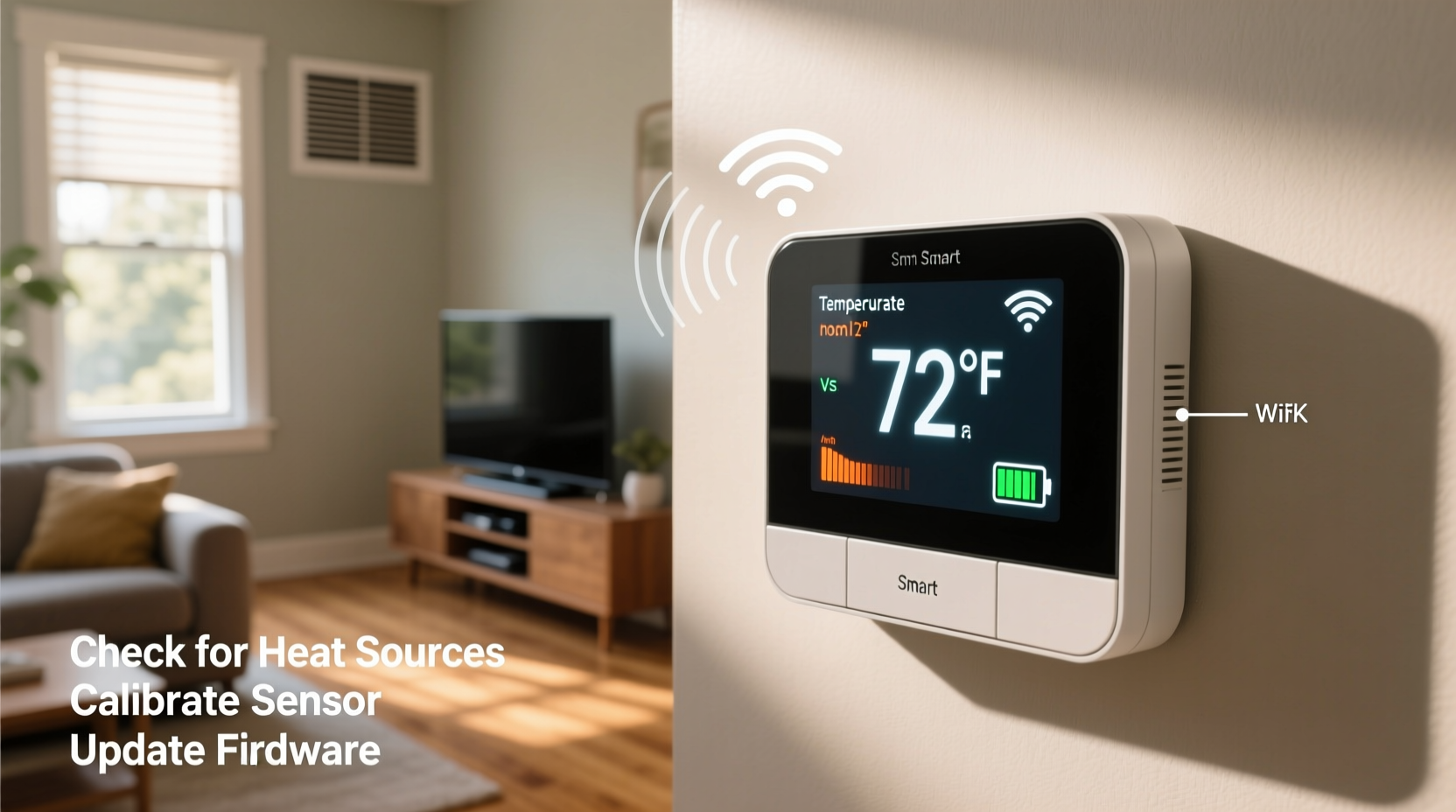
Smart thermostats rely on internal sensors to measure ambient air temperature. However, these sensors don’t operate in a vacuum. Several environmental and technical factors can distort their readings:
- Direct sunlight exposure: If your thermostat is mounted where sunlight hits it directly—especially through a nearby window—the casing can absorb heat, tricking the sensor into thinking the room is warmer than it actually is.
- Proximity to heat sources: Electronics like TVs, lamps, ovens, or even people generate localized heat. A thermostat placed near any of these may register false highs.
- Poor placement on exterior walls: Walls facing outside, particularly in older homes with poor insulation, can become colder or hotter than interior spaces, affecting sensor accuracy.
- Drafts and airflow: Vents, doors, or windows that allow drafts can cool the immediate area around the thermostat, causing it to overheat the space unnecessarily.
- Firmware bugs or outdated software: Like all connected devices, smart thermostats depend on firmware. Bugs or unpatched versions may cause erratic behavior, including incorrect temperature reporting.
- Clogged or dusty sensors: Over time, dust accumulation inside the unit can insulate the sensor or alter its responsiveness.
Step-by-Step Guide to Diagnose and Fix the Issue
Follow this structured approach to identify and resolve the root cause of inaccurate readings:
- Verify the discrepancy with an independent thermometer
Place a reliable digital thermometer next to your thermostat. Let both sit undisturbed for at least 30 minutes. Compare readings. A difference of more than 1–2°F (0.5–1°C) suggests a problem. - Check thermostat placement
Evaluate whether the device is exposed to direct sunlight, near appliances, or on an exterior wall. If so, consider relocating it—though this may require professional help if wiring is involved. - Inspect for obstructions or dust buildup
Turn off power to the thermostat at the breaker. Gently remove the faceplate and use compressed air to clean around the sensor. Do not use liquids or abrasive tools. - Update firmware
Open your thermostat’s companion app. Navigate to settings and check for available updates. Install any pending firmware upgrades, as manufacturers often release patches for sensor calibration issues. - Recalibrate the temperature sensor
Some models (e.g., Ecobee, Nest) offer manual calibration. In the app, find “Temperature Calibration” under settings and adjust based on your verified reading from the standalone thermometer. - Test different rooms (if using remote sensors)
If your system includes remote room sensors, ensure they aren’t placed near heat sources or drafty areas. Switch the primary control to “Follow Me” mode or manually select the most representative sensor. - Reset the thermostat
As a last resort, perform a factory reset. This clears potential software glitches but will erase custom schedules and Wi-Fi settings. Reconfigure afterward and monitor for improvement.
Do’s and Don’ts: Best Practices for Accurate Readings
| Do’s | Don’ts |
|---|---|
| Install the thermostat on an interior wall, away from windows and doors | Mount it near a kitchen stove, oven, or entertainment center |
| Use remote sensors to average temperatures across multiple rooms | Rely solely on the built-in sensor if it's in a poorly located spot |
| Keep vents and radiators clear of furniture or curtains | Block airflow with objects that could affect room circulation |
| Regularly clean around the thermostat and inspect for dust | Use wet cloths or sprays near the device |
| Enable automatic software updates when available | Ignore firmware update notifications for extended periods |
Real-World Example: How One Homeowner Fixed Persistent Overheating
Mark, a homeowner in Denver, noticed his Nest thermostat consistently showed 72°F, yet his living room felt sweltering during winter evenings. He initially assumed his furnace was malfunctioning. After replacing filters and checking ducts without success, he placed a standalone thermometer beside the thermostat. It read 68°F—a 4-degree variance.
Upon closer inspection, Mark realized afternoon sunlight streamed through a west-facing window and hit the thermostat directly between 4 PM and 6 PM. Even though the rest of the house cooled down, the unit continued calling for heat because it \"felt\" warm. He temporarily covered the thermostat with a folded piece of cardboard during those hours, which stopped unnecessary heating cycles. Eventually, he relocated the unit to a shaded interior hallway with the help of an HVAC technician. Post-move, temperature consistency improved dramatically, and his monthly gas bill dropped by 12%.
Expert Insight: What HVAC Professionals Say
“Over half the service calls we get for ‘faulty thermostats’ turn out to be placement issues. People install them where it’s convenient, not where it’s accurate. A thermostat should sense the true room temperature—not the heat from a lamp or a sunbeam.” — Carlos Mendez, HVAC Technician with 18 years of field experience
“Even high-end smart thermostats can drift over time. I recommend homeowners do a quick temperature validation every six months, just like changing smoke detector batteries.” — Dr. Lena Patel, Building Efficiency Researcher at Northeastern University
Troubleshooting Checklist
Use this checklist to methodically address inaccuracies:
- ✅ Compare thermostat reading with a trusted standalone thermometer
- ✅ Confirm the thermostat is not in direct sunlight or near heat-emitting devices
- ✅ Check for dust or debris around the sensor and clean gently if needed
- ✅ Ensure no cold drafts from windows or vents are blowing on the unit
- ✅ Verify the latest firmware is installed via the mobile app
- ✅ Calibrate the temperature sensor if the model supports it
- ✅ Test remote sensors (if applicable) and adjust which one controls the system
- ✅ Consider relocating the thermostat if environmental factors can't be resolved
- ✅ Reset to factory settings only after backing up preferences
- ✅ Contact manufacturer support if hardware failure is suspected
Frequently Asked Questions
Can a smart thermostat learn the wrong temperature preferences?
Yes. If the thermostat consistently reads inaccurately due to placement or calibration errors, its learning algorithm may adapt to false data. For example, if it thinks the house is colder than it is, it will heat more frequently, reinforcing inefficient patterns. Correcting the sensor issue resets the foundation for accurate learning.
Why does my thermostat show a different temperature than my phone weather app?
Weather apps report outdoor conditions from regional stations, often miles away. Your thermostat measures indoor ambient temperature. Comparing the two isn’t reliable. Instead, use an indoor thermometer placed in a central room under stable conditions for comparison.
How often should I recalibrate my smart thermostat?
Most users only need to calibrate once—after initial installation or if they suspect a problem. However, performing a verification check twice a year (beginning of heating and cooling seasons) ensures long-term accuracy. Models like Ecobee allow fine-tuning in 0.5°F increments for precision.
Advanced Tips for Multi-Sensor Systems
If you own a thermostat with remote room sensors (e.g., Ecobee, Nest with Room Sensors), you have more tools to combat inaccuracies—but also more complexity.
These systems typically let you choose how sensors influence control:
- Average Mode: Uses a mean temperature from all sensors. Ideal for balanced comfort but can mask extremes.
- Primary Sensor Mode: Relies on one designated room. Useful if you spend most time in a specific area.
- Occupancy-Based (“Follow Me”): Adjusts based on where people are detected. Efficient but may ignore unoccupied rooms that still need conditioning.
To optimize:
- Place remote sensors in frequently used rooms, away from electronics and windows.
- Avoid putting them in closets, bathrooms, or near ceiling fans.
- Label each sensor clearly in the app (e.g., “Living Room,” “Master Bedroom”).
- Disable sensors in rarely used rooms to prevent skewed averages.
One overlooked feature: some apps show historical temperature graphs per sensor. Reviewing these can reveal anomalies—such as a bedroom spiking every evening due to a nearby bathroom exhaust fan—that contribute to misleading overall readings.
When to Seek Professional Help
While many issues are user-fixable, certain signs indicate deeper problems:
- The thermostat continues showing erratic temperatures after cleaning, recalibration, and relocation attempts.
- There are visible signs of damage—cracks, moisture, or burnt smells.
- The HVAC system runs constantly despite correct settings, suggesting a communication or sensor failure.
- The display flickers or freezes regularly, indicating possible hardware faults.
In such cases, contact either the thermostat manufacturer’s support team or a licensed HVAC technician. Some units are under warranty for up to three years, and unauthorized disassembly can void coverage.
Conclusion: Regain Control of Your Home’s Climate
An inaccurate smart thermostat undermines both comfort and efficiency. But with systematic troubleshooting—from verifying sensor data to optimizing placement and settings—most problems can be resolved without replacement. Accuracy starts with awareness: knowing where your thermostat is, what influences it, and how to validate its readings. By applying these practical steps, you ensure your smart home technology works for you, not against you.




 浙公网安备
33010002000092号
浙公网安备
33010002000092号 浙B2-20120091-4
Comments
No comments yet. Why don't you start the discussion?