
Smart thermostats are designed to simplify home climate control, improve energy efficiency, and enhance comfort through intelligent automation. However, when your device starts reporting temperatures that don’t match reality—like claiming it’s 72°F while you’re shivering or sweltering—it undermines trust in the system. Inaccurate temperature readings can lead to inefficient heating and cooling cycles, higher energy bills, and inconsistent indoor comfort. The good news? Most of these issues stem from correctable causes like poor placement, sensor interference, or minor calibration drift. This comprehensive guide explains why your smart thermostat may be giving strange readings and walks you through a step-by-step calibration process to restore accuracy.
Common Causes of Inaccurate Smart Thermostat Readings
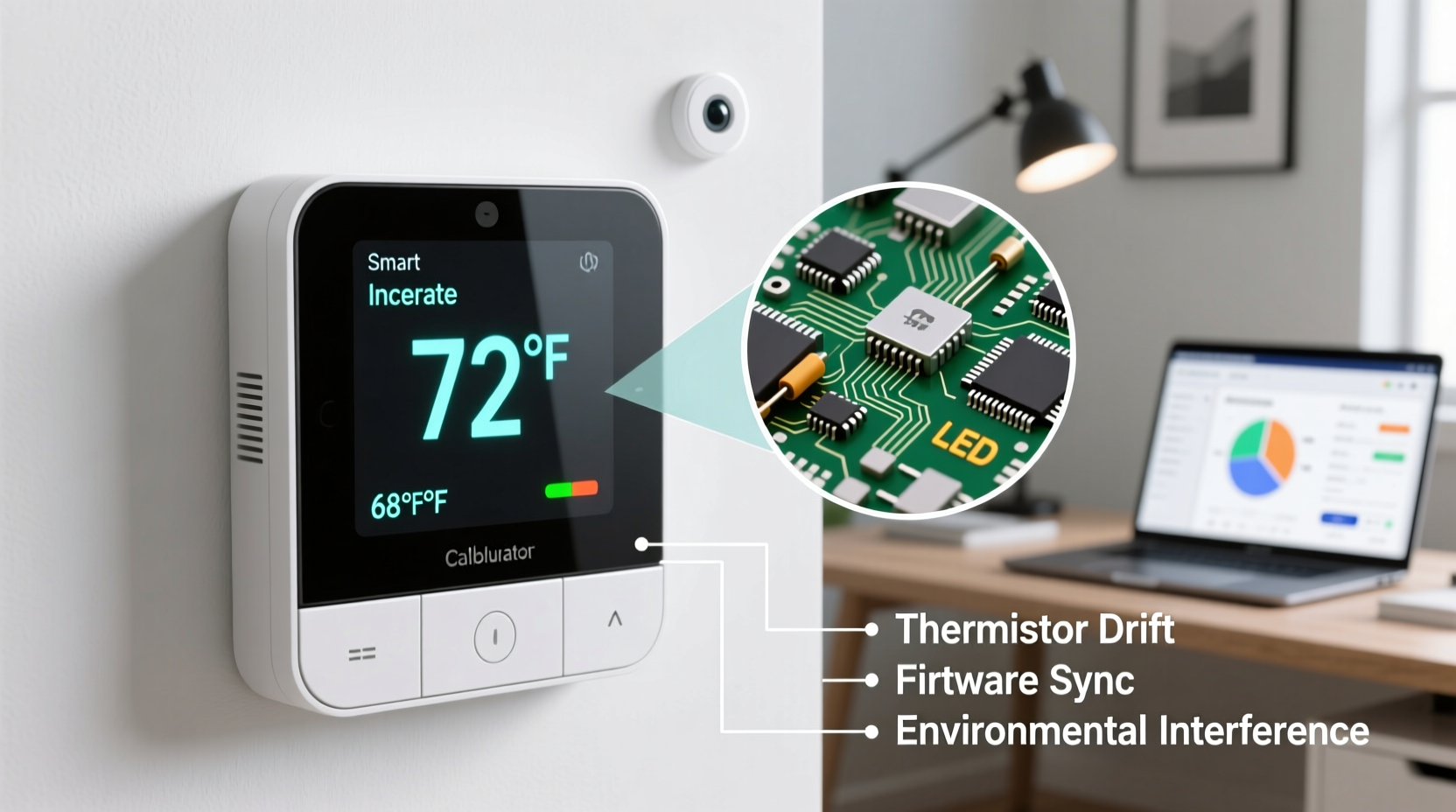
Before jumping into calibration, it’s essential to understand what might be causing incorrect temperature data. Many homeowners assume their thermostat is faulty when, in fact, environmental or installation factors are to blame.
- Poor Placement: Installing a thermostat near heat sources such as direct sunlight, appliances, lamps, or exterior doors can skew internal sensor readings.
- Airflow Obstruction: Furniture, curtains, or wall coverings blocking the thermostat can trap heat or cold air around the unit.
- Drafts and Air Leaks: Nearby windows or vents may expose the thermostat to fluctuating conditions not representative of the whole room.
- Firmware Issues: Outdated software can cause glitches in sensor interpretation or display logic.
- Calibration Drift: Over time, even high-quality sensors can experience minor deviations due to aging components or electrical fluctuations.
- Multiple Heat Sources: Electronics like TVs or computers near the thermostat emit heat and influence readings.
How to Test Your Thermostat’s Accuracy
Before adjusting anything, confirm whether the thermostat is actually off. Use a reliable standalone thermometer to verify ambient room temperature.
- Place a calibrated digital thermometer next to your thermostat, ensuring both are at eye level and away from drafts or radiant heat.
- Wait at least 15–20 minutes for temperatures to stabilize without HVAC operation.
- Compare the reading on the thermostat with the external thermometer.
- If the difference exceeds ±1–2°F (±0.5–1°C), calibration or troubleshooting is warranted.
Repeat this test at different times of day—especially during heating or cooling cycles—to check consistency. Some thermostats adjust based on predictive algorithms, so temporary discrepancies during transitions are normal. Persistent errors, however, require action.
Step-by-Step Calibration Guide
Not all smart thermostats allow manual calibration, but most major brands—including Nest, Ecobee, Honeywell Home, and Emerson—offer built-in adjustment features. Follow this universal procedure tailored to common models.
Step 1: Check Manufacturer Guidelines
Visit the manufacturer’s support site to confirm if your model supports temperature offset adjustments. For example:
- Nest Learning Thermostat: Supports automatic self-correction but allows limited user input via HVAC system settings.
- Ecobee: Offers a “Temperature Correction” setting under Settings > Preferences.
- Honeywell Home T9/T10: Allows manual offset in the app under Device Settings.
Step 2: Access Calibration Settings
Using the thermostat interface or mobile app:
- Navigate to Settings.
- Select Preferences, Sensors, or Device Information.
- Look for options labeled “Temperature Sensor,” “Room Temperature Offset,” or “Calibration.”
Step 3: Apply a Temperature Offset
If your thermostat reads 74°F but a trusted thermometer shows 71°F, apply a -3°F offset to correct it.
- Increase the offset to raise displayed temperature (e.g., +2°F if thermostat reads too low).
- Decrease the offset to lower displayed temperature (e.g., -1.5°F if too high).
Note: This adjustment does not change actual HVAC behavior unless the thermostat uses its sensor for control decisions. Always save changes and wait 15 minutes before retesting.
Step 4: Re-test and Fine-Tune
After applying the offset, repeat the verification process with the external thermometer. Make incremental adjustments until readings align within 1°F.
Step 5: Update Firmware
Outdated firmware can impair sensor logic. Check for updates in the thermostat menu or companion app. Most modern units update automatically, but periodic manual checks ensure optimal performance.
Do’s and Don’ts of Smart Thermostat Maintenance
| Do’s | Don’ts |
|---|---|
| Install the thermostat on an interior wall, away from windows and vents. | Mount it near kitchens, bathrooms, or laundry rooms where humidity and heat fluctuate. |
| Use remote room sensors if available to average multiple zone readings. | Rely solely on the thermostat’s built-in sensor in multi-level homes. |
| Clean dust from vents and around the thermostat monthly. | Ignore visible dust buildup—dust insulates sensors and affects accuracy. |
| Verify readings seasonally, especially before winter and summer peaks. | Assume last year’s settings still apply without checking. |
| Pair with a weatherization audit to eliminate root causes of discomfort. | Blame the thermostat for issues caused by poor insulation or leaky ducts. |
“Thermostats don’t fail often—but they react to their environment. More than half the ‘faulty thermostat’ calls we get turn out to be placement or airflow issues.” — Mark Reynolds, HVAC Technician with 18 years of field experience
Real-World Example: Resolving a Misleading Reading
Sarah in Denver installed a new Ecobee smart thermostat last fall. She noticed her home felt colder than the displayed 68°F, prompting her furnace to run longer than expected. Her energy bill rose by 18% over two months. After ruling out furnace issues, she placed a digital hygrometer/thermometer beside the unit. It consistently read 65°F—3 degrees lower than the thermostat.
She accessed her Ecobee app, navigated to Sensors > Thermostat > Temperature Correction, and applied a -3°F offset. Within hours, the system adjusted its cycling patterns. A week later, her home felt more evenly heated, and runtime decreased by nearly 25 minutes per cycle. Sarah also discovered that afternoon sun through a nearby window was heating the wall behind the thermostat. She installed a small shade extension, which stabilized readings further.
This case illustrates how both calibration and environmental fixes work together for optimal results.
When to Consider Remote Sensors or Professional Help
Single-point sensing has limitations, especially in larger or multi-story homes. If your living area experiences hot and cold spots, consider upgrading to a system with remote room sensors.
- Ecobee includes one room sensor with select models and supports up to 32 additional ones.
- Nest doesn’t offer built-in remote sensors but integrates with certain third-party devices.
- Honeywell Home T-series models support wireless remote temperature monitoring.
These sensors feed real-time data from key areas (e.g., bedrooms, basements), allowing the thermostat to calculate an average and optimize comfort across zones.
If calibration fails and readings remain erratic, contact a licensed HVAC technician. Possible underlying issues include:
- Faulty internal thermistor or circuit board
- Improper wiring (e.g., loose C-wire affecting power stability)
- Interference from electromagnetic fields (rare but possible near large motors)
Frequently Asked Questions
Can I calibrate my smart thermostat myself?
Yes, most modern smart thermostats allow users to adjust temperature offsets through the device menu or mobile app. No technical tools are required—just a reliable reference thermometer and access to the settings.
Why does my thermostat show a different temperature than my phone’s weather app?
Your phone displays outdoor temperature from regional weather stations, often miles away. Indoor conditions vary significantly based on insulation, HVAC performance, and occupancy. Always compare your thermostat to another indoor thermometer, not outdoor forecasts.
How often should I recalibrate my smart thermostat?
Once annually is sufficient for most homes. However, recalibrate immediately if you notice sudden discrepancies, after major renovations, or when installing new windows/insulation that affect room dynamics.
Final Checklist: Restore Your Thermostat’s Accuracy
- Verify inaccuracy using a trusted thermometer.
- Inspect thermostat placement for heat sources, drafts, or obstructions.
- Clean dust from the unit and surrounding area.
- Check for firmware updates.
- Apply a temperature offset via the app or device menu.
- Retest and fine-tune as needed.
- Consider adding remote sensors for better whole-home accuracy.
- Consult an HVAC professional if problems persist.
Conclusion
Smart thermostats are powerful tools for managing home comfort and energy use—but only when they report accurate data. Strange readings are rarely due to hardware failure; instead, they signal environmental influences or minor calibration needs. By understanding how these devices measure temperature, testing them objectively, and making precise adjustments, you regain control over your indoor climate. Proper placement, routine verification, and timely calibration ensure your system operates efficiently year-round. Don’t ignore subtle discrepancies—they add up in discomfort and cost. Take action today, follow the steps outlined here, and transform your smart thermostat back into the reliable ally it was designed to be.




 浙公网安备
33010002000092号
浙公网安备
33010002000092号 浙B2-20120091-4
Comments
No comments yet. Why don't you start the discussion?