
Smart thermostats promise comfort, energy savings, and intelligent climate control. But when your device reports a room temperature of 85°F while you're shivering at 68°F, something’s clearly off. Inaccurate readings don’t just disrupt comfort—they can spike energy bills and strain your HVAC system. The good news: most issues have straightforward causes and fixes. Understanding why your smart thermostat behaves erratically empowers you to restore accuracy and regain control over your home environment.
Common Causes of Inaccurate Smart Thermostat Readings
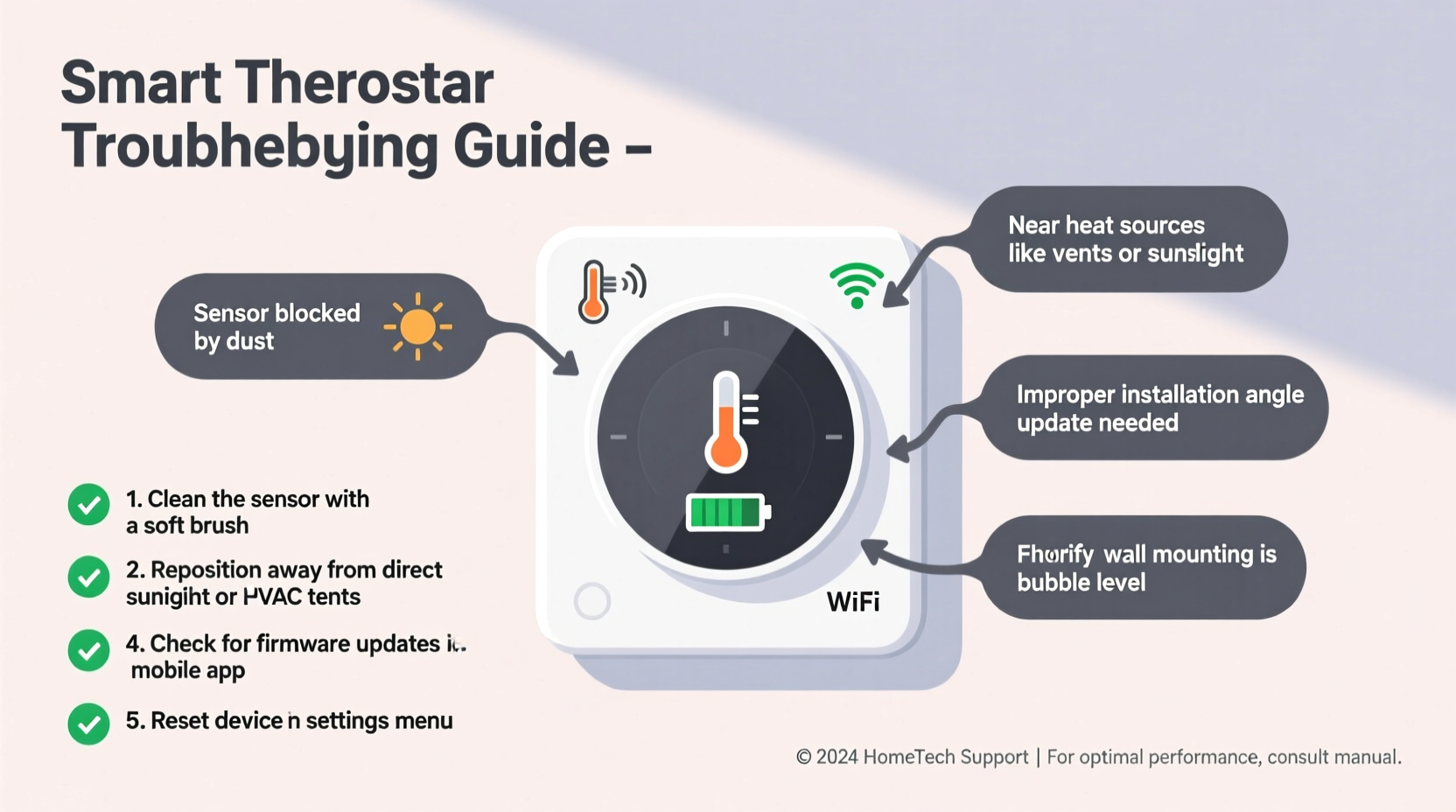
Before diving into solutions, it's essential to identify what might be causing the discrepancy. Smart thermostats rely on internal sensors and algorithms, but their readings can be influenced by both physical placement and digital interference.
- Poor placement: Installing near heat sources like ovens, direct sunlight, or electronics skews sensor data.
- Drafts or airflow: Vents, doors, or ceiling fans blowing directly on the thermostat confuse its perception of ambient temperature.
- Faulty calibration: Over time, internal sensors may drift from factory settings, leading to incorrect baseline readings.
- Software bugs: Firmware glitches or outdated software can cause erratic behavior, including phantom temperature spikes.
- Wi-Fi or cloud sync issues: If the thermostat can't communicate with its app or server, displayed temperatures may lag or reflect cached data.
- Multiple sensors misconfigured: Some systems use remote room sensors; if misplaced or disabled, they distort overall readings.
Step-by-Step Troubleshooting Guide
Follow this structured approach to diagnose and resolve abnormal temperature reporting. Each step isolates potential culprits, minimizing guesswork.
- Verify actual room temperature using a standalone digital thermometer placed nearby. Wait 15 minutes for stabilization. Compare results.
- Check thermostat location for exposure to sunlight, drafts, or nearby appliances. Relocate if necessary.
- Inspect for obstructions—ensure nothing blocks airflow around the unit, including wall coverings or decorative plates.
- Restart the thermostat by powering down (via breaker or battery removal) for 30 seconds, then restoring power.
- Update firmware through the manufacturer’s app. Outdated versions often contain unresolved sensor bugs.
- Recalibrate the sensor if your model supports manual calibration (refer to user manual).
- Review connected room sensors in multi-sensor setups. Disable or reposition any reporting extreme values.
- Reset network settings if app-reported temps differ from device display—this may indicate syncing errors.
- Perform a factory reset as a last resort before contacting support.
When Temperature Discrepancies Persist
If all steps fail and your thermostat still reads inaccurately, consider hardware failure. Internal thermistors degrade over time, especially in high-humidity environments. Contact the manufacturer for diagnostics or replacement under warranty.
Do’s and Don’ts of Smart Thermostat Placement
Location is everything. A perfectly functioning thermostat can deliver flawed data if installed incorrectly. Use this guide to evaluate your setup.
| Do | Don’t |
|---|---|
| Install on an interior wall, away from windows and doors | Place near kitchens, bathrooms, or laundry rooms with fluctuating heat/humidity |
| Mount at eye level (about 5 feet from floor) | Install behind curtains, cabinets, or furniture that restricts airflow |
| Choose a frequently used central room (e.g., living room) | Put it near HVAC supply vents or return grilles |
| Ensure stable, level mounting to prevent internal component stress | Expose it to direct sunlight for more than an hour daily |
| Use remote sensors to average temperatures across zones | Rely solely on the main unit’s reading in open-concept or multi-level homes |
Real-World Example: The Case of the Phantom Heatwave
A homeowner in Denver reported their Nest thermostat consistently showing 82°F in the bedroom, despite feeling chilly. They followed basic resets with no change. Upon inspection, they discovered the unit was mounted beside a recessed LED light fixture that generated noticeable heat after prolonged use. Moving the thermostat six inches to the left—away from the fixture—immediately corrected the reading to match a handheld thermometer within 0.5°F. This case underscores how subtle environmental factors can dramatically affect sensor performance, even without obvious warning signs.
“Thermostats measure their immediate microclimate, not your whole house. One heat source nearby can throw off the entire system.” — Dr. Alan Reyes, Building Efficiency Engineer, National Institute of Standards and Technology (NIST)
Advanced Fixes: Calibration and Sensor Management
Some thermostats allow manual calibration adjustments. For example, Ecobee models let users apply an offset (±5°F) to correct persistent discrepancies. Here’s how to use this feature wisely:
- Measure room temperature with a calibrated digital thermometer at multiple times of day.
- Calculate the average difference between the thermostat and the reference device.
- In the thermostat settings (or app), locate “Temperature Correction” or similar.
- Enter the offset value (e.g., -2.0 if your thermostat reads 74°F when it’s actually 72°F).
- Save and monitor for 24 hours to confirm stability.
For systems with remote sensors (like Ecobee or Honeywell Home T10), ensure each sensor is properly placed and reporting valid data. Disable any sensor located in a poorly representative area (e.g., a sunroom or basement). You can also set priority rooms so the thermostat averages intelligently rather than blindly.
Troubleshooting Checklist
Use this checklist to methodically address thermostat inaccuracies:
- ✅ Confirm actual room temperature with an independent thermometer
- ✅ Inspect thermostat for direct sunlight, drafts, or nearby heat sources
- ✅ Restart the thermostat and check for firmware updates
- ✅ Verify Wi-Fi connectivity and app synchronization
- ✅ Review and adjust remote sensor settings (if applicable)
- ✅ Perform manual temperature calibration if supported
- ✅ Factory reset only if other steps fail
- ✅ Contact manufacturer support if hardware failure is suspected
FAQ: Common Questions About Smart Thermostat Accuracy
Why does my thermostat show different temperatures than my phone weather app?
Weather apps report outdoor conditions from regional stations, often miles away. Your thermostat measures indoor air temperature at its specific location. Differences of 10–20°F are normal depending on climate, insulation, and activity. Always compare your thermostat to an indoor thermometer, not outdoor forecasts.
Can humidity affect my smart thermostat’s temperature reading?
Most smart thermostats don’t directly factor humidity into temperature measurement, but high humidity can influence how heat feels (thermal comfort). However, excessive moisture may impact sensor longevity over time. Models with built-in humidity sensors use this data for fan control or comfort algorithms, not core temperature calculation.
How often should I recalibrate my smart thermostat?
Annual verification is sufficient for most homes. If you notice sudden changes in heating/cooling behavior or inconsistent room comfort, perform a spot check immediately. High-moisture areas (coastal regions, basements) may require biannual checks.
Conclusion: Regain Control of Your Home Climate
Inaccurate thermostat readings undermine the very purpose of smart climate control—comfort, efficiency, and automation. While modern devices are engineered for precision, they’re only as reliable as their environment and maintenance. By auditing placement, verifying sensor data, and applying targeted fixes, you can eliminate false readings and optimize HVAC performance. Don’t tolerate misleading numbers. Take action today: check your thermostat’s surroundings, run a quick comparison test, and apply the corrections outlined here. A few minutes of troubleshooting can save hundreds in wasted energy and restore peace to your household routine.




 浙公网安备
33010002000092号
浙公网安备
33010002000092号 浙B2-20120091-4
Comments
No comments yet. Why don't you start the discussion?