
Smart thermostats are designed to enhance comfort, reduce energy costs, and simplify climate control. But when your air conditioner fails to cool despite the thermostat indicating it should be running, frustration sets in quickly—especially during peak summer heat. The issue may not always lie with your HVAC system. Often, the culprit is improper calibration or miscommunication between your smart thermostat and cooling unit. Understanding how these devices work—and how they can go wrong—is the first step toward restoring reliable cooling.
This guide explores the most common reasons a smart thermostat fails to trigger proper cooling, walks through detailed calibration techniques, and provides actionable steps to diagnose and resolve issues. Whether you’re using a Nest, Ecobee, Honeywell Home, or another brand, the principles apply across platforms.
Common Reasons Your Smart Thermostat Isn’t Cooling
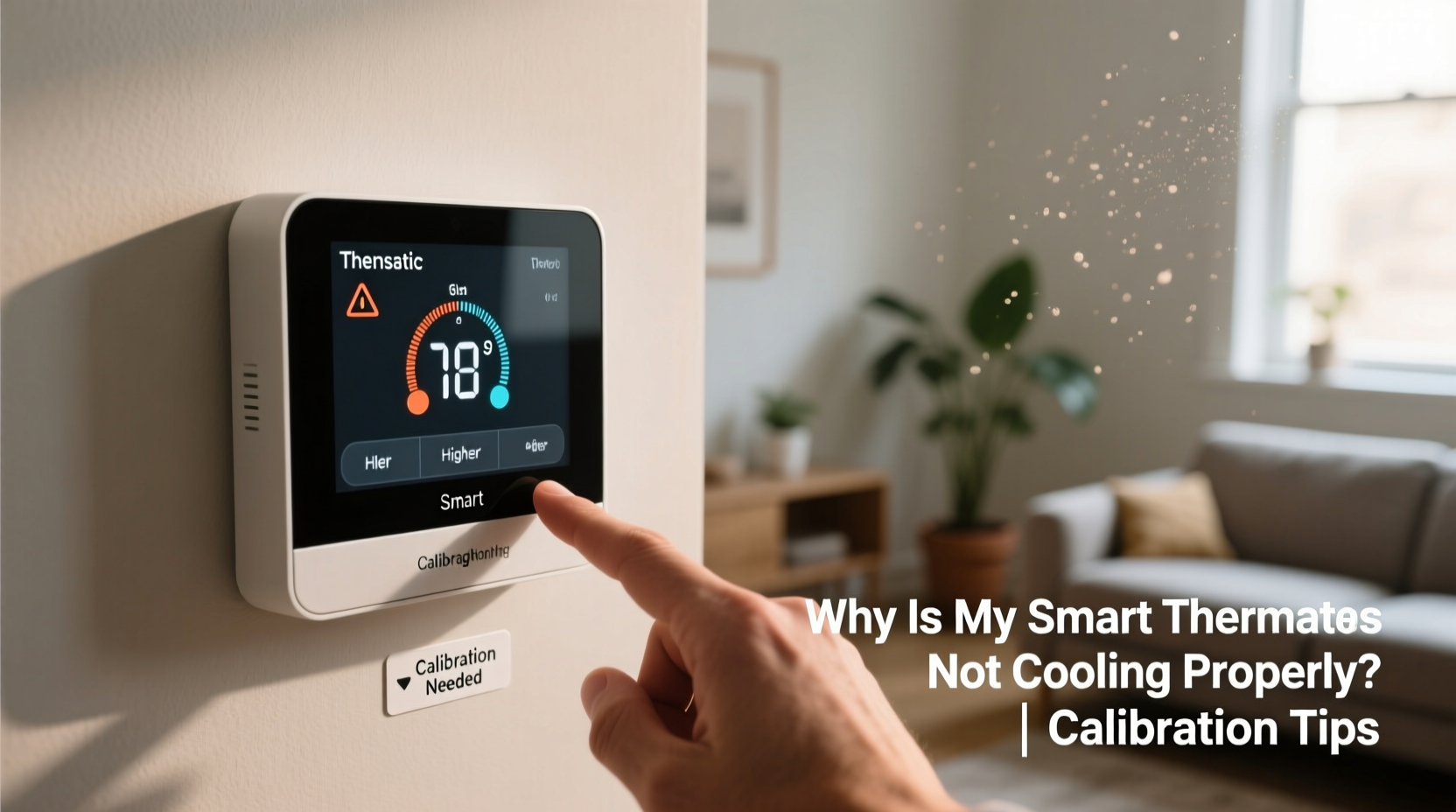
A smart thermostat that displays a set temperature but doesn’t activate cooling can stem from several root causes. Identifying them early prevents unnecessary service calls and downtime.
- Sensor calibration drift: Over time, internal temperature sensors can become inaccurate due to environmental exposure or firmware glitches.
- Incorrect mode settings: Accidentally being in “Heat” instead of “Cool,” or having the system set to “Off” while expecting automatic operation.
- Fan-only mode activation: The fan runs, giving the illusion of cooling, but the compressor never engages.
- Wi-Fi or communication errors: A loss of connection between the thermostat and HVAC system, especially in systems using proprietary protocols.
- Incorrect wiring or loose connections: Especially after installation or power surges, wires can shift or corrode.
- Location-based inaccuracies: If the thermostat is near a heat source (like sunlight, appliances, or electronics), it reads higher ambient temperatures than the rest of the home.
- HVAC system faults: Tripped breakers, clogged filters, low refrigerant, or outdoor unit malfunctions may prevent cooling even if the thermostat sends the correct signal.
Step-by-Step Calibration Guide for Accurate Temperature Readings
Calibration ensures your thermostat accurately senses room temperature and responds appropriately. While most smart thermostats self-calibrate during setup, changes over time require manual intervention.
- Check current room temperature with an independent thermometer. Place a high-quality digital thermometer next to the thermostat and wait 15–20 minutes for stabilization.
- Compare readings. Note the difference between the thermostat display and the external thermometer. A variance of more than ±1°F suggests recalibration is needed.
- Access calibration settings. In most models (e.g., Nest, Ecobee), navigate to Settings > Equipment > Temperature Correction or similar.
- Adjust offset value. If your thermostat reads 75°F but the actual room is 73°F, apply a -2°F offset so future decisions reflect real conditions.
- Test the change. Set the thermostat to Cool mode, lower the temperature by 5°F, and observe whether the AC activates within 5 minutes.
- Repeat after 24 hours. Monitor consistency across different times of day, especially during temperature swings.
Some thermostats, like the Ecobee series, allow remote sensor input for multi-point calibration. By pairing with room sensors, the system averages temperatures across zones, reducing localized inaccuracies.
“Even a 2-degree miscalibration can cause short cycling or inadequate cooling, leading to discomfort and increased wear on compressors.” — Dr. Alan Torres, HVAC Systems Engineer
Do’s and Don’ts When Troubleshooting Cooling Issues
| Do’s | Don’ts |
|---|---|
| Verify power to both thermostat and outdoor condenser unit. | Assume the thermostat is faulty without checking circuit breakers. |
| Clean or replace HVAC air filters monthly during heavy use. | Ignore dirty filters—they restrict airflow and mimic thermostat failure. |
| Use manufacturer’s app to check system status and error logs. | Manually disconnect wires without turning off power first. |
| Ensure thermostat is level; tilt can affect sensor accuracy. | Mount thermostat near kitchens, windows, or lighting fixtures. |
| Update thermostat firmware regularly via Wi-Fi. | Delay updates—older firmware may lack critical bug fixes. |
Real-World Example: Resolving a Persistent Cooling Failure
In suburban Atlanta, homeowner Maria Lopez noticed her Nest Learning Thermostat showed “Cooling” intermittently but failed to maintain a comfortable indoor temperature. Despite setting it to 72°F, the house climbed to 80°F by mid-afternoon. She confirmed the AC unit outside was powered and clean, and filters were recently replaced.
Using a standalone thermometer, she discovered the thermostat read 76°F while the actual room temperature was 79°F—a reverse offset causing delayed cooling initiation. After accessing the Nest app, she found no option for direct calibration but learned that placing the thermostat in direct sunlight skewed its internal sensor.
Maria relocated the thermostat away from sun exposure during afternoon hours and performed a factory reset to force recalibration. Within one cycle, the system began responding promptly to temperature changes. Her key takeaway: placement matters as much as configuration.
Comprehensive Checklist to Restore Proper Cooling Function
Follow this checklist systematically to eliminate potential issues:
- ✅ Confirm thermostat is set to “Cool” mode, not “Heat” or “Auto” if cooling is expected.
- ✅ Ensure target temperature is set below current room temperature.
- ✅ Check that the system switch isn’t turned off at the thermostat or furnace panel.
- ✅ Inspect HVAC breaker in the electrical panel—reset if tripped.
- ✅ Listen for clicking sounds at the thermostat when adjusting temperature (indicates relay activation).
- ✅ Verify outdoor condenser unit powers on when cooling is requested.
- ✅ Examine thermostat wiring for looseness, corrosion, or reversed C/W/Y leads.
- ✅ Review mobile app alerts for connectivity warnings or equipment errors.
- ✅ Clean thermostat interior gently with compressed air to remove dust buildup affecting sensors.
- ✅ Perform temperature offset adjustment based on independent thermometer reading.
- ✅ Schedule professional inspection if refrigerant levels or compressor function are suspect.
If all items are verified and cooling still fails, consider temporary reversion to manual override mode or bypassing the smart thermostat entirely (by connecting R to Y wires briefly) to test if the HVAC responds. This isolates whether the issue lies in control logic or hardware.
Frequently Asked Questions
Can a smart thermostat cause short cycling?
Yes. Improper calibration, incorrect differential settings, or rapid temperature sensing fluctuations can lead to frequent on/off cycles. Most modern thermostats allow adjustment of cycle rate or enable adaptive recovery algorithms to minimize this. Setting a wider deadband (e.g., 1.5°F instead of 0.5°F) reduces cycling frequency.
Why does my thermostat say “in cooling mode” but nothing happens?
This message indicates the thermostat has sent a signal to start cooling, but the HVAC system hasn’t responded. Causes include a tripped breaker, blown fuse in the furnace, defective contactor in the condenser, or disconnected wire at the terminal block. Check power sources and listen for any response from the outdoor unit.
How often should I recalibrate my smart thermostat?
Annual calibration is sufficient under normal conditions. However, if you notice inconsistent comfort, frequent runtime issues, or have recently renovated or changed insulation levels, recalibrate immediately. Homes with large temperature gradients may benefit from quarterly checks using secondary thermometers.
Advanced Tips for Optimal Performance
Beyond basic calibration, optimizing your smart thermostat involves leveraging built-in intelligence features:
- Enable occupancy sensing: Devices like Nest detect motion to determine if someone is home, adjusting cooling accordingly. Disable eco-temperatures temporarily if false absence detection occurs.
- Use geofencing wisely: Set arrival pre-cooling periods (e.g., 30 minutes before reaching home) to balance comfort and efficiency.
- Monitor usage history: Review daily temperature logs in the app to spot anomalies such as failed startup attempts or shortened runtimes.
- Integrate with humidity sensors: High humidity can make spaces feel warmer. Some thermostats adjust cooling duration based on moisture levels to improve perceived comfort.
Additionally, ensure your HVAC system supports the thermostat’s voltage requirements. Low-voltage issues (typically 24V AC) can prevent relays from engaging properly. A multimeter test at the thermostat terminals (R to C) should show steady 24–28V. Fluctuations indicate transformer problems upstream.
Conclusion: Take Control of Your Cooling System Today
Your smart thermostat is only as effective as its accuracy and integration with your HVAC infrastructure. When cooling fails, don’t jump to conclusions about hardware failure—start with calibration, placement, and configuration. Simple adjustments often resolve what seems like complex malfunctioning behavior.
By following the diagnostic steps outlined here—from verifying mode settings to applying precise temperature offsets—you regain control over your indoor climate. Regular maintenance, awareness of environmental influences, and timely firmware updates keep your system operating efficiently year-round.




 浙公网安备
33010002000092号
浙公网安备
33010002000092号 浙B2-20120091-4
Comments
No comments yet. Why don't you start the discussion?