
Smart thermostats promise convenience, energy savings, and remote control through smartphone apps. But when the connection between your device and thermostat breaks down, that promise quickly turns into frustration. If you’re asking, “Why is my smart thermostat not syncing with my phone app?” you're not alone. Millions of users experience sync failures due to Wi-Fi issues, software bugs, or configuration errors. The good news? Most problems are fixable without professional help. This guide walks you through every possible cause, offers real-world troubleshooting steps, and helps restore seamless communication between your thermostat and mobile app.
Common Causes of Sync Failures
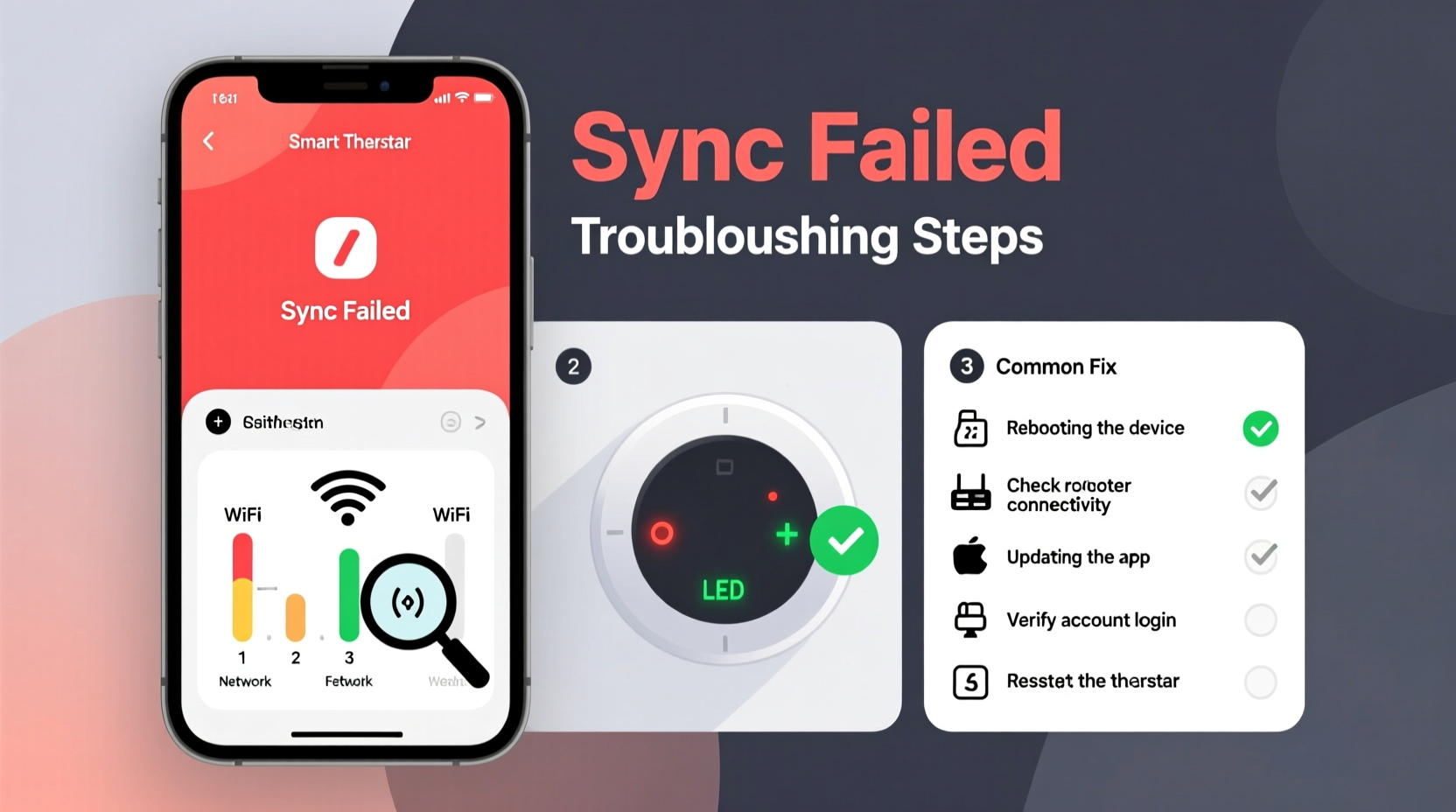
Before jumping into fixes, it’s essential to understand what might be causing the disconnect. Smart thermostats rely on a stable ecosystem: internet connectivity, correct user accounts, updated firmware, and compatible devices. A failure in any one of these components can break the sync chain.
- Wi-Fi instability: Weak signal or router interference disrupts communication.
- App or firmware outdatedness: Older versions may lack critical bug fixes.
- Account login mismatches: Thermostat linked to a different account than the app.
- Firewall or network restrictions: Corporate or guest networks often block IoT traffic.
- Server outages: Temporary downtime from the manufacturer (e.g., Ecobee, Nest).
- Device-specific bugs: Known issues tied to certain phone models or OS updates.
Identifying the root cause streamlines resolution. Start by eliminating the simplest possibilities—like checking if your phone has internet access—before diving into deeper technical layers.
Step-by-Step Troubleshooting Guide
Solving sync issues requires a methodical approach. Follow this sequence to isolate and resolve the problem efficiently.
- Verify Internet Connectivity
Ensure your home Wi-Fi is active. Test other devices on the same network. If only the thermostat struggles, the issue likely lies with its connection.
- Check App and Firmware Updates
Open your smart thermostat’s app and look for available updates. Outdated firmware can prevent proper communication. Similarly, update the mobile app via Google Play or Apple App Store.
- Confirm Account Consistency
Log into the app and verify you’re using the same account linked to the thermostat. Some users have multiple email addresses and accidentally log in with the wrong one.
- Restart Devices
Power cycle your thermostat (refer to manual for reset procedure), restart your phone, and reboot your router. This clears cached data and resets network handshakes.
- Reconnect to Wi-Fi
On the thermostat interface, navigate to Network Settings and reconnect to your Wi-Fi. Enter the password again carefully—hidden characters can cause silent failures.
- Reinstall the App
If syncing still fails, uninstall the app completely, then download and install the latest version. This removes corrupted local data that may interfere with syncing.
- Factory Reset (Last Resort)
If all else fails, perform a factory reset on the thermostat. Note: You’ll need to reconfigure settings and relink to your account.
When to Contact Support
If the above steps don’t restore syncing after two full attempts, contact your thermostat manufacturer’s support team. Provide them with:
- Your thermostat model and firmware version
- Phone make, model, and OS version
- A detailed timeline of when the issue started
- Steps already attempted
Do’s and Don’ts: Syncing Best Practices
To maintain reliable connectivity, follow these guidelines. Many sync problems stem from avoidable mistakes made during setup or daily use.
| Do | Don’t |
|---|---|
| Use a 2.4 GHz Wi-Fi band (most thermostats don’t support 5 GHz) | Assume your thermostat automatically connects to 5 GHz networks |
| Place the thermostat within reasonable range of your router | Install it behind metal ducts or thick concrete walls |
| Enable automatic firmware updates | Ignore update notifications for weeks |
| Use strong, unique passwords with two-factor authentication | Share login credentials across multiple family members carelessly |
| Monitor app notifications for sync status alerts | Leave the app unopened for months at a time |
“A smart thermostat is only as intelligent as its connection. Even the most advanced algorithms fail without consistent network access.” — Raj Mehta, IoT Systems Engineer at HomeTech Labs
Real-World Example: The Case of the Offline Nest
Consider Sarah, a homeowner in Portland, Oregon. Her Nest Learning Thermostat stopped responding to her iPhone app. She could adjust the temperature locally, but remote access failed. She first checked her Wi-Fi—her laptop had full signal, so she ruled that out. Then she opened the Nest app and noticed a red alert: “Thermostat offline.”
Sarah restarted her router and thermostat. No change. She checked for app updates and found one pending. After installing it, the app briefly connected, then dropped again. Next, she reviewed her Wi-Fi settings and realized her recent router firmware update had switched her network to a dual-band SSID (one name for both 2.4 and 5 GHz). Nest devices struggle with such configurations.
She split the bands manually in her router settings, reconnecting the thermostat to the 2.4 GHz network. Within minutes, the app showed green status. Sync restored. This case highlights how seemingly minor network changes can cascade into major functionality loss.
Frequently Asked Questions
Why does my thermostat show “Offline” in the app?
This usually means the device has lost internet connectivity. Check if your Wi-Fi is working, ensure the thermostat is powered, and confirm it hasn't disconnected from the network. Also, verify that your router hasn’t blocked the device via parental controls or MAC filtering.
Can I sync multiple phones to the same thermostat?
Yes. Most smart thermostats support multi-user access. Each user must download the app and sign in with the same account—or be invited as a shared user. Avoid creating duplicate accounts, as this causes sync conflicts.
Does Bluetooth affect thermostat syncing?
Not directly. While some thermostats use Bluetooth for initial setup, ongoing syncing relies on Wi-Fi. However, if Bluetooth is interfering with 2.4 GHz signals (rare), turning it off temporarily may help diagnose connectivity issues.
Preventive Maintenance Checklist
Sync problems often recur if underlying conditions aren’t addressed. Use this checklist monthly to keep your system running smoothly.
- ✅ Confirm thermostat shows “Online” in the app
- ✅ Check for pending firmware or app updates
- ✅ Test remote commands (e.g., adjust temperature from outside home)
- ✅ Verify Wi-Fi signal strength near thermostat (use a Wi-Fi analyzer app)
- ✅ Review connected devices in your router dashboard for anomalies
- ✅ Ensure no recent changes were made to network security settings
- ✅ Clean thermostat sensors gently to prevent overheating or shutdowns
Proactive monitoring prevents surprises during extreme weather when precise climate control matters most.
Conclusion: Regain Control and Stay Connected
A smart thermostat that won’t sync undermines the very purpose of owning one. Whether it’s a fleeting glitch or a deeper network flaw, the solution lies in systematic troubleshooting and informed maintenance. From verifying Wi-Fi bands to ensuring account consistency, each step brings you closer to restoring seamless control. Don’t accept persistent disconnections as inevitable. With the right knowledge, most sync issues are not only fixable but preventable.




 浙公网安备
33010002000092号
浙公网安备
33010002000092号 浙B2-20120091-4
Comments
No comments yet. Why don't you start the discussion?