
Smart thermostats are designed to make home climate control effortless, efficient, and precise. But when your device displays a temperature that doesn’t match how your home actually feels—or contradicts a trusted thermometer—it’s more than an annoyance. It can lead to wasted energy, inconsistent comfort, and higher utility bills. The good news: most temperature inaccuracies stem from fixable calibration or placement issues. Understanding the root causes and applying targeted solutions can restore accuracy and trust in your system.
Why Smart Thermostats Show Inaccurate Temperatures
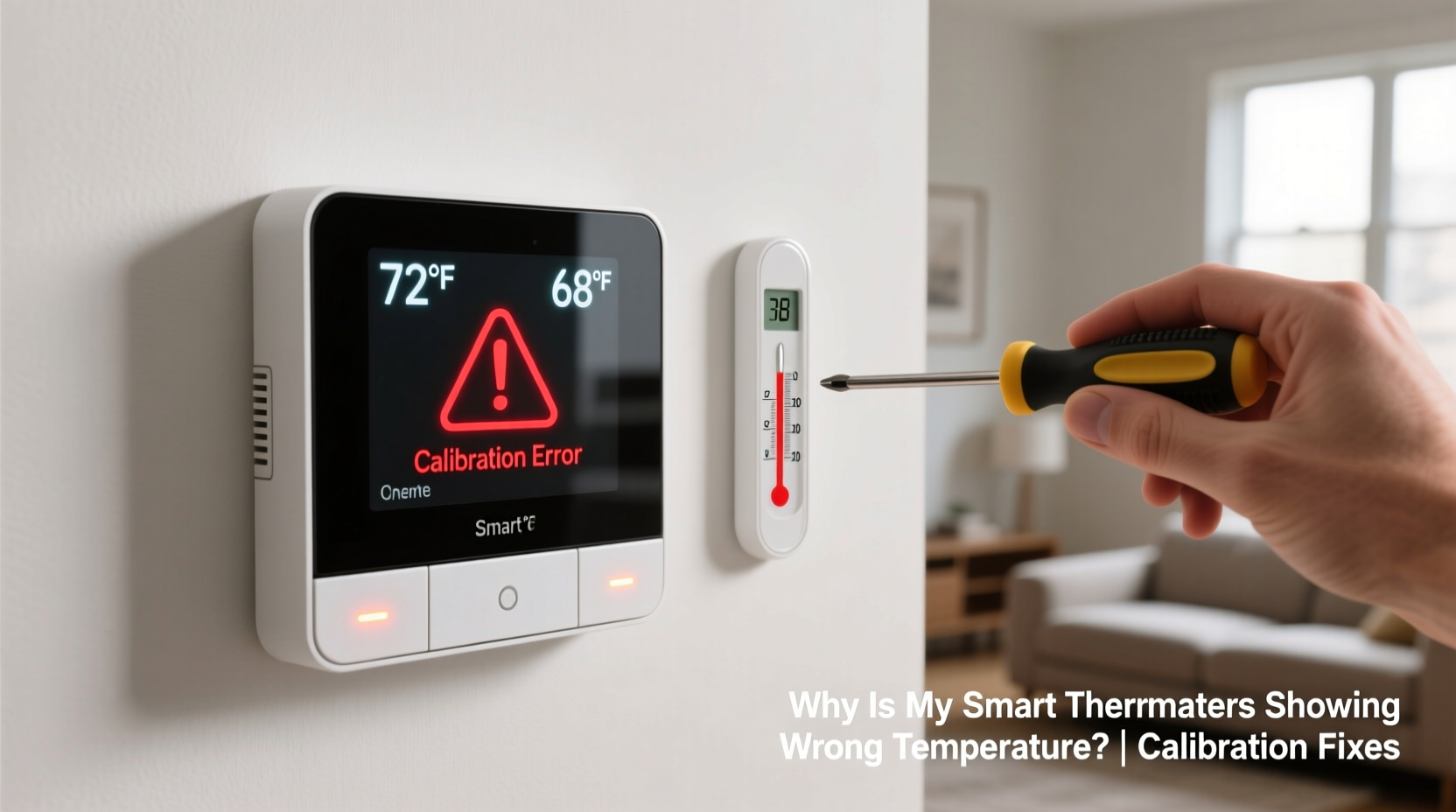
Despite their advanced sensors and learning algorithms, smart thermostats aren’t immune to environmental interference. The temperature reading on your device reflects only the air immediately around it—not necessarily the overall room or house temperature. Several factors can skew this measurement:
- Improper placement: Installing the thermostat near heat sources like direct sunlight, appliances, or vents distorts sensor readings.
- Drafts or airflow: Cold air from windows or HVAC drafts can cool the thermostat’s immediate vicinity, making the space feel colder than it is.
- Firmware glitches: Outdated or buggy software can cause miscalibrations or incorrect data processing.
- Sensor drift over time: Like all electronic components, temperature sensors degrade slightly with age, leading to small but noticeable deviations.
- Calibration offset errors: Some models allow manual calibration adjustments, which may have been set incorrectly during setup.
A discrepancy of 1–2 degrees Fahrenheit is often within normal tolerance. However, if your thermostat consistently reads 3°F or more off, intervention is warranted.
Step-by-Step Guide to Calibrate Your Smart Thermostat
Before replacing hardware or calling support, perform a systematic calibration check. Most smart thermostats offer built-in tools or settings to adjust temperature offsets. Follow this sequence to correct inaccurate readings:
- Verify the actual room temperature: Place a calibrated digital thermometer on a shelf or table near the thermostat (but not touching it). Wait 30–60 minutes for stabilization.
- Note the difference: Compare the thermostat’s reading to the thermometer. For example, if the room is 70°F but the thermostat shows 73°F, there’s a +3°F offset.
- Access calibration settings: On devices like Nest, Ecobee, or Honeywell Home, navigate to Settings > Preferences > Temperature Calibration or similar.
- Adjust the offset: Enter the correction value. If your thermostat reads high, subtract the difference (e.g., -3°F). If low, add (e.g., +2°F).
- Wait and retest: Allow 15–30 minutes for changes to take effect. Recheck against the thermometer to confirm accuracy.
- Repeat if necessary: Small adjustments may require multiple iterations for optimal precision.
This process works for most major brands. However, exact menu paths vary—consult your model’s user manual if options aren’t immediately visible.
Common Placement Mistakes That Skew Readings
Even a perfectly calibrated thermostat will give false readings if installed in a poor location. Many homeowners unknowingly sabotage accuracy during installation. Consider these real-world examples:
| Placement Issue | Effect on Reading | Recommended Fix |
|---|---|---|
| On a wall receiving afternoon sun | Reads warmer than actual room | Relocate to interior wall away from windows |
| Near kitchen stove or oven | Heat spikes trigger false cooling demands | Move thermostat to hallway or adjacent room |
| Close to HVAC supply vent | Registers blast of heated/cooled air as room temp | Install at least 5 feet from any vent |
| Behind furniture or curtain | Trapped air creates microclimate | Ensure open airflow around unit |
| In high-traffic hallway with frequent door use | Drafts create fluctuating readings | Choose central living area with stable conditions |
Location is often the culprit behind persistent inaccuracies. As one HVAC technician put it:
“Even the best thermostat can’t think for the whole house if it’s stuck in a hot corner or drafty hall.” — Mark Reynolds, HVAC Systems Specialist with 18 years of field experience
Brand-Specific Calibration Procedures
While the general principle of offset adjustment applies across brands, execution varies. Below is a quick-reference guide for popular models:
- Google Nest Learning Thermostat: Go to Settings > Equipment > Temperature Sensor. Adjust “Temperature Calibration” by entering a correction between -5°F and +5°F.
- Ecobee SmartThermostat: Navigate to Menu > Settings > Display > Temperature Offset. You can adjust main sensor and remote sensors individually.
- Honeywell Home T9/T10: Open the Honeywell Home app > Devices > Select Thermostat > Preferences > Temperature Calibration. Input offset in 0.5°F increments.
- Emerson Sensi: Access via app or web portal. Settings > Device Settings > Temperature Adjustment. Allows ±5°F correction.
Always save changes and wait at least 15 minutes before testing again. Some models require a reboot after calibration updates.
Mini Case Study: Correcting a Persistent Overheating Issue
Jamie, a homeowner in Denver, noticed her Nest thermostat consistently turned on heat when the house felt warm—sometimes raising temperatures above 75°F despite a 70°F setting. She used a digital thermometer to test and found the thermostat read 74°F while the actual room was 69°F—a 5-degree error.
After ruling out direct sunlight and nearby electronics, she checked the calibration setting and discovered a previous installer had applied a +4°F offset, likely to compensate for perceived cold spots. Jamie reset the offset to zero and retested. The reading dropped to 70°F, matching the room thermometer. She then fine-tuned it to -1°F for perfect alignment.
The result? More consistent comfort and a 12% reduction in heating costs over the next month, verified through her utility bill and Nest’s energy history report. This case illustrates how a simple calibration error can compound into both discomfort and inefficiency.
Checklist: How to Fix Smart Thermostat Temperature Errors
Use this actionable checklist to diagnose and resolve inaccurate temperature readings:
- ✅ Confirm the discrepancy using a separate, reliable thermometer
- ✅ Inspect thermostat placement for heat sources, drafts, or obstructions
- ✅ Check for firmware updates in the device settings or mobile app
- ✅ Access calibration or temperature offset settings in the menu
- ✅ Apply correction based on observed difference (e.g., -3°F)
- ✅ Retest after 30 minutes with the same thermometer
- ✅ Repeat adjustment if needed until within 1°F of actual temperature
- ✅ Review remote sensor placement if your system uses them
- ✅ Reset thermostat to factory settings if inconsistencies persist
- ✅ Contact manufacturer support if hardware failure is suspected
Following this list systematically eliminates guesswork and ensures no critical step is overlooked.
Frequently Asked Questions
Can I calibrate my smart thermostat without a second thermometer?
While possible, it’s not recommended. Without an independent reference, you’re relying on subjective feelings (“it feels too hot”), which vary by person and humidity. A $10 digital thermometer provides objective data essential for accurate calibration.
How often should I recalibrate my smart thermostat?
Once annually is sufficient for most homes. However, if you notice sudden changes in comfort or HVAC behavior, recalibrate immediately. Older units (over 3–5 years) may benefit from biannual checks due to sensor aging.
What if calibration doesn’t fix the issue?
Persistent inaccuracies after proper calibration may indicate a failing internal sensor or circuit board. Try a factory reset first. If the problem continues, contact the manufacturer—many offer replacements under warranty, especially within the first 3 years.
Prevent Future Calibration Issues
Maintaining long-term accuracy involves both proactive habits and environmental awareness. Consider these preventive measures:
- Monitor seasonal changes: Sun angles shift throughout the year. A spot shaded in winter may bake in summer. Re-evaluate placement each season.
- Keep vents clear: Furniture, curtains, or decor blocking HVAC vents create uneven airflow, confusing thermostat logic.
- Update firmware regularly: Manufacturers often release sensor algorithm improvements. Enable auto-updates if available.
- Use multi-sensor systems wisely: If your thermostat relies on remote sensors, place them in frequently used rooms—not closets, bathrooms, or kitchens.
Accuracy isn’t a one-time setup task—it’s an ongoing maintenance practice. Just as you service your HVAC system annually, your thermostat deserves periodic attention.
Conclusion
An inaccurate smart thermostat undermines the very benefits it promises: comfort, efficiency, and automation. But in most cases, the solution lies not in replacement, but in recalibration and thoughtful placement. By understanding how environmental factors influence sensor readings and applying precise offset adjustments, you regain control over your indoor climate.
Don’t accept misleading temperatures as inevitable. With a thermometer, 20 minutes of your time, and this guide, you can correct calibration errors and optimize your system’s performance. Take action today—your comfort and energy bill will thank you.




 浙公网安备
33010002000092号
浙公网安备
33010002000092号 浙B2-20120091-4
Comments
No comments yet. Why don't you start the discussion?