
If you've ever settled in for a movie night only to be interrupted by endless spinning wheels and frozen frames, you're not alone. Smart TV buffering has become one of the most common frustrations in modern households. Despite high-speed internet and 4K streaming services, many users still face constant interruptions. The good news? Most causes are fixable—some even solvable within minutes. Understanding why buffering happens and knowing how to address it can transform your viewing experience from frustrating to seamless.
Understanding the Root Causes of Buffering
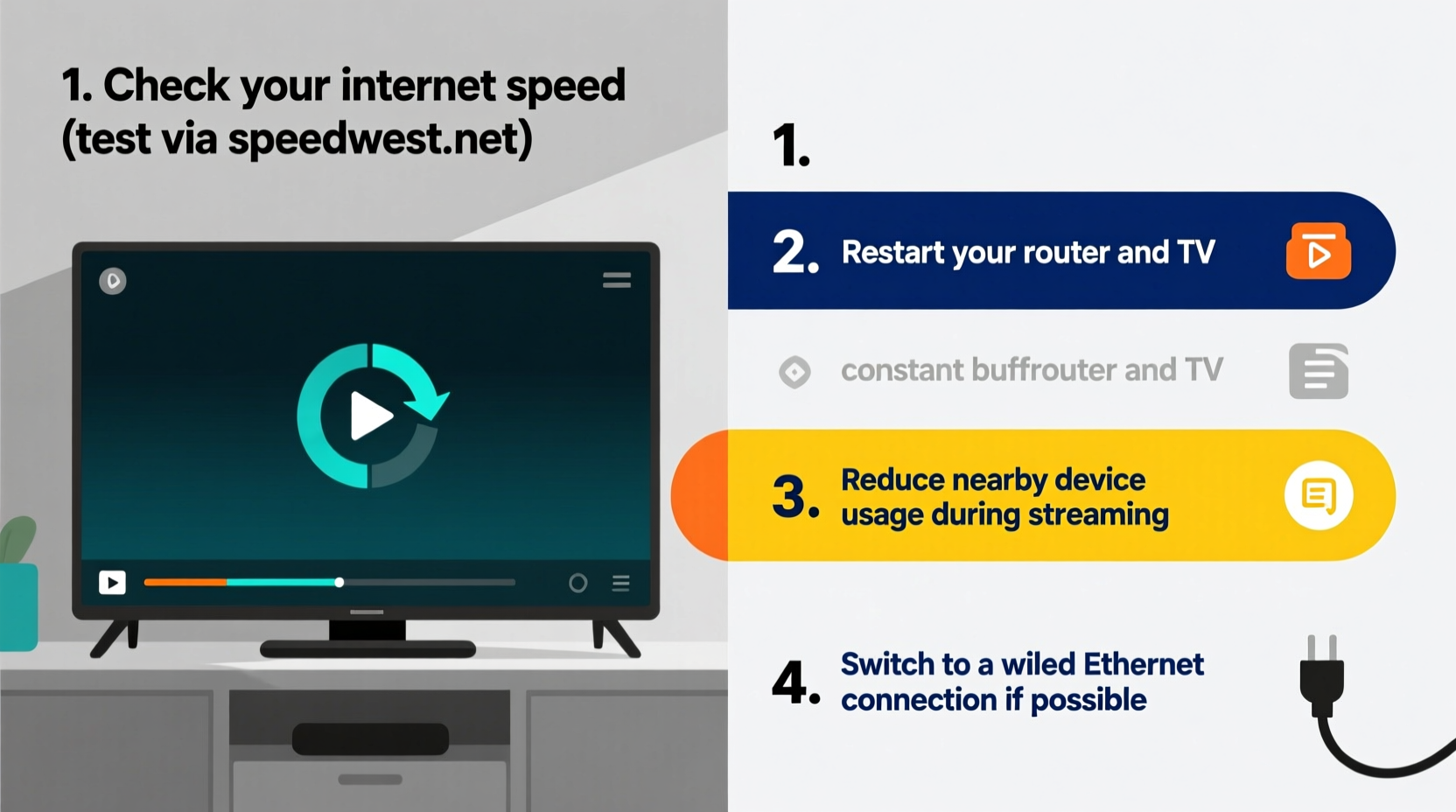
Buffering occurs when your smart TV doesn’t receive data quickly enough to maintain continuous playback. Streaming services like Netflix, Hulu, or Disney+ require a steady flow of data. When that stream is interrupted—even briefly—the video pauses to \"buffer\" while it downloads more data. While occasional buffering might be normal during peak hours, constant interruptions signal an underlying issue.
The main culprits typically fall into three categories: network performance, device limitations, and service-side problems. Let's break them down:
- Internet Speed & Stability: Your broadband may not deliver consistent speeds, especially if multiple devices are connected.
- Wi-Fi Signal Strength: Distance from the router, physical obstructions (walls, appliances), or interference from other electronics weaken signals.
- Router Performance: Older or low-end routers struggle with modern streaming demands, particularly on congested networks.
- Smart TV Hardware Limitations: Outdated processors or insufficient RAM can't handle high-bitrate streams efficiently.
- Streaming App Issues: Corrupted cache, outdated software, or bugs in apps can disrupt playback.
- Service-Side Congestion: During major events (sports finals, new show releases), servers may slow down due to high demand.
Immediate Actions You Can Take Tonight
You don’t need advanced technical skills to improve your streaming experience. Start with these quick, actionable steps—most take less than five minutes and can yield immediate results.
- Reboot Your Devices: Turn off your smart TV and unplug your router for 30 seconds. Plug it back in, wait for full reconnection, then power on the TV. This clears temporary network hiccups.
- Check Internet Speed: Use a speed test app (like Fast.com or Speedtest.net) directly on your smart TV or a connected device. Look for at least 15 Mbps for 4K streaming.
- Move Closer to the Router: If possible, temporarily bring your TV closer to the router or eliminate large obstacles between them.
- Switch to Wired Connection: Connect your TV to the router via Ethernet cable. This bypasses Wi-Fi instability and often doubles effective speed.
- Close Background Apps: On your smart TV, exit any unused apps running in the background—they consume bandwidth and memory.
Real Example: Sarah’s Fix in Under 20 Minutes
Sarah had been dealing with constant buffering every evening. Her kids couldn’t finish shows, and her husband missed key moments in games. She tried changing streaming services but saw no improvement. One night, she decided to follow basic troubleshooting. She rebooted the router, switched her TV from Wi-Fi to Ethernet, and lowered the video quality in Netflix settings. The result? No buffering for the rest of the week. It turned out her Wi-Fi signal was weak due to a thick wall between the router and living room. A simple cable connection made all the difference.
Optimizing Your Network for Smoother Streaming
If quick fixes provide only temporary relief, it’s time to optimize your home network. Think of your internet as a highway—too many cars (devices) cause traffic jams. Here’s how to keep the lanes open:
| Action | Why It Helps | Difficulty Level |
|---|---|---|
| Use Quality of Service (QoS) Settings | Prioritizes streaming traffic over downloads or gaming | Moderate |
| Upgrade to a Dual-Band Router | Use 5 GHz band for faster, less crowded connections | Easy |
| Limit Connected Devices During Streaming | Reduces bandwidth competition | Easy |
| Install a Wi-Fi Extender or Mesh System | Boosts signal strength in dead zones | Moderate |
| Update Router Firmware | Fixes bugs and improves performance | Easy |
“We see a dramatic improvement in streaming stability once users move from 2.4 GHz to 5 GHz bands or adopt mesh networking.” — David Lin, Network Engineer at Broadband Insights Group
Step-by-Step: Switch to 5 GHz Wi-Fi Tonight
If your router supports dual bands, switching your smart TV to the 5 GHz network can significantly reduce buffering. Follow these steps:
- On your smart TV, go to Settings > Network > Network Settings.
- Select Wi-Fi and scan for available networks.
- Look for your network name followed by “(5G)” or “_5GHz”.
- Connect using your Wi-Fi password.
- Run a speed test to confirm improved performance.
Note: 5 GHz offers faster speeds but shorter range. If your TV is far from the router, consider a Wi-Fi extender.
Device-Level Fixes: Tuning Your Smart TV
Your smart TV isn’t just a screen—it’s a computer with an operating system, storage, and apps. Over time, performance degrades without maintenance. Here’s how to keep it running smoothly:
- Clear App Cache: Go to Settings > Apps > [Select Streaming App] > Clear Cache. This removes corrupted temporary files.
- Update Software: Check for system updates under Settings > Support > Software Update. Manufacturers release patches for bugs and performance issues.
- Factory Reset (Last Resort): If problems persist, reset the TV to factory settings. Back up login details first.
- Lower Video Quality Temporarily: In your streaming app settings, switch from 4K to 1080p or enable “Auto” mode to let the app adjust based on bandwidth.
Checklist: Quick Smart TV Optimization Routine
Perform this checklist weekly to prevent future buffering:
- ✅ Reboot router and TV
- ✅ Test internet speed
- ✅ Clear cache on Netflix, YouTube, Hulu, etc.
- ✅ Ensure firmware is up to date
- ✅ Close unused apps
- ✅ Verify Wi-Fi signal strength
- ✅ Consider wired connection if available
When to Suspect Your ISP or Streaming Service
Sometimes, the problem isn’t in your home. Internet Service Providers (ISPs) may throttle bandwidth during peak times, especially if you’re on an unlimited but “deprioritized” plan. Similarly, streaming platforms occasionally face server outages.
To diagnose external issues:
- Visit Downdetector.com to check if others report outages for your ISP or streaming service.
- Contact your ISP and ask if they’re experiencing congestion or throttling high-bandwidth usage.
- Try streaming on a different device (tablet, phone, laptop). If the same issue occurs, the problem is likely network-wide.
If your ISP consistently fails to deliver advertised speeds, consider upgrading your plan or switching providers. For heavy streaming households, a minimum of 100 Mbps is recommended, especially with multiple simultaneous users.
Do’s and Don’ts of Smart TV Streaming
| Do | Don’t |
|---|---|
| Use Ethernet whenever possible | Rely solely on distant Wi-Fi |
| Update router and TV firmware regularly | Ignore software update notifications |
| Limit number of active streams | Run downloads or cloud backups during movie time |
| Position router centrally and elevated | Place router behind metal objects or in cabinets |
| Monitor bandwidth usage in router settings | Assume higher-tier plans always mean better performance |
Frequently Asked Questions
Why does my smart TV buffer even with fast internet?
Even with high-speed internet, factors like Wi-Fi interference, outdated hardware, or app-specific issues can cause buffering. Your TV might be receiving inconsistent signal strength or struggling to process high-resolution video. Try connecting via Ethernet or lowering stream quality to isolate the cause.
Does turning off other devices help reduce buffering?
Yes. Every connected device consumes bandwidth. Smartphones downloading updates, laptops backing up to the cloud, or gaming consoles updating titles can saturate your network. Turning them off—or setting them to pause large downloads—can free up enough bandwidth for smooth streaming.
Can a VPN cause my smart TV to buffer?
Absolutely. Using a VPN encrypts your traffic and routes it through remote servers, which adds latency and reduces effective speed. While great for privacy, a low-quality or distant VPN server can severely impact streaming. Disable the VPN temporarily to test if it’s the culprit.
Take Control of Your Streaming Experience
Buffering doesn’t have to be a nightly annoyance. With a few strategic adjustments—many of which you can implement tonight—you can reclaim uninterrupted viewing. Start with the basics: restart your equipment, test your speed, and consider a wired connection. Then move into deeper optimizations like updating firmware, managing bandwidth, and fine-tuning your network setup.
Remember, technology should serve you, not frustrate you. A little maintenance goes a long way toward enjoying the entertainment you pay for. Whether it’s a family movie night or the season finale everyone’s talking about, you deserve a smooth, reliable stream.




 浙公网安备
33010002000092号
浙公网安备
33010002000092号 浙B2-20120091-4
Comments
No comments yet. Why don't you start the discussion?