
Smart TVs promise seamless access to your favorite shows, movies, and live streams — but constant buffering can turn a relaxing evening into a frustrating experience. If your screen keeps freezing or loading endlessly, the problem likely isn’t your TV. It’s your network. The good news? You don’t need a tech degree to fix it. With a few strategic adjustments to your home Wi-Fi setup, device settings, and bandwidth usage, you can dramatically reduce or even eliminate buffering. This guide walks through the real causes behind smart TV lag and delivers practical, tested solutions that work.
Understanding Why Buffering Happens
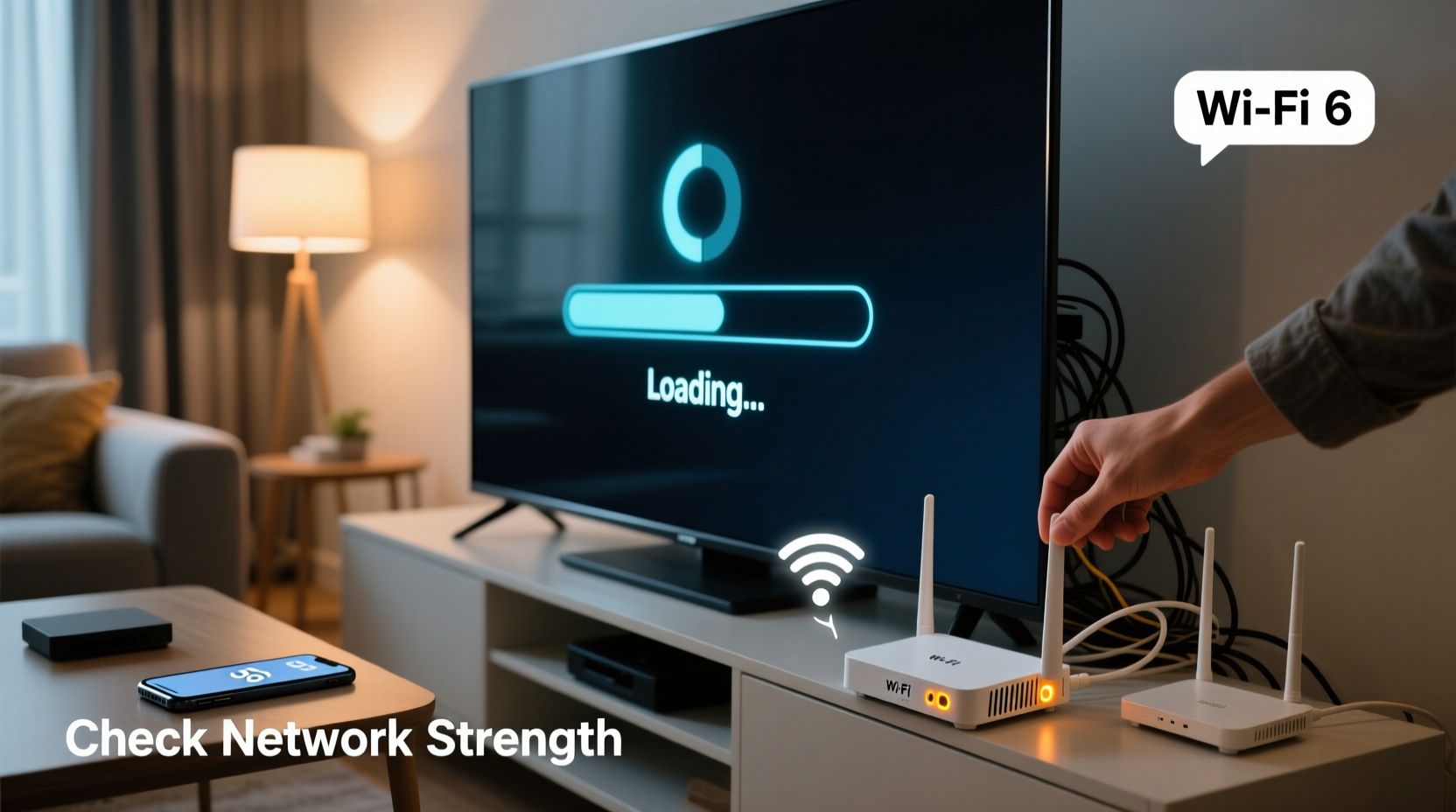
Buffering occurs when your smart TV doesn’t receive data quickly enough to maintain a steady stream. Video content is delivered in small packets over your internet connection. When those packets arrive too slowly or inconsistently, the player pauses to “buffer” more data before continuing. While occasional buffering might be normal during peak hours, constant interruptions signal an underlying issue.
The root cause usually traces back to one of four areas: insufficient bandwidth, network congestion, weak Wi-Fi signal, or outdated hardware. Streaming HD video typically requires 5–10 Mbps per device; 4K content demands 25 Mbps or more. If multiple devices are active — smartphones, tablets, gaming consoles — they compete for the same bandwidth. Additionally, physical barriers like walls, interference from other electronics, and older router models can degrade signal quality.
“Most buffering problems aren’t about internet speed alone — they’re about how efficiently that speed is delivered to the right device at the right time.” — Marcus Tran, Network Infrastructure Consultant
5 Easy Network Tweaks to Stop Smart TV Buffering
You don’t need to upgrade your plan or buy new equipment right away. Start with these proven, low-cost optimizations that target the most common culprits.
1. Reposition Your Router for Better Signal
Wi-Fi strength drops significantly with distance and obstructions. If your router is tucked in a basement, closet, or far from the living room, your smart TV may be operating on a weak signal — even if your phone shows full bars elsewhere.
Aim for line-of-sight between the router and TV whenever possible. Avoid placing it on the floor or behind furniture. Even repositioning it a few feet higher on a shelf can make a noticeable difference.
2. Use a Wired Ethernet Connection
Wi-Fi is convenient, but Ethernet is consistently faster and more stable. If your smart TV is near your router or can be connected via a cable along baseboards or under carpets, use an Ethernet cable. Most modern smart TVs have an Ethernet port on the back.
Connecting via Ethernet eliminates wireless interference entirely and ensures maximum throughput. In tests, wired connections often deliver 30–50% better performance than Wi-Fi, especially in congested environments.
3. Switch to the 5 GHz Wi-Fi Band
If you must use Wi-Fi, ensure your smart TV is connected to the 5 GHz band instead of 2.4 GHz. While 2.4 GHz travels farther, it’s slower and more prone to interference from neighboring networks and household devices.
The 5 GHz band offers faster speeds and less congestion, making it ideal for high-bandwidth activities like 4K streaming. However, it has shorter range and struggles with walls. Check your router settings and confirm your TV is connected to the 5 GHz network (often labeled as a separate SSID like “HomeNetwork_5G”).
4. Prioritize Your TV with Quality of Service (QoS)
Many modern routers include a QoS feature that lets you assign priority to specific devices. By giving your smart TV top priority, you ensure it gets the bandwidth it needs — even when others are downloading files or gaming.
To enable QoS:
- Log into your router’s admin panel (usually via 192.168.1.1 or a branded app).
- Navigate to Advanced Settings > QoS or Traffic Control.
- Locate your smart TV by name or MAC address.
- Set its priority to “High” or “Maximum.”
- Save and restart the router.
This tweak is especially effective in homes with multiple users and limited bandwidth.
5. Reboot Your Network Regularly
Routers accumulate memory leaks and connection errors over time. A simple reboot clears temporary glitches and refreshes your IP assignment. Many users report immediate improvements in streaming quality after restarting their modem and router.
Consider setting a weekly reminder to reboot — or invest in a smart plug that automates restarts during off-hours.
Device-Specific Fixes and Settings Optimization
Beyond network configuration, your smart TV itself may be contributing to the problem. Outdated firmware, background apps, and inefficient streaming settings can all strain performance.
Clear Cache and App Data
Streaming apps like Netflix, Hulu, or YouTube store temporary data that can become corrupted. Clearing the cache forces the app to rebuild clean files, often resolving playback issues.
Steps vary slightly by brand:
- Samsung Tizen: Settings > Apps > Select App > Clear Cache
- LG webOS: Settings > All Settings > General > Storage & Reset > Clear App Data
- Android TV: Settings > Apps > See All Apps > Select App > Clear Cache
Update Firmware and Apps
Manufacturers release updates to improve stability, security, and compatibility. An outdated OS may not support the latest video codecs or encryption standards used by streaming services.
Check for updates manually:
- Samsung: Settings > Support > Software Update > Update Now
- LG: Settings > All Settings > General > About > Check for Update
- Android TV: Settings > Device Preferences > About > System Update
Lower Streaming Resolution Temporarily
If buffering persists during peak hours (7–10 PM), try lowering the resolution in your streaming app settings. For example, switch from 4K to 1080p in Netflix or YouTube. Once the show loads smoothly, you can often bump it back up.
| Streaming Quality | Required Bandwidth | Best For |
|---|---|---|
| 480p (SD) | 3 Mbps | Older shows, minimal bandwidth |
| 1080p (HD) | 5–10 Mbps | Most content, reliable Wi-Fi |
| 4K (UHD) | 25+ Mbps | Fiber or high-speed cable, wired connection |
| 4K HDR / Dolby Vision | 35+ Mbps | Ideal conditions only |
Real Example: How One Household Fixed Daily Buffering
The Rivera family in Austin, Texas, experienced constant buffering every evening despite having a 100 Mbps internet plan. Their 65-inch LG smart TV would freeze during Netflix binges, while their kids’ tablets worked fine.
After testing, they discovered two issues: first, the TV was connected to the 2.4 GHz band due to a weak 5 GHz signal from the bedroom-located router. Second, their son’s PC was running automatic Windows updates each night, consuming nearly all available bandwidth.
They moved the router to the living room, switched the TV to 5 GHz, and enabled QoS to prioritize the TV. They also scheduled large downloads for early morning. Result? Buffering stopped completely within 48 hours — without upgrading their plan.
When to Consider Hardware Upgrades
If basic tweaks don’t resolve the issue, consider investing in better hardware. Not all routers are built equally, and older models may struggle with modern streaming demands.
Upgrade to a Modern Dual- or Tri-Band Router
Routers from the last five years typically support MU-MIMO (Multi-User, Multiple Input, Multiple Output), which allows simultaneous data transmission to multiple devices. Tri-band routers add a second 5 GHz channel, reducing congestion.
Add a Wi-Fi Extender or Mesh System
If your TV is far from the router, a Wi-Fi extender can boost signal strength. For larger homes, a mesh network (like Google Nest Wifi or Eero) provides seamless coverage with consistent handoffs between nodes.
Use a Streaming Device Instead of Built-In Apps
Sometimes, the smart TV’s internal processor or software is the bottleneck. External devices like Apple TV 4K, Amazon Fire Stick 4K, or Roku Ultra often offer smoother performance, better app optimization, and easier updates.
FAQ: Common Questions About Smart TV Buffering
Does my internet speed really affect my smart TV?
Yes. While advertised speeds may seem sufficient, actual throughput depends on signal strength, network congestion, and number of connected devices. Run a speed test directly on your smart TV (many have built-in tools or use apps like Speedtest by Ookla) to verify real-world performance.
Can other devices slow down my smart TV’s streaming?
Absolutely. Devices downloading large files, gaming online, or conducting video calls consume bandwidth. Enabling QoS or scheduling heavy downloads for off-peak hours helps maintain smooth streaming.
Is it better to use a streaming stick or my TV’s built-in apps?
In many cases, yes. Dedicated streaming devices are optimized for video performance and receive regular updates. Older smart TVs may run sluggish with bloated interfaces or outdated software.
Action Checklist: Fix Smart TV Buffering in Under 30 Minutes
- ✅ Move your router closer to the TV or remove obstructions.
- ✅ Connect your smart TV via Ethernet if possible.
- ✅ Ensure your TV is on the 5 GHz Wi-Fi network.
- ✅ Restart your modem and router.
- ✅ Clear cache for Netflix, YouTube, and other streaming apps.
- ✅ Check for and install TV firmware and app updates.
- ✅ Enable QoS in your router settings and prioritize your TV.
- ✅ Test streaming quality after each change.
Conclusion: Smooth Streaming Starts With Smart Tweaks
Constant buffering doesn’t mean you need a new TV or a costly internet upgrade. More often, it’s a symptom of overlooked network inefficiencies. By optimizing your Wi-Fi setup, managing bandwidth usage, and fine-tuning device settings, you can restore smooth, uninterrupted viewing — often in less than an hour.
Start with the simplest fixes: reposition your router, clear app data, and switch to 5 GHz. Then move to advanced options like QoS and wired connections. Monitor results and adjust as needed. With a little attention, your smart TV can deliver the seamless entertainment experience it was designed for.




 浙公网安备
33010002000092号
浙公网安备
33010002000092号 浙B2-20120091-4
Comments
No comments yet. Why don't you start the discussion?