
Streaming a movie or show should be seamless, especially when your Wi-Fi signal appears strong. Yet many users find themselves staring at the dreaded spinning wheel as their smart TV buffers—again. The frustration is real: you've paid for high-speed internet, your phone shows full bars, but your 4K stream stutters like it's on dial-up. This disconnect between perceived connection strength and actual performance often stems from factors beyond simple signal bars. Understanding these hidden culprits is the first step toward uninterrupted viewing.
Buffering occurs when your smart TV can't download data fast enough to keep up with playback. While weak Wi-Fi is a common cause, persistent buffering despite a strong signal suggests deeper issues in your network ecosystem, device settings, or external bandwidth demands. Let’s break down the technical and environmental reasons behind this problem—and more importantly, how to fix them.
Understanding the Difference Between Signal Strength and Bandwidth
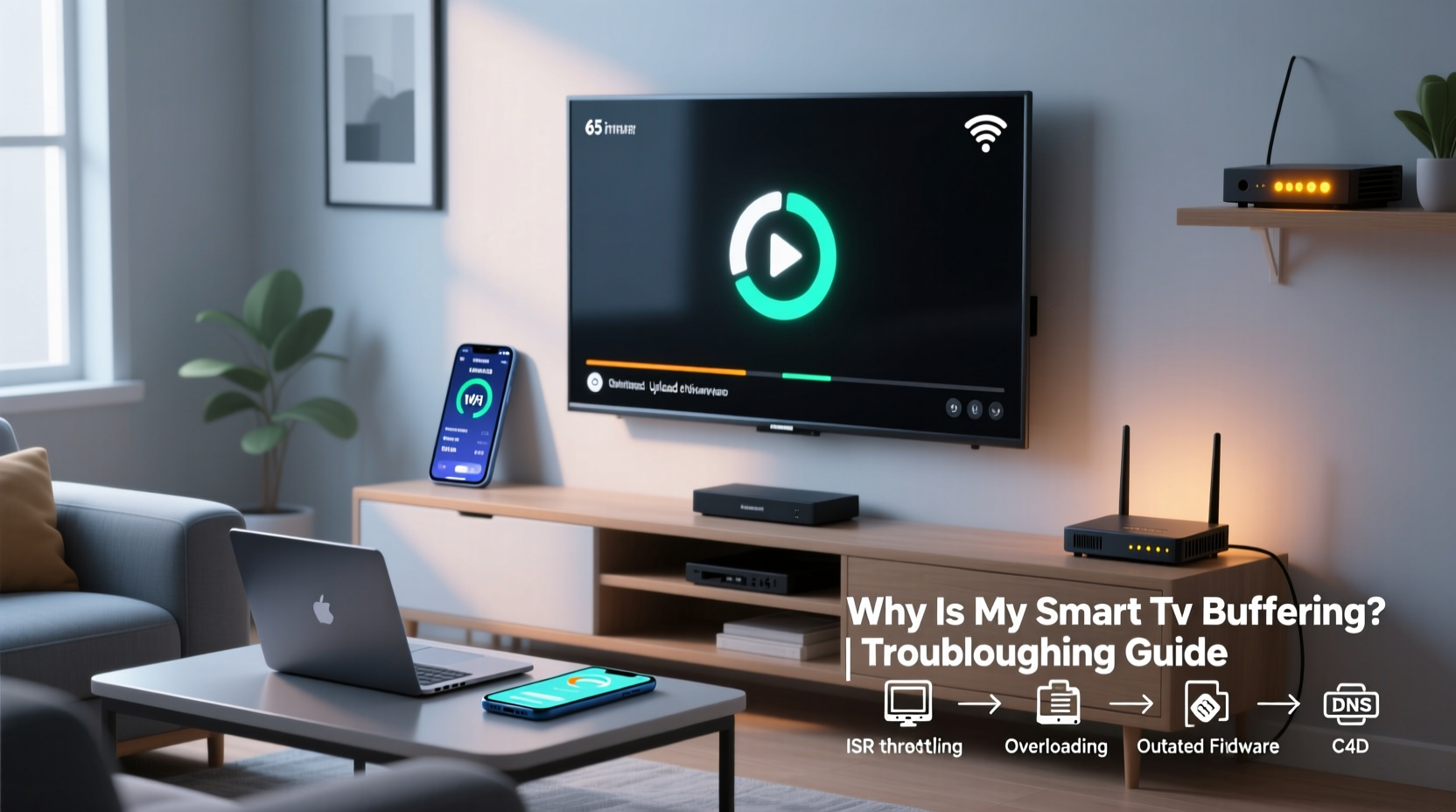
One of the most misunderstood concepts in home networking is the difference between Wi-Fi signal strength and available bandwidth. A full bar icon on your smart TV indicates that the device has a solid connection to your router, but it doesn’t guarantee sufficient speed for high-quality video streaming.
Think of it like water pressure in a hose. Just because water flows (signal strength) doesn’t mean it flows fast enough (bandwidth) to fill a bucket quickly. Streaming HD or 4K content requires consistent throughput—typically 5 Mbps for HD and 25 Mbps or more for 4K. If your bandwidth dips below this threshold, buffering begins, regardless of how “strong” the signal looks.
Common Causes of Smart TV Buffering Despite Strong Wi-Fi
Even with excellent signal reception, several underlying issues can disrupt smooth streaming. Here are the top contributors:
1. Network Congestion During Peak Hours
Your internet speed isn’t static—it fluctuates based on usage. Internet Service Providers (ISPs) often experience congestion during peak hours (7 PM to 11 PM), especially in densely populated areas. Even if your plan promises 100 Mbps, shared infrastructure can reduce actual speeds by 30–50% during these times.
2. Interference from Other Devices
Smart homes are full of wireless devices: phones, tablets, security cameras, smart speakers, and more. Each competes for bandwidth. Background updates, cloud backups, or someone downloading large files can consume significant bandwidth, leaving little for your TV.
3. Router Placement and Obstacles
Physical barriers like walls, metal appliances, mirrors, and even fish tanks can weaken Wi-Fi signals. If your router is far from the TV or blocked by multiple obstacles, the signal may appear strong but suffer from packet loss or latency, which impacts streaming quality.
4. Outdated Router Firmware or Hardware
Routers, like any tech device, age. Older models may not support modern standards like MU-MIMO (Multi-User, Multiple Input, Multiple Output) or beamforming, which help manage multiple devices efficiently. Firmware updates also play a role—outdated firmware can introduce bugs or compatibility issues with newer smart TVs.
5. DNS Latency or ISP Throttling
DNS (Domain Name System) resolution turns website names into IP addresses. Slow DNS servers can delay the start of streaming. Additionally, some ISPs throttle bandwidth for specific services like Netflix or YouTube after detecting heavy usage, leading to intentional slowdowns.
6. Smart TV Software or App Issues
The problem might not be your network at all. Streaming apps on smart TVs often accumulate cache, run outdated versions, or have bugs that cause inefficient data handling. An overloaded TV processor trying to run too many background apps can also degrade performance.
“Many users assume their Wi-Fi is fine because their phone works well, but phones use far less bandwidth than 4K streaming. The real test is sustained throughput under load.” — David Lin, Network Engineer and Broadband Consultant
Step-by-Step Guide to Diagnose and Fix Buffering Issues
Follow this systematic approach to identify and resolve the root cause of constant buffering.
- Test Actual Internet Speed at the TV
Use a USB keyboard or mouse with your smart TV to open a browser (if supported) and visit speedtest.net. Run the test while the TV is connected via Wi-Fi. Compare results to your advertised plan. If speeds are below 70% of what you’re paying for, there’s an issue. - Restart Your Router and Modem
Unplug both devices for 60 seconds, then power them back on. This clears temporary glitches and resets IP assignments. - Check for Background Activity
Review other devices on your network. Are smartphones updating? Is a computer backing up to the cloud? Pause non-essential downloads. - Switch Wi-Fi Bands (2.4 GHz vs. 5 GHz)
Most modern routers broadcast two networks. The 5 GHz band offers faster speeds and less interference but shorter range. If your TV supports it, connect to 5 GHz. Avoid 2.4 GHz if nearby microwaves or cordless phones are active. - Update Router Firmware
Log into your router’s admin panel (usually via 192.168.1.1) and check for firmware updates under the \"Administration\" or \"Maintenance\" tab. - Clear App Cache on Your Smart TV
Go to Settings > Apps > [Streaming App] > Clear Cache. Repeat for all major streaming platforms. - Change DNS Servers
In your TV’s network settings, switch from automatic DNS to a public option like Google DNS (8.8.8.8and8.8.4.4) or Cloudflare (1.1.1.1). This often improves connection stability. - Enable Quality of Service (QoS) on Your Router
If your router supports QoS, prioritize traffic for your smart TV. This ensures streaming gets priority over lower-priority tasks like software updates.
Do’s and Don’ts: Smart TV Streaming Best Practices
| Do | Don’t |
|---|---|
| Use Ethernet for critical devices like smart TVs or gaming consoles | Rely solely on Wi-Fi extenders without testing performance |
| Position your router centrally, elevated, and away from obstructions | Place your router near metal objects, microwaves, or thick concrete walls |
| Limit the number of simultaneous 4K streams on one network | Assume higher Mbps plans eliminate all buffering—network management matters too |
| Upgrade your router every 3–5 years to maintain performance | Ignore firmware updates; they often include critical performance patches |
| Monitor bandwidth usage through your router’s dashboard | Allow unknown devices to connect to your network |
Real-World Example: How One Household Fixed Persistent Buffering
The Rivera family in Austin, Texas, had been frustrated for months. Their living room Samsung smart TV would buffer every evening, even though their internet plan was 200 Mbps and their phone showed full Wi-Fi bars. They assumed the TV was faulty and considered replacing it.
A closer investigation revealed that their router was located in a closet on the opposite side of the house, behind two brick walls. While the signal reached the TV, speed tests on the TV itself showed only 18 Mbps during peak hours. Additionally, their children’s tablets were set to auto-update at night, consuming bandwidth unnoticed.
They moved the router to a central shelf, switched the TV to the 5 GHz network, and scheduled updates for daytime hours. They also enabled QoS to prioritize the TV. After these changes, their speed test on the TV jumped to 160 Mbps, and buffering stopped completely.
When to Upgrade Your Equipment
Sometimes, no amount of tweaking will solve the problem if your hardware is outdated. Consider upgrading if:
- Your router is more than five years old.
- It doesn’t support Wi-Fi 5 (802.11ac) or better—Wi-Fi 6 (802.11ax) is ideal for multi-device homes.
- You frequently stream in 4K or use multiple smart devices simultaneously.
- Your modem is not DOCSIS 3.1 compliant (for cable internet users).
For larger homes or challenging layouts, consider a mesh Wi-Fi system like Eero, Netgear Orbi, or TP-Link Deco. These systems use multiple nodes to blanket your home in reliable coverage, ensuring your smart TV always has a strong, low-latency connection.
FAQ: Common Questions About Smart TV Buffering
Can a VPN cause my smart TV to buffer?
Yes. Using a VPN encrypts your traffic and routes it through a remote server, which adds latency and reduces effective speed. If you're streaming geo-restricted content via a VPN, expect slower performance. Choose a high-speed, low-latency provider and connect as close to your physical location as possible.
Does restarting my smart TV help with buffering?
It can. Restarting clears temporary memory, stops rogue processes, and refreshes the network stack. Make it a habit to restart your TV every few weeks, especially if it runs continuously.
Is it better to use a streaming stick instead of a built-in smart TV app?
Often, yes. Devices like Roku, Apple TV, or Chromecast typically receive more frequent updates, have better processors, and offer smoother interfaces than built-in smart platforms. They can also offload processing from an underpowered TV system.
Action Plan Checklist: Stop Buffering Now
- ✅ Run a speed test directly on your smart TV
- ✅ Restart your router and modem
- ✅ Switch to the 5 GHz Wi-Fi band
- ✅ Move your router to a central, unobstructed location
- ✅ Update router firmware and smart TV operating system
- ✅ Clear cache on streaming apps (Netflix, Hulu, Disney+, etc.)
- ✅ Change DNS to 8.8.8.8 / 8.8.4.4 or 1.1.1.1
- ✅ Enable QoS and prioritize your TV’s MAC address
- ✅ Limit concurrent high-bandwidth activities
- ✅ Consider switching to Ethernet or a mesh Wi-Fi system
Final Thoughts: Smooth Streaming Is Within Reach
Constant buffering on your smart TV—even with strong Wi-Fi—isn’t something you have to accept. It’s a symptom of mismatched expectations, overlooked settings, or aging infrastructure. By diagnosing the real issue rather than reacting to symptoms, you can restore smooth, high-quality streaming without upgrading your internet plan.
The key is a holistic approach: assess your network health, optimize device placement, manage bandwidth intelligently, and maintain your equipment. Small changes often yield dramatic improvements. Don’t let poor streaming ruin your movie night. Take control of your home network today and enjoy the seamless entertainment experience you paid for.




 浙公网安备
33010002000092号
浙公网安备
33010002000092号 浙B2-20120091-4
Comments
No comments yet. Why don't you start the discussion?