
Streaming entertainment should be smooth, immersive, and uninterrupted. Yet, if you’ve found yourself staring at a spinning wheel while trying to watch your favorite show, you’re not alone. Buffering on smart TVs remains one of the most common frustrations among modern viewers. The good news? Most causes are fixable with straightforward adjustments—no technical degree required. Understanding why buffering happens and how to address it can transform your viewing experience from frustrating to flawless.
Buffering occurs when your smart TV struggles to download data quickly enough to maintain a continuous video stream. This typically stems from network performance issues, device limitations, or service-side constraints. By systematically identifying and resolving the root cause, you can significantly reduce or eliminate interruptions.
Understanding the Causes of Smart TV Buffering
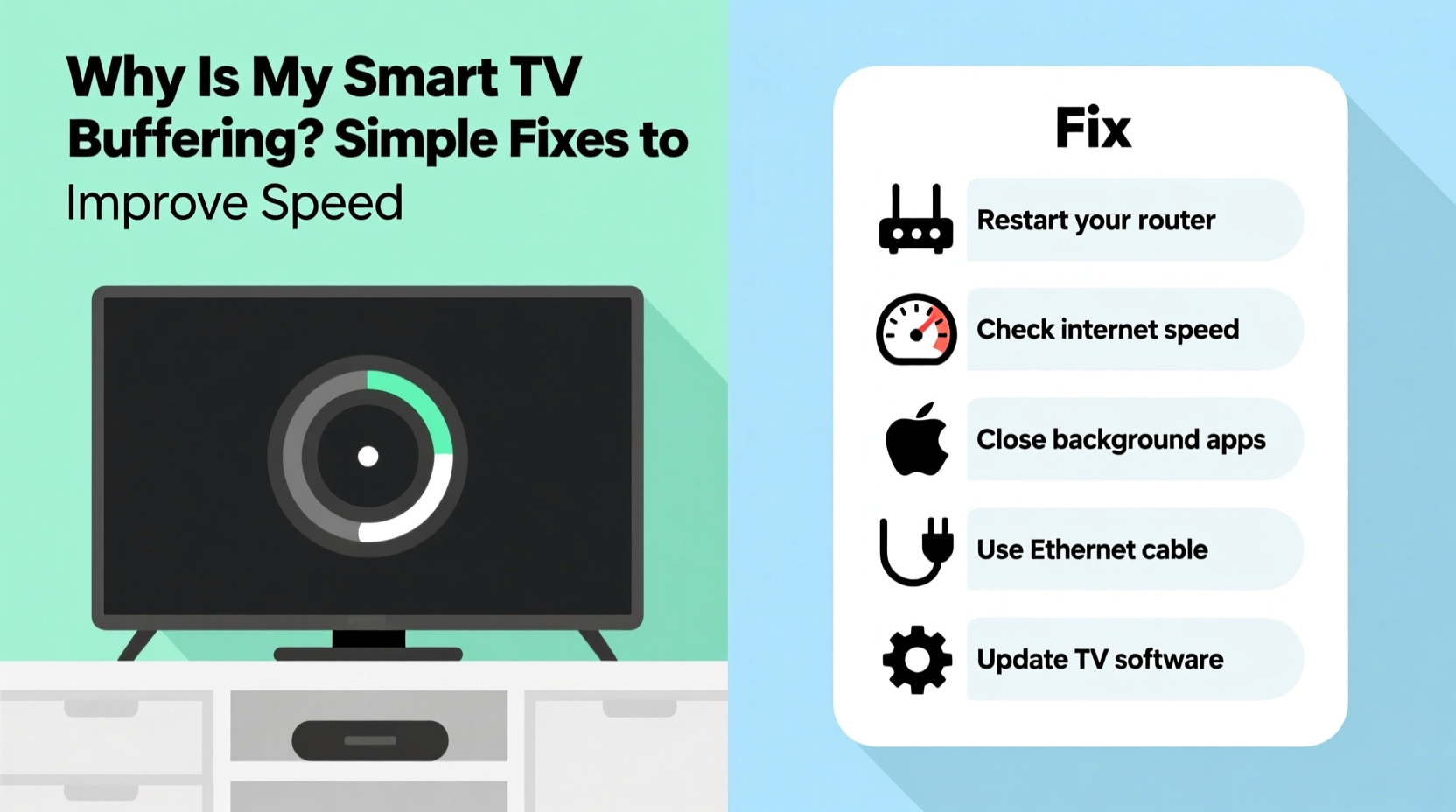
Before jumping into solutions, it’s essential to understand what’s behind the problem. Buffering isn’t always due to slow internet. Multiple factors interact to disrupt streaming quality:
- Insufficient bandwidth: High-definition (HD) and 4K content require substantial data transfer speeds. If your connection can't keep up, buffering follows.
- Wi-Fi signal strength: Distance from the router, physical obstructions (walls, appliances), and interference from other devices weaken your signal.
- Network congestion: Multiple devices using the same network simultaneously—phones, tablets, laptops—can overload available bandwidth.
- Smart TV hardware limitations: Older models may have underpowered processors or outdated Wi-Fi adapters that struggle with modern streaming demands.
- Router capabilities: Routers more than a few years old may not support current Wi-Fi standards (like 802.11ac or Wi-Fi 6), limiting speed and stability.
- Streaming service issues: Occasionally, the problem lies with the platform itself—server outages or regional delivery bottlenecks.
“Most buffering problems aren’t about raw internet speed but about how efficiently that speed reaches your TV.” — Raj Patel, Network Performance Analyst at Broadband Insights Group
Step-by-Step Guide to Fix Buffering Issues
Follow this structured approach to diagnose and resolve the issue methodically. Each step builds on the previous one, ensuring no stone is left unturned.
- Test your internet speed at the TV location. Use a mobile device or connect your TV directly via Ethernet to run a speed test on sites like Fast.com or Speedtest.net. For HD streaming, aim for at least 5 Mbps; for 4K, 25 Mbps is recommended.
- Check your Wi-Fi signal strength. Navigate to your smart TV’s network settings to view the signal level. A weak signal (below -70 dBm) will likely cause instability.
- Restart your router and TV. Power cycle both devices by unplugging them for 30 seconds. This clears temporary glitches and resets network handshakes.
- Reduce network load. Pause downloads, cloud backups, or gaming sessions on other devices while streaming.
- Switch from Wi-Fi to Ethernet. If possible, use a wired connection. It offers faster, more stable performance than wireless.
- Update your smart TV’s firmware. Manufacturers release updates that improve network handling and app performance. Check Settings > System > Software Update.
- Change DNS settings. Default ISP DNS servers can be slow. Try switching to Google (8.8.8.8, 8.8.4.4) or Cloudflare (1.1.1.1).
- Move your router closer or use a Wi-Fi extender. Position the router centrally and minimize obstructions. For large homes, consider mesh Wi-Fi systems.
Do’s and Don’ts When Troubleshooting Streaming Speed
| Do’s | Don’ts |
|---|---|
| Use an Ethernet cable for the most reliable connection | Place your router in a closed cabinet or basement corner |
| Position your router away from microwaves, cordless phones, and metal objects | Ignore firmware updates for your TV or router |
| Limit the number of active devices during streaming | Assume your ISP is always at fault without testing locally |
| Choose 1080p over 4K if your bandwidth is borderline | Stream in 4K with less than 25 Mbps available speed |
| Reboot your network equipment weekly | Use outdated routers that only support 2.4 GHz and 802.11n |
Real-World Example: Solving Buffering in a Multi-Device Household
Consider the case of the Thompson family in Austin, Texas. They frequently experienced buffering on their Samsung QLED TV despite paying for a 100 Mbps plan. Movies would pause every 10 minutes, especially during evenings. After investigation, they discovered several contributing factors:
- Their router was located in a back bedroom, far from the living room.
- Three smartphones, two laptops, and a gaming console were connected simultaneously.
- Their router, purchased five years ago, only supported 802.11n and single-band 2.4 GHz Wi-Fi.
The solution involved three steps: relocating the router to a central hallway shelf, upgrading to a dual-band mesh Wi-Fi system (TP-Link Deco X20), and setting Quality of Service (QoS) rules to prioritize the TV during streaming hours. Within a week, buffering ceased entirely—even during peak usage times.
This example illustrates that buffering is rarely due to a single flaw. It’s usually a combination of outdated hardware, poor placement, and unmanaged network demand.
Expert Tips to Optimize Your Smart TV’s Streaming Performance
Beyond basic troubleshooting, advanced optimizations can make a noticeable difference, especially in larger homes or high-traffic networks.
- Enable QoS (Quality of Service) on your router: This feature lets you assign higher priority to specific devices. Designate your smart TV as “high priority” so streaming packets get delivered first.
- Use the 5 GHz Wi-Fi band: If your TV supports it, connect to the 5 GHz network instead of 2.4 GHz. It’s faster and less prone to interference, though with shorter range.
- Clear app cache regularly: Streaming apps like Netflix or Hulu store temporary data that can degrade performance over time. Go to Settings > Apps > [App Name] > Clear Cache.
- Disable auto-play and background apps: Many smart TVs run ads or autoplay previews in the background, consuming bandwidth. Turn these off in the app or system settings.
- Consider a streaming device: If your built-in smart platform is sluggish, plug in a Roku, Apple TV, or Fire Stick. These often have better processors and updated software.
Checklist: Quick Fixes to Stop Buffering Now
Use this actionable checklist to resolve buffering issues in under 30 minutes:
- ✅ Restart your smart TV and router
- ✅ Run a speed test near your TV
- ✅ Switch to a 5 GHz Wi-Fi network if available
- ✅ Close unused apps on your TV
- ✅ Move closer to the router or remove obstacles
- ✅ Update your TV’s operating system and streaming apps
- ✅ Change DNS to 8.8.8.8 (Google) or 1.1.1.1 (Cloudflare)
- ✅ Temporarily disconnect other devices using bandwidth
- ✅ Lower video quality in app settings (e.g., from 4K to 1080p)
- ✅ Test with an Ethernet cable if possible
If all else fails, contact your internet service provider to confirm line stability and check for local outages. Sometimes, the issue is on their end—faulty nodes, throttling, or scheduled maintenance.
Frequently Asked Questions
Can a VPN cause my smart TV to buffer?
Yes. While VPNs enhance privacy, they add extra routing steps that increase latency and reduce effective speed. If you're using a VPN on your network, try disabling it temporarily to see if streaming improves. Alternatively, choose a high-speed, low-latency VPN provider optimized for streaming.
Does my smart TV need more RAM to prevent buffering?
Not directly. Buffering is primarily a network issue, not a memory one. However, insufficient RAM can cause apps to crash or lag, indirectly affecting playback. If your TV consistently freezes or takes long to load apps, hardware limitations may be a factor—especially on models older than four years.
Is 2.4 GHz Wi-Fi bad for streaming?
It’s not inherently bad, but it has limitations. The 2.4 GHz band travels farther but is slower and more crowded (due to Bluetooth, microwaves, etc.). For HD or 4K streaming, 5 GHz is preferable. Use 2.4 GHz only if you’re far from the router and can’t establish a stable 5 GHz connection.
Final Thoughts: Take Control of Your Streaming Experience
Buffering doesn’t have to be a regular part of your movie night. With a clear understanding of your home network dynamics and a few strategic adjustments, you can achieve smooth, high-quality streaming every time. Start with the basics—restart, test, reposition—and progress to advanced tweaks like QoS and DNS changes. Remember, consistency matters: routine maintenance like firmware updates and weekly reboots can prevent issues before they arise.
Your smart TV is only as powerful as the network it runs on. Treat your home internet setup with the same care as your entertainment choices. Upgrade outdated hardware, manage bandwidth wisely, and prioritize stability over convenience. When everything aligns, the result is effortless viewing—exactly what modern technology promises.




 浙公网安备
33010002000092号
浙公网安备
33010002000092号 浙B2-20120091-4
Comments
No comments yet. Why don't you start the discussion?