
Smart TVs have transformed the way we consume entertainment—offering seamless access to streaming platforms, apps, and live content from a single interface. But when your screen freezes mid-episode or takes forever to load a menu, the experience quickly turns frustrating. Buffering, lagging, and slow response times are common complaints among smart TV owners, often mistaken as hardware failures. In reality, most issues stem from network performance, outdated software, or misconfigured settings. The good news? Nearly all of these problems can be diagnosed and resolved quickly with the right approach.
This guide dives deep into the root causes of smart TV lag and streaming interruptions, offering actionable solutions that work across brands like Samsung, LG, Sony, TCL, and Roku-powered devices. Whether you're dealing with constant spinning wheels on Netflix or sluggish app navigation, the answers are within reach.
Understanding the Causes of Smart TV Lag and Buffering
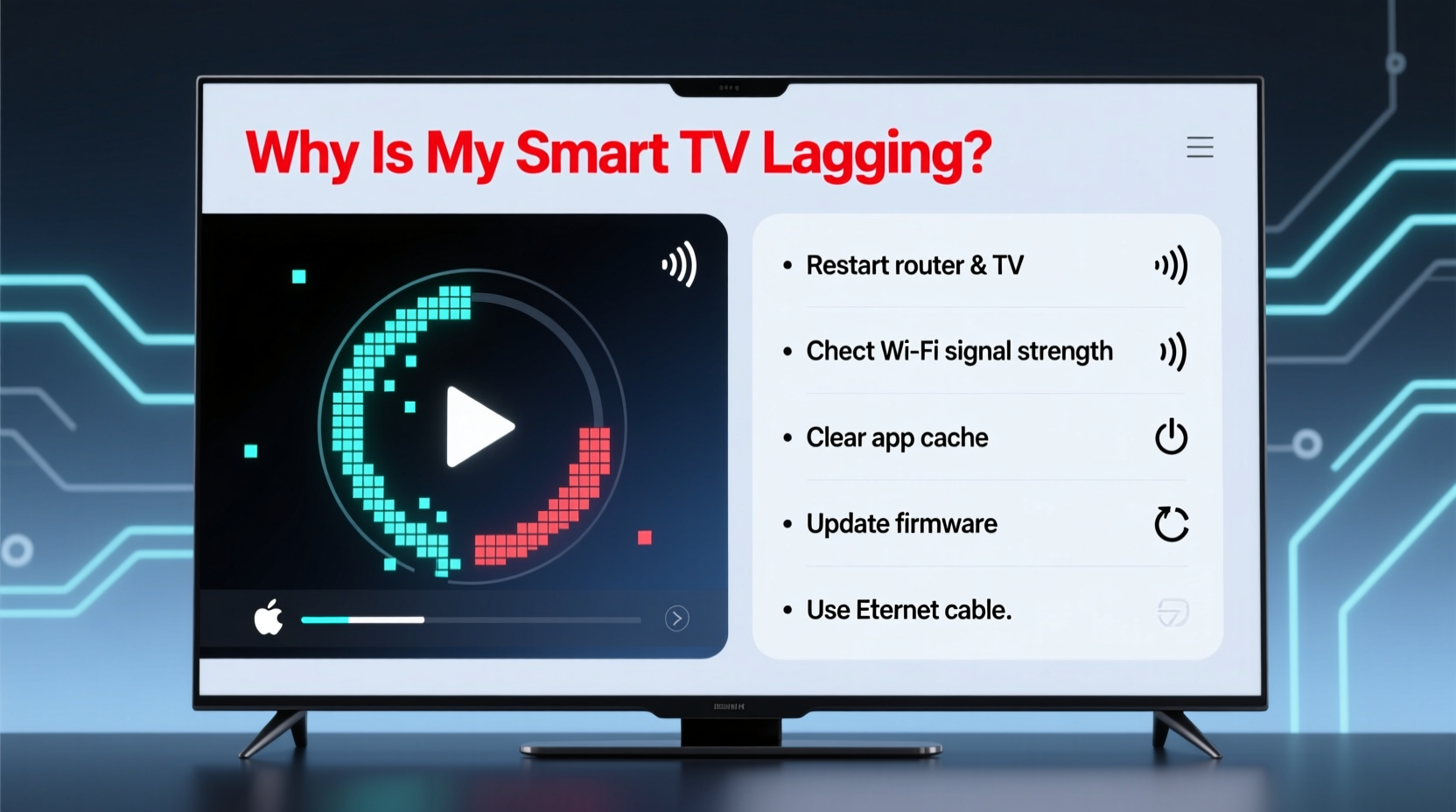
Lag and buffering are not always the same issue, though they often occur together. Lag refers to delayed input response—like when pressing “play” takes several seconds to register. Buffering, on the other hand, happens during video playback when the stream pauses to load more data. Both are symptoms of underlying performance bottlenecks.
The primary culprits include:
- Weak or unstable Wi-Fi signal: Distance from the router, physical obstructions, or interference from other devices can degrade connection quality.
- Insufficient internet bandwidth: High-definition (HD) and 4K streaming require consistent download speeds. If multiple devices are using the network simultaneously, available bandwidth drops.
- Outdated firmware or apps: Older versions may lack optimizations or contain bugs that affect performance.
- Overloaded TV memory: Running too many background apps or storing large caches can slow down older models.
- Router limitations: Older routers may struggle with modern streaming demands or fail to prioritize traffic effectively.
“Most smart TV performance issues aren’t due to the TV itself, but rather the ecosystem it operates in—especially the home network.” — Marcus Tran, Network Infrastructure Engineer at Broadband Insights Group
Step-by-Step Guide to Fix Smart TV Lag and Buffering Fast
Follow this structured troubleshooting sequence to identify and resolve the cause efficiently. Most fixes take under 10 minutes and don’t require technical expertise.
- Check Your Internet Speed
Use a speed test tool (like Speedtest.net) on a device connected to the same network. For reliable HD streaming, aim for at least 10 Mbps; for 4K, 25 Mbps or higher is recommended. Test both download and upload speeds, and ensure ping is under 100 ms. - Restart Your Devices
Power cycle your smart TV, router, and modem. Unplug them for 30 seconds, then plug back in. This clears temporary glitches and resets network handshakes. - Move Closer to the Router or Use a Wired Connection
If possible, connect your TV directly to the router via Ethernet cable. Wired connections eliminate Wi-Fi interference and provide stable throughput. If wiring isn’t feasible, reposition the router closer to the TV or use a Wi-Fi extender. - Reduce Network Congestion
Pause downloads, cloud backups, or streaming on other devices while watching TV. Consider setting up Quality of Service (QoS) rules in your router settings to prioritize your smart TV’s traffic. - Clear App Cache and Data
Navigate to your TV’s Settings > Apps > [Streaming App] > Storage > Clear Cache. This removes corrupted temporary files without deleting login info. For Android TV, also clear data if the app crashes frequently. - Update Firmware and Apps
Go to Settings > System > Software Update and install any pending updates. Also check individual apps for updates through the app store. - Factory Reset (Last Resort)
If nothing else works, perform a factory reset. Note: This erases all accounts and settings. Back up essential info first. After resetting, set up the TV again and test performance before reinstalling non-essential apps.
Do’s and Don’ts: Optimizing Your Smart TV Setup
| Do | Don't |
|---|---|
| Use a 5 GHz Wi-Fi band for less interference and faster speeds. | Place your router behind metal furniture or thick walls. |
| Set your DNS to Google (8.8.8.8) or Cloudflare (1.1.1.1) for faster domain resolution. | Run more than five streaming apps in the background simultaneously. |
| Limit auto-play videos and background data usage in app settings. | Ignore firmware update notifications—they often contain critical performance patches. |
| Use a surge protector with built-in Ethernet to safeguard against power spikes. | Assume a newer streaming app version is always better—some updates introduce bugs. |
Real Example: How Sarah Fixed Her Weekly Netflix Buffering
Sarah, a remote worker and avid streamer, noticed her Samsung QLED TV constantly buffering every Friday night during movie time. She had fiber internet with 100 Mbps advertised speed, so she assumed the connection was fine. However, after running a speed test on her phone near the TV, she found actual speeds were only 8 Mbps.
Investigating further, she realized her router was in the basement, two floors below the living room, and surrounded by concrete walls. Additionally, her children were downloading games on their tablets during movie time. By relocating the router to a central location, switching her TV to the 5 GHz network, and enabling QoS to prioritize media devices, Sarah restored stable 75 Mbps speeds to her TV. The buffering stopped immediately, and her weekly movie nights resumed smoothly.
This case illustrates how environmental and behavioral factors often outweigh raw internet specs when it comes to real-world performance.
Expert Tips for Long-Term Performance
Maintaining a responsive smart TV goes beyond one-time fixes. Implement these habits to prevent future slowdowns:
- Monitor Bandwidth Usage: Many routers offer dashboards showing which devices consume the most data. Identify silent bandwidth hogs like security cameras or smart appliances.
- Use Static IP for Your TV: Assign a fixed IP address to your smart TV in the router settings. This improves connection stability and simplifies QoS configuration.
- Disable Unused Features: Turn off voice assistants, automatic app updates, and personalized ads in privacy settings to reduce background processing.
- Upgrade Hardware When Needed: TVs older than five years may struggle with modern 4K HDR content and complex UIs. Consider upgrading to a model with at least 2GB RAM and a quad-core processor.
“Even the best smart TV will underperform on a congested network. Think of your router as the engine and the TV as the dashboard—they must work in sync.” — Lena Patel, Senior UX Designer at StreamTech Labs
Quick Checklist: Fix Smart TV Lag in Under 15 Minutes
When you’re short on time, follow this streamlined checklist to get results fast:
- ✅ Restart your smart TV and router.
- ✅ Run an internet speed test near the TV.
- ✅ Switch from 2.4 GHz to 5 GHz Wi-Fi (if available).
- ✅ Close unused apps running in the background.
- ✅ Clear cache for the main streaming app (Netflix, YouTube, etc.).
- ✅ Lower video quality temporarily (e.g., switch from 4K to 1080p).
- ✅ Move closer to the router or use a wired connection.
- ✅ Check for and install system updates.
Completing even half of these steps often resolves minor lag issues immediately. If problems persist, proceed with deeper diagnostics like QoS setup or hardware evaluation.
Frequently Asked Questions
Can a VPN cause my smart TV to buffer?
Yes. Using a VPN encrypts your traffic and routes it through remote servers, which adds latency and reduces effective bandwidth. While useful for accessing geo-restricted content, a low-quality or distant VPN server can significantly slow down streaming. Choose a high-speed, nearby server or disable the VPN when not needed.
Why does my TV lag only when I open certain apps?
This typically indicates an app-specific issue. The app may be poorly optimized, overloaded with updates, or experiencing server-side problems. Try uninstalling and reinstalling the app, or check the developer’s status page for outages. Some apps, like older versions of Hulu or Disney+, have known performance issues on lower-end smart TV platforms.
Is it better to use a streaming stick or rely on built-in smart TV apps?
In many cases, yes. Dedicated devices like Amazon Fire Stick 4K, Apple TV, or Chromecast with Google TV often outperform built-in systems—especially on budget or older TVs. They receive more frequent updates, have better processors, and offer smoother interfaces. If your TV lags consistently, consider bypassing its native platform entirely.
Conclusion: Take Control of Your Streaming Experience
Your smart TV should enhance relaxation, not add stress. Persistent lag and buffering are fixable—not inevitable. By understanding the interplay between network health, device capabilities, and app efficiency, you gain the power to diagnose and resolve issues confidently. Start with simple steps like rebooting and speed testing, then progress to strategic upgrades like wired connections or external streaming devices.
Remember, optimal performance isn’t about having the fastest internet plan—it’s about smart configuration and proactive maintenance. Apply these insights today, and enjoy seamless, interruption-free viewing tonight.




 浙公网安备
33010002000092号
浙公网安备
33010002000092号 浙B2-20120091-4
Comments
No comments yet. Why don't you start the discussion?