
Smart TVs have transformed how we consume entertainment—offering seamless access to Netflix, Hulu, Disney+, YouTube, and more at the touch of a button. But when your screen freezes mid-scene, audio stutters, or videos buffer endlessly, the experience quickly turns frustrating. Streaming lag on a smart TV isn’t always a sign of hardware failure. In most cases, it’s caused by fixable issues related to network performance, outdated software, or misconfigured settings. The good news? Most problems can be resolved without technical expertise or costly repairs.
This guide walks you through the root causes of smart TV lag during streaming and delivers practical, step-by-step solutions that actually work. Whether you're troubleshooting an older model or a brand-new 4K display, these fixes will help you reclaim smooth, uninterrupted viewing.
Understanding the Causes of Smart TV Streaming Lag
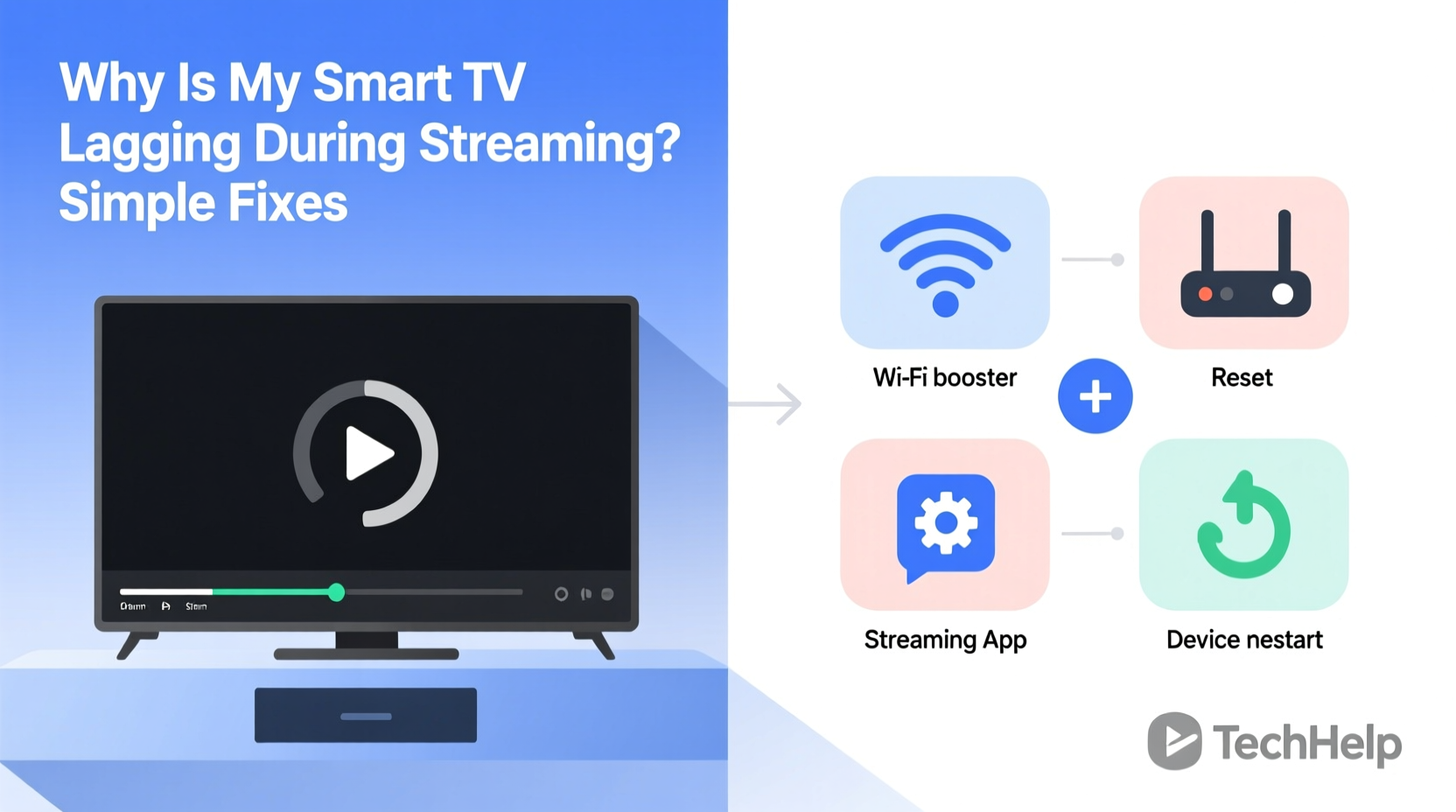
Lag during streaming typically manifests as choppy video, delayed audio, constant buffering, or app crashes. While it may seem like your TV is “slow,” the issue often lies beyond the device itself. Modern smart TVs are powerful enough to handle high-resolution content, but their performance depends heavily on external factors such as internet speed, Wi-Fi signal strength, and service provider stability.
The most common culprits include:
- Weak or unstable Wi-Fi connection – Distance from the router, interference from walls or appliances, or overcrowded networks can degrade signal quality.
- Inadequate internet bandwidth – Multiple devices using the same network simultaneously can starve your TV of necessary data throughput.
- Outdated firmware or apps – Older software versions may contain bugs or compatibility issues with current streaming protocols.
- Overloaded cache and memory – Like smartphones, smart TVs accumulate temporary files over time, which can slow down performance.
- Server-side issues – Sometimes, the problem originates with the streaming platform, not your home setup.
Step-by-Step Fixes to Eliminate Smart TV Lag
Before assuming your smart TV needs replacement, follow this structured troubleshooting sequence. Many users see immediate improvement after just one or two steps.
- Restart your smart TV and router
Power cycling both devices clears temporary glitches. Unplug your TV and router for 60 seconds, then plug them back in. Wait for full reboot before testing again. - Check your internet speed
Use a smartphone or laptop connected to the same network to run a speed test via sites like Speedtest.net. For HD streaming, you need at least 5 Mbps; for 4K, aim for 25 Mbps or higher. - Move closer to the router or use a wired connection
Wi-Fi signals weaken over distance and through obstacles. If possible, connect your TV directly to the router using an Ethernet cable for maximum stability. - Reduce network congestion
Pause downloads, disconnect unused devices, or set up Quality of Service (QoS) rules in your router settings to prioritize streaming traffic. - Clear the cache of your streaming apps
Navigate to Settings > Apps > [App Name] > Clear Cache. This removes corrupted temporary data without deleting login info. - Update your TV’s firmware and apps
Outdated software can cause compatibility issues. Check for updates under Settings > System > Software Update. - Factory reset the TV (last resort)
If nothing else works, reset to factory settings. Be sure to note login credentials beforehand, as all accounts will be logged out.
Optimizing Your Home Network for Streaming
Your smart TV is only as fast as the network it runs on. Even a high-end television will struggle on a poorly configured Wi-Fi setup. Consider these optimization strategies:
Use a 5 GHz Band Instead of 2.4 GHz
If your router supports dual-band Wi-Fi, connect your TV to the 5 GHz network. It offers faster speeds and less interference than the crowded 2.4 GHz band—though its range is shorter. Position your router centrally to maximize coverage.
Upgrade to a Mesh Network System
For larger homes, traditional routers often fail to deliver consistent signal strength. Mesh systems like Google Nest Wifi or Eero extend coverage seamlessly across multiple rooms, eliminating dead zones.
Set Up QoS (Quality of Service)
Most modern routers allow you to prioritize certain devices or activities. Assign your smart TV top priority during peak viewing hours to ensure smooth playback even when others are online.
“Streaming lag is rarely about the TV—it’s almost always a network bottleneck. Optimizing your home Wi-Fi is the single most impactful upgrade you can make.” — Marcus Lin, Network Infrastructure Specialist at Broadband Insights Group
Do’s and Don’ts: Common Mistakes That Worsen Lag
| Do | Don’t |
|---|---|
| Use Ethernet whenever possible for critical devices | Rely solely on distant Wi-Fi for 4K streaming |
| Regularly update your TV’s operating system | Ignore software update notifications |
| Close unused apps running in the background | Leave ten apps open simultaneously on your smart hub |
| Test different DNS servers (e.g., Google DNS: 8.8.8.8) | Assume your ISP’s default DNS is always fastest |
| Monitor bandwidth usage during streaming | Start large downloads while watching a movie |
Mini Case Study: How Sarah Fixed Her Weekly Movie Night Lag
Sarah had been frustrated every Friday night when her family gathered to watch a film. Despite having a new Samsung QLED TV and a 100 Mbps internet plan, the video would buffer every 10 minutes. She assumed she needed a better TV—until a friend suggested checking her Wi-Fi setup.
Upon inspection, she realized her router was in the basement, while the TV was on the second floor, separated by two thick walls. Her TV was connected to the 2.4 GHz band, which struggled to maintain speed over that distance.
She switched to the 5 GHz band, moved the router upstairs, and connected her TV via Ethernet. Buffering stopped immediately. Later, she upgraded to a mesh system for whole-home coverage. Now, her weekend movies play flawlessly—even in 4K.
Sarah’s case illustrates a key truth: hardware upgrades aren’t always necessary. Strategic adjustments to your existing setup often yield dramatic results.
Checklist: Quick Actions to Fix Smart TV Lag Today
Follow this concise checklist to resolve lag efficiently:
- ✅ Restart your smart TV and Wi-Fi router
- ✅ Run an internet speed test near the TV
- ✅ Connect via Ethernet instead of Wi-Fi if possible
- ✅ Switch to the 5 GHz Wi-Fi band
- ✅ Close unused apps on your smart TV
- ✅ Clear cache for lagging streaming apps
- ✅ Check for and install firmware updates
- ✅ Reduce the number of active devices on your network
- ✅ Adjust video quality settings (e.g., lower from 4K to 1080p temporarily)
- ✅ Contact your ISP if speeds are consistently below advertised rates
Frequently Asked Questions
Why does my smart TV lag only when I stream in 4K?
4K streaming requires significantly more bandwidth—typically 25 Mbps or higher. If your internet speed fluctuates below this threshold, the TV may struggle to maintain a stable stream. Additionally, some older smart TVs lack the processing power to decode high-bitrate 4K content smoothly. Try lowering the resolution in the app settings to see if performance improves.
Can too many apps slow down my smart TV?
Yes. While smart TVs don’t “crash” like computers, having numerous apps installed and running in the background consumes system memory and storage. Over time, this leads to slower navigation and app loading. Regularly uninstall apps you no longer use and clear caches monthly to maintain optimal performance.
Is it worth buying a streaming device instead of using built-in apps?
Often, yes. Devices like Apple TV, Roku Ultra, or NVIDIA Shield offer faster processors, more reliable software updates, and smoother interfaces than many built-in smart platforms. If your TV is older or from a budget brand, pairing it with a dedicated streamer can dramatically improve performance and longevity.
Conclusion: Regain Smooth Streaming with Simple Adjustments
Smart TV lag doesn’t have to ruin your viewing experience. In most cases, the solution lies in optimizing your network, updating software, or making small configuration changes. You don’t need expensive gear or technical knowledge—just a methodical approach and willingness to troubleshoot step by step.
Start with the basics: restart your devices, test your speed, and consider a wired connection. From there, progress through cache clearing, updates, and advanced network tweaks. Most users resolve their issues within an hour using these proven methods.




 浙公网安备
33010002000092号
浙公网安备
33010002000092号 浙B2-20120091-4
Comments
No comments yet. Why don't you start the discussion?