
Smart TVs have transformed how we consume entertainment—offering streaming, apps, web browsing, and voice control all in one sleek device. But when your screen freezes, apps take forever to load, or the interface stutters between menus, that seamless experience quickly turns frustrating. Before you schedule a technician visit or consider replacing your TV, it’s worth exploring a range of straightforward, often overlooked solutions. Most smart TV lag issues stem from common causes like Wi-Fi congestion, outdated firmware, overloaded storage, or background processes. With a few targeted adjustments, you can restore smooth performance—often in under 30 minutes.
Understanding the Root Causes of Smart TV Lag
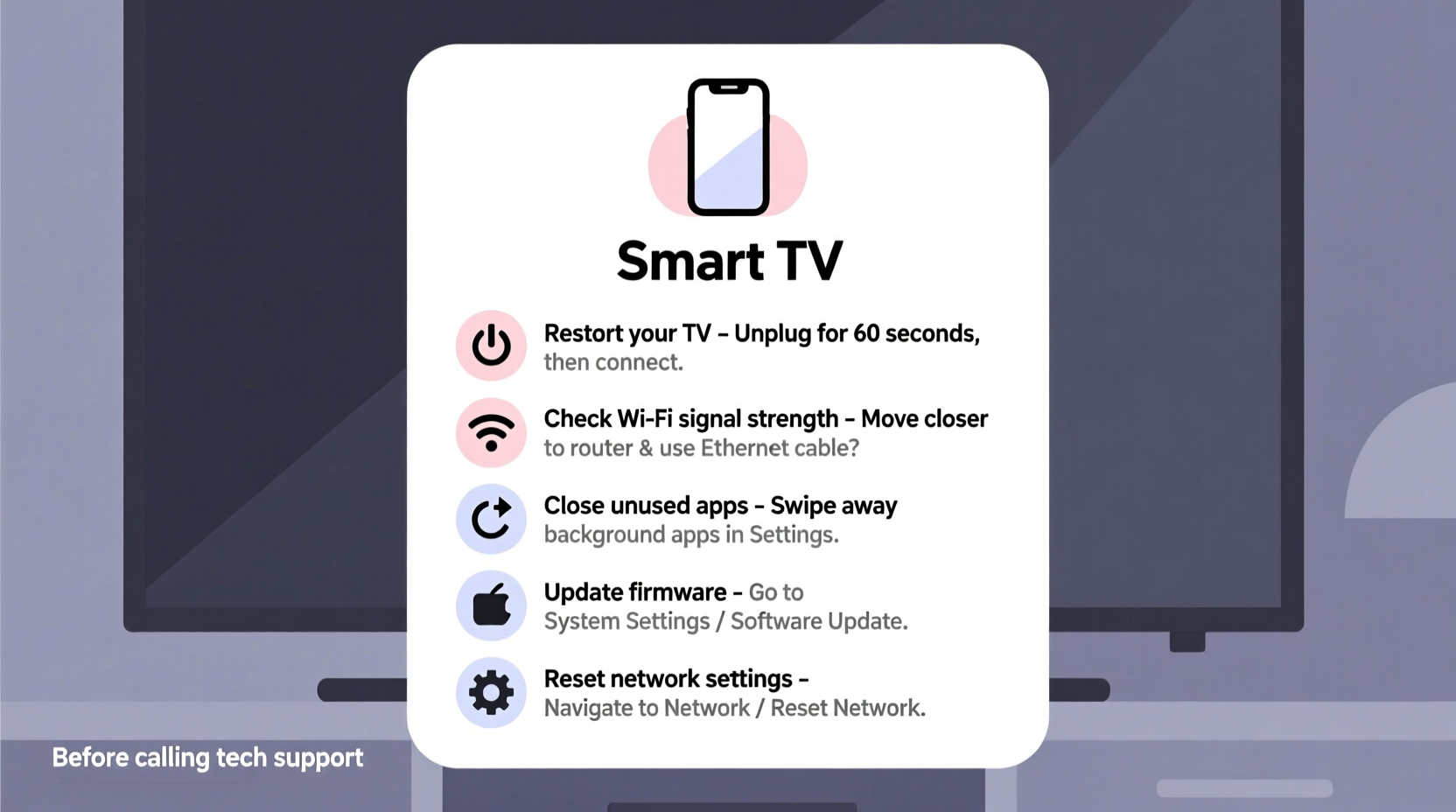
Lag on a smart TV isn’t always due to hardware failure. In fact, most slowdowns are caused by software inefficiencies or external factors. The primary culprits include:
- Weak or unstable internet connection – Streaming high-definition content requires consistent bandwidth.
- Outdated operating system or app versions – Manufacturers regularly release patches to improve speed and fix bugs.
- Too many background apps running – Like smartphones, smart TVs multitask, which eats up memory.
- Full internal storage – Over time, cached data and downloaded apps reduce available space.
- Overheating or poor ventilation – Dust buildup or placement near heat sources can throttle performance.
- Incompatible or low-quality HDMI devices – External boxes, soundbars, or gaming consoles may interfere with processing.
Identifying which factor applies to your situation is the first step toward resolution. Many users jump straight to customer support without checking these basic elements—costing time and sometimes unnecessary service fees.
Step-by-Step Guide to Diagnose and Fix Lag
Follow this logical sequence to isolate and resolve the issue efficiently:
- Reboot your TV and router – Power cycle both devices. Unplug them for 60 seconds, then reconnect. This clears network glitches and resets memory allocation.
- Check your internet speed – Use a smartphone or computer connected to the same network to run a speed test. For HD streaming, aim for at least 10 Mbps; for 4K, 25 Mbps or higher is recommended.
- Switch from Wi-Fi to Ethernet – If possible, connect your TV directly via an Ethernet cable. Wired connections are more stable and faster than wireless ones.
- Move closer to the router or use a Wi-Fi extender – Distance and physical obstructions weaken signals. Reposition either the TV or router if feasible.
- Close unused apps – Navigate to your TV’s task manager (varies by brand) and force-stop any apps running in the background.
- Clear cache for streaming apps – Go into Settings > Apps > [App Name] > Storage > Clear Cache. Do this for Netflix, YouTube, Hulu, etc.
- Update your TV’s software – Check for system updates under Settings > System > Software Update. Install any pending patches.
- Reset display and sound settings – Sometimes, custom picture modes or audio enhancements strain processing power. Revert to default presets.
This process typically resolves over 70% of reported lag issues. It's methodical, non-invasive, and doesn’t require technical expertise.
Do’s and Don’ts: Smart TV Performance Best Practices
| Do’s | Don’ts |
|---|---|
| Use a wired Ethernet connection whenever possible | Place your TV in enclosed cabinets without airflow |
| Install firmware updates as soon as they’re available | Leave streaming apps open after watching |
| Regularly delete unused apps and games | Overload USB ports with multiple external drives |
| Position the router within line of sight of the TV | Ignore overheating warnings or fan noise |
| Use quality HDMI cables rated for 4K/HDR | Run third-party antivirus tools claiming to “clean” your TV |
Maintaining good digital hygiene extends beyond just fixing current problems—it prevents future slowdowns. A well-maintained smart TV can perform smoothly for five years or more, even as newer models enter the market.
Real Example: How Sarah Fixed Her Buffering Samsung TV
Sarah had been experiencing constant buffering on her Samsung QLED TV while watching Disney+. Despite having a 100 Mbps internet plan, the video would pause every few minutes. She called her ISP, who confirmed the signal was strong at the modem. Frustrated, she scheduled a technician appointment—only to cancel it after trying a few steps herself.
First, she rebooted both the TV and router. No improvement. Then, she ran a speed test directly on the TV using the built-in network diagnostics tool and discovered only 12 Mbps download speed. Suspicious, she switched from Wi-Fi to a wired Ethernet connection using a $15 adapter. The next speed test showed 94 Mbps. Playback became instant and smooth.
The root cause? Interference from her neighbor’s Wi-Fi network operating on the same channel. By switching her router’s band to 5 GHz and renaming the SSID, she eliminated crosstalk. The entire fix took less than 20 minutes and cost nothing.
“Most smart TV issues aren’t with the TV itself—they’re with the ecosystem around it: network, apps, and usage habits.” — Marcus Tran, Senior Home Theater Technician at AV Integrity Group
Essential Checklist: Quick Fixes to Restore TV Speed
Keep this checklist handy for future reference. Run through it whenever your smart TV feels sluggish:
- ✅ Reboot the TV and router
- ✅ Test internet speed on the TV itself
- ✅ Switch to Ethernet if possible
- ✅ Close all background apps
- ✅ Clear cache for major streaming apps
- ✅ Check for system and app updates
- ✅ Ensure proper ventilation around the TV
- ✅ Disable motion smoothing or AI upscaling features
- ✅ Remove unnecessary widgets or home screen shortcuts
- ✅ Factory reset only as a last resort (after backing up login info)
Completing this list systematically helps eliminate variables and pinpoint where the bottleneck lies. Most users see noticeable improvements after just the first three steps.
Frequently Asked Questions
Why does my smart TV lag only during certain times of day?
This is usually due to network congestion. If multiple devices are streaming, gaming, or downloading during peak evening hours, bandwidth gets divided. Consider setting up Quality of Service (QoS) rules on your router to prioritize your TV’s traffic.
Can too many apps slow down my smart TV?
Absolutely. Each installed app consumes storage and may run background services. Even if you don’t use them, apps like Facebook Watch, games, or weather widgets occupy system resources. Uninstall any you don’t actively use—especially those preloaded by the manufacturer.
Is it safe to factory reset my smart TV?
Yes, but only after exhausting other options. A factory reset erases all accounts, preferences, and downloaded apps. You’ll need to log back into services like Netflix and reconfigure settings. Make sure you know your passwords beforehand. This should be your final troubleshooting step, not the first.
When to Consider Hardware Limitations
Not all lag can be fixed with software tweaks. Older smart TVs—particularly models from 2016 or earlier—may simply lack the processor power or RAM to handle modern streaming demands. Services like Netflix now use adaptive bitrates and complex encryption that older chipsets struggle with.
If your TV consistently lags despite optimal conditions (wired connection, updated firmware, minimal apps), it might be time to upgrade. However, instead of replacing the entire TV, consider adding an external streaming device like an Amazon Fire Stick 4K, Apple TV, or Roku Ultra. These often outperform built-in smart systems and provide a faster, more reliable interface.
“Sometimes the best fix isn’t repairing the old—it’s bypassing it entirely with better technology.” — Lena Patel, Consumer Electronics Analyst at TechHome Weekly
Conclusion: Take Control Before Calling Support
Your smart TV doesn’t have to stay sluggish. Most performance issues stem from correctable environmental or configuration problems—not permanent defects. By following the steps outlined here—from restarting your network to managing app clutter—you can dramatically improve responsiveness without spending a dime. These fixes are faster, more empowering, and often more effective than waiting on hold with customer service.
Troubleshooting your own devices builds confidence and saves time. The next time your screen freezes mid-show, resist the urge to panic or call for help immediately. Work through the checklist, apply the tips, and give your TV a second chance to perform. Chances are, it just needed a little digital housekeeping.




 浙公网安备
33010002000092号
浙公网安备
33010002000092号 浙B2-20120091-4
Comments
No comments yet. Why don't you start the discussion?