
If you've ever settled in for a relaxing evening with your favorite show only to be met with endless buffering, stuttering playback, or delayed audio, you're not alone. Smart TV lag during Netflix streaming has become an increasingly common frustration—especially as households rely more on high-definition content and multiple connected devices. While the issue may seem technical or even hardware-related, most causes are actually fixable with simple troubleshooting steps. Understanding why your smart TV stutters during Netflix—and how to resolve it quickly—can restore smooth viewing without needing a replacement or technician.
Lag during streaming isn't always about internet speed. It can stem from outdated firmware, network congestion, app glitches, or even the way your router distributes bandwidth. The good news is that many of these problems can be diagnosed and corrected within minutes. This guide walks through the most frequent culprits behind Netflix lag and provides actionable solutions tailored for real-world home setups.
Common Causes of Smart TV Lag on Netflix
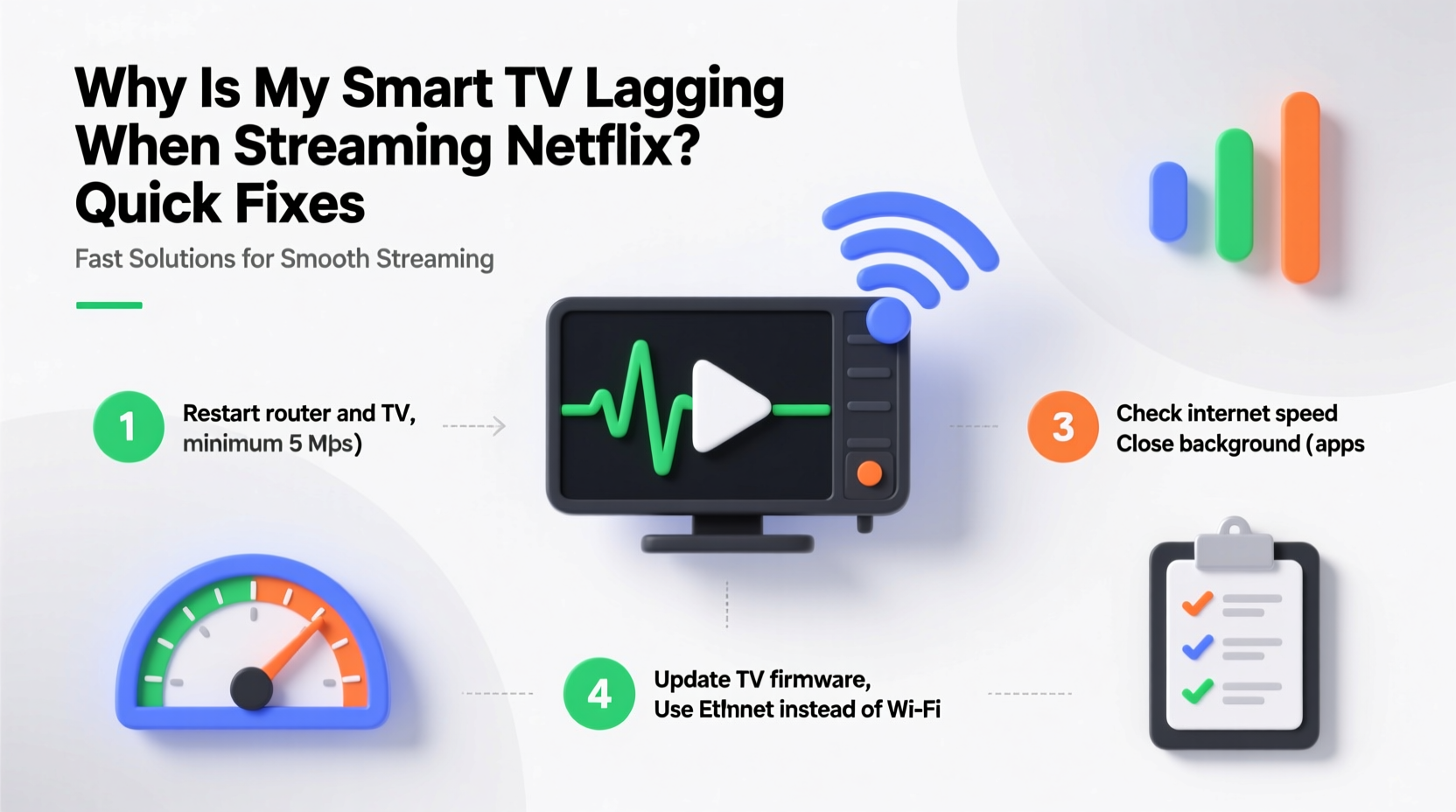
Before jumping into fixes, it's essential to identify what’s causing the lag. Streaming performance depends on a chain of components: your internet connection, router, smart TV hardware, Netflix app health, and even the time of day. Any weak link can disrupt the experience.
- Insufficient internet speed: Netflix recommends at least 5 Mbps for HD and 15 Mbps for 4K Ultra HD. If your connection dips below this threshold, buffering occurs.
- Wi-Fi signal interference: Thick walls, distance from the router, or nearby electronics (microwaves, cordless phones) can degrade wireless signals.
- Outdated TV firmware: Older software versions may lack optimization for current Netflix encoding standards.
- App corruption or cache buildup: Like any app, Netflix can accumulate corrupted data over time, slowing performance.
- Router overload: Multiple devices streaming simultaneously can saturate bandwidth, especially on older routers.
- Hardware limitations: Entry-level smart TVs may struggle with high-bitrate streams due to weaker processors or limited RAM.
“Streaming lag is rarely just about speed—it’s often about consistency. A stable 10 Mbps connection performs better than an erratic 50 Mbps one.” — David Lin, Network Performance Analyst at Broadband Insights Group
Quick Fixes to Stop Netflix Lag Immediately
You don’t need advanced tools or technical expertise to resolve most streaming issues. Start with these proven, immediate actions that address the root causes of lag.
1. Restart Your Devices
A simple reboot clears temporary glitches in both your smart TV and router. Power off your TV completely, unplug the router for 30 seconds, then restart both. This resets network connections and flushes out cached errors in the Netflix app.
2. Test and Improve Your Internet Speed
Run a speed test directly from your smart TV if available, or use a device connected to the same network. Tools like Fast.com (Netflix’s own speed tester) give accurate results. If speeds are below 15 Mbps for 4K or 5 Mbps for HD, consider upgrading your plan or limiting other network usage.
3. Move Closer to the Router or Use a Wired Connection
Wi-Fi strength drops significantly with distance and obstacles. If possible, connect your smart TV to the router via Ethernet. Wired connections eliminate latency, interference, and signal drops—resulting in far smoother streaming.
4. Clear the Netflix App Cache
Corrupted cache files can cause slow loading and choppy playback. Navigate to your TV’s Settings > Apps > Netflix > Storage > Clear Cache. This won’t delete your account or watch history but will refresh the app environment.
5. Lower Netflix Video Quality Temporarily
In the Netflix app, go to Settings > Playback Settings and switch from “High” to “Medium” or “Auto.” This reduces data demand and helps determine if bandwidth is the bottleneck.
Step-by-Step Guide: Diagnose and Fix Lag in Under 15 Minutes
Follow this structured approach to systematically eliminate causes and restore optimal performance.
- Pause all other internet activity – Stop downloads, video calls, or mobile streaming on other devices.
- Reboot your smart TV and router – Wait two minutes before turning them back on.
- Run a speed test using Fast.com or Speedtest.net. Record download speed and ping.
- Check Wi-Fi signal strength in your TV’s network settings. If below 70%, consider repositioning the router or using a Wi-Fi extender.
- Clear the Netflix app cache through your TV’s application manager.
- Update your TV’s firmware – Check under Settings > System > Software Update.
- Switch to a wired connection if feasible, or move the router closer to the TV.
- Test Netflix again with a long-form show to observe sustained performance.
This sequence isolates variables and ensures each potential fix is tested methodically. Most users see improvement by step five.
Do’s and Don’ts When Troubleshooting Streaming Lag
| Do’s | Don’ts |
|---|---|
| Use Ethernet whenever possible for critical streaming devices | Place your router inside a cabinet or behind metal objects |
| Update your smart TV firmware monthly | Ignore slow performance until it becomes unbearable |
| Limit background apps on your smart TV | Run large downloads while watching 4K content |
| Position your router centrally and elevated | Assume higher internet speed always equals better streaming |
| Restart your router weekly to prevent memory leaks | Use outdated routers (older than 3–4 years) for 4K streaming |
Real-World Example: Fixing Lag in a Multi-Device Household
The Patel family in Austin, Texas, experienced constant Netflix lag every evening despite having a 100 Mbps internet plan. Their 4-year-old Samsung smart TV would buffer during peak hours, even though their phone and laptop showed strong Wi-Fi.
After testing, they discovered their router was located in a basement closet, creating poor signal penetration upstairs. Additionally, their children were downloading school videos on tablets during movie time, consuming up to 60% of bandwidth.
They applied three fixes: relocated the router to a central hallway shelf, set up Quality of Service (QoS) rules to prioritize the TV, and scheduled non-urgent downloads for late night. Within a day, Netflix playback became seamless—even in 4K. This case highlights how environmental and behavioral factors often outweigh raw speed numbers.
Advanced Optimization Tips for Long-Term Stability
Once immediate lag is resolved, implement these strategies to maintain consistent performance over time.
Enable QoS (Quality of Service) on Your Router
QoS allows you to prioritize streaming traffic over less time-sensitive activities like email syncing or cloud backups. Access your router settings via a web browser (typically 192.168.1.1), locate the QoS section, and assign high priority to your smart TV’s IP or MAC address.
Upgrade to a Dual-Band or Mesh Wi-Fi System
Older single-band routers operate on the crowded 2.4 GHz frequency. Modern dual-band systems offer a cleaner 5 GHz band ideal for HD streaming. For larger homes, mesh networks like Google Nest Wifi or Eero provide seamless coverage without dead zones.
Factory Reset the Netflix App or TV (Last Resort)
If lag persists, delete and reinstall the Netflix app. On some TVs, you may need to reset app preferences entirely. As a final step, consider a factory reset of the TV—but back up login details first.
FAQ: Common Questions About Smart TV Streaming Lag
Why does Netflix lag only at certain times of day?
Peak usage hours (typically 7–10 PM) increase network congestion, both on your home Wi-Fi and your ISP’s infrastructure. Neighbors’ streaming habits can also affect your signal if you’re on shared broadband tiers. Try shifting viewing to earlier in the day or enabling QoS to mitigate this.
Can a VPN cause Netflix to lag on my smart TV?
Yes. Many smart TVs don’t support native VPN apps, so if you’re using a router-level or ISP-based VPN, the added encryption and remote server routing can reduce speed and increase latency. Disable the VPN temporarily to test if performance improves.
Does screen size affect streaming performance?
No, screen size doesn’t impact performance. However, larger TVs are often used for higher resolutions (like 4K), which require more bandwidth. A 75-inch 4K TV demands significantly more data than a 43-inch HD model, increasing the likelihood of lag if network conditions aren’t optimal.
Essential Checklist: Fix Netflix Lag in 7 Steps
- ✅ Reboot your smart TV and router
- ✅ Run a speed test (aim for ≥15 Mbps for 4K)
- ✅ Clear Netflix app cache and data
- ✅ Check for and install TV firmware updates
- ✅ Switch to Ethernet or improve Wi-Fi signal
- ✅ Reduce background network usage
- ✅ Adjust Netflix playback quality to “Medium” temporarily
Work through this list in order. Most issues are resolved by step four. Keep it bookmarked for future reference during streaming hiccups.
Conclusion: Regain Smooth Streaming with Simple Adjustments
Smart TV lag during Netflix streaming is frustrating but almost always fixable. The key is understanding that performance depends on a balance of speed, stability, and device health—not just one factor. By applying targeted fixes like clearing cache, upgrading connections, or optimizing router placement, you can transform a choppy viewing experience into a seamless one.
Don’t accept constant buffering as inevitable. With the right knowledge and a few minutes of effort, your smart TV can deliver the high-quality entertainment it was designed for. Implement these strategies tonight and enjoy uninterrupted movies, shows, and documentaries—exactly as they were meant to be watched.




 浙公网安备
33010002000092号
浙公网安备
33010002000092号 浙B2-20120091-4
Comments
No comments yet. Why don't you start the discussion?