
Smartwatches have become indispensable tools for tracking fitness, managing notifications, and staying connected. But nothing disrupts the experience faster than a battery that dies midday. If you're charging your watch twice a day or struggling to make it through a single workout without a power drop, you're not alone. Battery drain in modern smartwatches isn't always a hardware flaw—it's often tied to overlooked settings, background behaviors, and usage patterns. Understanding the root causes and making targeted adjustments can dramatically extend your device’s battery life.
Common Causes of Rapid Battery Drain
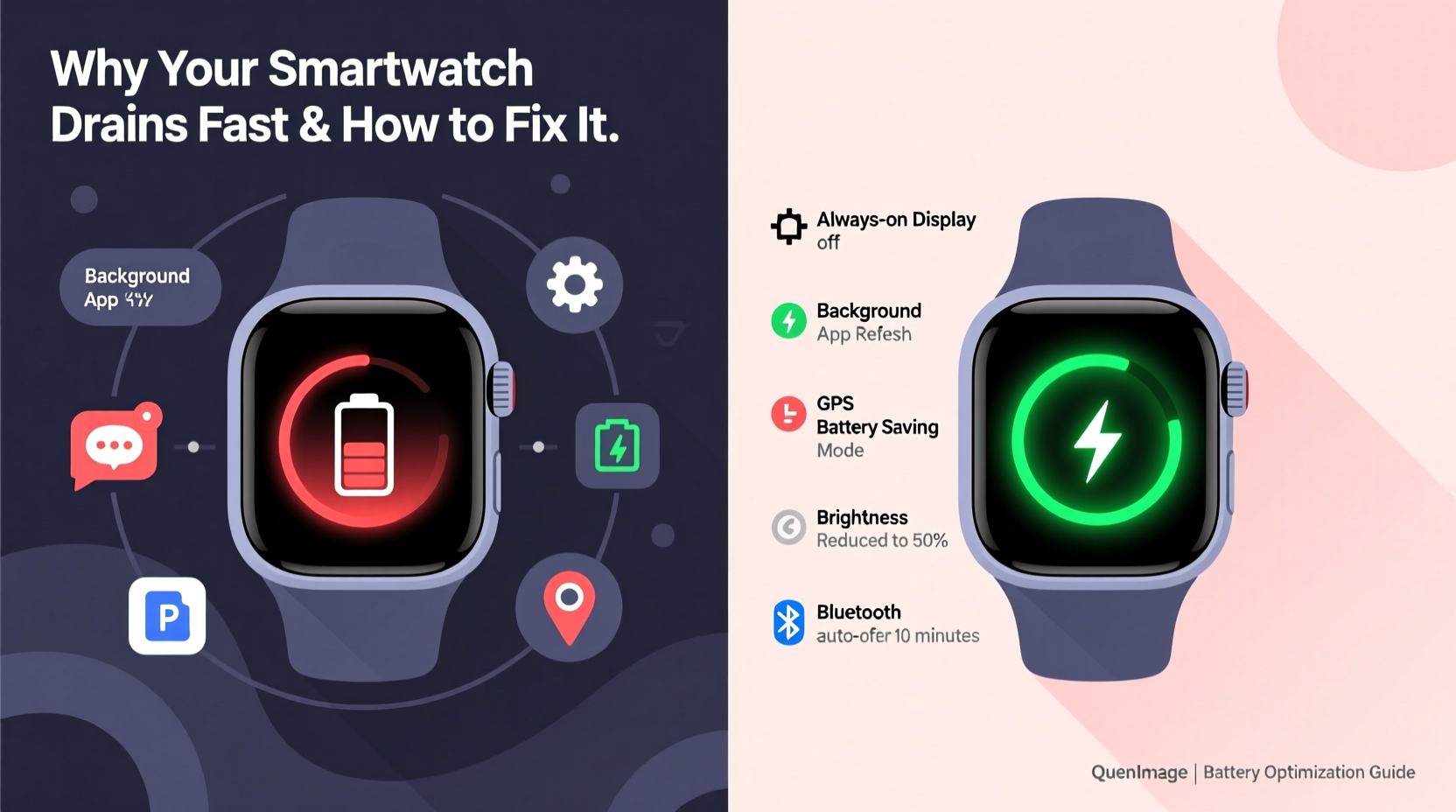
Before diving into fixes, it’s important to identify what’s consuming power. Smartwatches are packed with sensors and connectivity features, all of which draw energy. The most common culprits include:
- Always-On Display (AOD): Keeps the screen lit even when idle, significantly increasing power use.
- GPS and Heart Rate Monitoring: Continuous tracking during workouts or all-day health monitoring uses substantial energy.
- Background App Refresh: Apps syncing data in the background, even when not in use.
- Bluetooth and Wi-Fi: Constant connection to your phone or network drains the battery over time.
- Brightness and Animations: High screen brightness and visual effects contribute more than users expect.
- Frequent Notifications: Every alert triggers vibration, screen wake-up, and processing—adding up over hundreds of daily pings.
“Battery degradation starts from day one, but poor settings can accelerate drain by 40–60% in just weeks.” — Dr. Lena Park, Wearable Technology Analyst at TechInsight Labs
Key Settings That Impact Battery Life
Most smartwatches offer granular control over power-hungry features. Adjusting these settings doesn’t mean sacrificing functionality—it means optimizing for efficiency.
1. Disable Always-On Display
The convenience of seeing the time without lifting your wrist comes at a high cost. On Apple Watch, Wear OS, and Samsung Galaxy Watch models, AOD can reduce battery life by up to 30%. Turning it off forces the screen to sleep until activated by motion or touch.
2. Reduce Screen Brightness and Timeout
A bright screen may look great in sunlight, but it’s one of the top battery drainers. Lowering brightness and shortening how long the display stays on after activation can yield noticeable improvements.
For example:
- Set brightness to 50% or auto-brightness mode.
- Reduce screen timeout from 15 seconds to 5–7 seconds.
3. Limit Background App Refresh
Many apps refresh data every few minutes—weather, news, social media—even when you’re not using them. This constant syncing uses CPU, network, and sensor resources.
On iOS-connected watches: Go to iPhone Settings > Watch > General > Background App Refresh and disable non-essential apps.
On Wear OS: Navigate to Settings > Apps & notifications > Special app access > Background restriction and apply limits.
4. Optimize Health and Fitness Tracking
While continuous heart rate, SpO2, and stress monitoring provide valuable insights, they run sensors constantly. Consider adjusting frequency:
- Switch heart rate from “Continuous” to “Workout Only” if you don’t need 24/7 data.
- Turn off automatic blood oxygen measurement unless medically necessary.
- Disable all-day ECG prompts if not actively used.
5. Manage Notifications Wisely
Every notification wakes the screen, vibrates the haptic engine, and processes data. Over a day, this adds up. Evaluate which apps truly need to notify you on your wrist.
To reduce noise:
- Open your companion app (e.g., Galaxy Wearable, Wear OS, or Apple Watch app).
- Navigate to Notifications settings.
- Disable alerts for email, social media, or messaging apps you don’t need instantly.
Step-by-Step Guide to Extend Smartwatch Battery Life
Follow this practical sequence to reclaim hours of battery life within 30 minutes:
- Check Current Battery Usage: Open the battery section in your watch settings to see which apps or features are consuming the most power.
- Turn Off Always-On Display: Navigate to Display settings and disable AOD. You’ll immediately notice longer standby times.
- Lower Screen Brightness: Set to 50% or enable adaptive brightness based on environment.
- Restrict Background Apps: Identify apps like Twitter, Instagram, or news aggregators that sync frequently and disable background refresh.
- Adjust Sensor Frequency: In Health or Fitness settings, switch heart rate and SpO2 to manual or workout-only mode.
- Limit Notifications: Allow only critical apps (messages, calls, calendar) to send alerts to your watch.
- Enable Power Saving Mode During Workouts: If your watch supports GPS-only mode without heart rate, use it for long runs or hikes.
- Restart Weekly: A full reboot clears cached processes and resets memory leaks that slowly degrade performance.
Do’s and Don’ts: Battery Optimization Table
| Do’s | Don’ts |
|---|---|
| Use Power Saving Mode during travel or long days away from chargers. | Leave GPS running after workouts—always stop tracking manually. |
| Update Firmware Regularly—manufacturers often release battery optimization patches. | Run third-party watch faces with animations—they consume extra CPU and GPU cycles. |
| Charge Between 20–80% to prolong overall battery lifespan. | Keep brightness maxed out “just in case”—it’s rarely needed. |
| Turn Off Unnecessary Sensors like ambient light detection if not useful. | Allow all apps to send notifications—be selective about what reaches your wrist. |
| Use Airplane Mode when sleeping or in areas with poor signal (prevents constant network searching). | Ignore battery usage reports—review them monthly to catch rogue apps. |
Real-World Example: Sarah’s Week-Long Fix
Sarah, a 32-year-old project manager and fitness enthusiast, found her Galaxy Watch 6 dying by 3 PM daily despite charging overnight. She relied on it for meetings, step tracking, and sleep monitoring. After checking her battery stats, she discovered that:
- Always-On Display used 38% of total battery.
- Instagram and Gmail refreshed every 10 minutes, waking the device repeatedly.
- Heart rate was set to continuous, even though she only reviewed data post-workout.
She followed the step-by-step guide above—disabling AOD, reducing brightness, restricting background apps, and switching heart rate to manual mode. Within two days, her watch lasted until bedtime with 20% remaining. After a week, she no longer needed midday charging, and her sleep tracking accuracy improved due to fewer interruptions.
“Optimization isn’t about doing less—it’s about focusing your watch’s power on what matters most.” — Marcus Tran, Senior UX Designer at FitTech Labs
Frequently Asked Questions
Why does my smartwatch battery drain overnight?
Even when idle, your watch may be syncing data, receiving notifications, or running background health scans. To prevent this, enable Sleep Mode or Do Not Disturb during nighttime. Some watches allow scheduling automatic power-saving modes between certain hours.
Does turning off Bluetooth save battery?
Yes, but with caveats. Disabling Bluetooth cuts off communication with your phone, meaning no call alerts, message sync, or music control. However, if you're using standalone features (like offline music playback), turning off Bluetooth briefly can help conserve power. For most users, keeping it on is worth the trade-off.
Is it bad to charge my smartwatch every night?
No—modern smartwatches use lithium-ion batteries with built-in safeguards against overcharging. Charging nightly is safe and recommended. However, avoid letting the battery drop below 10% regularly, as deep discharges accelerate long-term degradation.
Conclusion: Take Control of Your Smartwatch Battery
Rapid battery drain isn’t inevitable. With a few strategic changes to display, sensor, and notification settings, you can double—or even triple—the usable life of your smartwatch each charge. The key is awareness: knowing what consumes power and being intentional about enabling features only when needed. Whether you're an athlete relying on GPS, a professional managing calendars, or someone who values seamless connectivity, optimizing your device ensures it works for you, not against you.




 浙公网安备
33010002000092号
浙公网安备
33010002000092号 浙B2-20120091-4
Comments
No comments yet. Why don't you start the discussion?