
Smartwatches have become essential companions for fitness tracking, notifications, and daily organization. But nothing disrupts the experience faster than a battery that dies by midday. If you’ve found yourself charging your watch multiple times a day or noticing a sudden drop in battery life, you're not alone. While some degradation is natural over time, rapid battery drain often points to software settings, usage habits, or environmental factors—all of which are within your control. The good news? Most causes can be diagnosed and corrected at home without needing professional repair.
Understanding Smartwatch Battery Drain: Common Causes
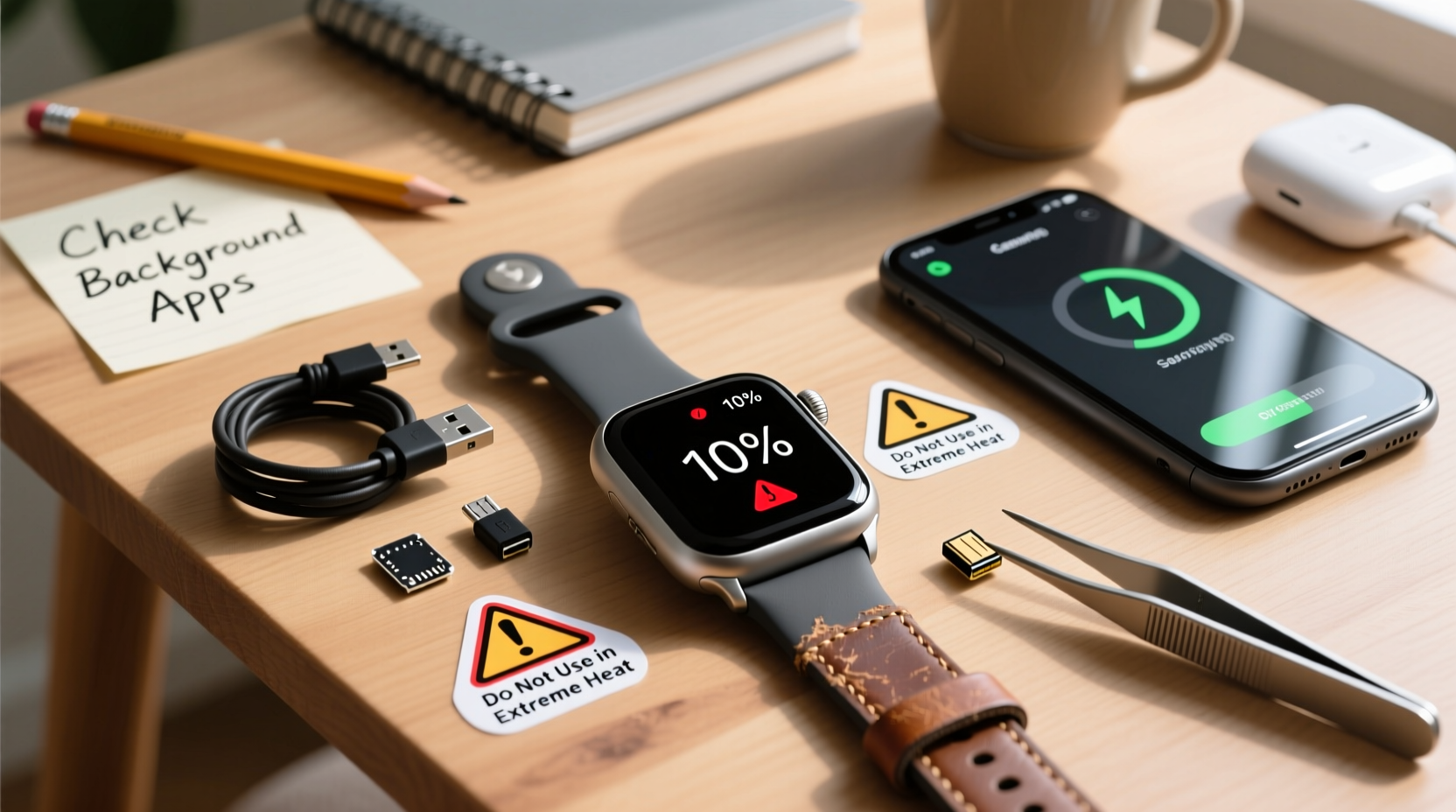
Before jumping into fixes, it’s important to understand what might be behind the accelerated battery consumption. Unlike smartphones, smartwatches operate under constant connectivity demands—Bluetooth, GPS, heart rate monitoring, and persistent screen use all contribute to energy draw. However, certain behaviors and configurations amplify this strain.
- Screen brightness and timeout: A high brightness level or long screen-on duration can significantly reduce battery life.
- Background apps and widgets: Third-party apps running in the background or updating frequently consume power even when not actively used.
- Always-On Display (AOD): While convenient, keeping the screen lit constantly uses more energy, especially on OLED models.
- Frequent notifications: Each alert triggers vibrations, sounds, and screen wake-ups, adding up over time.
- GPS and health sensors: Continuous heart rate monitoring, SpO₂ checks, and GPS tracking during workouts are major power users.
- Outdated software: Bugs in older firmware versions may cause inefficient resource management.
- Extreme temperatures: Exposure to heat or cold affects lithium-ion battery chemistry and efficiency.
Step-by-Step Guide to Diagnose and Fix Battery Drain
Follow this structured approach to identify and resolve the root cause of your smartwatch’s poor battery performance.
- Check battery usage statistics: Most smartwatches (Apple Watch, Samsung Galaxy Watch, Wear OS devices) offer a battery breakdown in settings. Review which apps or services are consuming the most power.
- Restart your smartwatch: A simple reboot clears temporary glitches and resets background processes that may be hogging resources.
- Reduce screen brightness: Lower the brightness manually or enable auto-brightness. Also, shorten the screen timeout from 30 seconds to 10–15 seconds.
- Disable Always-On Display: In low-light environments, AOD provides convenience, but disabling it can extend battery life by 20–30% depending on model and usage.
- Limit notification frequency: Go through your paired phone’s app settings and disable non-essential alerts. Fewer vibrations and screen activations mean longer battery life.
- Turn off unnecessary sensors: Disable 24/7 heart rate monitoring, SpO₂ scanning, and skin temperature tracking unless needed for medical or fitness reasons.
- Update software: Ensure both your smartwatch and connected smartphone are running the latest operating system and app updates. Manufacturers often release patches to improve battery optimization.
- Uninstall unused apps: Remove third-party applications that run background services or sync data frequently. Some poorly optimized apps continue running even after being closed.
- Reset settings (if necessary):strong> As a last step before factory reset, try resetting all settings to default. This clears custom configurations without deleting personal data.
Battery-Saving Settings by Brand
Different smartwatch platforms offer unique power-saving tools. Here's how to access them across popular brands.
| Brand | Power Saving Mode | Key Features | How to Enable |
|---|---|---|---|
| Apple Watch | Low Power Mode | Disables always-on display, workout reminders, and reduces background activity | Settings > Battery > Low Power Mode |
| Samsung Galaxy Watch | Power Saving Mode | Limits health monitoring, disables LTE, reduces screen brightness | Quick panel swipe down > Power Saving Mode |
| Wear OS (Fossil, Mobvoi) | Battery Saver | Switches to analog-only face, disables sensors, limits connectivity | Settings > Battery > Battery Saver |
| Garmin (Venu, Forerunner) | Power Manager | Customizable sensor and connectivity toggles; GPS-only modes | Hold menu button > System > Power Manager |
“We see a 40% improvement in battery longevity just by adjusting screen and sensor settings,” says Raj Mehta, Senior Wearable Engineer at a leading tech diagnostics lab. “Users often overlook how much passive monitoring impacts battery life.”
Real Example: How Sarah Extended Her Galaxy Watch Battery Life
Sarah, a nurse working 12-hour shifts, relied on her Samsung Galaxy Watch 5 for shift reminders and step tracking. Initially, the battery lasted a full day. Within six months, it began dying by 3 PM. She assumed the battery was failing and considered replacement.
Instead, she reviewed her settings and discovered several issues: Always-On Display was enabled, sleep tracking ran nightly with SpO₂ scans, and she had five fitness apps syncing simultaneously. After turning off AOD, limiting health scans to bedtime only, and uninstalling redundant apps, her battery easily lasted until bedtime—even with heavy use.
This case illustrates how cumulative inefficiencies—not hardware failure—often cause premature drain.
Preventive Maintenance Checklist
To keep your smartwatch battery healthy over time, follow this monthly maintenance routine:
- ✅ Review battery usage stats
- ✅ Delete unused or misbehaving apps
- ✅ Update watch and phone OS
- ✅ Calibrate battery (fully discharge and recharge once)
- ✅ Clean charging contacts with dry cotton swab
- ✅ Disable unused connectivity (Wi-Fi, LTE, NFC)
- ✅ Switch to a simpler watch face (avoid animated or live faces)
Frequently Asked Questions
Why does my smartwatch battery drain overnight?
If your watch loses significant charge while idle, check for background processes like sleep tracking, automatic software updates, or apps syncing data. Also, ensure Bluetooth remains stable—constant reconnection attempts between your phone and watch can increase power draw. Try restarting both devices and monitor changes.
Is it bad to charge my smartwatch every night?
No, modern smartwatches use lithium-ion batteries designed for daily charging. They stop drawing current once fully charged. However, avoid leaving the device plugged in for days at 100%, as prolonged high voltage can accelerate long-term degradation. Charging from 20% to 80% regularly helps maintain battery health.
Can I replace my smartwatch battery at home?
Most consumer models (especially Apple Watch and Samsung Galaxy Watch) require specialized tools and adhesive for safe disassembly. Attempting DIY replacement risks damaging the display or water seals. It’s recommended to use authorized service centers. However, some Garmin and older Wear OS models allow user-accessible battery swaps.
Expert Tips for Long-Term Battery Health
Beyond immediate fixes, adopting long-term habits ensures your smartwatch battery ages gracefully. Lithium-ion batteries degrade based on charge cycles, temperature exposure, and depth of discharge.
- Avoid extreme temperatures: Don’t leave your watch in a hot car or expose it to direct sunlight for extended periods. Cold weather can also temporarily reduce capacity.
- Maintain moderate charge levels: Keeping the battery between 20% and 80% most of the time reduces stress compared to frequent full discharges.
- Use original chargers: Third-party chargers may deliver inconsistent voltage, potentially harming the battery over time.
- Enable adaptive charging (if available): Some watches learn your schedule and delay full charging until just before you wake up, reducing time spent at 100%.
Conclusion: Take Control of Your Smartwatch Battery Life
Rapid battery drain doesn’t always mean your smartwatch is failing. More often, it reflects suboptimal settings, outdated software, or unnoticed background activity. By systematically reviewing your usage patterns, adjusting key settings, and maintaining regular care, you can restore and even extend your device’s battery performance.
Start today by checking your battery usage report and disabling one unnecessary feature—whether it’s the always-on display or an unused health sensor. Small changes add up to meaningful improvements. With consistent attention, your smartwatch can remain a reliable companion throughout your day, not just half of it.




 浙公网安备
33010002000092号
浙公网安备
33010002000092号 浙B2-20120091-4
Comments
No comments yet. Why don't you start the discussion?