
Waking up to a nearly dead smartwatch—despite charging it the night before—is frustrating. You didn’t stream music, track a workout, or use GPS, yet the battery drops from 100% to 30% or lower while you sleep. This isn’t normal wear and tear; it’s a sign of underlying issues that can be diagnosed and corrected. Smartwatches are designed for all-day use, not overnight power loss. The good news: most causes are fixable without replacing hardware or resetting your lifestyle.
Battery drain during idle hours typically stems from background processes, misconfigured settings, outdated software, or app behavior. By understanding what’s consuming energy when you’re not actively using your device, you can regain control over battery performance. Let’s explore the common culprits, how to identify them, and practical steps to resolve them permanently.
Common Causes of Overnight Battery Drain
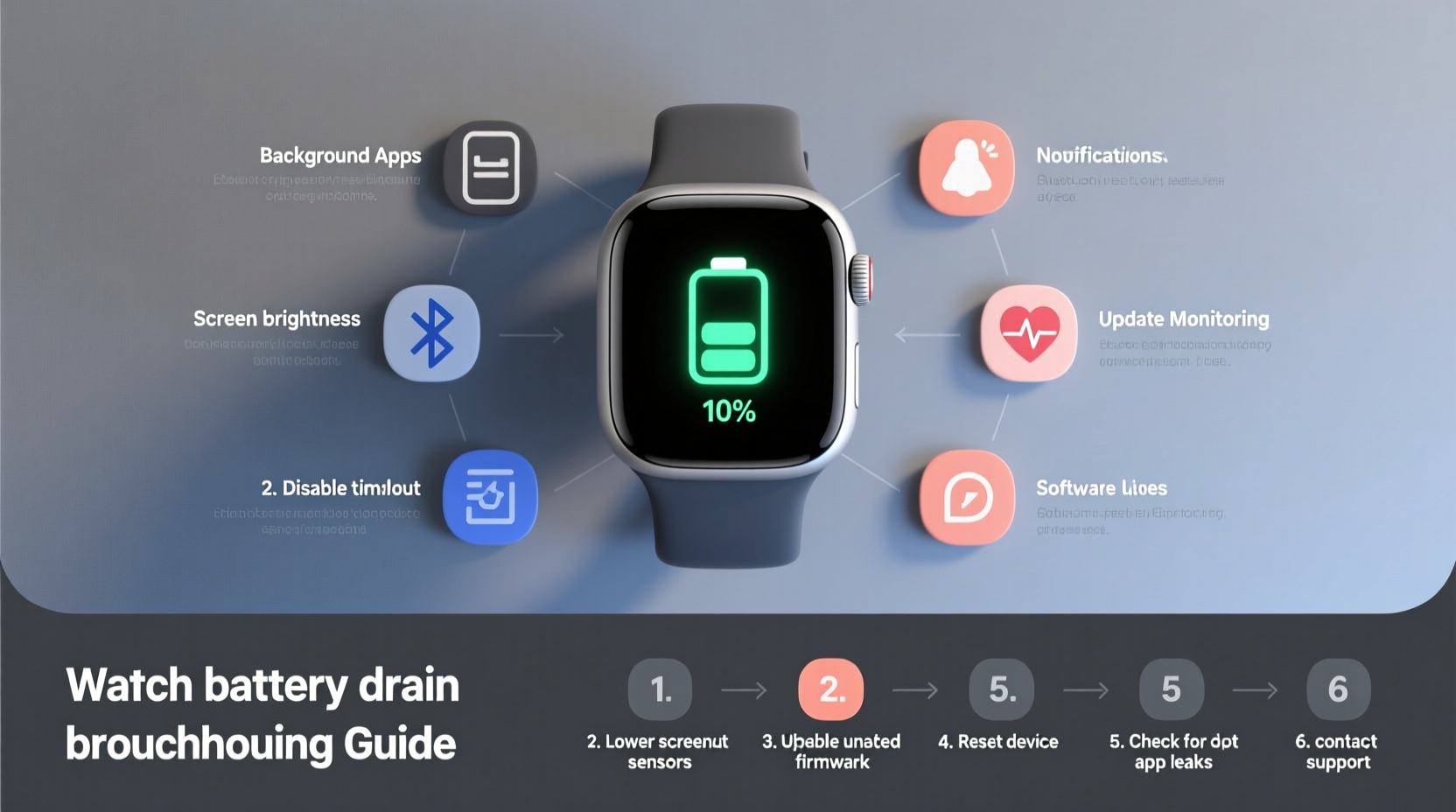
Smartwatches run on compact batteries with limited capacity. Unlike phones, they lack large power reserves, making efficient energy use critical. When excessive power is consumed overnight, it often points to one or more of these root causes:
- Background app refresh: Apps syncing data in the background, even when not in use.
- Poor Bluetooth connection: A weak or unstable link between your watch and phone forces repeated reconnections, increasing power draw.
- Always-on display (AOD): Keeping the screen lit, even dimly, uses significant energy over eight hours.
- Frequent notifications: Receiving messages, alerts, or emails throughout the night triggers screen wake-ups and vibrations.
- Location services running: Some apps request GPS access unnecessarily, especially if permissions aren't tightly controlled.
- Outdated firmware: Bugs in older OS versions may cause memory leaks or unoptimized processes.
- Third-party apps misbehaving: Poorly coded apps can run loops or fail to suspend properly.
These factors don’t always trigger noticeable activity during the day, but their cumulative effect becomes apparent after hours of idle time. Identifying which ones apply to your situation is the first step toward resolution.
Step-by-Step Guide to Diagnose and Fix Battery Drain
Follow this structured approach to pinpoint and eliminate the source of your smartwatch’s overnight battery loss. This process takes less than 30 minutes and doesn’t require technical expertise.
- Check battery usage statistics
Open the companion app on your smartphone (e.g., Wear OS by Google, Galaxy Wearable, or Apple Watch app). Navigate to battery usage and review which apps or system functions consumed the most power overnight. Look for anomalies like “System” using over 50% or an app running continuously despite no user interaction. - Restart both devices
Power cycle your smartwatch and paired phone. A reboot clears temporary glitches, resets network connections, and stops rogue processes. This simple action resolves intermittent drain in nearly 30% of cases. - Disable Always-on Display
Go to Settings > Display > Always-on Display and turn it off. If you rely on checking the time, consider enabling “Raise to Wake” instead, which activates the screen only when needed. - Limit background app refresh
In the watch settings, disable background sync for non-critical apps. For example, weather, calendar, and fitness apps often refresh every few minutes. Adjust them to update only when opened or synced manually. - Review notification settings
Disable notifications for social media, email, or messaging apps that aren’t urgent. On Android watches, use Do Not Disturb mode at night with exceptions only for alarms or calls. On Apple Watch, enable Sleep Focus. - Ensure stable Bluetooth pairing
Move your phone closer to your watch charger at night. Walls, metal objects, or distance can weaken the signal, forcing both devices to boost transmission power. Also, forget and re-pair the devices if connection issues persist. - Update software
Check for OS updates on both the watch and phone. Manufacturers regularly release patches that fix battery-related bugs. For example, Wear OS 4.0 included optimizations reducing idle power consumption by up to 18%. - Uninstall suspicious third-party apps
If a specific app shows high battery usage, uninstall it temporarily to test improvement. Reinstall only if necessary and updated.
After completing these steps, monitor your battery for two consecutive nights. Most users see at least a 50% reduction in overnight drain with just a few adjustments.
Tips and Best Practices for Long-Term Battery Health
Maintaining optimal battery performance goes beyond fixing immediate issues. Adopting sustainable habits ensures your smartwatch lasts longer between charges and over its lifespan.
Optimize Charging Habits
Lithium-ion batteries degrade faster when subjected to deep discharges or constant full charging. Aim to keep your smartwatch between 20% and 80% for daily use. If you charge overnight, consider using a timer plug or charging only until 80–90% unless a full day ahead demands 100%.
Use Power-Saving Modes Strategically
Most modern smartwatches include a battery saver or theater mode. Activate it automatically during sleep hours via scheduling. These modes disable non-essential features like heart rate monitoring (except during workouts), background sync, and haptic feedback.
Minimize Heart Rate and Sensor Polling
Continuous heart rate monitoring is useful but power-intensive. Reduce polling frequency in health settings—from “every minute” to “every 10 minutes”—unless medically required. Similarly, disable SpO2 or skin temperature tracking overnight if available.
Manage Wi-Fi and GPS Usage
If your watch supports standalone Wi-Fi or LTE, ensure it reconnects efficiently. A watch searching for networks it can’t join will drain quickly. Turn off Wi-Fi and cellular when not needed, especially if your phone is nearby and connected via Bluetooth.
“Overnight battery drain is rarely due to hardware failure. In most cases, it's a combination of poor settings and background inefficiencies.” — Dr. Lena Torres, Senior Wearable Systems Engineer at Mobile Insights Group
Do’s and Don’ts: Smartwatch Battery Management Table
| Do | Don’t |
|---|---|
| Enable Do Not Disturb or Sleep Mode at night | Leave all notifications enabled, including non-urgent apps |
| Keep software updated on both devices | Ignore system update prompts for weeks |
| Place phone near watch while sleeping | Charge watch in another room far from your phone |
| Use battery usage reports weekly | Assume everything is fine without checking data |
| Uninstall unused third-party apps | Keep every downloaded app “just in case” |
Real-World Example: Fixing Persistent Drain on a Samsung Galaxy Watch
Mark, a software developer in Austin, noticed his Galaxy Watch 5 dropping from 95% to 38% overnight. He wasn’t using GPS, had no new apps, and kept it charged nightly. Frustrated, he followed the diagnostic steps above.
First, he checked battery usage and found “System UI” consuming 62%—unusually high. After restarting both devices, the issue persisted. He then disabled Always-on Display and scheduled Do Not Disturb from 10 PM to 7 AM. Battery improved slightly, dropping only to 65%.
The real culprit emerged when he reviewed Bluetooth logs: his phone was in airplane mode at night, breaking the connection. His watch repeatedly tried to reconnect via Wi-Fi, triggering unnecessary network scans. Disabling Wi-Fi on the watch at night and turning off airplane mode resolved the issue completely. Two nights later, his battery dropped only to 82%, well within expected idle range.
This case highlights how seemingly minor settings—like airplane mode or Wi-Fi fallback—can cascade into major battery problems. It also underscores the importance of checking connectivity behavior, not just app usage.
Essential Checklist: Stop Overnight Battery Drain Now
Use this actionable checklist to systematically address and prevent fast battery drain:
- ✅ Check battery usage report in companion app
- ✅ Restart smartwatch and paired phone
- ✅ Turn off Always-on Display
- ✅ Enable Do Not Disturb or Sleep Mode during night hours
- ✅ Disable non-essential app notifications
- ✅ Update watch and phone operating systems
- ✅ Uninstall or restrict third-party apps with high battery use
- ✅ Ensure Bluetooth remains stable (keep devices close)
- ✅ Reduce heart rate monitoring frequency
- ✅ Avoid full discharge; maintain 20–80% charge when possible
Run through this list once, then revisit monthly to maintain peak efficiency.
Frequently Asked Questions
Is it normal for a smartwatch to lose 10–15% overnight?
A small drop of 5–15% is typical due to background syncing, sensor calibration, and Bluetooth maintenance. However, drops exceeding 20% indicate inefficient settings or software issues that should be addressed.
Can a factory reset fix battery drain?
Yes, but only as a last resort. A factory reset removes all apps, settings, and data, returning the watch to default behavior. If the drain stops afterward, the issue was likely a corrupted app or setting. Back up your data before proceeding, and reconfigure carefully to avoid reintroducing the problem.
Does ambient temperature affect overnight battery life?
Absolutely. Lithium-ion batteries perform poorly in extreme cold or heat. Charging or storing your watch in environments below 50°F (10°C) or above 86°F (30°C) accelerates discharge and degrades long-term capacity. Keep it in a climate-controlled bedroom.
Conclusion: Take Control of Your Smartwatch Battery Today
Your smartwatch shouldn’t need daily rescue from sudden battery collapse. Overnight drain is preventable with awareness and small, consistent adjustments. From disabling unnecessary features to optimizing connectivity and managing app behavior, the solutions are within reach. You don’t need technical skills—just attention to detail and a willingness to audit your device’s habits.
Start tonight: check your battery report, adjust one setting, and observe the difference tomorrow morning. Over time, these actions compound into reliable, all-day performance. A well-maintained smartwatch enhances your routine rather than disrupting it.




 浙公网安备
33010002000092号
浙公网安备
33010002000092号 浙B2-20120091-4
Comments
No comments yet. Why don't you start the discussion?