
Smartwatches have become essential companions for fitness tracking, notifications, and daily productivity. But nothing disrupts the experience faster than a battery that dies by midday. If you're charging your device twice a day or noticing a sudden drop in performance, you're not alone. Many users face unexpected battery drain despite following standard usage patterns. The good news? Most causes are fixable with the right adjustments. This guide dives deep into the most common reasons behind rapid battery depletion and provides actionable solutions to extend your smartwatch’s life between charges.
Understanding Smartwatch Battery Behavior
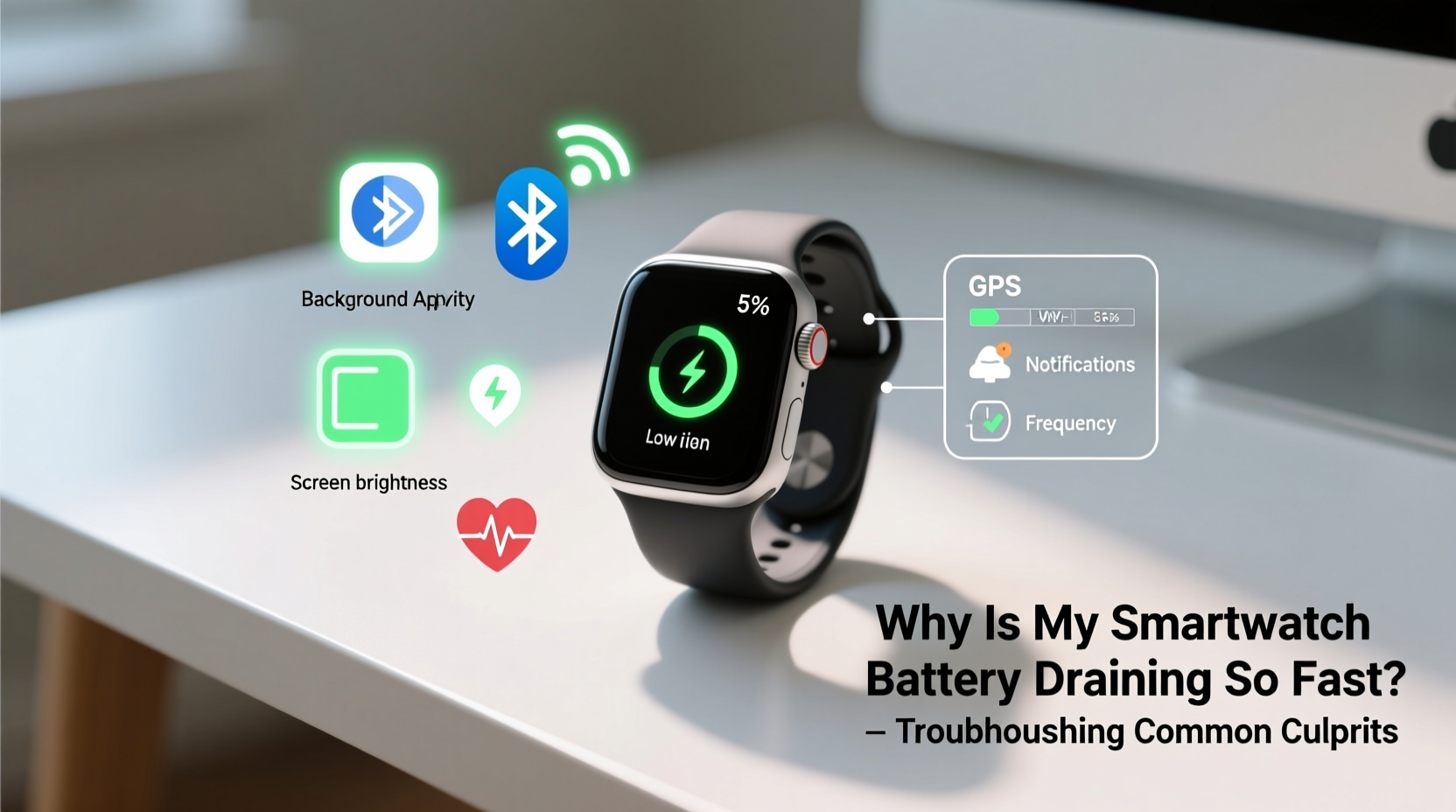
Modern smartwatches run on lithium-ion batteries, which are efficient but sensitive to usage patterns, software demands, and environmental factors. Unlike smartphones, smartwatches operate under tighter power constraints due to their small size and constant connectivity. Features like always-on displays, GPS tracking, heart rate monitoring, and third-party apps place continuous strain on the system. Over time, even minor inefficiencies compound into noticeable battery loss.
Battery degradation also plays a role. After 500 full charge cycles—typically one to two years of regular use—the battery retains about 80% of its original capacity. However, if your watch is newer and still suffering from poor battery life, the issue likely lies in configuration, settings, or habits rather than hardware wear.
“Battery life isn’t just about capacity—it’s about how efficiently the device manages energy across sensors, screen, and background processes.” — Dr. Lena Torres, Wearable Technology Researcher at MIT Media Lab
Top 5 Causes of Rapid Battery Drain
Several interrelated factors contribute to excessive battery consumption. Identifying which apply to your situation is the first step toward resolution.
1. Brightness and Always-On Display Settings
The display is often the biggest power consumer on any smartwatch. High brightness levels and enabling “always-on” functionality keep the screen active even when your wrist is down. While convenient, this feature can reduce battery life by up to 40% depending on model and usage.
2. Background App Activity and Notifications
Third-party apps frequently run in the background, syncing data, checking for updates, or sending alerts. Each notification triggers a vibration, backlight, and processor wake-up cycle—all of which consume energy. Apps like social media, weather, or fitness trackers may refresh every few minutes without your knowledge.
3. Frequent Health Sensor Usage
Continuous heart rate monitoring, blood oxygen (SpO2) checks, sleep tracking, and stress detection rely on optical sensors that emit light and process signals constantly. These features are invaluable for health insights but come at a significant energy cost. Enabling 24/7 SpO2 scans, for example, can cut battery life in half over 24 hours.
4. Poor Connectivity and Signal Search
If your smartwatch struggles to maintain Bluetooth or Wi-Fi connection with your phone, it repeatedly searches for signals. This constant radio activity drains power rapidly. Similarly, using LTE models without a stable network forces the device into high-power search modes.
5. Outdated Software or Buggy Updates
Firmware bugs introduced in software updates can cause memory leaks or prevent apps from sleeping properly. An app stuck in a loop will keep the CPU active, leading to overheating and accelerated discharge. Conversely, delaying updates may mean missing critical battery optimizations released by manufacturers.
Troubleshooting Your Smartwatch Battery Drain: A Step-by-Step Guide
Follow this systematic approach to diagnose and resolve battery issues. Start with simple fixes before moving to deeper resets.
- Review Battery Usage Stats: Navigate to your watch’s settings and check which apps or services consume the most power. On Apple Watch, go to Settings > Battery. On Wear OS or Samsung Galaxy Watch, find similar analytics under Device Care or Battery.
- Reduce Screen Brightness: Lower the brightness manually or enable auto-brightness. Turn off the always-on display unless absolutely necessary.
- Limit Background App Refresh: Disable non-essential apps from refreshing in the background. For instance, mute notifications from shopping or gaming apps.
- Adjust Health Monitoring Frequency: Switch from continuous heart rate monitoring to interval-based checks (e.g., every 10 minutes). Disable overnight SpO2 unless medically required.
- Ensure Stable Connections: Keep your paired smartphone within range. Restart both devices if Bluetooth drops occur frequently. Avoid using LTE watches in areas with weak cellular coverage.
- Update Firmware and Apps: Install pending OS updates and ensure all apps are current. Developers often release patches specifically targeting battery efficiency.
- Restart or Reset the Device: Perform a soft restart weekly. If problems persist, consider unpairing and re-pairing the watch—a factory reset should be a last resort.
Do’s and Don’ts: Managing Smartwatch Power Consumption
| Do’s | Don’ts |
|---|---|
| Enable battery saver mode during low-usage periods (e.g., work meetings) | Run multiple GPS-intensive workouts back-to-back without charging |
| Use dark watch faces (especially on AMOLED screens) | Leave unused Bluetooth peripherals connected (headphones, scales) |
| Turn off haptic feedback intensity or shorten buzz duration | Install too many third-party complications or widgets |
| Charge between 20%–80% regularly to prolong battery lifespan | Expose the watch to extreme temperatures (hot cars, freezing outdoors) |
| Schedule automatic sleep mode at night | Ignore recurring app crashes—they may indicate inefficient code |
Real-World Example: Sarah’s Marathon Training Struggle
Sarah, a 32-year-old runner, noticed her Samsung Galaxy Watch 5 dying after just six hours during training weeks. She used GPS for runs, tracked heart rate continuously, and received frequent message alerts. Initially, she assumed the battery was defective. After consulting a tech forum, she reviewed her settings and found several issues: always-on display at maximum brightness, sleep tracking enabled 24/7, and four fitness apps syncing simultaneously.
She adjusted her routine: turned off the always-on screen, limited heart rate sampling to workout mode only, disabled redundant apps, and switched to a black watch face. Her battery life improved from six to nearly 30 hours—enough to cover long runs and daily use without anxiety. The change wasn’t in hardware, but in smarter usage.
Expert Tips for Long-Term Battery Health
Beyond immediate fixes, adopt sustainable practices to preserve battery longevity and performance over time.
- Avoid Full Discharges: Lithium-ion batteries degrade faster when drained to 0%. Try to recharge when the battery hits 20–30%.
- Use Original Chargers: Third-party magnetic chargers may deliver inconsistent voltage, stressing the battery over time.
- Leverage Power-Saving Modes: Most watches offer a reduced-functionality mode that disables animations, sensors, and background sync. Use it during travel or extended events.
- Uninstall Unused Apps: Every installed app has background permissions. Remove those you no longer need.
- Mind the Temperature: Heat is a major enemy of battery chemistry. Avoid wearing the watch while saunas, hot yoga, or direct sun exposure for long durations.
Checklist: Quick Fixes to Restore Smartwatch Battery Life
Use this checklist as a monthly maintenance routine or whenever you notice unusual battery behavior:
- ✅ Check battery usage stats for power-hungry apps
- ✅ Turn off always-on display or lower brightness
- ✅ Disable continuous heart rate and SpO2 monitoring (set to manual)
- ✅ Close or uninstall unused third-party apps
- ✅ Ensure Bluetooth connection with phone is stable
- ✅ Update watch OS and all apps to latest versions
- ✅ Restart the watch to clear temporary glitches
- ✅ Clean charging pins and use original cable
- ✅ Activate battery saver mode during low-priority days
- ✅ Store in moderate temperatures; avoid heat buildup
Frequently Asked Questions
How long should a smartwatch battery last in a day?
Most modern smartwatches last 18–36 hours under typical use. Heavy usage involving GPS, calls, and constant notifications may reduce this to 8–12 hours. Some models like Garmin's Instinct series can last weeks in smartwatch mode, while others like the Apple Watch require daily charging.
Does turning off Wi-Fi save battery on my smartwatch?
Yes. If your watch supports Wi-Fi, keeping it enabled means it constantly scans for networks, especially when out of Bluetooth range from your phone. Turning it off reduces unnecessary signal searching and conserves power. Only enable Wi-Fi when near known networks.
Can I replace my smartwatch battery when it degrades?
Technically yes, but practically it’s challenging. Most smartwatches have sealed designs requiring professional disassembly. Apple offers battery service for older models (~$79), and some third-party repair shops service Samsung and Wear OS devices. However, replacement cost often approaches half the price of a new unit, making upgrades more economical.
Conclusion: Take Control of Your Smartwatch Experience
Rapid battery drain doesn’t have to be the norm. With awareness and small adjustments, you can reclaim hours of usage and enjoy your smartwatch without constant charging anxiety. The key lies in balancing functionality with efficiency—knowing which features you truly need versus which ones silently sap power. By auditing your settings, updating software, and adopting better charging habits, you’ll not only extend daily battery life but also protect the long-term health of your device.




 浙公网安备
33010002000092号
浙公网安备
33010002000092号 浙B2-20120091-4
Comments
No comments yet. Why don't you start the discussion?