
If your smartwatch barely lasts from morning coffee to mid-afternoon, you're not alone. Many users report frustratingly short battery life — especially after updates or new app installations. While some degradation over time is normal, consistently poor performance often stems from overlooked settings, background processes, or usage habits. The good news: most issues are fixable without replacing hardware or sacrificing core functionality. This guide walks through the real reasons behind rapid battery drain and delivers a comprehensive, actionable optimization checklist to help you reclaim hours of daily use.
Understanding Smartwatch Battery Drain
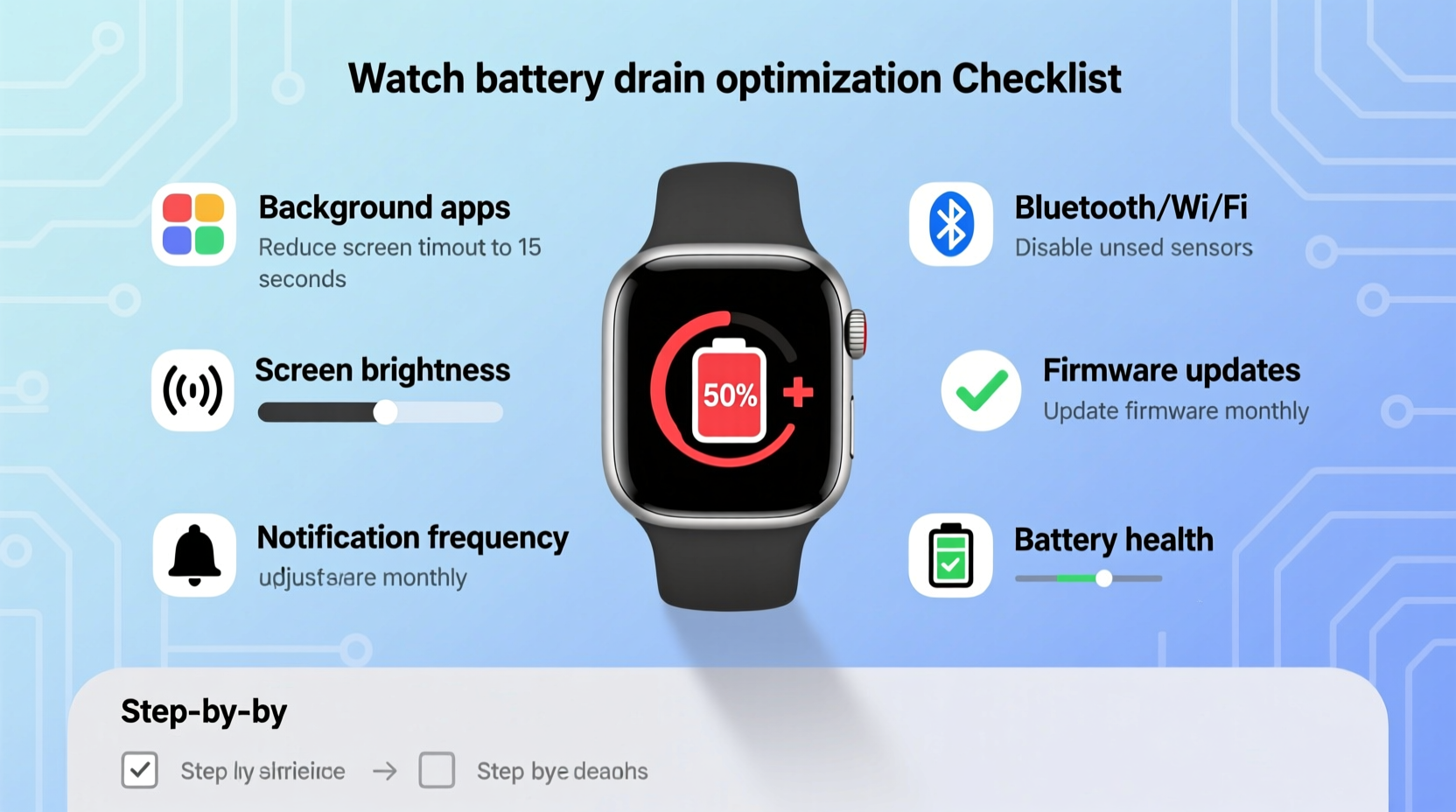
Smartwatches pack powerful sensors and connectivity into a tiny form factor, but their small batteries struggle to keep up. Unlike smartphones, which can house larger cells and fast charging, smartwatches prioritize slim design over endurance. When battery life drops below 12 hours, it's rarely due to hardware failure — more often, it's inefficient software behavior or misconfigured preferences.
Common culprits include:
- Always-on display settings
- Background GPS and heart rate monitoring
- Frequent notifications from third-party apps
- Poor Bluetooth connection stability
- Outdated firmware or buggy OS updates
Battery health also degrades over time. Lithium-ion batteries typically retain about 80% of their original capacity after 500 charge cycles. If your device is two years old or older, natural aging may be contributing — but even then, optimization can still yield meaningful improvements.
Step-by-Step Optimization Checklist
The following sequence targets the most impactful power drains first. Follow these steps in order for maximum efficiency.
- Assess current battery usage: Open your companion app (Wear OS, Galaxy Wearable, Apple Watch app) and review which apps or services consume the most power over 24 hours.
- Disable always-on display: This single feature can cut battery life by 30–50%. Switch to “tap to wake” or raise-to-wake only.
- Reduce screen brightness and timeout: Set brightness to 50% or lower and screen-off delay to 10–15 seconds.
- Turn off unnecessary sensors: Disable continuous SpO2, stress tracking, or skin temperature if not actively needed.
- Limit background app refresh: Prevent non-essential apps from syncing data every few minutes.
- Update firmware and apps: Manufacturers often release patches that fix battery-related bugs.
- Restart your watch weekly: Clears memory leaks and resets stuck processes.
This routine addresses both immediate symptoms and underlying inefficiencies. Most users see noticeable gains within one full charge cycle.
App and Notification Management
Third-party apps are among the top causes of unexpected battery drain. Messaging, fitness, and social media apps frequently run background syncs, push alerts, and location checks — all of which tax the processor and radio modules.
To regain control:
- Uninstall apps you haven’t used in 30 days.
- Disable notifications for non-critical apps via the phone’s notification manager.
- Check per-app battery usage; any app exceeding 15% daily consumption should be reviewed.
- Use built-in tools like “Battery Saver” modes during low-power situations.
Some apps claim to offer fitness tracking but run constantly in the background without offering proportional value. Be selective.
“Over 60% of excessive smartwatch battery drain cases we diagnose stem from poorly optimized third-party apps running unchecked.” — David Lin, Senior Wearables Engineer at FitTech Labs
Do’s and Don’ts: Power Efficiency Table
| Best Practices (Do) | Common Pitfalls (Don’t) |
|---|---|
| Use adaptive brightness – lets the screen adjust to ambient light, saving energy indoors. | Keep max brightness always on – drains battery quickly, especially outdoors. |
| Enable battery saver during sleep or meetings – disables non-essential features temporarily. | Run GPS all day “just in case” – uses significant power even when idle. |
| Sync data manually or hourly – reduces constant Bluetooth polling. | Allow all apps to send notifications – leads to frequent wake-ups and CPU usage. |
| Charge between 20–80% – prolongs long-term battery health. | Leave on charger overnight regularly – accelerates lithium-ion wear. |
Real-World Case: Recovering 7 Hours of Battery Life
Sophie, a project manager in Seattle, found her Galaxy Watch 5 lasting only five hours despite minimal use. She wore it primarily for calendar alerts and step counting. After reviewing her battery stats, she discovered that a meditation app was triggering hourly heart rate checks — even when unused. Another fitness tracker was syncing GPS data every 10 minutes.
She took the following actions:
- Revoked background permissions for both apps.
- Disabled continuous heart rate outside workouts.
- Switched from always-on display to tap-only activation.
- Lowered screen brightness from 100% to 60%.
Result: Her watch now lasts nearly 12 hours under similar conditions. Occasional heavy use (navigation + music playback) brings it down to 8 hours — still a dramatic improvement.
Advanced Tweaks for Maximum Efficiency
Once basic optimizations are applied, consider deeper adjustments tailored to your lifestyle:
Customize Watch Faces
Complex watch faces with live complications (weather, stocks, activity rings) update frequently and consume extra power. Opt for minimalist designs with static elements. For example, Google’s “Simple Digital” face uses up to 40% less energy than animated alternatives.
Manage Connectivity Settings
- Bluetooth: Ensure your phone is nearby and connection is stable. A weak or fluctuating link forces repeated reconnections, increasing power draw.
- Wi-Fi: Disable if you don’t use standalone internet features. Watches will fall back to phone tethering, which is more efficient.
- NFC: Turn off contactless payments when not needed. While minimal, it contributes to cumulative drain.
Optimize Health Tracking
Features like sleep tracking and continuous ECG are useful but demanding. Instead of leaving them on perpetually:
- Schedule sleep mode for specific hours.
- Use on-demand ECG rather than periodic scanning.
- Set workout detection to “ask before starting” instead of automatic.
Frequently Asked Questions
Can I replace my smartwatch battery?
Yes, but it’s often costly and not user-replaceable. Most manufacturers offer battery replacement services (e.g., Apple, Samsung, Fitbit), typically priced between $50–$90. Consider whether the expense justifies an upgrade to a newer model with better efficiency.
Does turning off vibrations save battery?
Yes. Haptic feedback uses the Taptic Engine or vibration motor, which draws moderate power. Disabling unnecessary taps — such as confirmation buzzes or hourly chimes — can extend life by 30–60 minutes per day, especially on watches with aggressive default settings.
Is it bad to charge my smartwatch every night?
Not inherently, but keeping it plugged in at 100% for extended periods stresses the battery chemistry. Modern devices have safeguards, but long-term exposure to high voltage accelerates aging. Use scheduled charging (available on Wear OS and Apple Watch) to stop at 80% overnight and finish in the morning.
Final Optimization Checklist
Use this concise list to audit your device monthly or whenever battery life declines:
- ✅ Review battery usage stats in companion app
- ✅ Disable always-on display or set dark mode
- ✅ Lower screen brightness and timeout duration
- ✅ Uninstall unused or high-drain apps
- ✅ Limit background sync and notifications
- ✅ Update OS and installed apps
- ✅ Restart watch to clear system cache
- ✅ Switch to a simple watch face
- ✅ Disable non-essential sensors (SpO2, stress, etc.)
- ✅ Enable battery saver during low-activity periods
Repeat this checklist after major software updates, as new features sometimes reset defaults or introduce inefficiencies.
Take Control of Your Device’s Performance
A smartwatch shouldn’t require multiple daily charges to function. With deliberate configuration and mindful usage, most models can comfortably last a full waking day — and some even stretch into two. The key lies not in accepting limitations, but in understanding how settings interact with hardware demands. By applying the strategies outlined here, you’re not just fixing battery life; you’re optimizing your entire wearable experience for reliability, longevity, and usability.




 浙公网安备
33010002000092号
浙公网安备
33010002000092号 浙B2-20120091-4
Comments
No comments yet. Why don't you start the discussion?