
It’s frustrating when your smartwatch—designed to simplify your life—barely lasts from morning coffee to lunchtime before needing a recharge. You rely on it for notifications, fitness tracking, heart rate monitoring, and even mobile payments. Yet, despite premium features and sleek design, many users report their devices struggling to make it through a single day. The good news: this isn’t always due to hardware failure or poor build quality. More often than not, the culprit lies in settings, usage habits, and overlooked optimizations.
Modern smartwatches pack powerful processors, vibrant displays, and constant connectivity into tiny frames. But these conveniences come at a cost—battery drain. With the right adjustments, however, you can significantly improve battery longevity without sacrificing core functionality. This guide dives deep into the reasons behind rapid battery depletion and delivers actionable, real-world strategies to help you get more out of every charge.
Why Smartwatch Batteries Drain So Fast
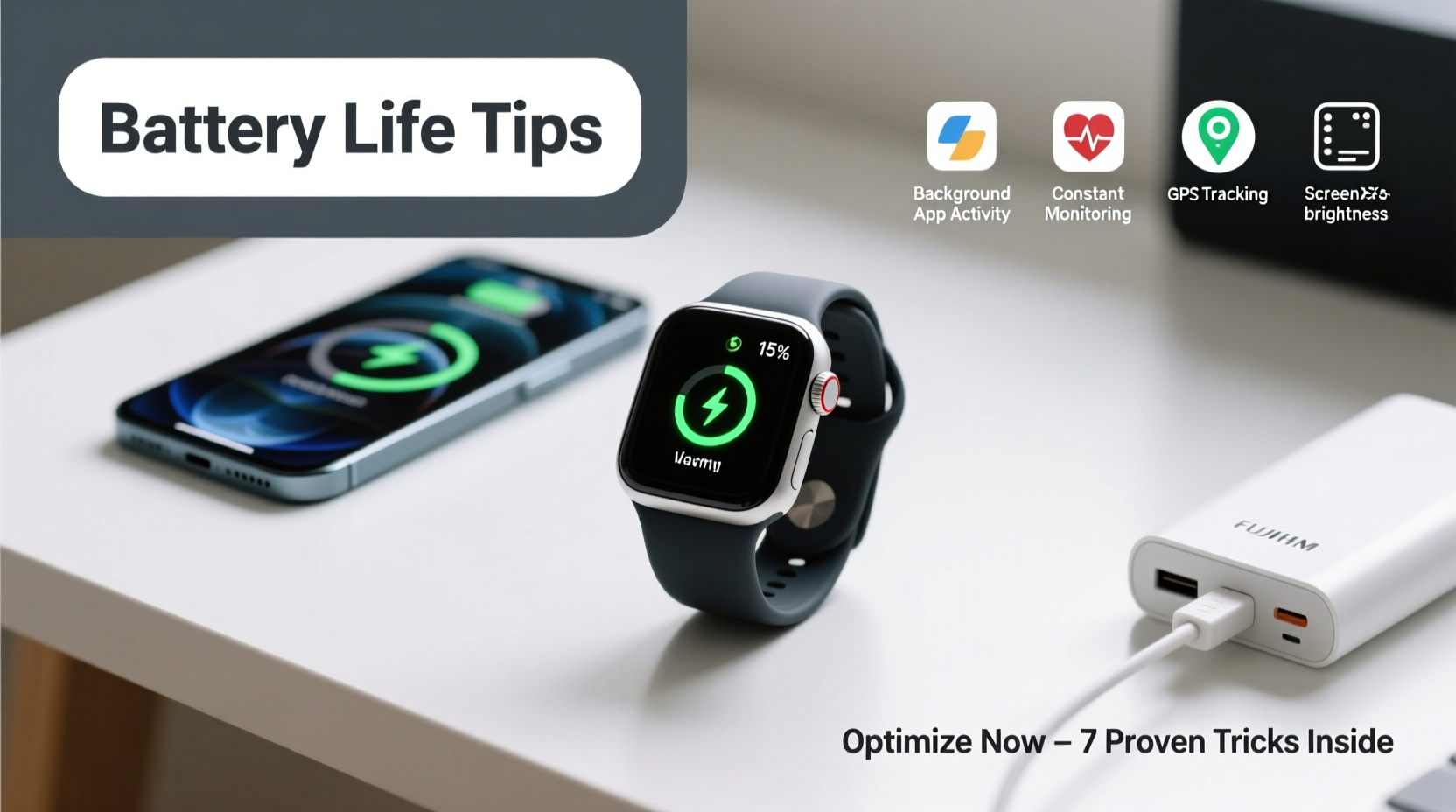
Smartwatches are essentially mini-computers strapped to your wrist. They run operating systems, sync with phones, track biometrics, display animations, and maintain Bluetooth and Wi-Fi connections—all while powered by batteries smaller than those in wireless earbuds. Understanding what consumes energy helps you prioritize changes.
- Bright Displays: OLED screens consume more power when displaying bright colors and high brightness levels.
- Always-On Display (AOD): While convenient, AOD keeps the screen partially active 24/7, draining power steadily.
- Frequent Notifications: Each alert triggers vibration, backlight, and processing cycles that add up over time.
- Background Apps: Health apps, music players, and third-party tools often run in the background, syncing data constantly.
- GPS & Sensors: Continuous use of GPS, heart rate monitors, SpO₂ sensors, and accelerometers draws significant power.
- Software Glitches: Outdated firmware or buggy apps can cause excessive CPU usage or failed sync attempts.
“Battery life on wearables is less about capacity and more about efficiency. Small changes in user behavior can double usable runtime.” — Dr. Lena Park, Wearable Technology Researcher, MIT Media Lab
Step-by-Step Guide to Optimize Battery Life
Improving battery performance doesn’t require technical expertise—just consistent attention to detail. Follow this step-by-step process to reclaim hours of daily usage.
- Assess Your Current Usage: Check your watch’s battery settings to see which apps or features consumed the most power over the last 24 hours.
- Lower Screen Brightness: Reduce brightness manually or enable auto-brightness based on ambient light.
- Shorten Screen Timeout: Set the display to turn off after 5–10 seconds instead of 15–30.
- Turn Off Always-On Display: Switch to “tap to wake” or “raise to wake” mode only.
- Limit Notifications: Disable alerts from social media, email, and non-essential apps. Allow only calls, messages, and calendar events.
- Disable Unneeded Sensors: Turn off continuous heart rate monitoring unless medically required. Schedule SpO₂ checks instead of enabling all-day tracking.
- Use Power-Saving Mode Strategically: Activate during long flights, meetings, or days when charging isn’t possible.
- Update Firmware and Apps: Manufacturers regularly release patches that fix battery-draining bugs.
- Restart Weekly: A simple reboot clears memory leaks and stops rogue processes.
- Uninstall Unused Apps: Remove games, utilities, or widgets you no longer use.
Do’s and Don’ts: Smartwatch Battery Optimization Table
| Do | Don’t |
|---|---|
| Enable dark watch faces (especially on OLED) | Use animated or bright white watch faces |
| Sync data manually instead of automatic refresh | Keep auto-sync enabled for all apps |
| Use airplane mode during workouts if GPS-only tracking is needed | Leave Bluetooth, Wi-Fi, and cellular active unnecessarily |
| Charge between 20% and 80% regularly | Let battery drop to 0% frequently or leave on charger overnight |
| Disable haptic feedback intensity or duration | Keep strong vibrations enabled for every minor notification |
Real-World Example: How Sarah Doubled Her Watch’s Battery Life
Sarah, a project manager in Austin, relied heavily on her Galaxy Watch 6 for calendar reminders, fitness tracking, and messaging. She noticed that by 2 PM, her battery was already below 30%, forcing her to carry a charger. After reviewing her usage, she realized several inefficiencies: an animated watch face, constant heart rate monitoring, and push notifications from eight different apps.
She applied targeted changes: switched to a static black-faced clock, disabled background health tracking except during workouts, and limited notifications to three essential apps. She also turned off the always-on display and reduced screen timeout to 7 seconds. The result? Her watch now consistently lasts until bedtime—over 20 hours—with moderate use. On lighter days, it stretches to nearly 36 hours.
“I didn’t realize how much each little thing added up,” Sarah said. “Now I don’t dread glancing at my wrist and seeing low battery.”
Essential Checklist for Long-Lasting Smartwatch Battery
Use this checklist weekly to maintain optimal performance:
- ✅ Audit battery usage in settings
- ✅ Lower screen brightness
- ✅ Disable always-on display
- ✅ Delete unused apps
- ✅ Update OS and apps
- ✅ Restart device once per week
- ✅ Limit background app refresh
- ✅ Use dark-themed watch faces
- ✅ Turn off unnecessary sensors (SpO₂, ECG, etc.)
- ✅ Charge correctly: avoid full discharges and overnight top-ups
Frequently Asked Questions
Can turning off Wi-Fi and Cellular really save battery?
Yes. While Bluetooth uses relatively little power, maintaining a constant Wi-Fi or LTE connection requires frequent signal pinging and data handshakes. If you’re near your phone, disable standalone connectivity. For example, leaving LTE on increases drain by up to 40% compared to Bluetooth-only mode.
Is it bad to charge my smartwatch every night?
Not inherently, but consistently charging from near-full to 100% stresses lithium-ion cells over time. Modern watches have safeguards, but best practice is to unplug around 80–90%. Avoid letting it drop below 20% regularly. Occasional full cycles are fine, but daily extremes shorten overall battery lifespan.
Does using third-party apps affect battery life?
Absolutely. Many third-party apps aren’t optimized for wearables and may run background services, request frequent location updates, or fail to pause when inactive. Stick to trusted developers and remove any app that shows high battery usage without clear justification.
When Hardware Might Be the Issue
Even with perfect settings, some devices struggle due to aging components. Lithium-ion batteries degrade after 300–500 charge cycles, losing 15–20% of original capacity. If your smartwatch is over two years old and suddenly can’t last past midday—even after a factory reset and optimization—it may need a battery replacement.
Manufacturers like Apple, Samsung, and Fitbit offer official battery service programs. Third-party repair shops can also replace batteries, though quality varies. Before replacing the entire device, consider a professional refurbishment. In many cases, a fresh battery restores near-new performance.
“Battery degradation is inevitable, but poor software management accelerates it. Most users blame hardware too soon.” — Carlos Mendez, Senior Technician at WearableFix Labs
Conclusion: Take Control of Your Smartwatch Experience
Your smartwatch shouldn’t be chained to a charger every few hours. With thoughtful configuration and disciplined usage, even power-hungry models can deliver reliable all-day performance. Start by auditing your current settings, then implement the key optimizations: dim the screen, disable always-on display, trim notifications, and manage background activity. These small steps compound into meaningful gains.
Battery life isn’t just about technology—it’s about habits. Just as you wouldn’t leave your car engine running all day, treat your wearable with the same efficiency mindset. Whether you're tracking workouts, managing schedules, or staying connected, a well-maintained smartwatch enhances your life without constant interruptions.




 浙公网安备
33010002000092号
浙公网安备
33010002000092号 浙B2-20120091-4
Comments
No comments yet. Why don't you start the discussion?