
Smartwatches have become essential tools for tracking fitness, managing notifications, and staying connected. But nothing disrupts the experience faster than a battery that dies midday. If you're asking, “Why is my smartwatch draining so fast?” you're not alone. Many users face unexpected battery drain despite following standard usage patterns. The issue often stems from overlooked settings, background processes, or hardware limitations. Understanding the root causes—and knowing how to fix them—can dramatically extend your device’s uptime and usability.
Understanding Smartwatch Battery Behavior
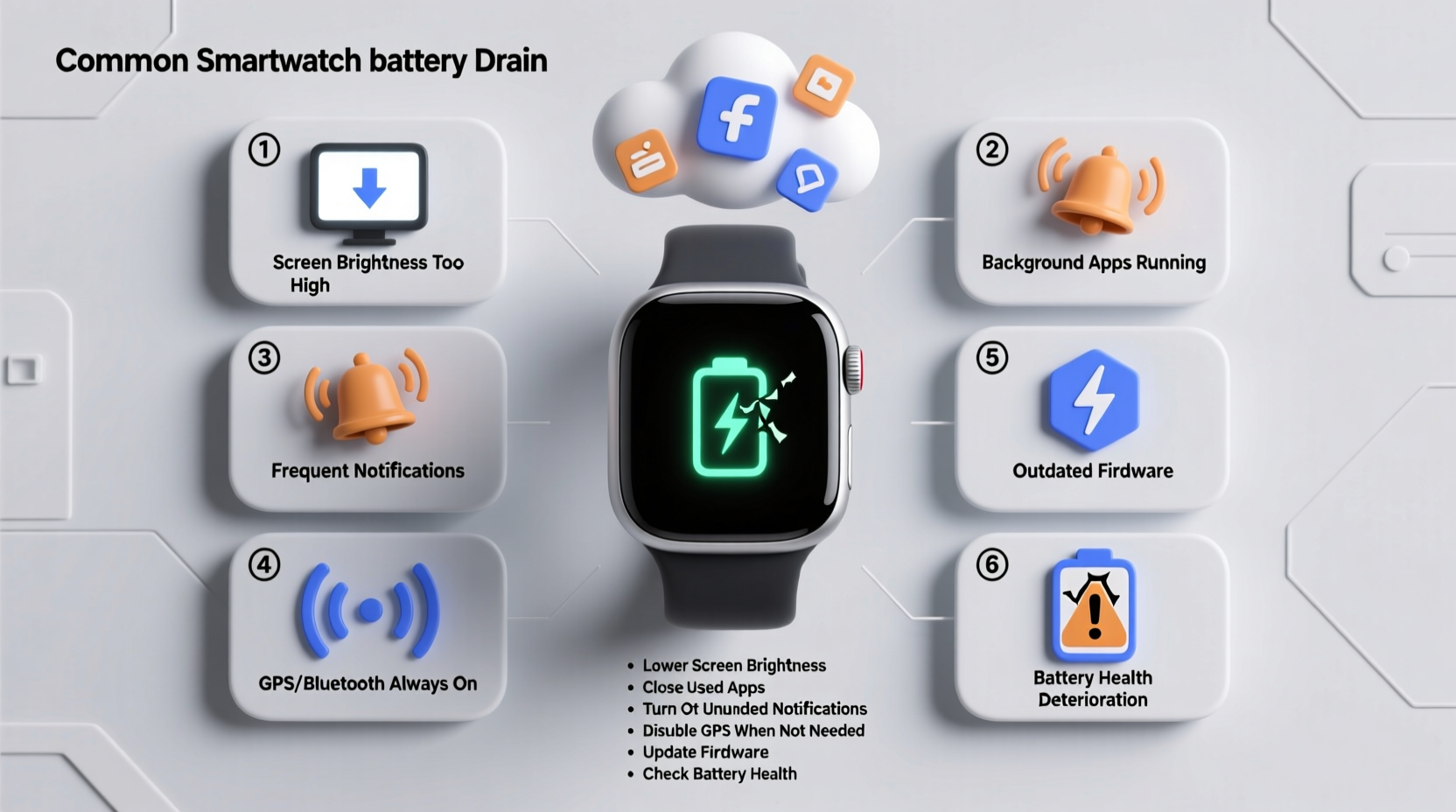
Unlike smartphones, smartwatches operate under tight power constraints due to their compact size and limited battery capacity. Most models offer 1–3 days of battery life under normal conditions. However, \"normal\" varies widely depending on brand, model, and user habits. For example, an Apple Watch Series 9 may last up to 18 hours with moderate use, while some Wear OS devices struggle to reach 24 hours. Factors like screen brightness, connectivity features, and app activity all contribute to energy consumption.
Battery degradation over time is also natural. Lithium-ion batteries lose capacity after repeated charge cycles. After a year of daily charging, it's common for a smartwatch to hold 80–90% of its original charge. But if your watch is significantly underperforming—dying in just a few hours—it's likely due to software or configuration issues rather than age alone.
Top 5 Common Causes of Rapid Battery Drain
1. Brightness and Always-On Display Settings
The display is one of the most power-hungry components. Using maximum brightness or enabling the \"always-on\" feature keeps the screen lit even when idle, which can consume up to 30% more battery per day. While convenient, this setting drastically reduces efficiency, especially on OLED screens where every pixel emits light.
2. Background App Refresh and Notifications
Third-party apps often run background processes to sync data, check for updates, or deliver alerts. Fitness trackers, messaging apps, and social media tools are frequent offenders. Each notification push and silent refresh consumes CPU cycles and radio power (Bluetooth, Wi-Fi). Over time, these micro-drains add up.
3. GPS, Heart Rate Monitoring, and Sensors
Frequent use of GPS during workouts or continuous heart rate monitoring increases power draw. Some watches default to measuring heart rate every 10 minutes throughout the day. While useful for health insights, this constant sensor activation can cut battery life in half compared to disabling it.
4. Poor Bluetooth Connection or Phone Pairing Issues
If your smartwatch struggles to maintain a stable Bluetooth connection with your phone, it repeatedly searches for the signal, using extra energy. This is common in crowded wireless environments or when phones enter low-power modes that delay responses.
5. Outdated Software or Firmware Bugs
Manufacturers release regular updates to patch bugs and optimize performance. An outdated operating system might contain known battery-draining glitches. Conversely, sometimes new updates introduce instability—especially early versions—which can cause abnormal power consumption until patched.
“Battery life isn’t just about capacity—it’s about efficiency. A well-tuned smartwatch with optimized settings can outlast a newer model running inefficiently.” — Dr. Lena Torres, Wearable Technology Researcher at MIT Media Lab
Step-by-Step Guide to Diagnose and Fix Battery Drain
Follow this systematic approach to identify and resolve excessive battery usage:
- Check Battery Usage Stats: Navigate to your smartwatch’s battery settings (or companion app) to see which apps or functions used the most power over the past 24 hours. Focus on outliers.
- Disable Always-On Display: Turn off the always-on screen in display settings. Instead, set the watch to wake only when you raise your wrist or tap the screen.
- Reduce Screen Brightness: Lower brightness manually or enable auto-brightness based on ambient light.
- Limit Background App Refresh: In the companion app (e.g., Galaxy Wearable, Wear OS by Google, or Apple Watch app), disable background refresh for non-essential apps like weather widgets or social media.
- Adjust Heart Rate Monitoring Frequency: Switch from continuous monitoring to on-demand or periodic checks (e.g., every 30 minutes instead of every 5).
- Turn Off Unnecessary Connectivity: Disable Wi-Fi if you’re relying solely on Bluetooth. Also, consider turning off NFC or LTE if your model supports those features but you don’t use them daily.
- Restart Your Device Weekly: A simple reboot clears cached processes and resets any stuck background tasks.
- Update Firmware and Apps: Ensure both the watch OS and installed apps are current. Check for pending updates in the companion app.
- Reset Settings (if needed): If problems persist, reset all settings—not full factory reset—to restore defaults without losing data.
- Monitor Changes Over 48 Hours: Track battery behavior after each change to isolate what works best for your routine.
Do’s and Don’ts: Smartwatch Battery Best Practices
| Do’s | Don’ts |
|---|---|
| Use adaptive brightness | Keep screen brightness at max permanently |
| Enable sleep mode or theater mode overnight | Leave notifications enabled 24/7 |
| Charge before dropping below 20% | Let the battery fully deplete regularly |
| Turn off GPS after outdoor activities | Run GPS tracking in the background unnecessarily |
| Review battery usage weekly | Ignore sudden drops in performance without investigation |
Real-World Example: Recovering Two-Day Battery Life
Sarah, a marketing executive and avid runner, noticed her Samsung Galaxy Watch 6 was dying by noon—even though it previously lasted two full days. She tracked her usage and found that Strava was syncing continuously, her heart rate monitor updated every 5 minutes, and she had left the always-on display on after testing it briefly.
After adjusting settings—disabling always-on display, reducing heart rate sampling to every 30 minutes, and limiting Strava background refresh—her battery improved immediately. She now gets nearly 48 hours of use, even with daily runs. The key wasn’t uninstalling apps or buying accessories; it was refining how she used existing features.
When Hardware Might Be the Issue
While most battery problems stem from software, aging hardware can also play a role. After 18–24 months of daily charging, lithium-ion batteries degrade. Symptoms include:
- Rapid drop from 60% to 20% within an hour
- Device shutting down unexpectedly despite showing 10–15% charge
- Inability to hold charge even after a full night’s charging
If optimization steps fail and your watch is over a year old, consider a battery replacement. Most manufacturers offer service programs, though costs vary. For example, Apple charges around $79 for out-of-warranty battery service, while third-party repair shops may offer lower rates.
Checklist: Optimize Your Smartwatch Battery Today
Use this checklist to quickly audit and improve your smartwatch battery life:
- ☐ Disable always-on display
- ☐ Lower screen brightness or enable auto-brightness
- ☐ Review battery usage stats in the last 24 hours
- ☐ Turn off unnecessary sensors (e.g., SpO2, continuous HR)
- ☐ Limit background app refresh for non-critical apps
- ☐ Disable Wi-Fi and LTE if not actively used
- ☐ Update watch OS and all apps
- ☐ Restart the device to clear memory leaks
- ☐ Use power-saving mode during travel or long events
- ☐ Schedule a professional battery health check if older than 18 months
Frequently Asked Questions
Does using third-party watch faces drain the battery faster?
Yes, some custom watch faces—especially those with animations, live data feeds, or bright colors—consume more power than stock options. Animated elements force the screen to refresh frequently, and complex designs may keep the processor active longer. Stick to minimalist, dark-themed faces for better efficiency.
Is it bad to charge my smartwatch overnight?
Modern smartwatches are designed to stop charging once they reach 100%, so occasional overnight charging is safe. However, habitual full charges accelerate long-term battery wear. To maximize lifespan, try to unplug once it hits 80–90%, or use smart chargers that delay final charging until morning.
Can I extend battery life by turning off notifications?
Absolutely. Every notification triggers screen wake-up, vibration, and data sync—all of which use energy. Turning off non-essential alerts (like promotional emails or social likes) reduces interruptions and conserves power. Prioritize critical notifications like calls, messages, and calendar alerts.
Conclusion: Take Control of Your Smartwatch Battery
Your smartwatch doesn’t need to die before dinner. With a few strategic adjustments, you can reclaim hours of battery life and enjoy a more reliable wearable experience. Start by auditing your current settings, eliminate unnecessary background activity, and tailor sensor usage to your actual needs. Remember, small changes compound into significant gains. Whether you're training for a marathon or navigating a busy workweek, a well-optimized smartwatch should support you—not leave you scrambling for a charger.




 浙公网安备
33010002000092号
浙公网安备
33010002000092号 浙B2-20120091-4
Comments
No comments yet. Why don't you start the discussion?