
Smartwatches have become essential tools for tracking fitness goals, offering real-time insights into daily activity, heart rate, and step count. But when your device fails to register steps correctly—undercounting, overcounting, or missing entire walks—it undermines trust in the data and can derail progress. The good news: most inaccuracies stem from correctable issues rather than hardware failure. Whether you're using an Apple Watch, Samsung Galaxy Watch, Fitbit, Garmin, or another wearable, this guide breaks down the root causes of inaccurate step tracking and provides precise, field-tested solutions.
Understanding How Smartwatches Track Steps
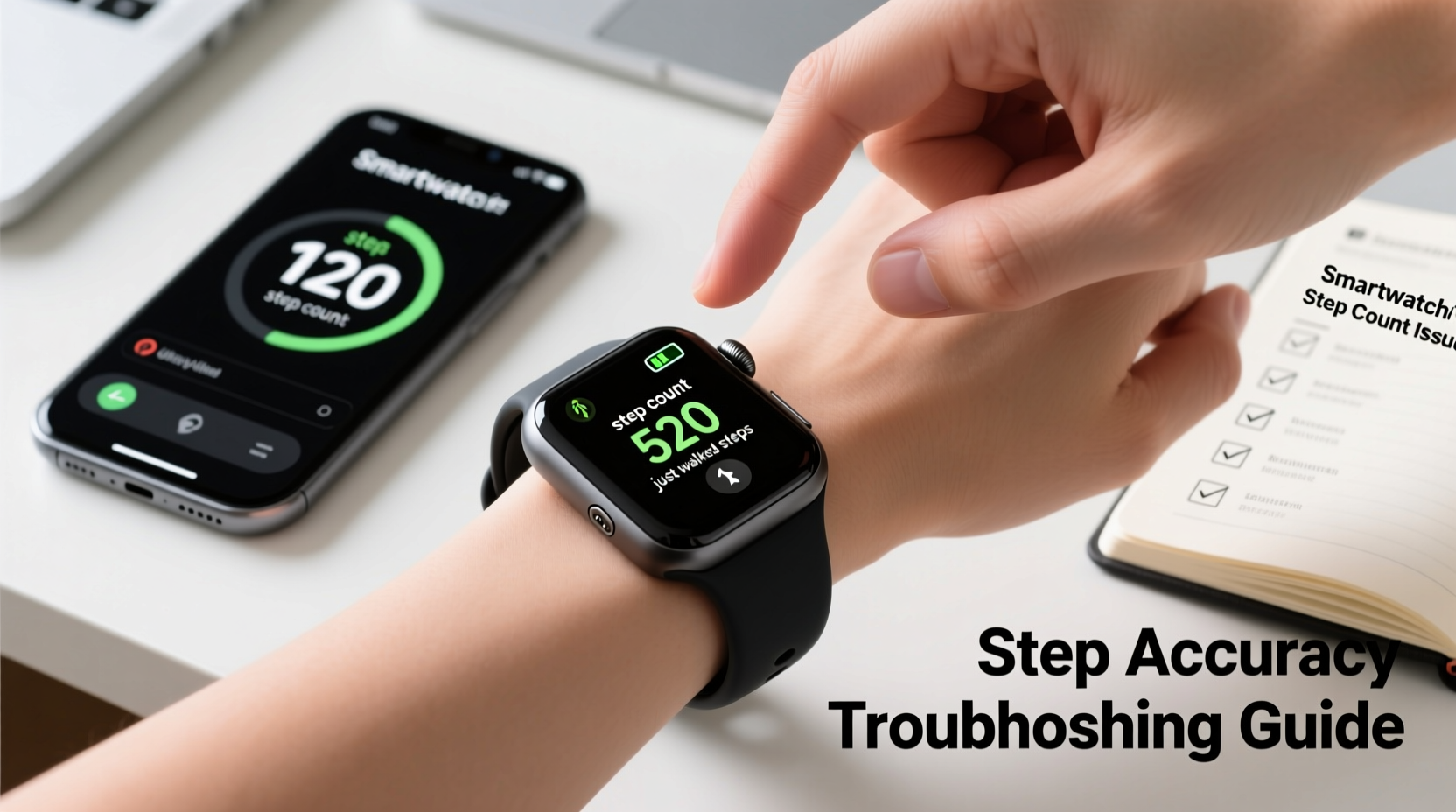
At the core of every smartwatch’s step-counting ability lies a trio of sensors: the accelerometer, gyroscope, and sometimes a barometer. The accelerometer detects motion patterns associated with walking or running—specifically vertical and horizontal body movement. Algorithms analyze this raw sensor data to distinguish between intentional steps and incidental movements like hand gestures or driving vibrations.
Modern watches use machine learning models trained on thousands of gait patterns to improve accuracy. However, no system is perfect. Factors such as wearing position, arm swing, stride length settings, and even clothing can influence readings. For instance, carrying groceries or pushing a stroller may limit natural arm motion, leading the watch to miss steps. Similarly, typing at a desk might register false positives if the algorithm misinterprets rapid wrist flicks as footsteps.
“Step accuracy depends more on user behavior and calibration than hardware alone. A properly worn and calibrated watch can achieve over 95% accuracy in normal conditions.” — Dr. Lena Torres, Biomedical Engineer specializing in wearable tech
Common Causes of Inaccurate Step Counting (and How to Fix Them)
Before assuming your device is faulty, consider these frequent culprits behind flawed step data:
1. Improper Wear Position
Wearing your smartwatch too loosely or too high on the wrist reduces sensor contact and dampens motion detection. If the watch rotates or slides during movement, the accelerometer receives inconsistent input.
2. Incorrect Dominant Hand Setting
Most smartwatches assume the device is worn on your dominant hand—the one that swings more naturally while walking. If you wear it on your non-dominant side but haven’t updated the setting, step counts may be underestimated.
To fix: Go to your companion app (e.g., Apple Health, Samsung Health, Fitbit App), navigate to device settings, and confirm the correct “Wrist” or “Handedness” option is selected.
3. Outdated Stride Length or Height Data
Step algorithms rely on personalized metrics like height, weight, and stride length to convert motion into distance and steps. Default values often don’t match real-world gaits, especially for people outside average ranges.
You can manually calibrate stride length by walking a known distance (e.g., a 100-meter track) and dividing the distance by your actual step count. Enter this value in your health app under “Personal Metrics” or “Activity Settings.”
4. Disabled Motion Sensors or Battery Optimization
Some phones aggressively restrict background processes to save battery. This includes limiting access to motion sensors that feed data to your smartwatch. On Android devices, check whether battery optimization is turned off for both the companion app and the watch itself.
Additionally, ensure that motion & fitness permissions are enabled. Without continuous sensor access, your watch may only record sporadic bursts of activity.
5. Software Glitches or Sync Delays
Bugs in firmware or temporary sync failures between your watch and phone can cause data loss or duplication. You might see sudden jumps in step count or gaps during active periods.
Restart both devices periodically. Also, verify that your watch is running the latest software version—manufacturers frequently release updates that improve motion tracking logic.
Step-by-Step Calibration Process for Better Accuracy
Follow this timeline to recalibrate your smartwatch and optimize step tracking within 48 hours:
- Day 1 – Morning: Update your smartwatch and phone apps to the latest versions. Check for firmware updates in the device settings.
- Day 1 – Afternoon: Recalibrate personal data: input accurate height, weight, age, and set the correct wrist (left/right).
- Day 1 – Evening: Perform a controlled walk test. Walk exactly 400 meters on a flat surface (use GPS or marked path). Count your steps manually. Divide 400 by your step count to get average meter-per-step. Input this into your app.
- Day 2 – All Day: Wear the watch consistently during all activities. Avoid removing it unless charging. Compare logged steps against perceived activity level.
- Day 2 – Night: Review data. If discrepancies persist beyond ±10%, reset motion calibration via the app (look for “Reset Calibration” or similar) and repeat the walk test.
This process trains the algorithm to interpret your unique movement signature, significantly improving long-term accuracy.
Troubleshooting Checklist: Is Your Smartwatch Working Correctly?
Use this checklist to diagnose and resolve step-counting issues systematically:
- ✅ Worn snugly on the dominant wrist, one inch below the wrist bone
- ✅ Correct handedness setting in the companion app
- ✅ Accurate height, weight, and age entered in profile
- ✅ Latest firmware installed on watch and paired phone
- ✅ Motion & Fitness permissions fully enabled
- ✅ Battery optimization disabled for health apps
- ✅ Manual stride length calibrated using real-world test
- ✅ No physical obstructions (thick sleeves, tight gloves) limiting motion
- ✅ Consistent syncing with smartphone throughout the day
- ✅ No signs of water damage or sensor malfunction (e.g., erratic heart rate readings)
Do’s and Don’ts of Smartwatch Step Tracking
| Do | Don’t |
|---|---|
| Wear the watch snugly but comfortably | Let the watch rotate freely on your wrist |
| Calibrate stride length every 3–6 months | Rely solely on default settings forever |
| Carry arms naturally during walks | Push a shopping cart or stroller without adjusting expectations |
| Enable all-day sync with your phone | Leave Bluetooth off for extended periods |
| Restart your watch weekly to clear glitches | Ignore persistent sync errors or crashes |
Real-World Example: Maria’s Step Count Mystery
Maria, a 38-year-old teacher, noticed her Samsung Galaxy Watch was recording only 3,000 steps despite walking nearly 8 miles daily during school hours. Frustrated, she almost returned the device. Instead, she reviewed her habits and discovered three key issues: she wore the watch on her left (non-dominant) wrist but had it set to “Right Wrist” in the app; her loose sweater sleeves muffled arm swing; and she hadn’t updated her height since purchasing the watch two years prior.
After switching the wrist setting, rolling up her sleeves during class, and entering her correct height (5’7”), her step count immediately jumped to reflect reality—averaging 11,000–12,000 steps on workdays. She also performed a calibration walk around her school’s track and adjusted her stride length accordingly. Within a week, her data stabilized, and she resumed trusting her device.
Maria’s case illustrates how small oversights compound into major inaccuracies—and how easily they can be reversed with attention to detail.
Frequently Asked Questions
Why does my smartwatch count steps when I’m not walking?
This usually happens due to repetitive motions that mimic walking patterns—such as chopping food, driving over bumps, or gesturing while talking. Most modern watches filter out short bursts, but prolonged movements can register as steps. To minimize false positives, avoid vigorous arm shaking while wearing the watch, and ensure your sensitivity settings aren’t overly aggressive.
Can I improve accuracy without a phone nearby?
Yes. Watches with built-in GPS and onboard processing (like Apple Watch Series 4+, Garmin Forerunner, or Samsung Galaxy Watch 5+) can track steps independently. However, periodic syncing with your phone helps refine algorithms through cloud-based pattern analysis. Even standalone devices benefit from occasional connection to update models and upload calibration data.
Should I use a separate pedometer instead?
For maximum accuracy, dedicated hip-worn pedometers (like those from Omron or Yamax) still outperform wrist-based trackers in lab conditions. But for convenience and holistic health monitoring, smartwatches offer superior value. If step precision is critical—say, for medical rehabilitation or research purposes—a chest strap or pocket pedometer used alongside your watch can provide cross-validation.
Final Thoughts: Trust, But Verify
No smartwatch delivers 100% step accuracy all the time. Human movement is complex, and algorithms make educated guesses based on limited data. But consistent inaccuracies signal preventable problems—not inevitable flaws. By understanding how motion sensing works, maintaining proper wear habits, and regularly calibrating your device, you can bring your step count within a reliable range.
The goal isn’t perfection, but consistency. As long as your smartwatch reflects relative changes—more steps today than yesterday, fewer after injury—you can make informed decisions about your activity levels. Combine its insights with how you feel, sleep, and perform, and you’ll gain a richer picture of your health than any single number can provide.




 浙公网安备
33010002000092号
浙公网安备
33010002000092号 浙B2-20120091-4
Comments
No comments yet. Why don't you start the discussion?