
If you've been diligently tracking your daily activity on your smartwatch, only to find that your step count isn’t appearing in Google Fit, the frustration is real. You’re not alone—thousands of users encounter sync issues between their wearable devices and Google’s health platform. While it may seem like a minor glitch, inconsistent data can disrupt fitness goals, mislead progress tracking, and reduce motivation. The good news? Most sync problems are fixable with the right troubleshooting steps.
Google Fit serves as a central hub for health data across Android devices, aggregating information from various sensors and apps. When your smartwatch fails to push step data, the root cause often lies in permissions, connectivity, software bugs, or account mismatches. Understanding how the ecosystem works—and where it commonly breaks down—is key to restoring seamless integration.
How Step Syncing Works Between Smartwatches and Google Fit
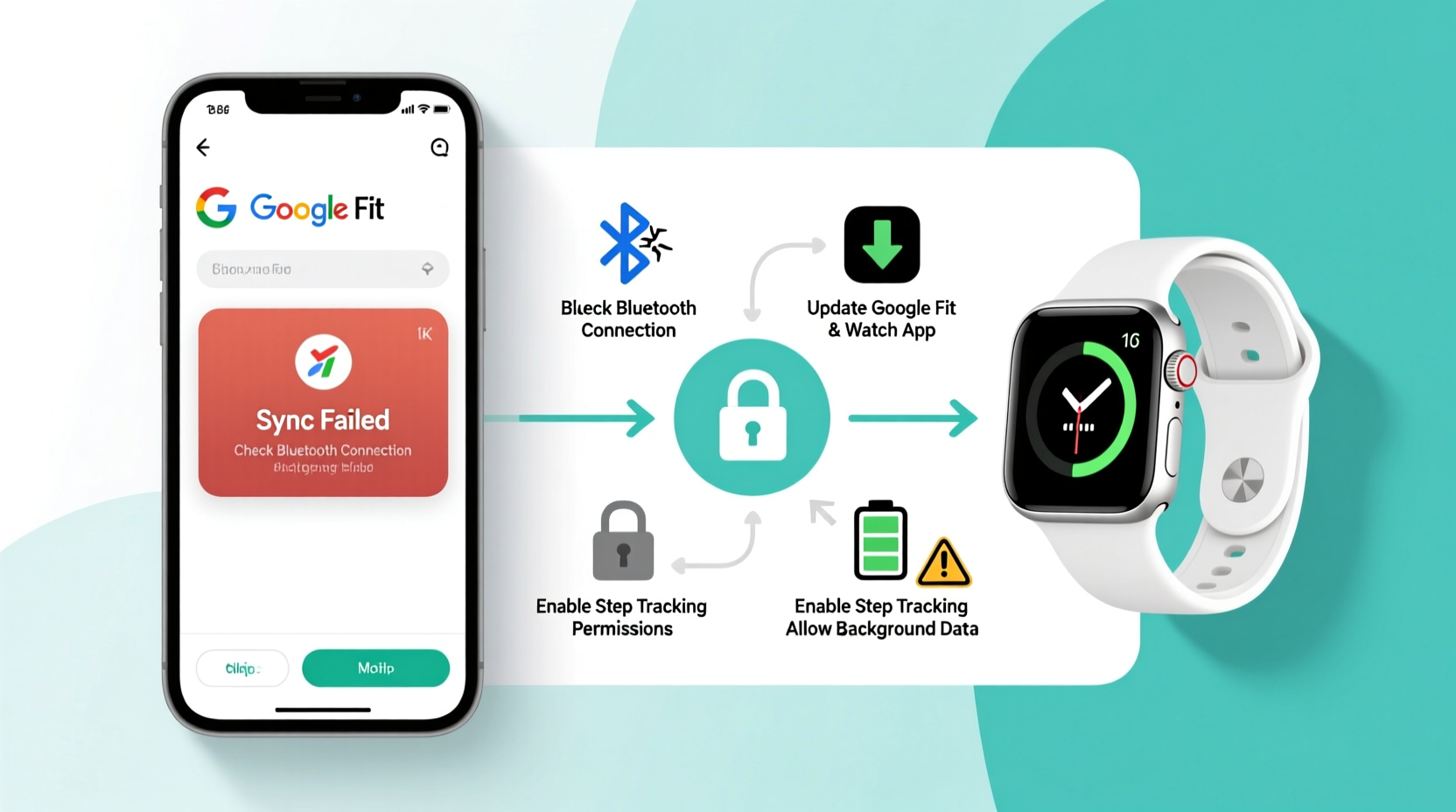
Step syncing relies on a chain of communication: your smartwatch records motion via an accelerometer, processes it into step data, then transmits it—usually through Bluetooth—to your paired smartphone. From there, the companion app (like Samsung Health, Fitbit, or Wear OS) communicates with Google Fit using APIs (Application Programming Interfaces) to share or merge the data.
This process assumes several conditions are met:
- The smartwatch and phone are within Bluetooth range.
- The companion app has permission to access and write health data.
- Google Fit is set as a data source or destination in the companion app.
- Both devices are signed into the same Google account.
- No conflicting apps are blocking background data usage.
When any link in this chain fails, steps don’t make it to Google Fit. The issue might not be with Google Fit itself but rather with how your smartwatch or its associated app interacts with the platform.
Common Causes of Step Sync Failures
Synching issues rarely stem from a single factor. More often, they result from a combination of overlooked settings or outdated software. Here are the most frequent culprits:
1. Missing or Revoked Permissions
Android restricts access to health data for privacy. If Google Fit or your smartwatch’s companion app lacks permission to read or write step data, syncing halts immediately. This commonly happens after system updates or app reinstalls.
2. Bluetooth Disconnection or Interference
Even if your watch appears connected, unstable Bluetooth pairing can interrupt data transfer. Physical obstructions, interference from other wireless devices, or low battery on either device can degrade the connection.
3. Companion App Not Configured for Google Fit
Not all smartwatch apps automatically push data to Google Fit. For example, Samsung Health requires manual setup to sync steps with Google Fit, even though both services coexist on Galaxy devices.
4. Outdated Apps or Firmware
Bugs in older versions of Google Fit, the companion app, or the watch’s firmware can break API compatibility. Developers regularly patch sync-related issues—running outdated software increases the risk of failure.
5. Multiple Google Accounts or Profile Conflicts
If your phone uses multiple Google accounts, the companion app might sync to the wrong one. Google Fit ties data to a specific account, so mismatched logins prevent proper association.
“Sync failures between wearables and health platforms are rarely hardware-related. Over 80% of cases we see stem from permission gaps or misconfigured integrations.” — Dr. Lena Torres, Mobile Health Systems Analyst at TechWell Labs
Step-by-Step Guide to Restore Step Syncing
Follow this structured approach to systematically eliminate potential issues. Start from the device level and work up to app settings.
- Reboot Both Devices
Restart your smartwatch and smartphone. This clears temporary glitches and resets Bluetooth connections. - Check Bluetooth Connection
Go to your phone’s Bluetooth settings and confirm your watch is connected. Disconnect and re-pair if necessary. - Verify Google Account Alignment
Ensure the same Google account is used on both Google Fit and the companion app. In Google Fit, tap your profile photo > Settings > Account to verify. - Enable Google Fit Sync in the Companion App
Open your smartwatch’s app (e.g., Wear OS by Google, Samsung Health). Navigate to Settings > Connected Services > Google Fit and toggle syncing ON. - Grant Required Permissions
On your phone, go to Settings > Apps > [Companion App] > Permissions. Enable: Body Sensors, Location (required for some health APIs), and Storage. Also check Google Fit’s permissions. - Update All Software
Check for updates in the Play Store (Google Fit and companion app) and on your watch (Settings > System > Updates). - Clear Cache for Google Fit and Companion App
In Android Settings > Apps, select each app, go to Storage, and tap “Clear Cache.” Avoid clearing data unless absolutely necessary. - Test with a Short Walk
Take a 2-minute walk while wearing your watch. Wait 5–10 minutes, then open Google Fit to see if steps appear.
Troubleshooting Checklist
- ✅ Reboot smartwatch and phone
- ✅ Confirm Bluetooth is stable and connected
- ✅ Verify both devices use the same Google account
- ✅ Enable Google Fit sync in companion app settings
- ✅ Grant Body Sensors, Location, and Storage permissions
- ✅ Update Google Fit and companion app
- ✅ Update smartwatch firmware
- ✅ Clear cache for both apps
- ✅ Perform a test walk to trigger data transfer
Do’s and Don’ts When Resolving Sync Problems
| Do’s | Don’ts |
|---|---|
| Regularly update your smartwatch and phone software | Ignore app permission requests related to health data |
| Use only one primary Google account for health tracking | Assume the problem is permanent without testing basic fixes |
| Keep your phone and watch close during initial sync periods | Delete and reinstall apps without backing up data first |
| Monitor sync status after changes | Disable background data restrictions for health apps |
Real-World Example: Recovering Lost Step Data
Sarah, a fitness instructor in Portland, noticed her Google Fit dashboard hadn’t updated in three days despite wearing her Wear OS watch daily. Her step goal was 10,000, but Google Fit showed only 2,400—far below her usual output.
She followed general advice online but saw no improvement. Then she opened the Wear OS app and checked “Connected Services.” To her surprise, Google Fit was toggled off. She enabled it, granted missing permissions, and took a quick walk around her kitchen. Within seven minutes, her step count updated in Google Fit—including a partial backlog of previous day’s data.
The issue? A recent app update had reset integration preferences. Sarah hadn’t realized the sync setting was disabled. Her case highlights how silent configuration changes—especially after updates—can disrupt data flow without obvious warnings.
Frequently Asked Questions
Why do my steps show in the companion app but not in Google Fit?
This usually means the companion app isn’t configured to share data with Google Fit. Even if both apps collect steps independently, they won’t merge unless explicitly linked. Go to the companion app’s settings and enable Google Fit integration under “Connected Services” or “Data Sharing.”
How long should syncing take after a walk?
Most smartwatches sync within 5–15 minutes when the phone is nearby and Bluetooth is active. Delays beyond 30 minutes suggest a connectivity or permission issue. Background syncing can take longer if the phone is in power-saving mode or the app is restricted.
Can I force an immediate sync?
Yes. On many watches, opening the Google Fit app directly on the device triggers an instant sync. Alternatively, pull down on the Google Fit feed on your phone to refresh manually. Some companion apps also have a “Sync Now” button in settings.
Advanced Tips for Persistent Sync Issues
If standard fixes fail, consider these deeper interventions:
- Check Battery Optimization Settings: Android may prevent apps from running in the background to save power. Go to Settings > Battery > Battery Optimization, find Google Fit and your companion app, and set them to “Don’t optimize.”
- Reconnect Google Fit Manually: In your companion app, disable Google Fit integration, restart both devices, then reconnect. This forces a fresh authentication handshake.
- Verify Sensor Access on Foldables or Dual-SIM Phones: Some devices disable sensors on secondary profiles or work profiles. Ensure you're using the personal profile where Google Fit is installed.
- Use Third-Party Sync Tools (Cautiously): Apps like S Health to Google Fit or FitnessSyncer can bridge gaps between incompatible platforms. However, review privacy policies carefully before granting access to health data.
For Wear OS users, ensure that “Auto-sync” is enabled in Google Fit settings on the watch. Navigate to the Fit app > Settings > Auto-sync with phone. If disabled, step data remains isolated until manually synced.
Conclusion: Take Control of Your Health Data Flow
Your smartwatch is only as effective as its ability to communicate with your health ecosystem. When steps fail to sync to Google Fit, it’s not just a technical hiccup—it undermines your ability to track progress, stay motivated, and make informed wellness decisions. The solution lies in methodical troubleshooting: verifying permissions, ensuring software is current, and confirming integration settings are correctly configured.
Syncing should be seamless, but occasional hiccups are inevitable in complex digital environments. By understanding how data flows between your devices and taking proactive control over settings, you can minimize disruptions and maintain accurate, reliable health tracking.




 浙公网安备
33010002000092号
浙公网安备
33010002000092号 浙B2-20120091-4
Comments
No comments yet. Why don't you start the discussion?