
Smartwatches have become essential companions in daily life—tracking fitness, delivering notifications, and streamlining communication. But when your smartwatch stops syncing with your phone, it can quickly turn from helpful tool into a frustrating accessory. Whether you're using an Apple Watch, Samsung Galaxy Watch, Fitbit, or another brand, sync issues are common and often solvable with the right approach. Understanding the root causes and applying targeted fixes can restore seamless integration between your devices.
Common Causes of Smartwatch Sync Failures
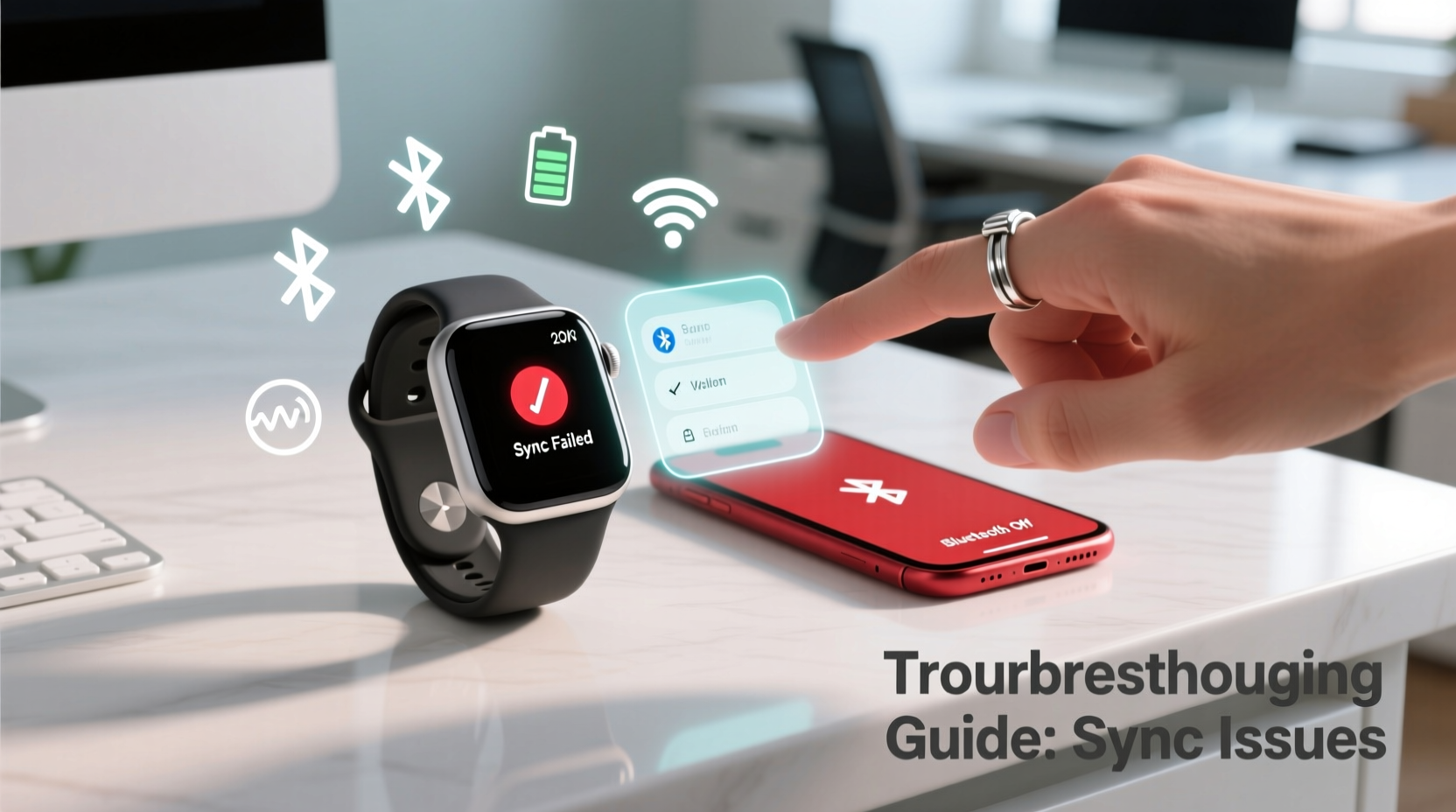
Synchronization problems don’t always stem from one single issue. Multiple factors—including software glitches, hardware limitations, and user settings—can disrupt the connection between your smartwatch and smartphone. Identifying the underlying cause is the first step toward resolution.
- Bluetooth interference: Walls, metal objects, or other wireless signals may weaken Bluetooth performance.
- Outdated software: Both the watch OS and companion app require regular updates for compatibility.
- App permissions disabled: If the companion app lacks access to location, notifications, or background data, syncing halts.
- Connection timeout: Watches disconnect after prolonged distance from the phone unless reconnected manually.
- Corrupted cache or data: Temporary files in the companion app may become damaged over time.
- Device restart needed: Minor firmware hiccups often resolve with a simple reboot.
Step-by-Step Troubleshooting Guide
Follow this systematic process to diagnose and resolve sync issues. Each step builds on the previous one, increasing in complexity but designed to avoid unnecessary resets or data loss.
- Verify Bluetooth status – On your phone, confirm Bluetooth is enabled and that your smartwatch appears as “Connected” in the device list.
- Restart both devices – Power off your smartwatch and phone completely, then power them back on. This clears temporary memory glitches.
- Check app permissions – Go to Settings > Apps > [Companion App] > Permissions and ensure Location, Notifications, and Background Data are allowed.
- Force-close and relaunch the companion app – Swipe it away from recent apps and reopen it to refresh the session.
- Toggle Airplane Mode on the watch – Turn Airplane Mode on for 10 seconds, then off. This resets wireless modules.
- Forget and re-pair the device – In your phone’s Bluetooth settings, unpair the watch, then use the companion app to pair again.
- Update software – Check for system updates on both devices. Out-of-date firmware is a leading cause of sync failure.
- Clear app cache (Android) – Navigate to Settings > Storage > [Companion App] > Clear Cache. Avoid “Clear Data” unless necessary.
- Reset sync data via the app – Some apps (e.g., Fitbit, Garmin) offer a “Sync Now” or “Reset Sync History” option under Account settings.
- Factory reset the watch – As a last resort, erase all data and set up the watch again. Backup health data if possible before proceeding.
When to Re-Pair Your Devices
Re-pairing should be considered when persistent syncing fails despite basic troubleshooting. It's particularly effective when the watch shows as \"paired\" but inactive, or when data uploads inconsistently. The process varies slightly by brand:
| Brand | How to Re-Pair |
|---|---|
| Apple Watch | Open Watch app > My Watch > Tap 'i' icon > Unpair Apple Watch. Set up again via iPhone. |
| Samsung Galaxy Watch | Open Galaxy Wearable app > Settings > Unpair. Restart phone and re-pair through app. |
| Fitbit | Fitbit app > Profile > Devices > Remove Device. Add again via setup wizard. |
| Garmin | Garmin Connect > Menu > Devices > Remove. Pair again via Bluetooth settings. |
Do’s and Don’ts When Fixing Sync Issues
Avoid making the problem worse by following these best practices. Even small missteps can prolong downtime or result in data loss.
| Do’s | Don’ts |
|---|---|
| Keep both devices charged above 30% during troubleshooting | Don’t skip software updates—they often contain critical fixes |
| Use official companion apps only | Don’t factory reset without backing up health stats if possible |
| Test sync after each step to isolate the fix | Don’t assume Bluetooth works just because it’s on—verify active connection |
| Enable automatic sync settings in the app | Don’t ignore error messages; note codes or descriptions for support |
Real-World Example: Resolving Intermittent Sync on a Galaxy Watch
Jamal, a sales manager, noticed his Samsung Galaxy Watch 5 stopped receiving call alerts and fitness data wasn’t uploading to the app. His initial assumption was a battery issue, but after checking, the watch had 60% charge. He followed these steps:
- He restarted both his Galaxy S23 and the watch.
- Confirmed Bluetooth was active and the watch appeared connected.
- Opened the Galaxy Wearable app and saw a yellow warning symbol.
- Checked app permissions and discovered Location access had been denied during a recent update.
- Re-enabled Location and Background Data, then triggered a manual sync.
Within two minutes, pending workout data uploaded successfully, and notifications resumed. The root cause? A silent permission change after an Android security patch. Jamal now checks app permissions monthly as part of his digital maintenance routine.
“Over 60% of smartwatch sync issues we see in customer support stem from overlooked app permissions or outdated operating systems.” — Lena Park, Senior Support Engineer at Samsung Mobile Services
Prevent Future Sync Problems: Proactive Maintenance Tips
Once you’ve restored connectivity, take steps to prevent recurrence. Smartwatches rely on consistent communication protocols, and minor neglect can lead to recurring issues.
- Schedule weekly restarts: Reboot both devices every Sunday morning to clear cached processes.
- Monitor update notifications: Allow automatic downloads for OS and app updates.
- Limit third-party apps: Non-certified apps can interfere with core syncing functions.
- Check storage space: Low phone storage can prevent new data from being saved during sync.
- Review battery optimization settings: On Android, disable battery saver mode for the companion app.
iOS-Specific Considerations
Apple users may encounter unique challenges due to iOS restrictions. For example, if Background App Refresh is disabled for the Watch app, heart rate and activity data may fail to transfer. To verify:
- Go to iPhone Settings > General > Background App Refresh.
- Ensure it’s enabled globally and specifically for the Watch app.
- Also check Settings > Privacy & Security > Motion & Fitness > Ensure Fitness Tracking and Health Access are toggled on.
Additionally, iCloud syncing must be active for full integration across Apple devices. If Activity rings aren’t updating, sign out and back into your Apple ID under Settings > [Your Name].
Frequently Asked Questions
Why does my smartwatch only sync occasionally?
Intermittent syncing usually points to unstable Bluetooth, background app restrictions, or poor signal environment. Confirm that Bluetooth remains active and that no power-saving modes are interrupting the connection. Also, ensure the companion app is permitted to run in the background.
Can Wi-Fi affect smartwatch syncing?
Yes—some watches (like Apple Watch) can sync directly to Wi-Fi when the phone isn’t nearby, provided they’re on the same network. However, inconsistent Wi-Fi settings or router firewalls may block this. Make sure both devices are on the same trusted network and that firewall settings allow device-to-device communication.
Will resetting my smartwatch delete my health data?
It depends on the brand. Apple Watch backs up health data to the paired iPhone automatically. Fitbit and Garmin store most metrics in the cloud. However, local-only stats (such as unuploaded workouts) may be lost. Always attempt a manual sync before resetting, and verify cloud backup status in the companion app.
Final Checklist: Quick Actions to Restore Sync
Before contacting customer support, complete this concise checklist:
- ✅ Restart both smartwatch and phone
- ✅ Confirm Bluetooth is on and devices are paired
- ✅ Open companion app and attempt manual sync
- ✅ Check for OS and app updates
- ✅ Verify app permissions (Location, Notifications, Background)
- ✅ Toggle Airplane Mode on the watch
- ✅ Re-pair the devices if sync still fails
- ✅ Factory reset watch as final step
Conclusion: Regain Control Over Your Connected Experience
Your smartwatch is designed to enhance—not complicate—your day. Sync issues, while frustrating, are rarely permanent. With methodical troubleshooting and a few preventive habits, you can maintain reliable connectivity and enjoy uninterrupted access to health insights, messages, and smart features. Don’t accept workarounds when a full fix is within reach. Apply these strategies today, and reclaim the seamless experience you paid for.




 浙公网安备
33010002000092号
浙公网安备
33010002000092号 浙B2-20120091-4
Comments
No comments yet. Why don't you start the discussion?