
Smartwatches have become essential companions in our daily lives, tracking fitness, delivering notifications, and keeping us connected without reaching for our phones. But when your smartwatch stops syncing, it can feel like losing a vital link to your digital world. Whether you're using an Apple Watch, Samsung Galaxy Watch, or another brand, sync failures are frustrating but often fixable. The good news? Most sync issues stem from predictable problems—many of which you can resolve at home without technical expertise.
This guide walks through the most common reasons your smartwatch might not be syncing with your phone and offers practical, step-by-step solutions. From Bluetooth hiccups to software bugs, we’ll help you identify the root cause and restore seamless communication between your devices.
Understanding How Smartwatch Syncing Works
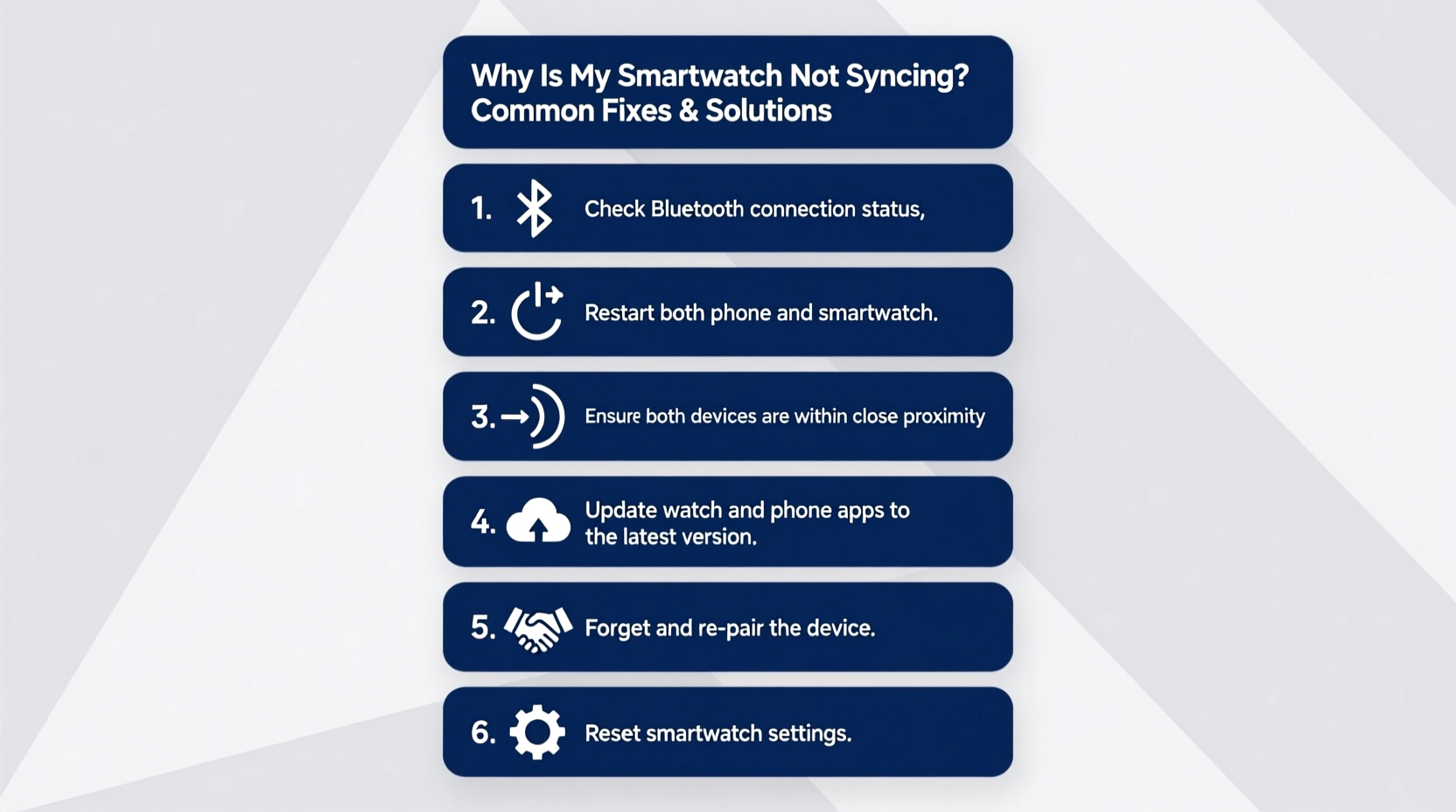
Synchronization between a smartwatch and smartphone relies on a stable wireless connection—usually Bluetooth—for real-time data transfer. Health metrics, messages, calls, calendar updates, and app data all depend on this link. Some watches also use Wi-Fi or cloud services (like iCloud or Google Fit) for background syncing when out of Bluetooth range.
The process typically follows this flow:
- The smartwatch collects data (e.g., heart rate, steps).
- When in range, it connects via Bluetooth to the paired phone.
- Data is transferred to the companion app (e.g., Apple Health, Samsung Wearable).
- The app may then push updates back to the watch (e.g., new notifications, settings).
Any break in this chain—connection instability, app crashes, or outdated firmware—can halt syncing. Understanding this flow helps pinpoint where things go wrong.
Common Causes of Sync Failures and How to Fix Them
Sync issues rarely stem from hardware defects. More often, they’re caused by simple oversights or minor glitches. Below are the top culprits and how to address them.
1. Bluetooth Connection Issues
Bluetooth is the backbone of smartwatch-phone communication. If it’s unstable or disabled, syncing fails.
Solutions:
- Ensure Bluetooth is turned on both on your phone and watch.
- Check if your devices are within range (typically 30 feet, unobstructed).
- Restart Bluetooth on both devices. Turn it off, wait 10 seconds, then turn it back on.
- Forget the device and re-pair: Go to your phone’s Bluetooth settings, select your watch, and choose “Forget This Device.” Then, re-pair following your manufacturer’s instructions.
2. App Glitches or Background Restrictions
The companion app (e.g., Wear OS, Galaxy Wearable, Apple Watch app) must run properly in the background to receive and send data.
Solutions:
- Force-close and reopen the app.
- Clear the app cache (Android: Settings > Apps > [App Name] > Storage > Clear Cache).
- Check battery optimization settings. On Android, disable battery saver restrictions for the app so it can run in the background.
- On iOS, ensure Background App Refresh is enabled for the Watch app (Settings > General > Background App Refresh).
3. Software Out of Date
Outdated operating systems on either device can create compatibility issues.
Solutions:
- Update your phone’s OS to the latest version.
- Check for watch firmware updates in the companion app.
- Ensure your smartwatch has sufficient battery (at least 50%) before updating.
4. Poor Wi-Fi or Network Conditions
If your watch uses Wi-Fi for syncing (e.g., uploading health data), weak signal strength can interrupt transfers.
Solutions:
- Move closer to your router.
- Reconnect your watch to Wi-Fi in its settings.
- Restart your router if network performance is sluggish.
5. Account or Cloud Sync Problems
Many watches rely on cloud accounts (Apple ID, Google Account, Samsung Account) to sync data across devices.
Solutions:
- Verify you’re logged into the correct account on both devices.
- Check if two-factor authentication is blocking access.
- On iOS, go to Settings > [Your Name] > iCloud and ensure Health and Watch are enabled.
- On Android, confirm auto-sync is enabled in your Google account settings.
“Over 70% of sync issues I see in support cases are resolved by simply restarting both devices and re-pairing via Bluetooth.” — David Lin, Senior Wearables Technician at TechCare Solutions
Step-by-Step Troubleshooting Guide
Follow this systematic approach to diagnose and fix sync problems efficiently. Start from the top and work down—each step builds on the previous one.
- Restart both devices. A soft reboot clears temporary glitches. Power off your phone and watch, wait 30 seconds, then turn them back on.
- Check Bluetooth status. Confirm both devices show as connected in Bluetooth settings.
- Open the companion app. Look for error messages or sync indicators. Try manually triggering a sync if the option exists.
- Ensure both devices are updated. Install any pending OS or app updates.
- Toggle airplane mode. Turn on Airplane Mode for 10 seconds, then disable it. This resets wireless radios.
- Unpair and re-pair the watch. Remove the device from Bluetooth settings and pair it again using the companion app.
- Reset the smartwatch. As a last resort, perform a factory reset (back up data first if possible).
This sequence resolves the vast majority of sync failures. Most users regain functionality by step four.
Troubleshooting by Brand: Key Differences
While the core principles apply across brands, each ecosystem has unique quirks. Here’s how to handle common issues based on your device.
| Brand | Common Sync Issue | Specific Fix |
|---|---|---|
| Apple Watch | Health data not appearing in iPhone Health app | Go to iPhone Settings > Privacy > Health > Data Access & Devices, and re-enable the watch. |
| Samsung Galaxy Watch | Notifications not syncing | In Galaxy Wearable app, check “Notification permissions” and enable “Allow notifications.” |
| Wear OS (Google) | Watch not connecting to phone | Update Google Play Services and Wear OS app; ensure location is enabled (required for Bluetooth scanning). |
| Fitness-focused watches (Garmin, Fitbit) | Data not uploading to app | Manually sync in the app; check if Auto-Sync is toggled on in settings. |
Mini Case Study: Sarah’s Sync Struggles
Sarah, a fitness instructor, relied on her Samsung Galaxy Watch 5 to track workouts and client sessions. One morning, she noticed her step count hadn’t updated in two days, and new messages weren’t appearing on her wrist.
She tried restarting the watch, but the issue persisted. After checking Bluetooth, she found her phone had automatically disconnected due to a recent OS update. Re-pairing didn’t work because the Galaxy Wearable app was frozen in the background.
Following a tech blog’s advice, Sarah force-stopped the app, cleared its cache, and disabled battery optimization. She then reopened the app, which immediately detected her watch and initiated a full sync. Within minutes, her step history, messages, and calendar events were restored.
Sarah now performs monthly maintenance: restarting both devices, checking for updates, and verifying app permissions. Her sync issues haven’t returned.
Essential Sync Maintenance Checklist
Prevention is better than repair. Use this checklist weekly to keep your smartwatch syncing smoothly.
- ✅ Restart your phone and watch at least once a week.
- ✅ Ensure Bluetooth is enabled and stable.
- ✅ Verify the companion app is running and up to date.
- ✅ Check for OS and firmware updates monthly.
- ✅ Confirm your account (Apple ID, Google, Samsung) is signed in and syncing.
- ✅ Disable aggressive battery-saving modes that restrict background activity.
- ✅ Perform a manual sync test after major updates.
Frequently Asked Questions
Why does my smartwatch only sync occasionally?
Smartwatches sync periodically to conserve battery. If it seems infrequent, check if background app refresh is disabled or if battery saver mode is active. You can often trigger a manual sync through the companion app.
Can a factory reset fix sync problems?
Yes, but it should be a last resort. A factory reset clears all data and settings, which can eliminate deep-seated software conflicts. Always back up important data (like health records) before proceeding. After resetting, re-pair the watch and monitor syncing behavior.
Does Wi-Fi affect smartwatch syncing?
It depends on the model. Watches with Wi-Fi can sync directly to the cloud without the phone nearby. However, if Wi-Fi is unreliable or misconfigured, it can delay or block data uploads. For Bluetooth-dependent syncing, Wi-Fi isn’t required unless specified by the app.
Conclusion: Stay Connected with Confidence
Your smartwatch is only as useful as its ability to stay in sync with your phone. While connectivity issues are common, they’re rarely permanent. By understanding the underlying causes—Bluetooth disruptions, app errors, outdated software—you gain the power to fix problems quickly and prevent future ones.
Most sync failures can be resolved in under 15 minutes with basic troubleshooting. Regular maintenance, like restarting devices and checking for updates, goes a long way in ensuring reliable performance. Don’t let a temporary glitch undermine your trust in wearable technology.




 浙公网安备
33010002000092号
浙公网安备
33010002000092号 浙B2-20120091-4
Comments
No comments yet. Why don't you start the discussion?