
A flickering smartwatch screen can be more than just annoying—it disrupts readability, drains battery faster, and may signal deeper hardware or software issues. Whether you're using an Apple Watch, Samsung Galaxy Watch, Fitbit, or another model, screen flicker is a surprisingly common complaint. The good news: in many cases, it's fixable without professional repair. Understanding the root cause is the first step toward restoring smooth performance.
Smartwatches pack powerful computing into tiny frames, but that compact design comes with trade-offs. Heat buildup, software bugs, and display sensitivity are all factors that can contribute to visual glitches. While some flickering points to inevitable hardware failure, most users can resolve the issue with a few targeted troubleshooting steps. This guide breaks down why flickering happens and how to address it—safely and effectively.
Common Causes of Smartwatch Screen Flickering
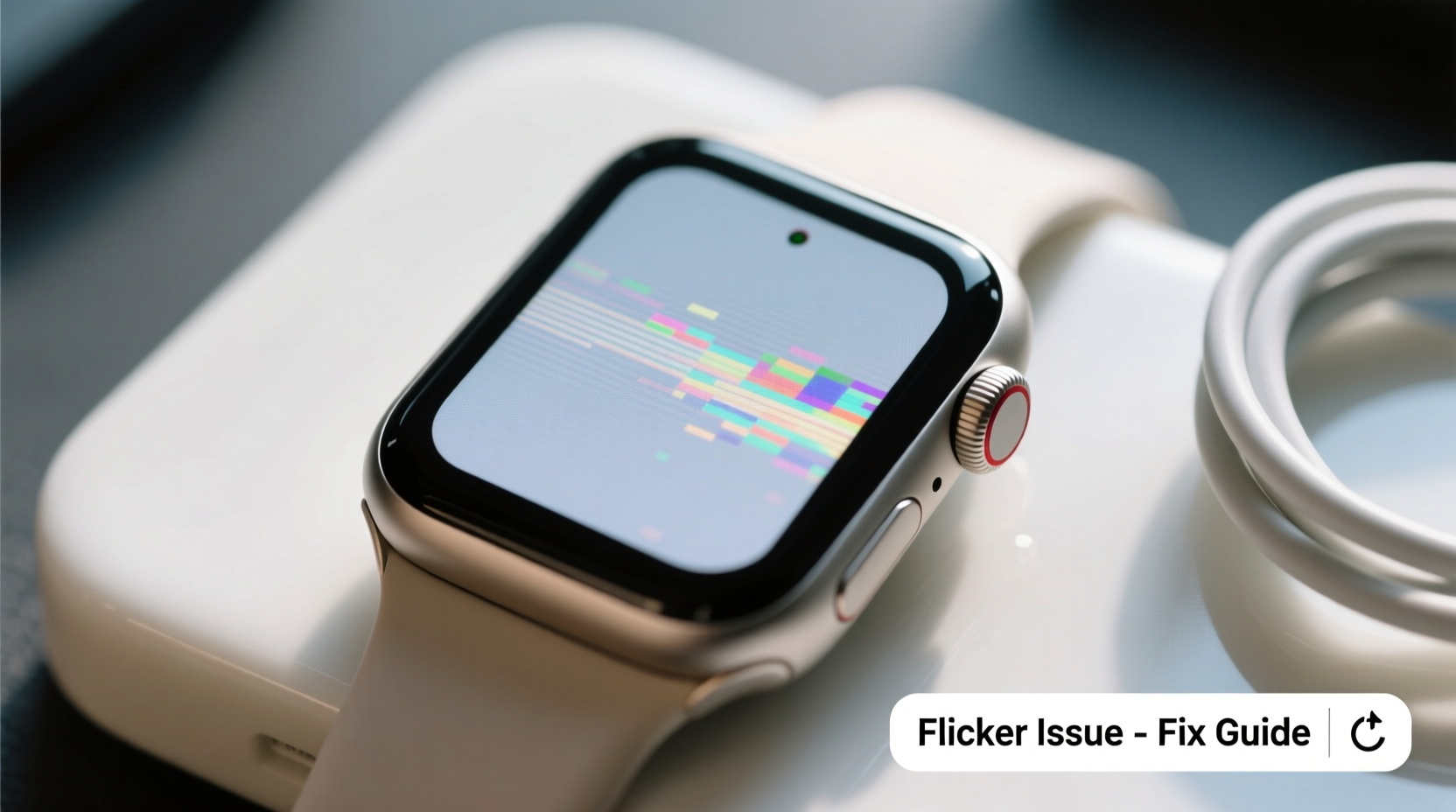
Before jumping to conclusions about a broken device, it’s essential to identify what might be causing the flicker. The culprit isn’t always obvious, and symptoms can overlap across different problems. Here are the most frequent triggers:
- Software Glitches: Operating system bugs or corrupted app data can interfere with display rendering.
- Firmware Issues: Outdated or partially failed updates may destabilize screen drivers.
- Battery Problems: A failing or swollen battery can cause erratic power delivery, leading to screen instability.
- Overheating: Excessive heat from charging, GPS use, or ambient conditions affects internal components.
- Physical Damage: Cracks, pressure damage, or water exposure—even if not immediately visible—can disrupt the display.
- Screen Settings: High refresh rates, brightness extremes, or dark mode conflicts sometimes create flicker-like effects.
- Magnetic Interference: Strong electromagnetic fields from chargers, speakers, or medical devices may temporarily distort the display.
While hardware damage often requires professional service, many other causes are manageable through user-level fixes. The key is systematic diagnosis.
Step-by-Step Troubleshooting Guide
Follow this logical sequence to isolate and resolve the issue. Start with the least invasive methods and progress only if needed.
- Restart Your Smartwatch
Hold the power button and select \"Power Off.\" Wait 30 seconds, then turn it back on. A reboot clears temporary glitches and resets active processes. - Check for Software Updates
Open the companion app on your phone (e.g., Wear OS by Google, Galaxy Wearable, or Apple Watch app). Navigate to settings and ensure both the watch OS and connected apps are up to date. - Adjust Display Settings
Reduce screen brightness, disable high refresh rate modes (if available), and switch between light and dark themes to test for changes. - Remove Recently Installed Apps
Suspect third-party apps may conflict with system functions. Uninstall any new downloads and observe if the flickering stops. - Reset All Settings (Not Data)
On most watches, you can reset system preferences—like Wi-Fi, sound, and display—without erasing personal data. This often resolves configuration errors. - Perform a Factory Reset
If the problem persists, back up your data via the companion app, then erase all content and settings. Re-pair the watch afterward to test stability.
This process eliminates software-related causes efficiently. If flickering continues after a clean reset, the issue is likely hardware-based.
Do’s and Don’ts When Dealing With Screen Flicker
| Do’s | Don’ts |
|---|---|
| Keep your smartwatch updated with the latest firmware. | Ignore recurring flickering—early action prevents worsening damage. |
| Use manufacturer-approved chargers and cables. | Expose the device to extreme temperatures or moisture. |
| Monitor battery health and replace if degraded. | Attempt DIY screen repairs unless experienced. |
| Test for magnetic interference by moving away from electronics. | Apply screen protectors that aren’t designed for your model. |
| Back up data regularly before performing resets. | Leave the watch charging overnight frequently—overcharging stresses components. |
Following these guidelines helps maintain optimal performance and reduces the risk of long-term damage. Prevention is far more effective than reactive fixes.
Real Example: How Sarah Fixed Her Flickering Galaxy Watch
Sarah, a fitness instructor from Portland, noticed her Samsung Galaxy Watch 5 screen began flickering during outdoor runs. At first, she assumed it was sunlight glare. But when the flicker persisted indoors and drained her battery unusually fast, she grew concerned.
She started by restarting the watch—no change. Then she checked for updates; one pending firmware patch was available. After installation, the flickering reduced but didn’t disappear. She disabled the “always-on display” feature and lowered brightness. Still, occasional flickers occurred.
Next, she unpaired and re-paired the watch via the Galaxy Wearable app. During setup, she opted not to restore backups immediately. Instead, she used the watch bare for two days. No flickering appeared. That pointed to corrupted app data.
Sarah selectively restored apps and discovered that a third-party heart rate monitor app triggered the glitch. Once uninstalled, the screen remained stable. She reported the bug to the developer and switched to a trusted alternative.
Sarah’s experience shows how methodical troubleshooting—not assumptions—leads to lasting solutions.
When Hardware Is the Real Problem
If all software remedies fail, hardware issues are probable. These include:
- Loose Display Connectors: Internal ribbon cables connecting the screen to the motherboard may loosen due to impact.
- Water Damage: Even water-resistant watches can suffer internal corrosion over time, especially if exposed to saltwater or sweat without cleaning.
- Manufacturing Defects: Rare, but some batches have faulty OLED panels prone to early degradation.
- Battery Swelling: An aging lithium-ion battery can expand, pressing against the screen and distorting its function.
In such cases, official service centers are your best option. Attempting to open the device voids warranties and risks further damage. For example, Apple uses proprietary adhesives and pentalobe screws, making self-repairs impractical.
“Many flickering screens we see are linked to improper charging habits or unnoticed micro-drops. Users often don’t realize how much physical stress a smartwatch endures daily.” — Raj Mehta, Senior Technician at Urban Tech Repair
Professionals can diagnose with precision tools, such as multimeters for voltage checks or thermal cameras for overheating spots. They may also perform component-level replacements instead of full screen swaps, reducing cost.
Preventive Measures to Avoid Future Flickering
Once resolved, take steps to prevent recurrence. Smartwatches are worn constantly, so proactive care matters.
- Limit Exposure to Extremes: Avoid leaving your watch in hot cars, saunas, or freezing environments.
- Charge Wisely: Use original chargers and avoid overnight charging. Stop at 80–90% for daily use to extend battery life.
- Clean Regularly: Wipe the screen and case with a soft, dry microfiber cloth. Remove sweat and grime after workouts.
- Update Consistently: Enable automatic updates where possible to stay protected against known bugs.
- Use Protective Accessories: Choose well-fitted screen protectors and bands that don’t press against the display edges.
These habits not only reduce flickering risk but also improve overall longevity. A well-maintained smartwatch can last three to five years—far beyond the average replacement cycle.
Frequently Asked Questions
Can a screen protector cause flickering?
Yes, low-quality or poorly applied screen protectors—especially those with adhesive overhang—can interfere with touch sensitivity and create visual artifacts. Always use protectors designed specifically for your model and apply them carefully.
Does dark mode help prevent screen flicker?
On OLED displays, dark mode reduces pixel strain and heat generation, which may indirectly stabilize performance. However, it won’t fix underlying software or hardware faults. It’s a supportive measure, not a cure.
Is screen flickering dangerous?
While not immediately hazardous, persistent flickering can indicate electrical instability or battery issues. In rare cases, a swelling battery poses fire or leakage risks. If your watch feels warm, bulges slightly, or emits a chemical odor, stop using it and seek professional help immediately.
Final Checklist: What to Do Now
Use this concise checklist to quickly address your flickering screen:
- ✅ Restart the smartwatch
- ✅ Check for OS and app updates
- ✅ Lower brightness and disable always-on display
- ✅ Uninstall suspicious third-party apps
- ✅ Test for magnetic interference
- ✅ Reset all settings (keep data)
- ✅ Perform factory reset (after backup)
- ✅ Inspect for physical or water damage
- ✅ Contact manufacturer support if unresolved
Move through each item systematically. Skipping steps may lead you to overlook a simple fix while assuming the worst.
Take Action Before It Gets Worse
A flickering smartwatch doesn’t mean the end of its life. In most cases, the solution lies within reach—whether it’s a forgotten update, a rogue app, or a setting tweak. Ignoring the issue, however, can allow minor problems to escalate into permanent damage.
Your smartwatch tracks your health, keeps you connected, and streamlines your day. It deserves consistent care. Apply the fixes outlined here, stay vigilant about updates and usage habits, and don’t hesitate to seek expert help when needed. With the right approach, you can restore smooth operation and extend your device’s lifespan significantly.




 浙公网安备
33010002000092号
浙公网安备
33010002000092号 浙B2-20120091-4
Comments
No comments yet. Why don't you start the discussion?