
The Sony WH-1000XM5 is widely regarded as one of the best noise-canceling wireless headphones on the market, praised for its superior sound quality, comfort, and intelligent features. However, a growing number of users have reported an increasingly frustrating issue: the headphones pause audio playback unexpectedly, even when they’re firmly in place on the head. This behavior disrupts calls, music, podcasts, and videos—especially during critical moments like remote meetings or workouts.
This erratic pausing is typically tied to the ear detection sensors built into the earcups. While designed to enhance user experience by automatically pausing playback when the headphones are removed, these sensors can malfunction due to software bugs, calibration errors, or environmental interference. The good news is that most cases can be resolved with targeted troubleshooting steps. Below, we break down the root causes, diagnostic methods, and effective fixes to get your XM5s working smoothly again.
Understanding the Automatic Pause Feature
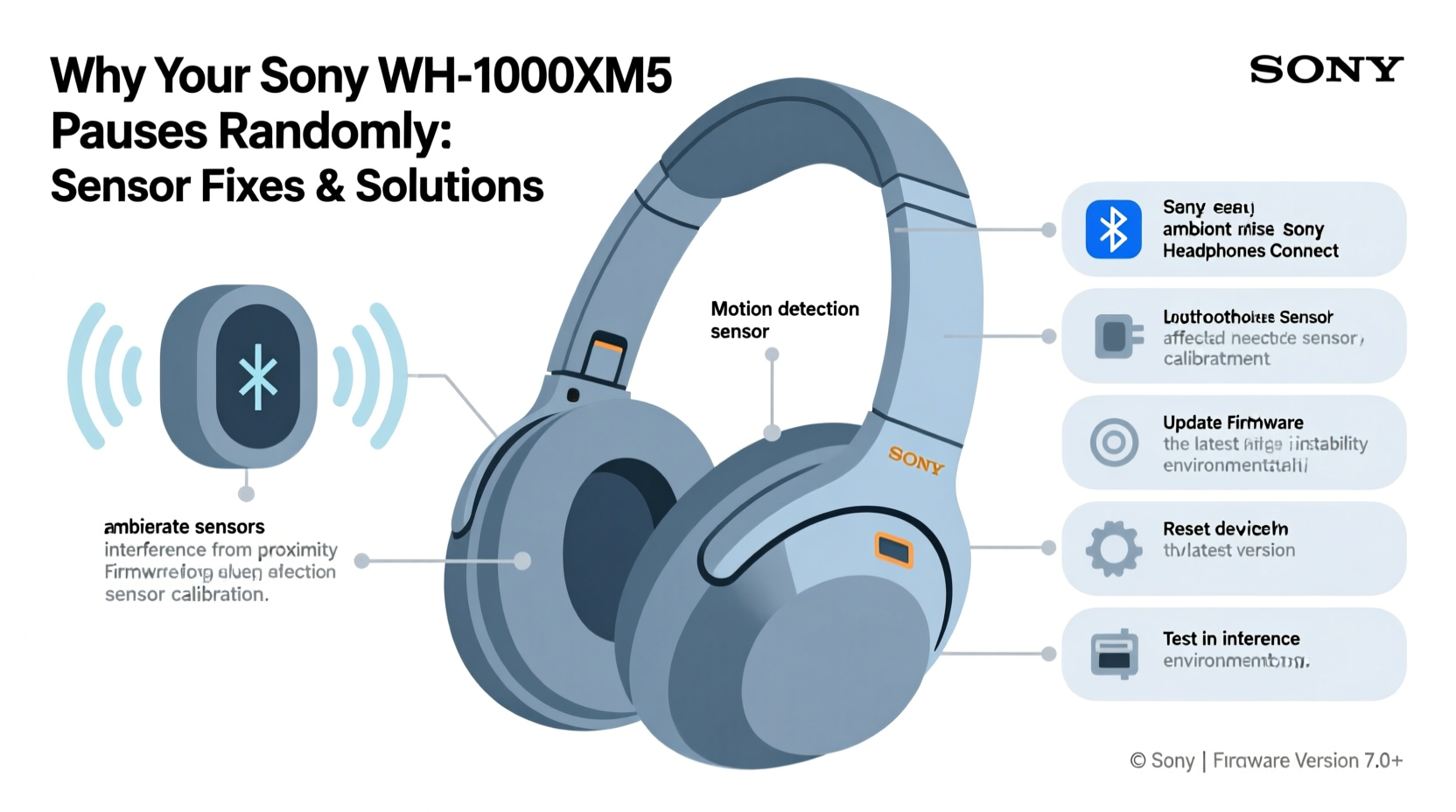
Sony’s WH-1000XM5 uses proximity sensors embedded in each earcup to detect whether the headphones are being worn. When you take them off, the sensors trigger an automatic pause. When you put them back on, playback resumes. This feature is powered by a combination of infrared sensing and touch-detection technology, which monitors physical contact and spatial positioning.
While this system works seamlessly under normal conditions, several factors can interfere with its accuracy:
- Dust or skin oils blocking the sensor surface
- Firmware glitches affecting sensor responsiveness
- Improper fit causing inconsistent contact
- Software conflicts with paired devices
- Over-sensitivity due to factory calibration issues
Sony refers to this functionality as “Speak-to-Chat” or “Automatic Pause & Play,” depending on the mode enabled. Misconfigurations in these settings often lead users to believe there’s a hardware defect when the issue is actually manageable through adjustments.
Step-by-Step Diagnostic Process
Before attempting repairs or resets, follow this structured approach to identify the source of the problem:
- Confirm the behavior: Does playback pause only when removing the headphones, or does it happen while wearing them?
- Test across multiple devices: Pair the headphones with a phone, tablet, and laptop. If the issue persists across all, it’s likely internal.
- Check for obstructions: Inspect both earcups for debris, smudges, or moisture near the inner rim where sensors are located.
- Assess fit and pressure: Are the headphones slipping slightly? Even minor shifts can trigger false removal signals.
- Monitor ambient temperature: Extreme cold or heat may affect sensor conductivity.
If the pauses occur while the headphones remain securely on your head, the sensors are likely misreading data. This is not a sign of permanent failure but rather a correctable sensitivity or calibration issue.
Potential Fixes for Random Pausing
1. Clean the Sensor Areas
The most common culprit is buildup of sweat, oils, or dust on the sensor zones—typically located along the inside edge of each earcup. These residues can scatter or block the infrared signal, leading to inaccurate readings.
To clean safely:
- Power off the headphones.
- Use a microfiber cloth lightly dampened with water or isopropyl alcohol (70% concentration).
- Gently wipe the inner rim of both earcups, focusing on any glossy or recessed spots.
- Avoid excessive moisture; never submerge or spray directly.
- Let dry completely before use.
Many users report immediate improvement after cleaning, especially those who wear the headphones during exercise or in humid environments.
2. Disable and Re-enable Automatic Playback
Sometimes, simply toggling the feature off and on resets the sensor logic. Navigate through the Sony Headphones Connect app:
- Open the app and connect your WH-1000XM5.
- Go to Settings → Touch Controls.
- Find “Automatic Pause & Play” and switch it off.
- Wait 10 seconds, then turn it back on.
- Test playback stability.
This soft reset clears temporary firmware hiccups without requiring a full device reset.
3. Perform a Factory Reset
If the issue persists, a factory reset can resolve deeper software conflicts. Note: This will erase all custom settings and Bluetooth pairings.
“Factory resets should be used as a mid-tier solution—not first, but not last. They clear corrupted cache files that often interfere with sensor logic.” — Rajiv Mehta, Audio Firmware Engineer
To reset the WH-1000XM5:
- Ensure the headphones are powered on.
- Press and hold the power button and the NC/Ambient button simultaneously.
- Hold for approximately 10 seconds until the LED flashes red five times.
- Release the buttons. The headphones will restart with default settings.
- Reconnect via Bluetooth and reconfigure preferences.
After resetting, monitor behavior for at least 24 hours under normal usage conditions.
4. Update Firmware
Sony regularly releases firmware updates to improve sensor performance and fix known bugs. Outdated firmware is a frequent cause of erratic auto-pause behavior.
To check for updates:
- Connect the headphones to the Sony | Headphones Connect app.
- Navigate to Device Information → Firmware Update.
- If an update is available, follow the prompts to install it.
- Keep the headphones charged above 50% during the process.
Recent firmware versions (e.g., 4.0.0 and later) include specific optimizations for sensor reliability, particularly in high-movement scenarios.
Do’s and Don’ts When Troubleshooting Sensor Issues
| Action | Do | Don’t |
|---|---|---|
| Cleaning | Use a dry or slightly damp microfiber cloth | Use abrasive cleaners or paper towels |
| Firmware | Update regularly through the official app | Attempt manual flashing or third-party tools |
| Fit Adjustment | Ensure snug but comfortable contact with ears | Wear loosely or tilt the head sideways frequently |
| Troubleshooting | Test across multiple apps and content types | Assume hardware failure immediately |
Mini Case Study: Resolving Persistent Pausing During Work Calls
Mark, a remote project manager from Toronto, began experiencing random pauses during Zoom meetings. His WH-1000XM5 would cut audio every few minutes, forcing him to manually restart playback. Initially, he assumed the battery was failing. After testing with different devices and confirming the issue persisted, he inspected the earcups and noticed faint oil residue from his hairline.
He cleaned the sensors with a lint-free cloth and turned off “Automatic Pause & Play” in the app. The pauses stopped immediately. To maintain consistency, he also updated the firmware and adjusted the headband tension for better contact. Over the next two weeks, no further interruptions occurred. Mark concluded that a combination of minor contamination and over-sensitive settings caused the disruption—not a defect.
His case illustrates how seemingly technical problems often stem from simple, correctable factors.
Alternative Workarounds When Fixes Fail
If none of the standard solutions work, consider these alternatives:
- Disable the auto-pause function entirely: In the Sony app, turn off “Automatic Pause & Play.” You’ll lose convenience but gain reliability.
- Use a wired connection: Plug in via the 3.5mm cable. The sensor-based auto-pause only activates in wireless mode.
- Switch to a secondary device: Test using a non-Bluetooth audio source to isolate whether the issue lies with the connected device’s OS or codec handling.
Some Android devices running OxygenOS or MIUI have been reported to send unstable Bluetooth signals, which may confuse the headphone’s sensor processor. Switching to an iPhone or stock Android device for testing can reveal compatibility quirks.
Frequently Asked Questions
Can wearing glasses cause the WH-1000XM5 to pause randomly?
Yes. Glasses can create small gaps between the earcup and your ear, disrupting consistent sensor contact. This intermittent separation may trick the system into thinking the headphones were removed. Adjust the temple arms or try repositioning the headphones slightly higher on your head to compensate.
Is there a way to adjust sensor sensitivity?
Not directly through the Sony app. The sensitivity is fixed by firmware design. However, keeping sensors clean and ensuring firm, consistent fit effectively reduces false triggers. Future firmware updates may introduce adjustable thresholds, but as of now, no such option exists.
Should I return my WH-1000XM5 if the problem continues?
If you’ve completed all troubleshooting steps—including cleaning, resetting, updating firmware, and testing across devices—and the issue remains, contact Sony Support. Persistent sensor malfunctions under warranty may qualify for repair or replacement. Document your attempts clearly when filing a claim.
Final Checklist: Fixing Random Pausing on WH-1000XM5
- Inspect and clean both earcup sensors with a microfiber cloth.
- Disable and re-enable “Automatic Pause & Play” in the Sony app.
- Ensure firmware is up to date via the Headphones Connect app.
- Perform a factory reset if issues persist.
- Test with multiple devices and content types to rule out external factors.
- Adjust fit to ensure consistent earcup contact.
- Consider disabling auto-pause permanently if reliability is prioritized over automation.
Conclusion
The random pausing issue on the Sony WH-1000XM5 is more common than advertised, but rarely indicates irreversible damage. In most cases, the solution lies in routine maintenance, proper configuration, and staying current with firmware. By understanding how the ear detection system operates, users can diagnose and resolve disruptions quickly—often within minutes.
These headphones are engineered for intelligent interaction, but like any smart device, they require occasional recalibration. Taking proactive steps ensures you continue enjoying their premium audio and noise cancellation without unnecessary interruptions.




 浙公网安备
33010002000092号
浙公网安备
33010002000092号 浙B2-20120091-4
Comments
No comments yet. Why don't you start the discussion?