
If you've ever settled into a favorite playlist, only for Spotify to abruptly pause without warning, you're not alone. Random pauses disrupt listening sessions, break focus during workouts, and frustrate users across devices. While it may seem like a glitch in the app, the root cause often lies deeper—particularly in how background data is managed by your device’s operating system or network settings. Understanding the interplay between Spotify, background processes, and data permissions is key to restoring seamless playback.
This article breaks down the most common reasons behind unexpected Spotify pauses, with a specific focus on background data limitations. You'll learn how to diagnose the issue, adjust settings across Android, iOS, and desktop platforms, and prevent future interruptions using proven fixes and expert-backed strategies.
Understanding Background Data and Its Role in Spotify Playback
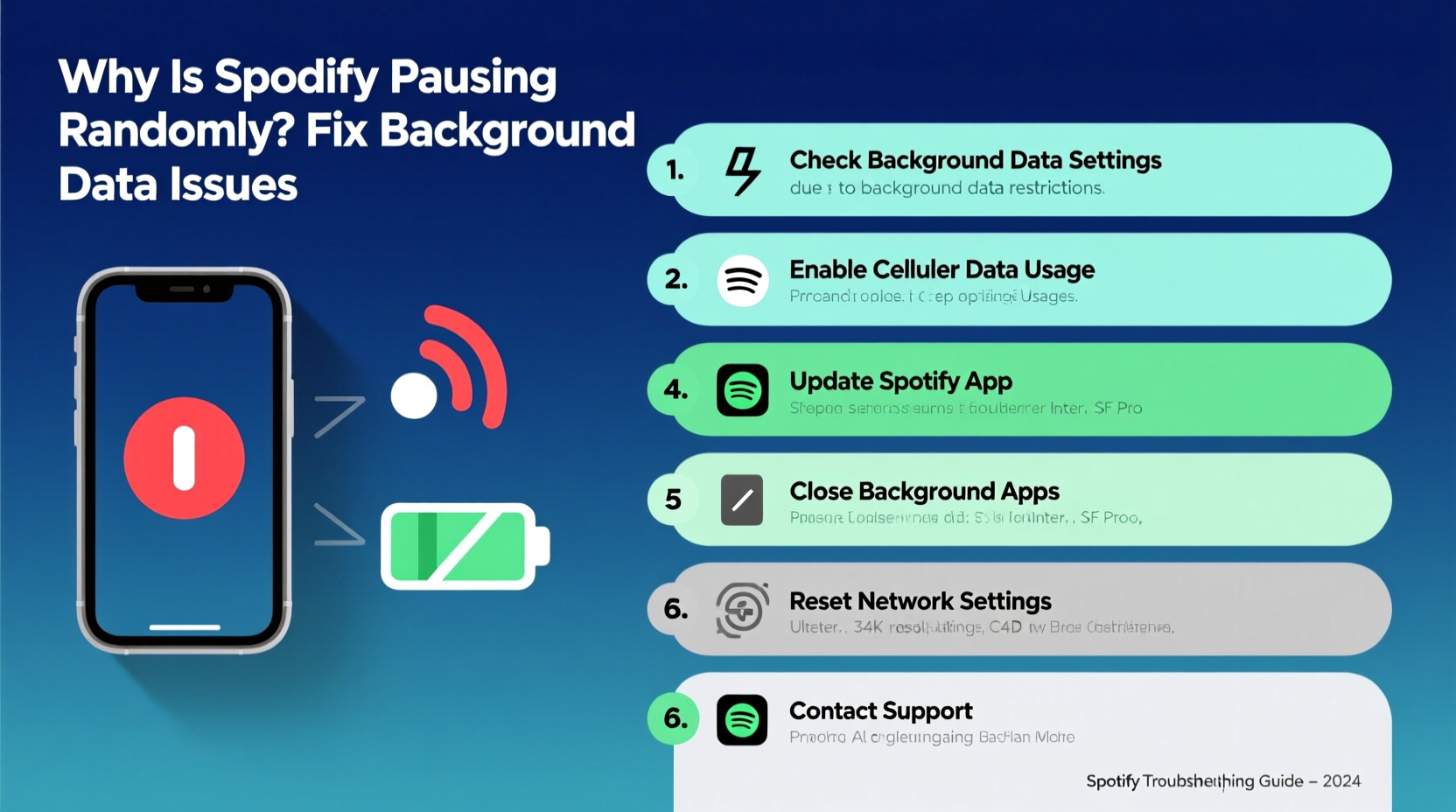
Spotify relies on continuous background activity to stream music when the app isn’t actively open. On smartphones, especially, operating systems are designed to conserve battery and data by restricting what apps can do in the background. When Spotify is paused unexpectedly—particularly when switching apps or locking the screen—background data restrictions are often the culprit.
Background data refers to an app's ability to use the internet while running in the background. If disabled, Spotify cannot maintain a stable connection once minimized. This leads to buffering failures, disconnections from the server, and automatic pausing. The behavior varies by platform:
- Android: Aggressive battery optimization features (like Adaptive Battery or manufacturer-specific power savers) can suspend Spotify.
- iOS: Background App Refresh must be enabled; otherwise, audio stops after a short delay.
- Windows/macOS: System sleep settings or network throttling may interrupt streaming even in the foreground.
The irony is that Spotify often appears to be working—notifications still come through, playlists load—but audio halts silently. Users assume poor internet or a faulty app, when in reality, the system has simply cut off its background privileges.
“Modern mobile OS designs prioritize efficiency over continuity. Apps like Spotify need explicit permission to operate continuously.” — Rajiv Mehta, Mobile Systems Engineer at TechFlow Labs
Step-by-Step: Fixing Background Data Restrictions by Platform
To stop random pausing, you must ensure Spotify has unrestricted access to background data and processing resources. Follow these steps based on your device type.
For Android Devices
- Navigate to Settings > Apps > Spotify.
- Select Mobile data & Wi-Fi (or “Data usage” depending on device).
- Ensure both Mobile data and Wi-Fi toggles are enabled.
- Go back and tap Battery.
- Select Battery optimization or Power saving.
- Find Spotify in the list and set it to Don’t optimize or Unrestricted.
- On Samsung, OnePlus, or Xiaomi devices, also disable any “Auto-stop” or “Deep sleeping” app modes for Spotify.
For iPhone (iOS)
- Open Settings and scroll down to Spotify.
- Ensure Background App Refresh is turned ON.
- Also go to Settings > General > Background App Refresh and confirm it’s enabled globally.
- Double-click the Home button (or swipe up and pause on Face ID models) to open the app switcher.
- Swipe up on other apps to reduce memory pressure—iOS suspends background apps under low RAM conditions.
- Keep Spotify pinned in the app switcher to help it stay active.
For Windows and macOS
- Open System Settings > Power & Sleep (Windows) or Battery (macOS).
- Set the computer to Never sleep when plugged in if you’re streaming for long periods.
- Ensure Spotify is allowed through the firewall—check Windows Security > Firewall & network protection > Allow an app through firewall.
- On macOS, go to System Settings > Notifications > Spotify and ensure “Allow notifications” is on—this helps maintain background presence.
- Update the Spotify desktop app regularly. Outdated versions may conflict with OS updates.
Network and Connection Factors That Trigger Pauses
Even with proper background permissions, unstable networks can mimic the symptoms of background data issues. A weak Wi-Fi signal, congested cellular bandwidth, or restrictive firewalls may cause Spotify to buffer and eventually pause.
Consider this scenario: you're commuting and listening via mobile data. As you move between cell towers, signal strength fluctuates. If Spotify loses connectivity for more than a few seconds, it stops playback rather than waiting indefinitely. Similarly, public Wi-Fi networks often throttle streaming services or require login redirects that break active sessions.
Mini Case Study: Office Wi-Fi Disruptions
Alex, a graphic designer in Chicago, noticed Spotify would pause every time he returned to his desk. At first, he blamed his aging phone. After testing multiple devices, he realized the issue only occurred on his office network. The company firewall was blocking non-essential traffic after five minutes of idle time—a security policy meant to reduce bandwidth abuse. By connecting to a personal hotspot during deep work sessions, Alex restored uninterrupted playback. He later worked with IT to whitelist Spotify on his device.
To rule out network problems:
- Test playback on different networks (home, mobile data, hotspot).
- Restart your router if Wi-Fi is inconsistent.
- Forget and rejoin problematic Wi-Fi networks to clear cached credentials.
- Use mobile data as a control test—if Spotify works flawlessly there, the issue is likely environmental, not device-based.
Troubleshooting Checklist: Stop Spotify from Pausing Randomly
- ✅ Enable Background App Refresh (iOS) or disable battery optimization (Android)
- ✅ Confirm Wi-Fi and mobile data permissions are granted for Spotify
- ✅ Restart your device and relaunch Spotify
- ✅ Clear Spotify cache (Settings > Storage > Clear Cache)
- ✅ Update Spotify to the latest version
- ✅ Test on another network to isolate connectivity issues
- ✅ Disable Bluetooth auto-disconnect features if using wireless headphones
- ✅ Reinstall Spotify if problems persist
Do’s and Don’ts: Managing Spotify Performance
| Do | Don’t |
|---|---|
| Do keep Spotify updated via official app stores | Don’t rely solely on third-party launchers or widgets that may interfere with playback |
| Do use high-quality cables or trusted Bluetooth connections | Don’t leave multiple audio apps running simultaneously (e.g., podcasts, YouTube) |
| Do store downloaded playlists locally for offline reliability | Don’t ignore system warnings about storage space—low storage affects app performance |
| Do monitor battery health—older batteries trigger aggressive power-saving modes | Don’t assume premium subscriptions eliminate technical issues—they don’t override OS-level restrictions |
Frequently Asked Questions
Why does Spotify pause when I lock my phone?
This typically happens because background data or battery optimization settings are limiting Spotify’s ability to run in the background. On Android, disable battery optimization for Spotify. On iPhone, ensure Background App Refresh is enabled. Also, avoid closing the app completely from the app switcher.
Does Spotify pause when another app makes a notification?
Yes, in rare cases, incoming calls, navigation alerts, or voice assistant triggers can interrupt audio focus. Spotify usually resumes automatically, but if it doesn’t, check whether the interrupting app has persistent audio priority. Using “Do Not Disturb” mode during listening sessions can help minimize disruptions.
Will downloading songs stop random pausing?
Downloading tracks for offline playback significantly reduces pausing caused by network instability. However, background restrictions still apply—even offline, the app needs permission to run while the screen is off. Always pair downloads with correct background settings.
Advanced Fixes: When Basic Steps Aren’t Enough
If you’ve followed all standard troubleshooting steps and Spotify still pauses randomly, consider these advanced solutions:
- Reinstall Spotify: Uninstall the app, restart your device, then reinstall from the official store. This clears corrupted preferences and resets permissions.
- Check for conflicting apps: Some battery cleaners, task killers, or antivirus tools forcibly close background processes. Temporarily disable them to test.
- Reset network settings: On iOS, go to Settings > General > Transfer or Reset iPhone > Reset > Reset Network Settings. On Android, find it under System > Reset options. Note: This erases saved Wi-Fi passwords.
- Use Spotify Lite (Android): If you're on a low-end device, try Spotify Lite, which is optimized for weaker hardware and spotty connections.
- Switch account types: Occasionally, glitches tied to account synchronization cause playback issues. Log out, clear cache, then log back in.
One often-overlooked factor is device age. Older smartphones may struggle to handle multiple background tasks, leading the OS to terminate Spotify preemptively. If you're using a phone older than four years, consider upgrading—not just for Spotify, but overall usability.
Conclusion: Take Control of Your Listening Experience
Random Spotify pauses aren’t inevitable. Most cases stem from understandable, fixable interactions between app permissions, operating system policies, and network conditions. By adjusting background data settings, optimizing your environment, and applying targeted troubleshooting, you can reclaim smooth, uninterrupted playback.
Start with the checklist—verify background permissions, update the app, and test across networks. If the problem persists, dig deeper into system-level restrictions or hardware limitations. Small changes make a big difference: allowing one app to run freely can transform your daily routine.




 浙公网安备
33010002000092号
浙公网安备
33010002000092号 浙B2-20120091-4
Comments
No comments yet. Why don't you start the discussion?