
If your favorite song cuts out mid-chorus or your playlist keeps pausing unexpectedly, you're not alone. Spotify skipping on mobile is a common frustration affecting users across both Android and iOS devices. The issue typically stems from network instability, app performance problems, or device-specific limitations. While it might seem like a minor annoyance at first, repeated playback interruptions disrupt the listening experience—especially during workouts, commutes, or focused work sessions.
The good news is that most causes of Spotify skipping are fixable without needing technical expertise. From optimizing your Wi-Fi connection to adjusting in-app settings, there are several practical steps you can take immediately to restore smooth streaming. This guide breaks down the root causes, provides actionable solutions, and shares expert-backed strategies to prevent future disruptions.
Understanding Why Spotify Skips on Mobile
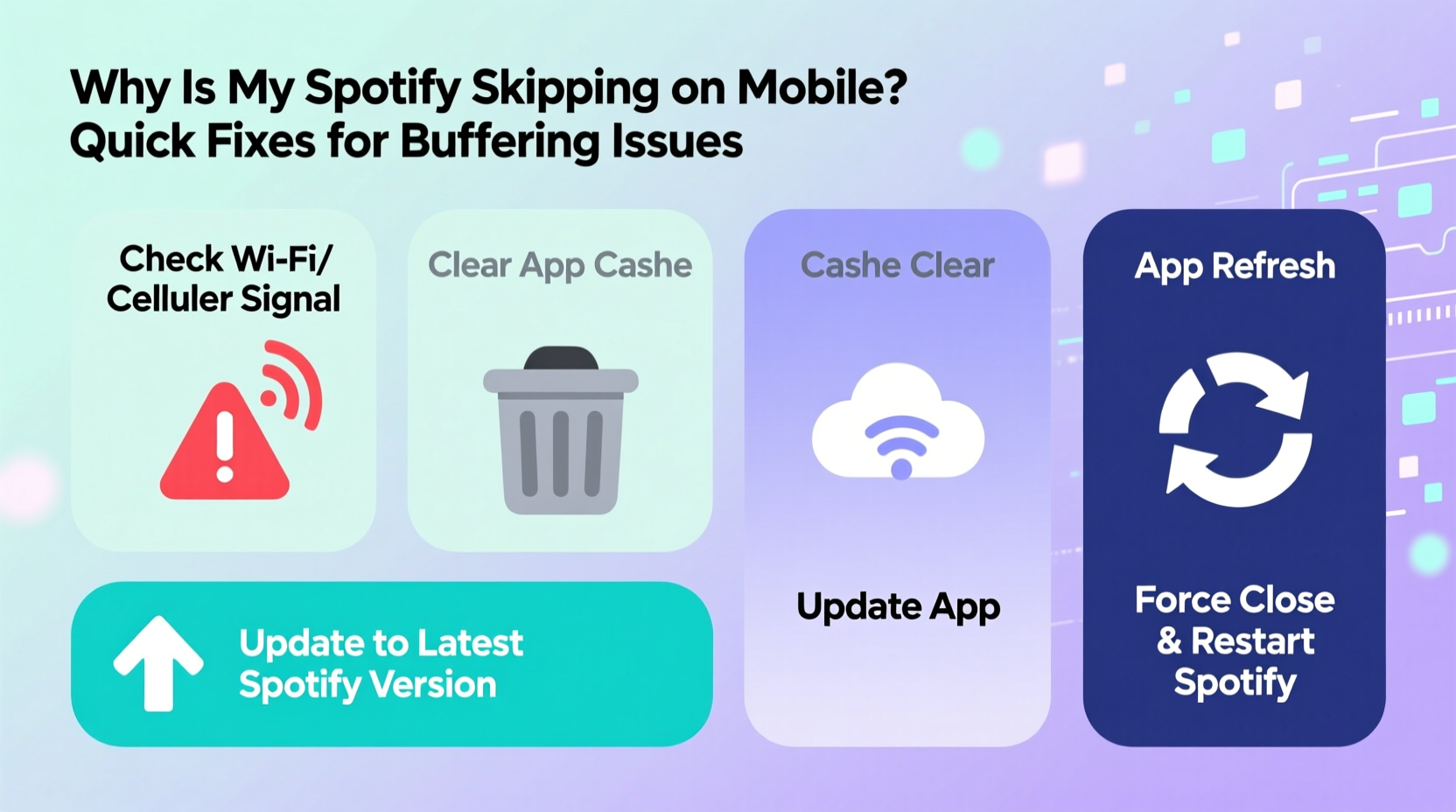
Spotify relies heavily on consistent data delivery to stream music seamlessly. When audio playback stutters, skips, or buffers repeatedly, it’s usually because the app can’t retrieve data quickly enough. Unlike downloaded tracks, which play locally, streaming requires real-time communication between your device and Spotify’s servers. Any disruption in this chain can cause interruptions.
Common triggers include weak internet signals, overloaded networks, outdated app versions, background processes consuming bandwidth, or even temporary server-side issues from Spotify itself. On mobile devices, additional factors such as power-saving modes, storage constraints, and operating system quirks further complicate matters.
It's important to distinguish between two types of playback issues:
- Buffering delays: The app pauses briefly before resuming playback.
- Sudden skips: Songs jump ahead, restart, or switch tracks unexpectedly.
While both degrade the user experience, they often require different diagnostic approaches. Buffering points to connectivity or server load issues, whereas unexplained skips may stem from software bugs or corrupted cache files.
Quick Diagnostic Checklist: What to Check First
Before diving into complex fixes, run through this rapid checklist. Many users resolve their Spotify issues within minutes by addressing one or more of these foundational elements.
- Is your Wi-Fi or cellular signal strong? Try moving closer to your router or switching to LTE/5G.
- Are other apps also experiencing slow loading or timeouts?
- Is Spotify updated to the latest version available in the App Store or Google Play?
- Have you recently installed any new apps or enabled battery-saving features?
- Can you reproduce the issue when playing offline-saved songs?
If offline playback works flawlessly but streaming continues to skip, the problem lies almost certainly in your network environment. If even downloaded tracks misbehave, the fault likely resides within the app or device configuration.
Step-by-Step Guide to Fix Spotify Skipping
Follow this structured sequence to identify and eliminate the source of playback issues. Each step builds upon the previous one, ensuring no stone is left unturned.
1. Restart Your Device and the Spotify App
A simple reboot clears temporary glitches in memory and resets active connections. Close Spotify completely from the recent apps menu, then restart your phone. After rebooting, open Spotify and test playback under normal conditions.
2. Switch Between Wi-Fi and Cellular Data
Test whether the issue persists across different networks. If Spotify plays smoothly over mobile data but stutters on Wi-Fi, the problem is localized to your wireless network. Conversely, if only Wi-Fi works well, your carrier’s data throttling policy might be interfering.
3. Clear Spotify Cache (Without Losing Data)
Over time, cached data can become fragmented or corrupted, leading to erratic behavior. To clear the cache:
- Open Spotify and go to Settings.
- Tap Storage.
- Select Delete cache.
This removes temporary files while preserving playlists, downloads, and preferences. Avoid selecting “Delete all data,” as it will erase saved songs and login credentials.
4. Reinstall the Spotify App
If clearing the cache doesn’t help, uninstall and reinstall the app. This ensures you’re running a clean installation free from hidden corruption. Make sure to log back into your account and re-enable offline sync if needed.
5. Disable Battery Optimization for Spotify
Many Android phones aggressively limit background activity to extend battery life. These restrictions can interrupt Spotify’s ability to maintain a steady stream. To disable optimization:
- Go to Settings > Apps > Spotify > Battery.
- Select Unrestricted or disable battery saving for the app.
iOS users should ensure Background App Refresh is enabled: Settings > General > Background App Refresh > Spotify.
6. Adjust Audio Quality Settings
High-quality streams demand more bandwidth. Lowering the audio quality reduces strain on your connection. Navigate to:
Settings > Music Quality > Streaming Quality
Switch from “Very High” (320 kbps) to “Normal” (96 kbps) temporarily to see if stability improves. You can always revert once the issue is resolved.
Network-Level Fixes: Optimizing Connectivity
Your internet connection plays a decisive role in streaming reliability. Even with a high-speed plan, local interference, router congestion, or ISP throttling can degrade performance.
| Issue | Symptom | Solution |
|---|---|---|
| Weak Wi-Fi signal | Frequent dropouts indoors | Move closer to router or use Wi-Fi extender |
| Network congestion | Slows down during peak hours | Limit connected devices; upgrade router firmware |
| ISP throttling | Consistent slowdowns on specific apps | Use a trusted VPN to bypass throttling |
| DNS misconfiguration | Delayed app responses | Switch to Google DNS (8.8.8.8) or Cloudflare (1.1.1.1) |
For home Wi-Fi users, restarting your router every few days helps refresh IP assignments and clear packet backlog. For public networks (e.g., cafes), avoid using congested hotspots for streaming. Instead, rely on your phone’s data connection if signal strength permits.
“Streaming stability depends less on raw speed and more on latency and consistency. A stable 10 Mbps connection often outperforms an unstable 100 Mbps link.” — Rajiv Mehta, Network Engineer at OpenSignal Labs
Real-World Example: Fixing Recurring Skips During Commute
Sarah, a daily commuter in Chicago, noticed her Spotify playlists would freeze every morning during her train ride. Despite having a premium subscription and full signal bars, songs frequently skipped or paused mid-playback. Initially assuming it was a phone issue, she tried restarting her device multiple times with no success.
After testing offline mode, she discovered downloaded songs played perfectly—indicating the issue was tied to streaming. Further investigation revealed that her carrier, like many others, implemented bandwidth throttling after 20GB of usage per month. Although her overall data pool hadn’t been exhausted, video and music streaming were deprioritized during peak transit hours.
Her solution? She began downloading weekly playlists each Sunday night via home Wi-Fi. She also adjusted her streaming quality to “High” instead of “Very High” when online. These changes eliminated skips entirely, restoring seamless playback throughout her commute.
Preventive Measures for Long-Term Stability
Once you’ve fixed the immediate issue, adopt habits that minimize future disruptions:
- Download playlists for frequent routes: Pre-load music for commutes, flights, or areas with unreliable coverage.
- Schedule automatic downloads: Enable “Download Over Wi-Fi Only” in Settings to keep your library updated without using data.
- Monitor app updates: Enable auto-updates so you always benefit from bug fixes and performance improvements.
- Use Ethernet-to-Wi-Fi bridges at home: If your router struggles with range, consider a mesh system or wired access point near your main listening area.
Frequently Asked Questions
Does Spotify skip more on older phones?
Not necessarily due to age alone, but older devices may struggle with background processing efficiency, especially if running outdated operating systems. Limited RAM can also cause apps to be suspended prematurely, disrupting playback. Keeping your OS updated and closing unused apps helps mitigate this.
Can a full storage drive affect Spotify performance?
Yes. When internal storage drops below 10%, some phones begin limiting app functionality to preserve system operations. This includes restricting cache writing and background syncing. Free up space by deleting unused apps, photos, or messages to improve overall responsiveness.
Why does Spotify skip only on certain playlists?
This could indicate individual track corruption or regional licensing blocks. Rarely, specific songs may fail to load due to DRM errors. Try removing and re-adding the problematic playlist, or check if the issue occurs across devices. If isolated to one list, recreate it manually to rule out metadata glitches.
Conclusion: Take Control of Your Listening Experience
Spotify skipping on mobile doesn't have to be a constant headache. With methodical troubleshooting—from checking network health to fine-tuning app settings—you can achieve reliable, skip-free playback. The key is understanding whether the issue originates from connectivity, device management, or app configuration, then applying targeted fixes accordingly.
Don’t wait for the next interruption to act. Implement preventive strategies now: update your app, optimize streaming quality, disable battery restrictions, and leverage offline listening. Small adjustments today lead to vastly improved experiences tomorrow.




 浙公网安备
33010002000092号
浙公网安备
33010002000092号 浙B2-20120091-4
Comments
No comments yet. Why don't you start the discussion?