
Streaming should be seamless—especially when you're paying for a high-speed internet plan. Yet, many users still face frustrating buffering issues during movie nights, live sports, or binge-watching sessions. The truth is, internet speed is only one piece of the puzzle. Even with 200 Mbps or more, multiple behind-the-scenes factors can disrupt your stream. From Wi-Fi interference to outdated hardware, the causes are often overlooked. This guide dives into why buffering happens despite fast internet and delivers practical, tested solutions that deliver real results.
Understanding Why Buffering Happens
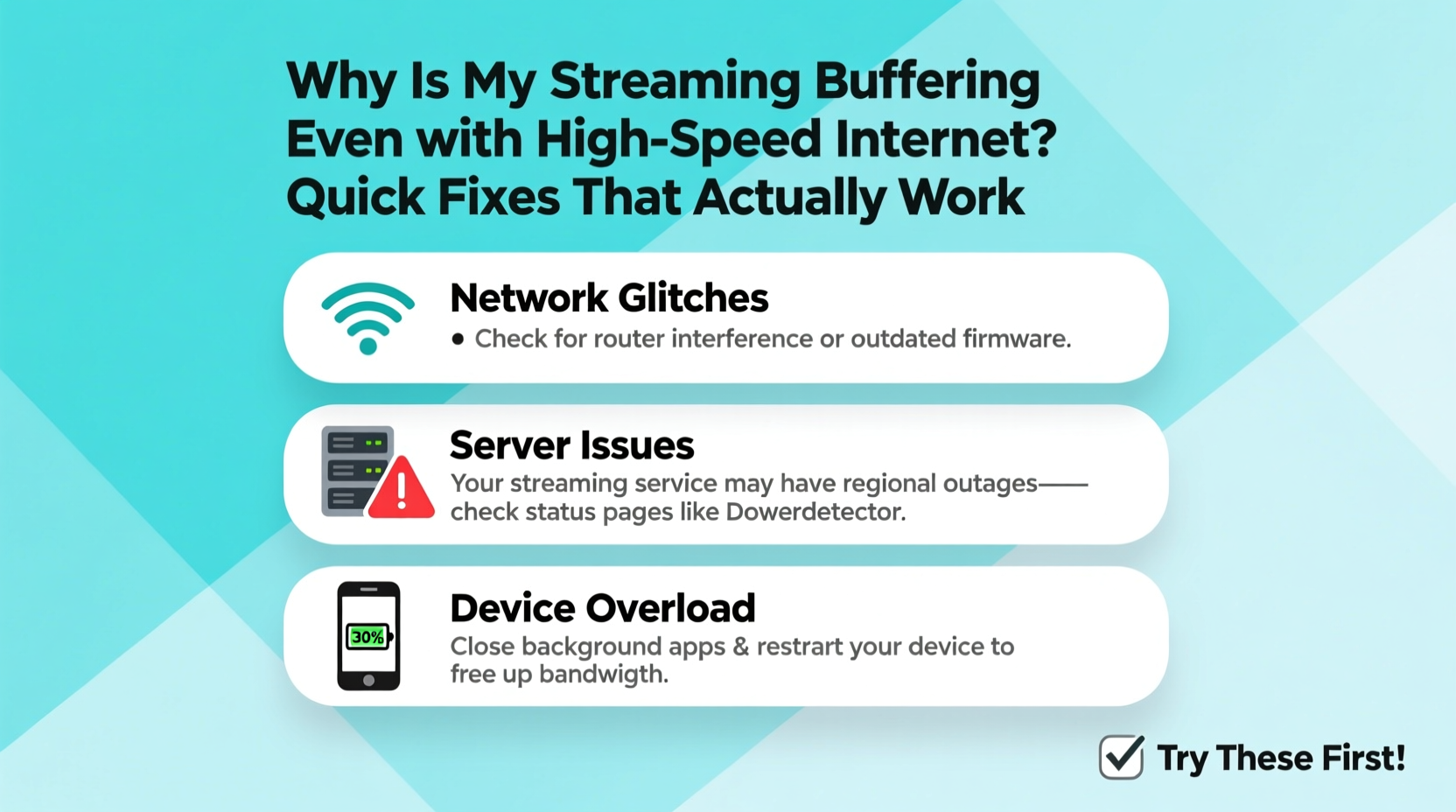
Buffering occurs when your device temporarily pauses playback to download more data. While slow internet is a common culprit, it's not the only one. Modern streaming platforms like Netflix, Hulu, and YouTube dynamically adjust video quality based on network conditions. If your connection fluctuates—even briefly—the service may downgrade resolution or pause to buffer.
High-speed internet doesn't guarantee stable performance. Think of bandwidth as a highway: just because it has multiple lanes doesn’t mean traffic flows smoothly during rush hour. Similarly, your internet may have high capacity, but congestion, signal interference, or device limitations can create bottlenecks.
Common Causes Beyond Internet Speed
- Wi-Fi Signal Interference: Walls, appliances, and neighboring networks can weaken your signal.
- Network Congestion: Multiple devices using bandwidth simultaneously (e.g., gaming, downloads, smart home gadgets).
- Router Limitations: Older routers may struggle with modern streaming demands, even on fast connections.
- Server-Side Issues: The streaming platform itself might be experiencing high traffic or technical problems.
- Device Performance: Outdated firmware, low memory, or background apps can affect streaming capability.
Quick Fixes That Actually Work
The good news: most buffering issues can be resolved without upgrading your internet plan. Try these proven fixes in order—they’re ranked by effectiveness and ease of implementation.
1. Restart Your Router and Streaming Device
A simple reboot clears temporary glitches, resets network connections, and often resolves sudden buffering. Unplug your router and modem for 30 seconds, then power them back on. Do the same for your TV, Fire Stick, or streaming box.
“Over 60% of home network issues are resolved with a basic restart.” — FCC Broadband Help Center
2. Switch from Wi-Fi to Ethernet
Wi-Fi is convenient but inherently less stable than a wired connection. If possible, connect your streaming device directly to the router via an Ethernet cable. This eliminates wireless interference and provides a consistent, low-latency link.
3. Reduce Network Load
Pause large downloads, cloud backups, or software updates on other devices. These consume bandwidth silently, starving your stream. You can also prioritize streaming traffic using Quality of Service (QoS) settings in your router.
4. Lower Streaming Quality Temporarily
If buffering persists, manually reduce the video resolution in your app settings. For example, switch from 4K to 1080p on Netflix. This reduces data demand and helps maintain smooth playback until you fix the root cause.
Step-by-Step Troubleshooting Guide
Follow this logical sequence to identify and resolve the issue efficiently.
- Check current internet speed using a trusted tool like speedtest.net or fast.com. Perform the test on the same device you're streaming from.
- Compare results to your plan’s advertised speed. Consistent speeds below 75% of promised bandwidth indicate a provider or internal network issue.
- Restart all network equipment: modem, router, and streaming device.
- Move closer to the router or eliminate physical barriers between devices.
- Switch to 5 GHz Wi-Fi band if your router supports dual-band. It’s faster and less crowded than 2.4 GHz.
- Connect via Ethernet to rule out wireless issues.
- Test streaming on another device to determine if the problem is device-specific.
- Update firmware on your router and streaming hardware.
- Contact your ISP if issues persist—there may be line degradation or service throttling.
Do’s and Don’ts of Streaming Optimization
| Do’s | Don’ts |
|---|---|
| Use the 5 GHz Wi-Fi band for streaming | Place your router near microwaves or cordless phones |
| Enable QoS settings to prioritize streaming | Run large downloads during movie time |
| Update router firmware regularly | Use outdated streaming devices (e.g., first-gen Roku) |
| Position router centrally and elevated | Ignore overheating routers—heat degrades performance |
| Limit connected devices during streaming | Assume high speed = flawless streaming |
Real-World Case Study: Fixing Buffering in a Busy Household
Consider Sarah, a remote worker and mother of two in Austin, Texas. She pays for a 300 Mbps fiber plan but constantly experiences buffering on her living room TV. Her kids stream cartoons in the morning, she joins Zoom calls during the day, and the family watches movies at night—all on the same network.
After testing, Sarah found her actual streaming device was getting only 45 Mbps due to poor Wi-Fi placement and interference from a nearby baby monitor. She moved the router to a central shelf, switched to the 5 GHz band, and set up QoS to prioritize the TV during evenings. Buffering stopped immediately. Later, she added a mesh Wi-Fi extender for full coverage. The total cost: under $100. No plan upgrade needed.
This case illustrates how internal network management matters more than headline internet speed.
Advanced Solutions for Persistent Issues
If basic fixes don’t help, consider these deeper optimizations.
Upgrade Your Router
Routers older than 3–4 years likely lack support for modern standards like Wi-Fi 6 (802.11ax), which improves efficiency in high-device environments. A new router with beamforming and MU-MIMO technology can dramatically improve streaming stability.
Use a Mesh Wi-Fi System
For larger homes, traditional routers struggle to cover all areas. Mesh systems like Google Nest Wi-Fi or Eero use multiple nodes to provide seamless coverage, eliminating dead zones where buffering begins.
Check for ISP Throttling
Some internet providers intentionally slow down streaming traffic during peak hours. Use a VPN to test—if streaming improves with a VPN enabled, throttling is likely occurring. Contact your ISP or consider switching providers.
“We’ve seen a rise in throttling complaints, especially during evening hours when streaming demand peaks.” — Public Knowledge, Digital Rights Advocacy Group
Optimize DNS Settings
Default DNS servers from ISPs can be slow or unreliable. Switching to faster public DNS services like Google DNS (8.8.8.8) or Cloudflare (1.1.1.1) can reduce latency and improve connection reliability.
Streaming Buffering FAQ
Why does my show buffer even when no one else is using the internet?
Even with no active users, background processes like phone backups, smart thermostat updates, or security camera uploads can consume bandwidth. Also, Wi-Fi interference or weak signal strength could be limiting throughput. Test with a wired connection to isolate the issue.
Does restarting my router really help with buffering?
Yes. Routers accumulate temporary data and connection errors over time. A restart clears memory, re-establishes a clean connection with your ISP, and often restores optimal performance. Make it a weekly habit if you stream frequently.
Can my streaming device cause buffering even with good internet?
Absolutely. Devices with outdated software, limited processing power, or insufficient RAM may struggle to decode high-bitrate streams. For example, early-model Fire Sticks or budget smart TVs often can’t handle 4K HDR smoothly, even on fast networks. Consider upgrading to a newer model like Apple TV 4K or NVIDIA Shield.
Essential Checklist: Stop Buffering in 10 Minutes
Use this checklist for a fast diagnosis and fix:
- ✅ Run a speed test on your streaming device
- ✅ Reboot modem, router, and streaming box
- ✅ Move closer to the router or remove obstructions
- ✅ Switch to 5 GHz Wi-Fi network
- ✅ Pause downloads or large file transfers
- ✅ Lower video quality in app settings
- ✅ Connect via Ethernet (if possible)
- ✅ Check for firmware updates on router and device
- ✅ Test streaming on a different device
- ✅ Contact ISP if speed tests consistently underperform
Conclusion: Smooth Streaming Starts With Smart Habits
Buffering doesn’t have to ruin your viewing experience—even with high-speed internet. The key is understanding that speed alone isn’t enough. Stability, network management, and hardware condition play equally important roles. By applying these practical fixes—from simple restarts to strategic upgrades—you regain control over your streaming quality. Most solutions require no extra cost and take minutes to implement. Start with the checklist, observe what changes, and refine your setup over time. A seamless, buffer-free stream is within reach.




 浙公网安备
33010002000092号
浙公网安备
33010002000092号 浙B2-20120091-4
Comments
No comments yet. Why don't you start the discussion?