
There’s nothing more frustrating than settling in for a movie night or catching up on your favorite series, only to be interrupted by endless spinning wheels and pixelated playback. Streaming buffering has become one of the most common digital annoyances—especially as households rely more heavily on online video platforms like Netflix, Hulu, Disney+, and YouTube. While it might seem like a simple issue, constant buffering can stem from a variety of sources, ranging from network congestion to outdated hardware. The good news? Most of these problems can be diagnosed and resolved quickly with the right approach.
Understanding the root cause of buffering is the first step toward fixing it. Bandwidth limitations, Wi-Fi interference, device performance, and even server-side issues can all contribute to poor streaming quality. More importantly, many users don’t realize that small adjustments—like changing router settings or prioritizing traffic—can lead to immediate improvements. This guide breaks down the science behind buffering, identifies key culprits, and provides actionable solutions to restore smooth playback in minutes.
What Causes Streaming to Buffer?
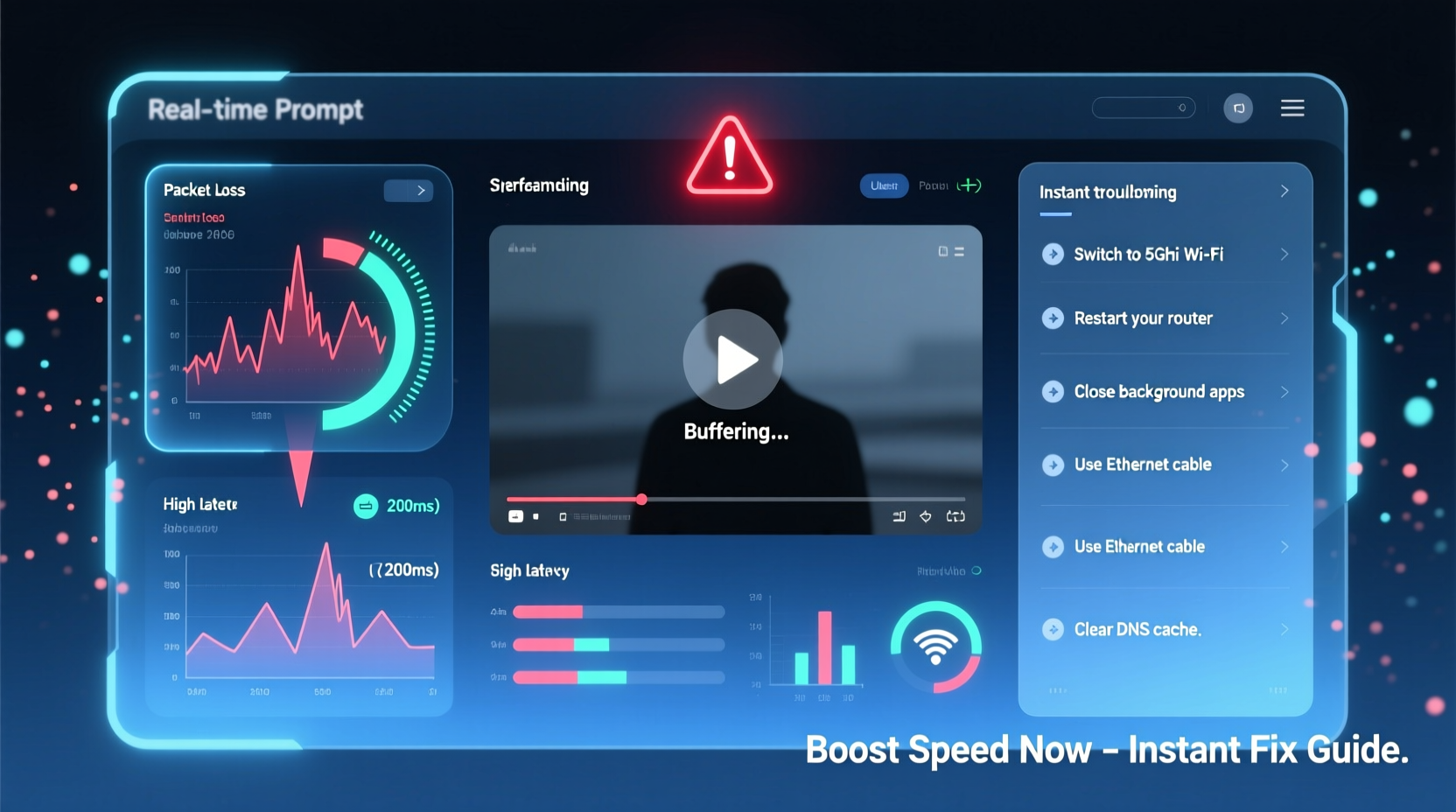
Buffering occurs when your device doesn’t receive data fast enough to maintain continuous playback. Video services load content into a temporary memory buffer; if incoming data slows down, the buffer empties faster than it fills, forcing the stream to pause. Several factors influence this process:
- Insufficient bandwidth: High-definition (HD) or 4K streams require significant download speeds—typically 5 Mbps for HD and 25 Mbps for 4K. If your connection falls below these thresholds, buffering becomes inevitable.
- Wi-Fi signal strength: Distance from the router, physical obstructions (walls, appliances), and interference from other wireless devices weaken signal quality, reducing effective speed.
- Network congestion: Multiple devices using the same network simultaneously—such as smartphones, tablets, smart TVs, and gaming consoles—compete for bandwidth.
- Outdated equipment: Older routers may not support modern Wi-Fi standards (like Wi-Fi 5 or Wi-Fi 6), limiting throughput and range.
- ISP throttling: Some Internet Service Providers intentionally slow down traffic during peak hours or for specific services like video streaming.
- Server-side issues: Occasionally, the problem lies not with your connection but with the streaming platform itself experiencing high demand or technical difficulties.
How to Diagnose Your Connection Issues
Before jumping into fixes, confirm whether the problem is local or external. Start with a baseline assessment of your current internet performance.
- Test your internet speed: Use trusted tools like Speedtest.net (Ookla) or Fast.com (Netflix). Perform tests on multiple devices and at different times of day.
- Compare results to advertised speeds: Check your ISP plan details. If actual speeds are consistently below 70% of what you’re paying for, contact your provider.
- Check wired vs. wireless: Connect your streaming device directly to the router via Ethernet. If buffering stops, the issue is likely Wi-Fi related.
- Monitor connected devices: Log into your router’s admin interface (usually accessible via 192.168.1.1 or similar) to see how many devices are active and which are consuming the most bandwidth.
- Rule out service outages: Visit sites like Downdetector.com to check if others are reporting issues with your streaming platform or ISP.
“Most buffering complaints we see are due to Wi-Fi dead zones or bandwidth hogs like cloud backups running in the background.” — Raj Patel, Senior Network Engineer at NetSecure Systems
Instant Fixes to Boost Streaming Speed
You don’t always need expensive upgrades to fix buffering. These practical steps can yield noticeable improvements within minutes:
1. Reboot Your Router and Modem
Over time, routers accumulate memory leaks and connection errors. A simple restart clears cached data and re-establishes a fresh connection with your ISP. Unplug both modem and router, wait 30 seconds, then power them back on in order (modem first, then router).
2. Prioritize Your Streaming Device (QoS Settings)
Enable Quality of Service (QoS) in your router settings. This feature lets you assign higher priority to specific devices or applications. For example, you can prioritize your smart TV over a tablet downloading updates.
3. Reduce Background Activity
Close unnecessary apps and pause automatic updates, cloud syncs (Google Drive, iCloud), and downloads on all devices. Even idle smartphones can consume bandwidth through background refreshes.
4. Move Closer to the Router or Use a Wi-Fi Extender
If you're far from the router or have thick walls between rooms, signal degradation is likely. Reposition your router centrally or invest in a Wi-Fi extender or mesh system for better coverage.
5. Switch to 5 GHz Band (If Available)
Modern dual-band routers operate on both 2.4 GHz and 5 GHz frequencies. While 2.4 GHz travels farther, it's slower and more prone to interference. The 5 GHz band offers faster speeds and less congestion—ideal for streaming—but has shorter range.
| Wi-Fi Band | Speed | Range | Best For |
|---|---|---|---|
| 2.4 GHz | Up to 150 Mbps | Longer (through walls) | Smart home devices, basic browsing |
| 5 GHz | Up to 867+ Mbps | Shorter (open spaces) | Streaming, gaming, large file transfers |
Long-Term Solutions for Reliable Streaming
If quick fixes provide only temporary relief, consider upgrading your setup for lasting performance.
Upgrade to a Modern Router
Routers older than three years may lack support for advanced protocols like MU-MIMO (Multi-User, Multiple Input, Multiple Output) or beamforming, which improve efficiency in multi-device homes. Look for Wi-Fi 6 (802.11ax) models—they offer faster speeds, lower latency, and better handling of connected devices.
Use Ethernet Whenever Possible
Wired connections eliminate Wi-Fi variability entirely. If your smart TV, streaming box, or game console supports Ethernet, use a Cat 6 cable for gigabit speeds. It’s the single most reliable way to ensure uninterrupted streaming.
Install a Mesh Wi-Fi System
For large homes or those with complex layouts, traditional extenders often fail to deliver consistent performance. Mesh systems (like Google Nest Wi-Fi, Eero, or TP-Link Deco) create a seamless network using multiple nodes placed throughout your space, eliminating dead zones.
Consider a Higher-Speed Internet Plan
If you frequently stream in 4K or have multiple users online simultaneously, your current plan may simply be underpowered. Upgrade to at least 100 Mbps for households with 3–5 devices actively using the internet. Fiber-optic plans (up to 1 Gbps) offer the most future-proof option.
Limit Simultaneous Streams
Streaming services vary in their bandwidth usage. Here’s an estimate of per-stream requirements:
- Standard Definition (SD): 3–4 Mbps
- High Definition (HD): 5–8 Mbps
- Ultra HD (4K): 15–25 Mbps
- With Dolby Vision/HDR: Up to 40 Mbps
Multiply these figures by the number of concurrent streams to determine your minimum required bandwidth.
Mini Case Study: Fixing Buffering in a Two-Story Home
Sarah, a remote worker and mother of two, struggled with constant buffering on her living room TV despite having a 100 Mbps internet plan. Her children also complained about lag during online classes. After testing, she found her Wi-Fi speed dropped to just 12 Mbps in the living room, located on the opposite side of the house from the router.
She followed a step-by-step diagnosis:
- Rebooted the router – no improvement.
- Connected the TV via Ethernet – buffering stopped immediately.
- Discovered her old router was placed in a closet behind metal shelves, blocking signals.
- Moved the router to a central shelf and switched to the 5 GHz band.
- Still had weak coverage upstairs, so she added a mesh node near the staircase.
Result: Average speeds increased from 12 Mbps to 85 Mbps across all rooms. No more buffering—even during family movie nights with multiple devices active.
Streaming Optimization Checklist
Follow this checklist to eliminate buffering permanently:
- ✅ Test internet speed on the affected device
- ✅ Restart modem and router
- ✅ Close background apps and downloads
- ✅ Switch to 5 GHz Wi-Fi or connect via Ethernet
- ✅ Enable QoS settings on your router
- ✅ Position router centrally, away from obstructions
- ✅ Limit number of simultaneous HD/4K streams
- ✅ Update router firmware regularly
- ✅ Consider upgrading to Wi-Fi 6 or a mesh system
- ✅ Contact ISP if speeds remain below contracted rates
Frequently Asked Questions
Does closing other browser tabs really help reduce buffering?
Yes. Tabs running video ads, auto-playing content, or syncing cloud storage can consume significant bandwidth in the background. Closing unused tabs frees up resources and improves streaming stability.
Can my neighbor’s Wi-Fi interfere with mine?
Potentially. In dense areas (apartments, townhouses), overlapping 2.4 GHz channels can cause interference. Access your router settings and switch to the least congested channel (use tools like Wi-Fi Analyzer on Android to scan nearby networks).
Why does my streaming app say “rebuffering” even when my speed test shows good results?
This discrepancy often happens because speed tests measure maximum potential, while real-time streaming depends on consistent low-latency delivery. Network jitter, packet loss, or brief drops in connectivity—not captured by standard tests—can still disrupt playback.
Conclusion: Take Control of Your Streaming Experience
Constant buffering doesn’t have to be part of your daily routine. By understanding the underlying causes and applying targeted solutions, you can dramatically improve your streaming performance—often within minutes. Whether it’s switching Wi-Fi bands, managing device load, or upgrading your network infrastructure, each step brings you closer to seamless, high-quality playback.
The key is systematic troubleshooting: diagnose before you act, prioritize wired connections where possible, and don’t underestimate the impact of simple habits like regular reboots. With a little knowledge and proactive maintenance, you can enjoy uninterrupted entertainment without overspending on unnecessary upgrades.




 浙公网安备
33010002000092号
浙公网安备
33010002000092号 浙B2-20120091-4
Comments
No comments yet. Why don't you start the discussion?