
If you've ever settled in for a relaxing evening with your favorite show only to be interrupted by endless spinning wheels and pixelated video, you're not alone. Buffering has become one of the most common frustrations in modern digital life. While it might seem like a minor annoyance, constant interruptions disrupt immersion, waste time, and often point to deeper issues with your network or device setup. The good news? Most buffering problems are fixable—often instantly—with the right approach.
Streaming services demand consistent bandwidth. When your connection can't keep up with the data flow required for high-definition (or 4K) content, your player pauses to buffer. But identifying the root cause—whether it's Wi-Fi congestion, outdated hardware, or ISP throttling—is key to restoring smooth playback. This guide breaks down the technical realities behind buffering and delivers actionable solutions you can apply immediately.
Understanding the Causes Behind Streaming Buffering
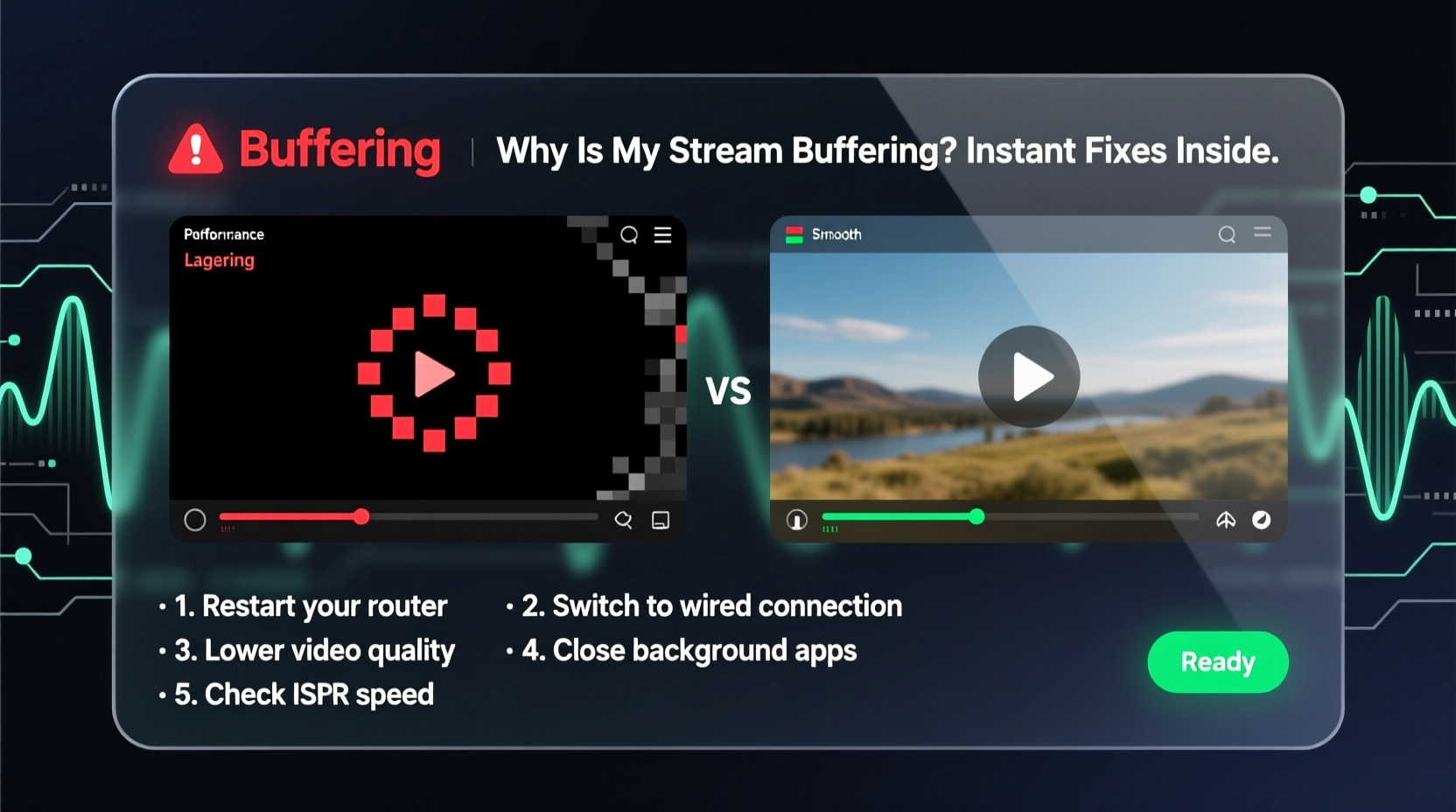
Buffering occurs when your streaming device doesn’t receive data fast enough to maintain continuous playback. Your device downloads a few seconds of content ahead of time (the “buffer”), but if incoming data slows or stops, playback halts until more data arrives. Several factors contribute to this disruption:
- Insufficient Internet Speed: HD streaming typically requires at least 5 Mbps; 4K demands 25 Mbps or more. If your plan falls short, buffering is inevitable.
- Wi-Fi Signal Interference: Thick walls, distance from the router, or nearby electronics can weaken your signal, reducing effective speed.
- Network Congestion: Multiple devices streaming, downloading, or gaming simultaneously consume bandwidth, starving your video stream.
- Router Limitations: Older routers may struggle with modern standards like dual-band support or MU-MIMO, leading to poor performance.
- Server-Side Issues: Occasionally, the problem lies with the streaming platform itself during peak hours or outages.
- ISP Throttling: Some internet providers intentionally slow down traffic to certain services during heavy usage periods.
Step-by-Step Guide to Instantly Boost Streaming Speed
You don’t need a tech degree to resolve most streaming issues. Follow these steps in order—they’re designed to escalate from quick fixes to deeper optimizations.
- Restart Your Router and Device
A simple reboot clears temporary glitches and resets network connections. Unplug your router for 30 seconds, then power it back on. Do the same for your smart TV, streaming box, or phone. - Move Closer to the Router or Use Ethernet
Distance and obstacles degrade Wi-Fi quality. If possible, place your streaming device within line of sight of the router. For critical setups (e.g., home theater), use an Ethernet cable—it eliminates wireless interference entirely and provides the most stable connection. - Switch to the 5 GHz Wi-Fi Band
Modern routers broadcast two frequencies: 2.4 GHz (longer range, slower, more crowded) and 5 GHz (faster, shorter range, less interference). Connect your streaming device to the 5 GHz network for higher throughput. - Close Background Applications and Downloads
Check if other devices are downloading large files, running cloud backups, or streaming in another room. Pause or schedule these tasks for off-peak hours. - Limit Connected Devices Temporarily
Disconnect unused smart devices—smart speakers, phones, tablets—from Wi-Fi to free up bandwidth. - Change DNS Settings
Default DNS servers from your ISP can be slow. Switch to faster public options like Google DNS (8.8.8.8 and 8.8.4.4) or Cloudflare (1.1.1.1). This can reduce latency and improve connection stability. - Lower Streaming Quality Temporarily
In your streaming app settings, manually reduce video resolution to 720p. This drastically cuts bandwidth needs and can eliminate buffering instantly while you troubleshoot.
Do’s and Don’ts: Streaming Optimization Table
| Action | Do | Don’t |
|---|---|---|
| Router Placement | Place centrally, elevated, away from metal objects | Hide it in a cabinet or basement corner |
| Wi-Fi Usage | Use 5 GHz band for streaming devices | Rely on 2.4 GHz for 4K streaming |
| Internet Plan | Ensure minimum 25 Mbps for 4K households | Expect smooth 4K on a 10 Mbps connection |
| Hardware | Use modern Wi-Fi 6 routers for multiple devices | Keep using a 10-year-old router |
| Updates | Regularly update router firmware and apps | Ignore system and firmware update notifications |
Real Example: Fixing a Family’s Weekend Streaming Woes
The Thompson family loved movie nights, but every Saturday, their Disney+ stream would freeze mid-scene. They had a 100 Mbps plan, so they assumed speed wasn’t the issue. After testing, they discovered their router was in the garage, far from the living room TV. Their smart TV connected to the 2.4 GHz band, which was also used by their baby monitor and several smart lights.
They applied three changes: relocated the router to the hallway near the living room, switched the TV to the 5 GHz network, and set their security camera uploads to run overnight. Buffering stopped immediately. Even during simultaneous use—kids gaming online, spouse on Zoom—their streaming remained smooth. The fix cost nothing and took under 20 minutes.
Expert Insight: What Network Engineers Recommend
“Most buffering isn’t about raw speed—it’s about consistency. A stable 15 Mbps connection beats an unstable 100 Mbps one for streaming. Prioritize signal quality and network hygiene over headline download numbers.” — Raj Patel, Senior Network Engineer at NetFlow Dynamics
“People overlook DNS and firmware updates. These small tweaks can resolve latency spikes that cause rebuffering, even when speed tests look fine.” — Dr. Lina Cho, Broadband Performance Researcher
Checklist: Immediate Actions to Stop Buffering Now
Use this checklist the next time your stream stutters. Most steps take under five minutes:
- ✅ Reboot your router and streaming device
- ✅ Run a speed test (use fast.com or speedtest.net)
- ✅ Switch to 5 GHz Wi-Fi or connect via Ethernet
- ✅ Pause downloads or large file transfers
- ✅ Close unused apps on your streaming device
- ✅ Lower video quality in the app settings
- ✅ Move closer to the router or remove obstructions
- ✅ Update your router’s firmware (check manufacturer’s website)
- ✅ Change DNS to 1.1.1.1 or 8.8.8.8
- ✅ Test with a different streaming service to isolate the issue
Frequently Asked Questions
Why does my Netflix buffer even with fast internet?
Your overall internet speed may be high, but local network conditions matter more. Weak Wi-Fi signal, device limitations, or background processes can restrict the actual bandwidth reaching your streaming app. Also, ISPs sometimes throttle video traffic even on fast plans. Try connecting via Ethernet to rule out Wi-Fi issues.
Does upgrading my router really help with streaming?
Yes, especially if your router is more than 3–4 years old. Newer models support Wi-Fi 6, better beamforming, and multi-user MIMO, all of which improve streaming reliability in homes with multiple devices. A mesh system can also eliminate dead zones in larger homes.
Can my smart TV cause buffering even if my phone streams fine?
Absolutely. Older smart TVs often have weak Wi-Fi antennas and outdated software. They may connect poorly even when other devices work. Consider using an external streaming stick (like Roku, Fire Stick, or Apple TV), which usually has better networking hardware than built-in smart platforms.
When to Contact Your ISP or Upgrade Service
If you’ve optimized your setup and still experience frequent buffering, it may be time to reassess your internet plan. Start by checking your actual speeds during peak evening hours—when everyone is home and using the internet. If you consistently get less than 70% of your advertised speed, contact your ISP.
Ask whether they’re throttling specific services or if there’s network congestion in your area. Request a line test and, if necessary, consider upgrading to a higher-tier plan. Households with multiple 4K streams, gamers, and remote workers should aim for at least 200 Mbps. Fiber-optic connections offer the most reliable performance for heavy streaming use.
Conclusion: Take Control of Your Streaming Experience
Constant buffering doesn’t have to be part of your digital life. Most issues stem from correctable network inefficiencies—not fundamental flaws in your service. By understanding how streaming works and applying targeted fixes, you can restore smooth playback in minutes. The key is systematic troubleshooting: start with the simplest solutions, verify each step, and escalate only when needed.
Whether you’re watching the latest series premiere or hosting a virtual movie night, a stable stream enhances enjoyment and reduces frustration. Apply the tips in this guide today—reboot, reconnect, optimize—and reclaim your viewing experience. Share your success story or ask questions in the comments; your insight could help someone else end their buffering battle for good.




 浙公网安备
33010002000092号
浙公网安备
33010002000092号 浙B2-20120091-4
Comments
No comments yet. Why don't you start the discussion?