
If your tablet, once capable of lasting a full day on a single charge, now struggles to make it through the afternoon, you're not alone. Rapid battery drain has become one of the most common complaints among tablet users—regardless of brand or model. The issue can stem from a mix of software behaviors, hardware degradation, user habits, or hidden processes running in the background. The good news is that many causes are fixable with simple adjustments. Understanding what’s consuming your battery and how to respond can restore hours of usage and extend the lifespan of your device.
Common Causes of Fast Battery Drain
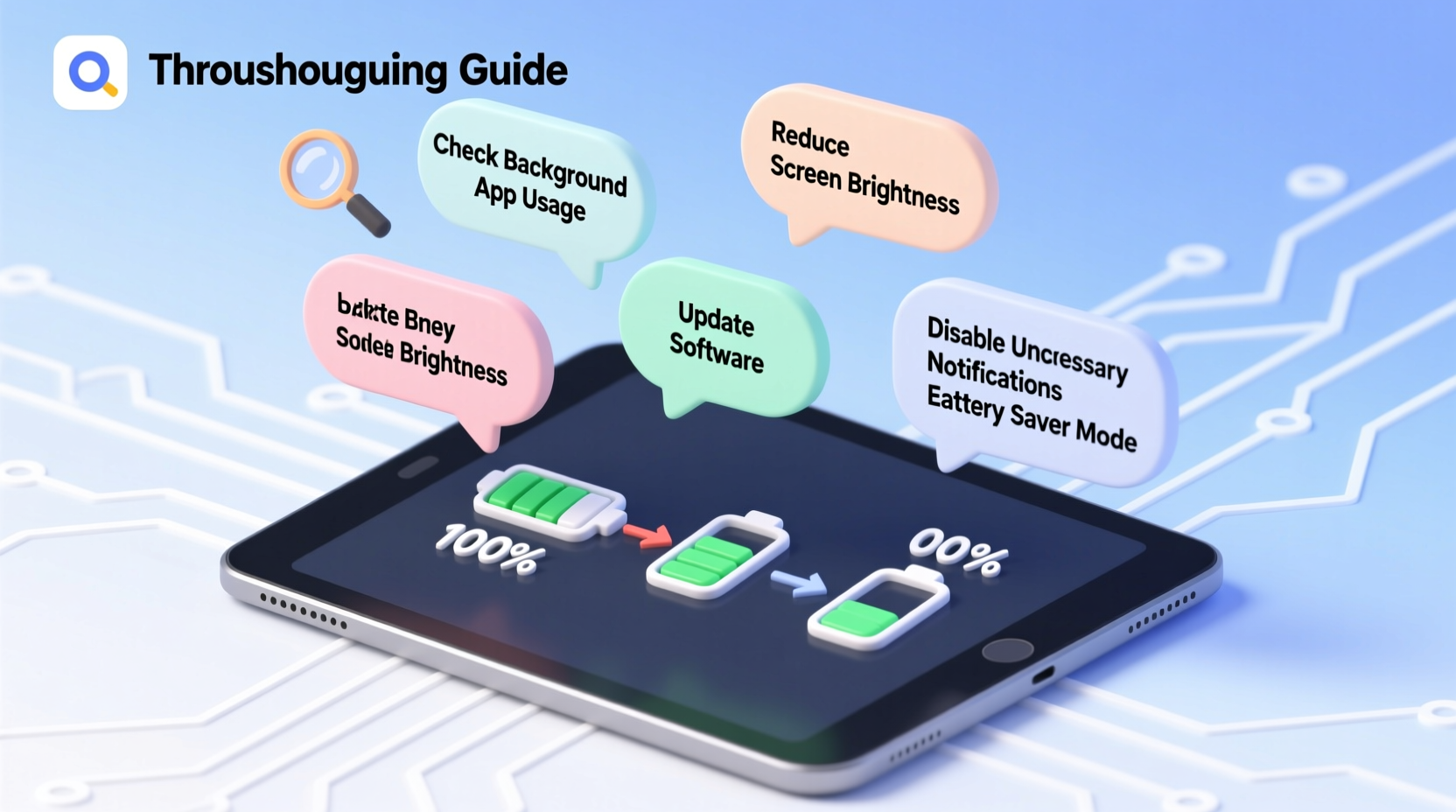
Battery degradation is inevitable over time, but sudden or excessive power loss often points to specific culprits. Identifying these early helps prevent long-term damage and improves efficiency.
- Background apps: Applications continue to run and sync data even when minimized, using CPU and network resources.
- Bright screen settings: Display brightness above 70% significantly increases power consumption.
- Outdated software: Older operating systems may lack power optimization features found in newer updates.
- Location services: GPS and location tracking used by maps, weather, and social media apps constantly draw power.
- Push email and notifications: Frequent syncing and alerts keep the processor active.
- Poor Wi-Fi or cellular signal: When connectivity is weak, your tablet works harder to maintain a connection.
- Aging battery: After 2–3 years, lithium-ion batteries lose capacity and hold less charge.
Step-by-Step Troubleshooting Guide
Follow this systematic approach to diagnose and resolve rapid battery drain. Each step targets a different potential cause, allowing you to isolate the issue.
- Check battery usage statistics
Go to Settings > Battery > Battery Usage (or equivalent). Review which apps consume the most power. If an app uses more than 25% without heavy use, investigate further. - Reduce screen brightness and timeout
Lower brightness to 40–60% and set screen timeout to 30 seconds. Enable adaptive brightness if available. - Disable unnecessary location services
Navigate to Location settings and switch to “Battery Saving” mode or turn off location access for non-critical apps. - Turn off vibration and haptic feedback
These small vibrations add up. Disable them in Sound & Vibration settings unless essential. - Limit background app refresh
Restrict which apps can refresh in the background. On Android, go to Apps > [App Name] > Battery > Background restriction. On iOS, Settings > General > Background App Refresh. - Update your OS and apps
Manufacturers frequently release updates that improve power management. Install the latest system and app versions. - Restart your tablet weekly
A reboot clears memory leaks and stops rogue processes that may be draining power silently. - Check for malware or suspicious apps
Install a trusted security app or scan via Google Play Protect (Android) to rule out malicious software. - Reset battery calibration (Android only)
Drain the battery to 0%, charge to 100%, then restart. This helps recalibrate inaccurate battery readings. - Perform a factory reset (last resort)
If all else fails, back up data and reset the device. A clean install often resolves deep-seated software issues.
Do’s and Don’ts: Tablet Battery Best Practices
| Do | Don’t |
|---|---|
| Charge between 20% and 80% for daily use to prolong battery health | Leave the tablet plugged in overnight regularly |
| Use original or certified chargers and cables | Use cheap third-party chargers that may deliver unstable voltage |
| Enable dark mode if your tablet has an OLED screen | Run intensive games or video apps for hours without breaks |
| Store the tablet in a cool, dry place away from direct sunlight | Expose the device to extreme heat (e.g., inside a car in summer) |
| Turn off Bluetooth, Wi-Fi, and GPS when not in use | Keep multiple cloud services syncing constantly |
Real-World Example: Recovering Lost Battery Life
Sarah, a freelance writer, noticed her Samsung Galaxy Tab S7+ battery dropped from 10 hours to under 4 hours within two months. She wasn’t using any new apps, but her work required constant note-taking and research. After checking battery stats, she discovered Chrome was consuming 40% of her power—even when idle. Further investigation revealed several tabs were auto-playing videos and refreshing in the background. She disabled background data for Chrome, cleared cached data, and switched to a lightweight browser for reading. Combined with lowering screen brightness and turning off location services for non-essential apps, her battery life improved to nearly 7 hours. The change didn’t require technical skills—just awareness and small adjustments.
Expert Insight: What Engineers Say About Battery Health
“Lithium-ion batteries degrade fastest under three conditions: full discharge cycles, high temperatures, and prolonged charging at 100%. Users who keep their devices between 30% and 80% and avoid hot environments can double usable battery lifespan.” — Dr. Alan Zhou, Senior Power Systems Engineer at MobileCore Labs
This insight underscores the importance of charging habits. While modern tablets have circuitry to prevent overcharging, keeping the battery at maximum charge for extended periods stresses the cells. Some newer models include “optimized charging” features that delay full charging until just before you typically unplug—take advantage of these when available.
When Hardware Is the Real Problem
Sometimes, no amount of software tweaking will help. Physical battery wear or component failure may be the root cause. Signs of hardware-related drain include:
- Battery percentage drops rapidly (e.g., 50% to 20% in 10 minutes).
- Device feels unusually warm even when idle.
- Battery swells slightly, causing the back panel to bulge.
- Charging behavior becomes erratic—jumps from 30% to 80% instantly.
If these symptoms appear, the battery likely needs replacement. Most manufacturers offer official repair services. Third-party repairs can be cheaper but vary in quality—ensure they use genuine or high-grade replacement cells. Replacing a degraded battery can restore near-original performance, especially on tablets less than four years old.
Comprehensive Battery Maintenance Checklist
Use this checklist monthly to keep your tablet’s battery in peak condition:
- ✅ Check battery usage stats for abnormal app consumption
- ✅ Update operating system and all installed apps
- ✅ Clear cache and temporary files from storage
- ✅ Restart the device to clear background processes
- ✅ Disable location, Bluetooth, and Wi-Fi when not needed
- ✅ Lower screen brightness and enable auto-brightness
- ✅ Remove unused apps, especially those with constant notifications
- ✅ Verify charger and cable integrity—replace frayed or slow-charging ones
- ✅ Store the tablet at around 50% charge if not using for extended periods
- ✅ Inspect for physical signs of battery swelling or overheating
Frequently Asked Questions
Why does my tablet battery die overnight even when not in use?
Even in sleep mode, some apps continue to sync data, check for updates, or use location services. Push email, cloud backups, and messaging apps like WhatsApp or Telegram often wake the device periodically. Disable background activity for non-essential apps and consider enabling airplane mode overnight if you don’t need notifications.
Does closing apps manually save battery?
Not always. Modern operating systems manage app states efficiently—swiping away apps doesn’t necessarily stop processes and may even increase battery use by forcing apps to reload. Instead of force-closing, restrict background permissions and let the system handle app suspension.
Can I replace my tablet’s battery myself?
It’s technically possible but not recommended for most users. Tablets are tightly sealed, and improper handling can damage the screen, logic board, or battery itself. DIY kits risk using low-quality cells. For safety and performance, opt for manufacturer or certified repair centers.
Conclusion: Take Control of Your Tablet’s Battery Life
Rapid battery drain isn’t inevitable—it’s often the result of overlooked settings, outdated software, or inefficient habits. By systematically evaluating usage patterns, adjusting configurations, and maintaining proper charging practices, you can reclaim hours of productivity and entertainment. Remember, a tablet’s usability hinges on reliable battery performance. Small changes today can delay costly replacements tomorrow. Whether you’re a student, professional, or casual user, taking a few minutes each week to audit your device’s health pays long-term dividends.




 浙公网安备
33010002000092号
浙公网安备
33010002000092号 浙B2-20120091-4
Comments
No comments yet. Why don't you start the discussion?