
If you've noticed your tablet taking longer than usual to charge—sometimes hours just to reach 50%—you're not alone. Slow charging has become a common frustration among tablet users, affecting productivity, travel convenience, and daily usability. While some slowdowns are due to aging hardware, many causes are preventable or correctable with the right knowledge. The good news? You don’t need technical expertise to diagnose and fix most issues. Understanding the root causes of slow charging and applying practical, safe solutions can restore your device’s efficiency and extend its lifespan.
Common Causes of Slow Tablet Charging
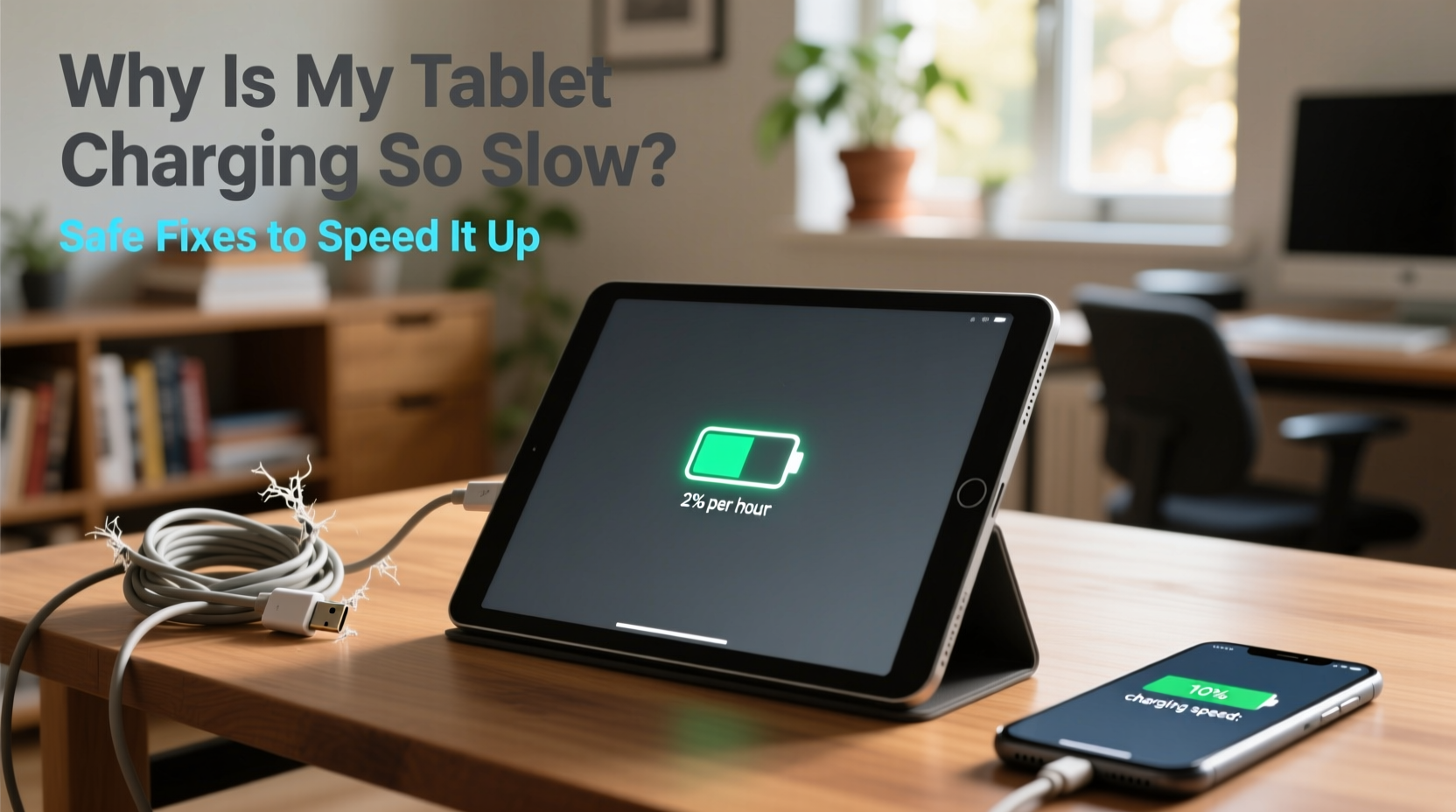
Before jumping into fixes, it's essential to identify what might be slowing down your charging process. Tablets draw power through a complex interplay of hardware, software, and environmental factors. Any disruption in this chain can reduce charging speed significantly.
- Low-power chargers: Using a charger with insufficient wattage (e.g., a 5W phone charger on a 10-inch tablet) limits energy flow.
- Damaged or low-quality cables: Frayed, bent, or uncertified USB cables degrade signal and power transfer.
- Background apps and processes: Heavy usage while charging diverts power away from the battery.
- Battery degradation: Over time, lithium-ion batteries lose capacity and charging efficiency, especially after 2+ years of use.
- Charging port debris: Dust, lint, or corrosion in the port creates poor electrical contact.
- Software bugs: OS updates sometimes introduce charging inefficiencies or background tasks that consume power.
- Temperature extremes: Charging in hot or cold environments slows down or halts charging for safety.
How to Diagnose Your Charging Problem
Not all slow charging issues require professional repair. A systematic diagnosis helps determine whether the problem is hardware-related, software-driven, or simply a matter of using subpar accessories.
- Test with a different cable and charger: Swap in a known high-quality, compatible set (e.g., 18W or higher for modern tablets). If charging improves, the original accessories were likely the issue.
- Inspect the charging port: Use a flashlight to check for visible debris. Gently clean with a dry toothbrush or compressed air—never metal tools.
- Charge while powered off: Turn off the tablet completely and charge for 30 minutes. If it charges noticeably faster, background activity was interfering.
- Monitor temperature: Feel the device and charger. Excessive heat indicates inefficient charging or potential component stress.
- Check battery health: On iOS, go to Settings > Battery > Battery Health. On Android, use built-in diagnostics (Settings > Battery > Health) or third-party apps like AccuBattery.
“Many users blame their tablet when the real culprit is a worn-out cable. A $20 cable can cost you two extra hours of waiting.” — Dr. Lena Patel, Electronics Engineer at Mobile Systems Lab
Safe Ways to Speed Up Charging
While fast charging technologies exist, forcing speed through unsafe methods risks battery damage, overheating, or fire. Instead, optimize your setup and habits to achieve the fastest *safe* charge possible.
Use the Right Charger
Tablets require more power than smartphones. Most modern tablets support USB Power Delivery (USB-PD) or Adaptive Fast Charging. Check your device specs and use a charger that matches:
| Device Type | Recommended Charger Output | Example Devices |
|---|---|---|
| Basic 8-inch tablet | 10W–12W | Amazon Fire HD 10, older iPads |
| Mid-range tablet | 18W–20W | Samsung Galaxy Tab S7, iPad Air (4th gen) |
| High-end tablet | 25W–45W | Microsoft Surface Pro, iPad Pro 12.9” |
Using a 5W phone charger on a 25W-capable tablet means it may take 3–4 times longer to charge.
Enable Airplane Mode During Charging
Turning on Airplane Mode disables Wi-Fi, Bluetooth, cellular (if applicable), and background syncing. This reduces power consumption by up to 40%, allowing more energy to go directly into the battery.
Clean the Charging Port Regularly
Lint buildup is surprisingly common, especially if you carry your tablet in pockets. Over time, debris insulates the connector pins, reducing conductivity. To clean safely:
- Power off the tablet.
- Use a wooden toothpick or plastic dental pick to gently dislodge debris.
- Blow into the port or use compressed air at low pressure.
- Reconnect the cable and test charging speed.
Avoid metal objects—they can short-circuit internal components.
Step-by-Step Guide to Optimize Charging Efficiency
Follow this timeline each week to maintain peak charging performance:
- Day 1 – Weekly Maintenance: Inspect the cable for fraying and the port for dust. Clean if necessary.
- Day 2 – Test Charging Speed: Charge from 20% to 50% using your standard setup. Time it. Compare weekly to track degradation.
- Day 3 – Software Check: Ensure your OS is updated. Outdated firmware can cause inefficient power management.
- Day 5 – Full Charge Cycle: Let the tablet drain to 10%, then charge to 100% uninterrupted. This recalibrates the battery gauge.
- Ongoing – Usage Habits: Avoid gaming or video streaming while charging. Close unused apps to reduce background load.
“Battery longevity isn’t about avoiding use—it’s about smart charging. One full cycle per week keeps calibration accurate.” — Mark Tran, Senior Technician at TechCare Labs
What Not to Do: Common Mistakes That Worsen Charging
Some popular “hacks” actually harm your tablet. Avoid these practices:
| Don't | Why It’s Harmful | Do This Instead |
|---|---|---|
| Use cheap third-party chargers | Unregulated voltage can fry circuits or degrade battery life | Buy MFi-certified (Apple) or Samsung/Google OEM chargers |
| Charge under pillows or blankets | Traps heat, increasing fire risk and throttling charge speed | Charge on hard, cool surfaces with airflow |
| Leave tablet plugged in overnight regularly | Keeps battery at 100% for hours, accelerating wear | Use scheduled charging features (available on iOS 13+, Android 12+) |
| Force restart during slow charging | Disrupts charging protocol; may corrupt system files | Wait 10 minutes or reboot before plugging in |
Real Example: Sarah’s Weekend Tablet Fix
Sarah, a freelance graphic designer, relied on her Samsung Galaxy Tab S8 for client meetings. She noticed it took over 4 hours to charge from 20% to full—unacceptable for her mobile workflow. She first assumed the battery was failing. Instead of replacing it immediately, she followed a diagnostic checklist:
- She tried her husband’s 25W USB-C charger (vs. her old 10W one).
- She cleaned the port with a soft brush, removing visible lint.
- She enabled Airplane Mode while charging.
The result? Her tablet reached 50% in 38 minutes—nearly three times faster. The original charger, not the battery, was the bottleneck. By switching to the proper charger and cleaning the port monthly, she restored reliable performance without spending a cent on repairs.
Frequently Asked Questions
Can I use my laptop’s USB-C charger to charge my tablet faster?
Yes, if both devices support USB Power Delivery (USB-PD). Most modern laptops and tablets share this standard. A 65W laptop charger will safely deliver up to 30W to a compatible tablet, significantly reducing charge time.
Is it bad to charge my tablet with a higher-wattage charger?
No. Devices only draw as much power as they’re designed to handle. A 45W charger won’t force 45W into a 20W tablet. It simply delivers power more efficiently within the device’s limits.
Why does my tablet charge fast at first, then slow down dramatically?
This is normal. Tablets use “tapered charging”: fast initial charging (0–80%), then slower trickle charging (80–100%) to protect battery health and prevent overcharging. This final phase can take as long as the first 80%.
Final Checklist: Boost Charging Speed Safely
- ✅ Use the correct wattage charger (18W minimum for most tablets)
- ✅ Replace frayed or stiff cables with certified ones
- ✅ Clean the charging port every 2–4 weeks
- ✅ Enable Airplane Mode when rapid charging is needed
- ✅ Avoid extreme temperatures while charging
- ✅ Update your tablet’s operating system regularly
- ✅ Monitor battery health and replace if below 80% capacity
Conclusion: Take Control of Your Charging Experience
Slow tablet charging rarely happens without warning—and it’s often avoidable. With a few simple changes to your accessories, habits, and maintenance routine, you can reclaim lost time and reliability. The key is consistency: using the right tools, avoiding harmful shortcuts, and staying proactive about care. Don’t wait until your battery degrades beyond recovery. Apply these steps today, and experience faster, safer charging that keeps pace with your lifestyle.




 浙公网安备
33010002000092号
浙公网安备
33010002000092号 浙B2-20120091-4
Comments
No comments yet. Why don't you start the discussion?