
It’s a common frustration: you're casually scrolling through Instagram, watching TikTok videos, or checking Facebook updates, and suddenly your tablet feels like it’s about to launch into orbit. The device becomes uncomfortably hot, the screen dims, and performance slows—sometimes even shutting down unexpectedly. While heavy gaming or video editing might justify heat buildup, social media should be light on system resources. So why is your tablet overheating under such minimal use?
The answer lies in a combination of hardware limitations, software inefficiencies, and user habits. Tablets are designed for portability and efficiency, but they’re not immune to thermal stress. When background processes, outdated apps, or environmental factors converge, even simple tasks can push a device beyond its cooling capacity. Understanding the root causes—and knowing how to respond—is essential for maintaining both performance and longevity.
Common Causes of Overheating During Light Use
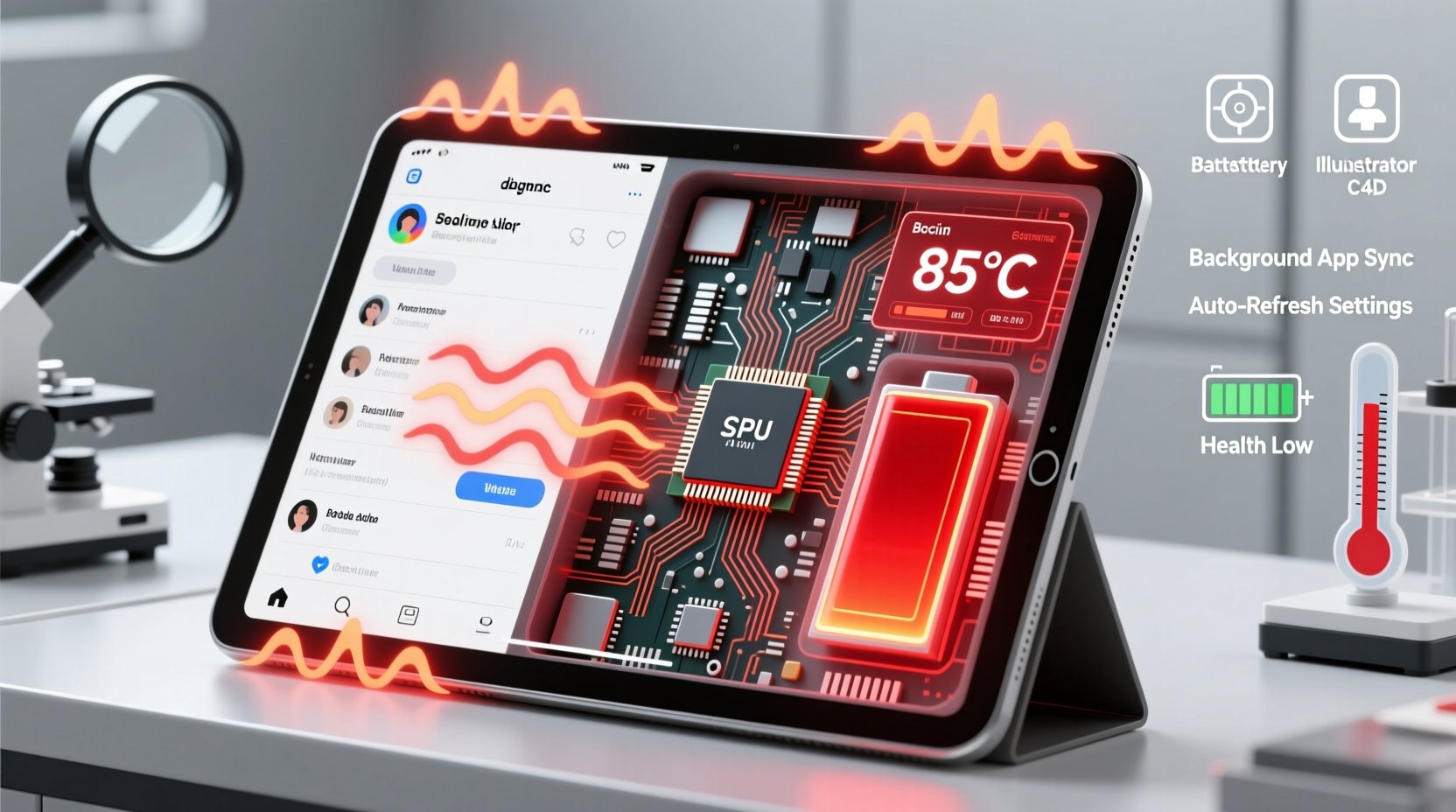
At first glance, browsing social media seems harmless. You’re loading images, reading text, maybe watching a short video. But behind the scenes, modern social platforms demand more than meets the eye. High-resolution media, auto-playing videos, JavaScript-heavy interfaces, and persistent background syncing all contribute to CPU and GPU load. Here’s what’s really happening:
- Auto-playing video content: Platforms like Facebook, Instagram, and TikTok automatically play videos as you scroll. Each clip triggers decoding, rendering, and audio processing—even if muted.
- Background app activity: Social media apps often run services that sync messages, update feeds, and track location, even when minimized.
- Poorly optimized apps: Some apps aren’t updated regularly or fail to adapt to newer OS power-saving features, leading to excessive CPU usage.
- Browser inefficiency: Using a web browser instead of an app can sometimes cause higher resource consumption due to unoptimized mobile sites or ad scripts.
- Software bugs: Glitches in app code or operating system updates can create infinite loops or memory leaks, forcing the processor to work nonstop.
Environmental and Hardware Factors
Even with efficient software, external conditions can turn a normally cool device into a hotspot. Tablets rely on passive cooling—meaning no fans—so they dissipate heat through their chassis. Anything that impedes this process increases internal temperature.
Direct sunlight, for example, can raise surface temperatures by 20°F (11°C) or more within minutes. Placing a tablet on a bed, couch, or lap blocks ventilation ports and traps heat. Even protective cases made of thick silicone or leather can act as insulators, preventing natural airflow.
Hardware degradation also plays a role. As batteries age—typically after 2–3 years—they become less efficient and generate more heat during operation. Swollen batteries, a serious safety concern, can press against internal components and disrupt thermal management. Similarly, dust accumulation in charging ports or along edges can reduce conductivity and increase resistance, contributing to overheating.
“Many users don’t realize that ambient temperature affects electronics as much as physical exertion affects athletes. A tablet in direct sun is working under extreme conditions.” — Dr. Lena Torres, Mobile Device Engineer at Pacific Tech Labs
Step-by-Step Guide to Diagnose and Cool Down Your Tablet
If your tablet frequently overheats while browsing social media, follow this structured approach to identify and resolve the issue:
- Immediate Cooling: Turn off the device or put it in airplane mode. Move it to a cool, shaded area. Avoid placing it in a refrigerator or freezer—rapid temperature changes can cause condensation inside the device.
- Check for Physical Damage: Inspect the battery for swelling (visible bulging of the back panel), and ensure the case isn’t trapping heat. Remove any thick covers temporarily.
- Monitor App Usage: On Android, go to Settings > Battery > Battery Usage. On iOS, go to Settings > Battery. Look for social media apps consuming disproportionate power—even when not actively used.
- Update Software: Ensure your tablet’s operating system and all apps are up to date. Developers frequently release patches to fix memory leaks and optimize performance.
- Clear Cache and Data: For Android users, navigate to Settings > Apps > [App Name] > Storage > Clear Cache. On iOS, offload the app or reinstall it entirely.
- Test in Safe Mode (Android): Boot into safe mode to disable third-party apps. If the device doesn’t overheat, a downloaded app is likely the culprit.
- Reset Settings (if needed): As a last resort, back up your data and perform a factory reset. This eliminates deep-seated software conflicts without losing personal files permanently.
Do’s and Don’ts: Managing Heat Buildup
| Do | Don’t |
|---|---|
| Use your tablet in well-ventilated, shaded areas | Leave it in direct sunlight or hot cars |
| Close unused apps and browser tabs | Run multiple video-heavy apps simultaneously |
| Keep software updated | Ignore system or app update notifications |
| Remove thick cases during extended use | Use non-breathable materials as padding |
| Enable dark mode and lower screen brightness | Maximize screen brightness for long periods |
Real Example: How One User Fixed Chronic Overheating
Sophia, a freelance writer from Portland, noticed her tablet would shut down after just 15 minutes of Instagram browsing. At first, she assumed it was a hardware defect and considered buying a replacement. Instead, she decided to investigate.
She began by checking battery usage and found that Instagram was consuming 60% of her battery in two hours—even though she’d only been active for 20 minutes. Upon further inspection, she discovered that background app refresh was enabled, and the app was constantly downloading reels and stories in the background.
After disabling background refresh, clearing the app cache, and uninstalling a third-party analytics tool she had added months earlier, her tablet’s temperature dropped significantly. She also switched from using the web version of Instagram in Chrome to the native app, which proved more efficient. Within days, the overheating stopped completely.
Sophia’s experience highlights a key truth: the problem is rarely the hardware itself, but rather how software and settings interact under everyday use.
Preventive Checklist to Avoid Future Overheating
- ✅ Update all apps and the operating system
- ✅ Review battery usage and remove power-hungry apps
- ✅ Clear cache for social media and browser apps
- ✅ Disable background app refresh for non-essential apps
- ✅ Use dark mode and reduce screen brightness
- ✅ Avoid using the tablet while charging
- ✅ Store and use the device in cool environments
Frequently Asked Questions
Can a virus cause my tablet to overheat?
While true viruses are rare on tablets due to strict app store controls, malicious apps or adware can cause excessive CPU usage. These may come from sideloaded apps or phishing downloads. If your tablet heats up unexpectedly and shows pop-ups or redirects, uninstall recently added apps and scan with a trusted security tool.
Is it safe to keep using an overheating tablet?
No. Prolonged overheating can degrade the battery, damage internal components, and in extreme cases, pose a fire risk. If your tablet consistently exceeds safe temperatures (above 113°F or 45°C), stop using it immediately and diagnose the cause. Devices with swollen batteries should be serviced by professionals.
Does streaming video on social media generate more heat than static browsing?
Yes. Video decoding requires continuous GPU and CPU activity, especially with high-resolution content. Auto-playing videos in full HD or 4K can double thermal output compared to viewing text and images. To reduce strain, disable autoplay in app settings or limit video quality.
Expert Insight: The Hidden Cost of Always-On Connectivity
Modern social media apps are built for constant engagement. They maintain live connections to servers, preload content, and track user behavior in real time. While this creates a seamless experience, it comes at a cost.
“The illusion of ‘light’ browsing is misleading. Today’s social apps are mini operating systems running in the background. They wake the CPU dozens of times per minute, preventing the device from entering low-power states.” — Raj Patel, Senior Developer at Open Systems Lab
This constant micro-activity prevents thermal recovery. Even when idle, the tablet never fully cools down. Over time, this sustained heat accelerates component aging and reduces overall lifespan.
Long-Term Maintenance Tips
To extend your tablet’s life and prevent recurring overheating, adopt these long-term habits:
- Limit background activity: Disable background app refresh for all non-critical apps. On iOS, go to Settings > General > Background App Refresh. On Android, use Battery Optimization settings.
- Use native apps over browsers: Native apps are typically more optimized than mobile websites, especially for media-heavy platforms.
- Install ad blockers (on browsers): Excessive ads—especially animated or video-based ones—can spike CPU usage. Use a reputable ad blocker in your mobile browser.
- Monitor storage space: A nearly full storage drive can slow down the system and increase processing overhead. Keep at least 10–15% free space.
- Replace aging batteries: If your tablet is over three years old and frequently overheats, consider a professional battery replacement. Modern lithium-ion batteries lose capacity and efficiency over time.
Conclusion: Take Control Before It’s Too Late
A tablet overheating during basic social media use isn’t normal—and it shouldn’t be ignored. What starts as a minor annoyance can escalate into permanent hardware damage, data loss, or safety hazards. The good news is that most causes are preventable and fixable with informed action.
By understanding how apps behave, managing your environment, and maintaining your device proactively, you can restore smooth, cool performance. Don’t wait for a shutdown or battery swelling to take action. Implement the checklist, review your settings today, and treat your tablet with the care it deserves.




 浙公网安备
33010002000092号
浙公网安备
33010002000092号 浙B2-20120091-4
Comments
No comments yet. Why don't you start the discussion?