
It’s a frustrating experience: you check your tablet’s storage, see gigabytes of free space, and yet the device still lags when opening apps, scrolling through web pages, or switching between tasks. You might assume that full storage is the main cause of sluggish performance—but it's only one piece of the puzzle. In reality, many factors beyond available storage can degrade your tablet’s responsiveness. Understanding these hidden culprits is essential to restoring smooth operation without resorting to factory resets or premature replacements.
Why Free Storage Isn’t the Whole Story
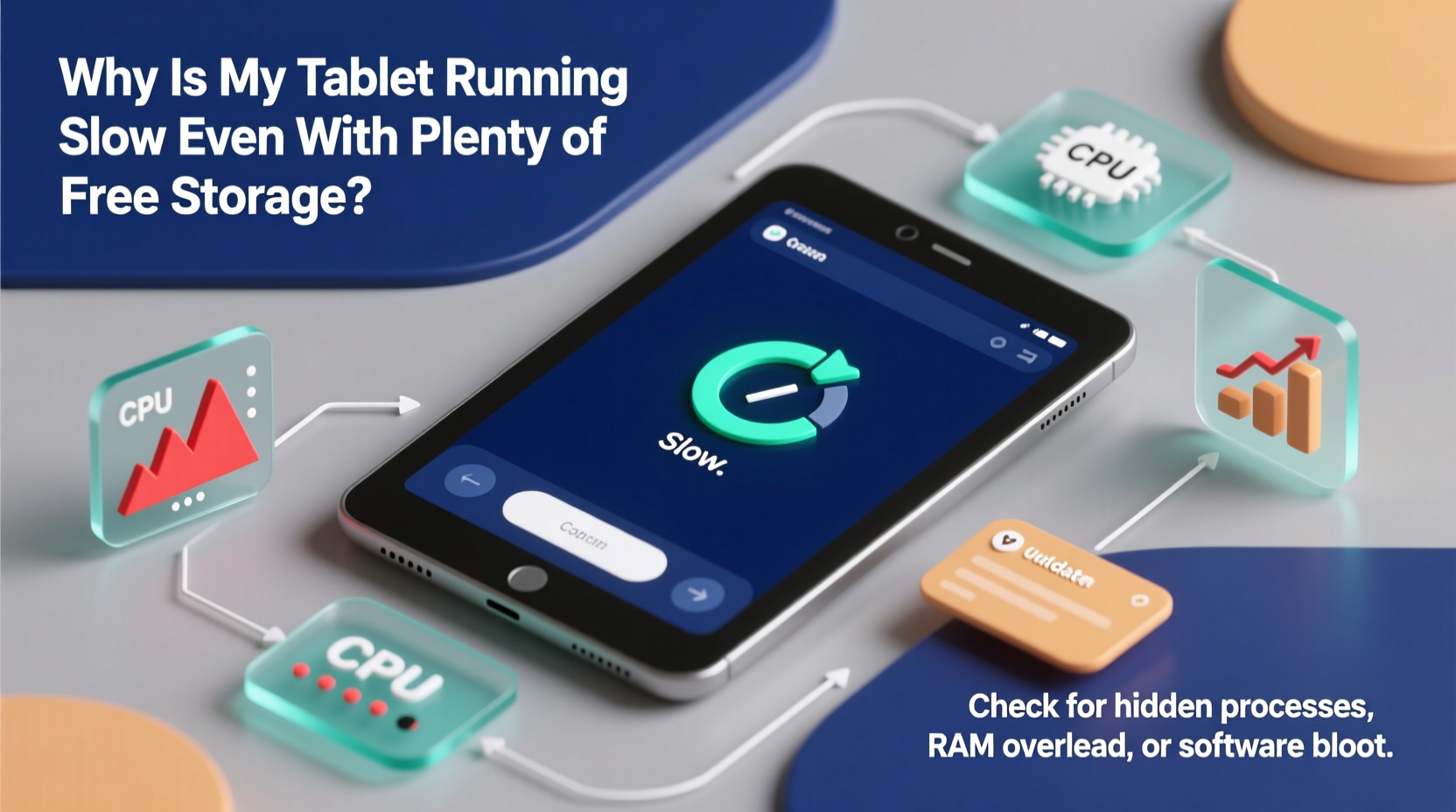
While nearly full storage can indeed slow down devices by limiting the system’s ability to manage temporary files and cache efficiently, modern tablets typically require far less free space than users assume. Most operating systems function well with as little as 10–15% free storage. If your tablet has more than that, the slowdown likely stems from other sources.
The misconception that “more storage = faster performance” overlooks how tablets actually use hardware resources. Performance depends heavily on RAM (random access memory), processor efficiency, background processes, software optimization, and thermal management—not just disk space. A tablet with 64GB of storage and 30GB free may still struggle if it only has 2GB of RAM and is running outdated or bloated software.
Common Hidden Causes of Tablet Lag
When your tablet feels sluggish despite ample free storage, consider these often-overlooked issues:
1. Background Apps and Services
Many apps continue running in the background, syncing data, pushing notifications, or tracking location—even when not actively used. These processes consume CPU cycles and RAM, reducing resources available for foreground tasks. Over time, this constant drain leads to noticeable lag.
2. Insufficient RAM Management
Tablets with lower RAM (especially 2GB or less) struggle to multitask effectively. Even lightweight apps can accumulate in memory, forcing the system to constantly reload them instead of keeping them active. This results in app reload delays and choppy transitions.
3. Outdated Operating System or Apps
Older software versions may lack performance optimizations found in updates. Security patches, bug fixes, and efficiency improvements are regularly rolled out. Delaying updates means missing critical enhancements that could resolve speed issues.
4. Cache Buildup and Fragmentation
Every app generates temporary cache files to load content faster. While helpful initially, excessive cache can clutter the system and interfere with file access speeds. On some Android tablets, file system fragmentation over time can also contribute to slower read/write operations.
5. Thermal Throttling
If your tablet overheats—due to prolonged usage, direct sunlight, or poor ventilation—the processor automatically reduces its speed to prevent damage. This throttling causes sudden drops in performance, especially during gaming or video streaming.
6. Bloatware and Pre-installed Apps
Many tablets come loaded with pre-installed apps that cannot be uninstalled. These often run background services, consume memory, and update silently. Even if you never use them, they’re still taxing your system.
“Performance isn’t just about specs—it’s about how efficiently those specs are utilized. A well-optimized tablet with modest hardware can outperform a high-end model bogged down by bloat.” — Dr. Alan Reyes, Mobile Systems Engineer at TechFlow Labs
Step-by-Step Guide to Diagnose and Fix Slow Tablet Performance
Follow this systematic approach to identify and eliminate the root causes of your tablet’s slowdown:
- Check Active Memory Usage
Go to Settings > Battery & Performance (or Device Care on Samsung). Review RAM usage. If consistently above 80%, too many apps are consuming memory. - Close Unnecessary Background Apps
Use the recent apps menu to swipe away unused applications. Avoid relying solely on “task killer” apps, which can do more harm than good. - Update Your OS and All Apps
Visit the system settings and app store to ensure everything is current. Updates often include performance patches. - Clear App Caches Individually
Navigate to Settings > Apps > [Select App] > Storage > Clear Cache. Do this for heavy users like browsers, social media, and streaming apps. - Disable or Freeze Unused Pre-installed Apps
On Android, go to app settings and disable bloatware (e.g., trial games, duplicate utilities). On iOS, offload unused apps via Settings > General > iPhone/iPad Storage. - Monitor Temperature
If the device feels hot, let it cool down. Avoid using it under blankets or in direct sun. Consider removing thick cases during intensive tasks. - Restart Weekly
A simple reboot clears temporary files, resets memory allocation, and stops rogue processes. Make it a routine. - Test in Safe Mode (Android Only)
Boot into Safe Mode to disable third-party apps temporarily. If performance improves, a downloaded app is likely causing the issue.
Tips to Maintain Long-Term Tablet Speed
Prevention is more effective than repair. Incorporate these habits to keep your tablet running smoothly:
- Limit auto-syncing for email, cloud storage, and social apps. Sync manually or on Wi-Fi only.
- Use lightweight alternatives to resource-heavy apps (e.g., Firefox Lite instead of Chrome, Microsoft Word Mobile instead of full Office suite).
- Turn off animations in Developer Options (Android) to speed up interface transitions.
- Enable battery optimization for non-essential apps to restrict background activity.
- Store large media files in the cloud and download only when needed.
Do’s and Don’ts: Tablet Performance Best Practices
| Do | Don't |
|---|---|
| Restart your tablet once a week | Leave it running continuously for weeks |
| Keep OS and apps updated | Ignore update notifications indefinitely |
| Clear cache monthly | Delete system files manually via file explorer |
| Use antivirus tools sparingly (only trusted ones) | Install multiple “cleaner” or “booster” apps—they often cause bloat |
| Offload rarely used apps | Fill internal storage with downloads and videos |
Real Example: Sarah’s 3-Year-Old iPad Regains Speed
Sarah had been frustrated with her iPad Air 2, which took over 10 seconds to open messages and frequently froze during video calls. She checked storage and found 22GB free out of 64GB—well above the recommended threshold. After reading about non-storage-related slowdowns, she followed a diagnostic checklist.
She discovered that Facebook, Instagram, and a weather widget were syncing every few minutes, consuming background CPU. She disabled automatic refresh and cleared their caches. She also turned off location services for several apps and restarted the device. The difference was immediate: apps launched faster, scrolling became fluid, and video calls stabilized. No factory reset was needed—just smarter configuration.
This case illustrates how behavioral adjustments and awareness of background activity can dramatically improve performance without technical expertise.
Frequently Asked Questions
Can too many widgets slow down my tablet?
Yes. Widgets update in real time, pulling data from the internet and processing it constantly. Having multiple live widgets—especially news, weather, or social feeds—can strain older tablets. Use only essential widgets and avoid placing more than three on your home screen.
Is it worth upgrading RAM on a tablet?
No. Unlike desktop computers, tablets have soldered components. RAM cannot be upgraded after purchase. If your current device lacks sufficient memory for your needs, consider replacing it with a newer model featuring at least 4GB of RAM for smoother multitasking.
Will a factory reset fix a slow tablet permanently?
It may help short-term by wiping out accumulated junk files and resetting app configurations. However, unless you change usage habits—like reinstalling bloatware or allowing unrestricted background activity—the slowdown will return within weeks. A reset should be a last resort, not a routine fix.
Action Plan: Your 7-Day Speed Optimization Challenge
Regain control of your tablet’s performance with this structured week-long plan:
- Day 1: Update the operating system and all installed apps.
- Day 2: Review and disable unnecessary background apps and auto-sync features.
- Day 3: Clear cache for the top five most-used apps (browser, social media, email, etc.).
- Day 4: Offload or delete unused apps; move photos/videos to cloud storage.
- Day 5: Restart the tablet and observe performance changes.
- Day 6: Check battery usage by app—high consumption often correlates with excessive background work.
- Day 7: Establish a maintenance habit: schedule a monthly cleanup and weekly restart.
By the end of the week, most users report significantly improved responsiveness—even on tablets over two years old.
Conclusion: Speed Starts with Smart Habits
A slow tablet doesn’t always mean it’s time for a replacement. Often, the issue lies not in hardware limits but in how the device is managed. Free storage is just one factor among many. By addressing background processes, updating software, managing memory usage, and adopting sustainable digital habits, you can breathe new life into your tablet.
Don’t accept lag as inevitable. Take action today—optimize your settings, clean up digital clutter, and make small changes that lead to big improvements. Your tablet has more potential than you think.




 浙公网安备
33010002000092号
浙公网安备
33010002000092号 浙B2-20120091-4
Comments
No comments yet. Why don't you start the discussion?