
Laptop touchpads are essential for everyday computing—whether you're browsing, working, or creating, a responsive touchpad makes the experience seamless. But when scrolling becomes choppy, cursor movement drags, or taps don't register, productivity takes a nosedive. Touchpad lag can stem from various sources: outdated drivers, background processes, incorrect settings, or even hardware wear. The good news? Most issues are fixable without technical expertise or costly repairs.
This guide breaks down the root causes of touchpad lag and delivers practical, step-by-step solutions to restore smooth scrolling and accurate tracking. Whether you're using Windows, macOS, or Linux, these fixes apply across devices and brands—from Dell and HP to MacBook and Lenovo.
Common Causes of Touchpad Lag
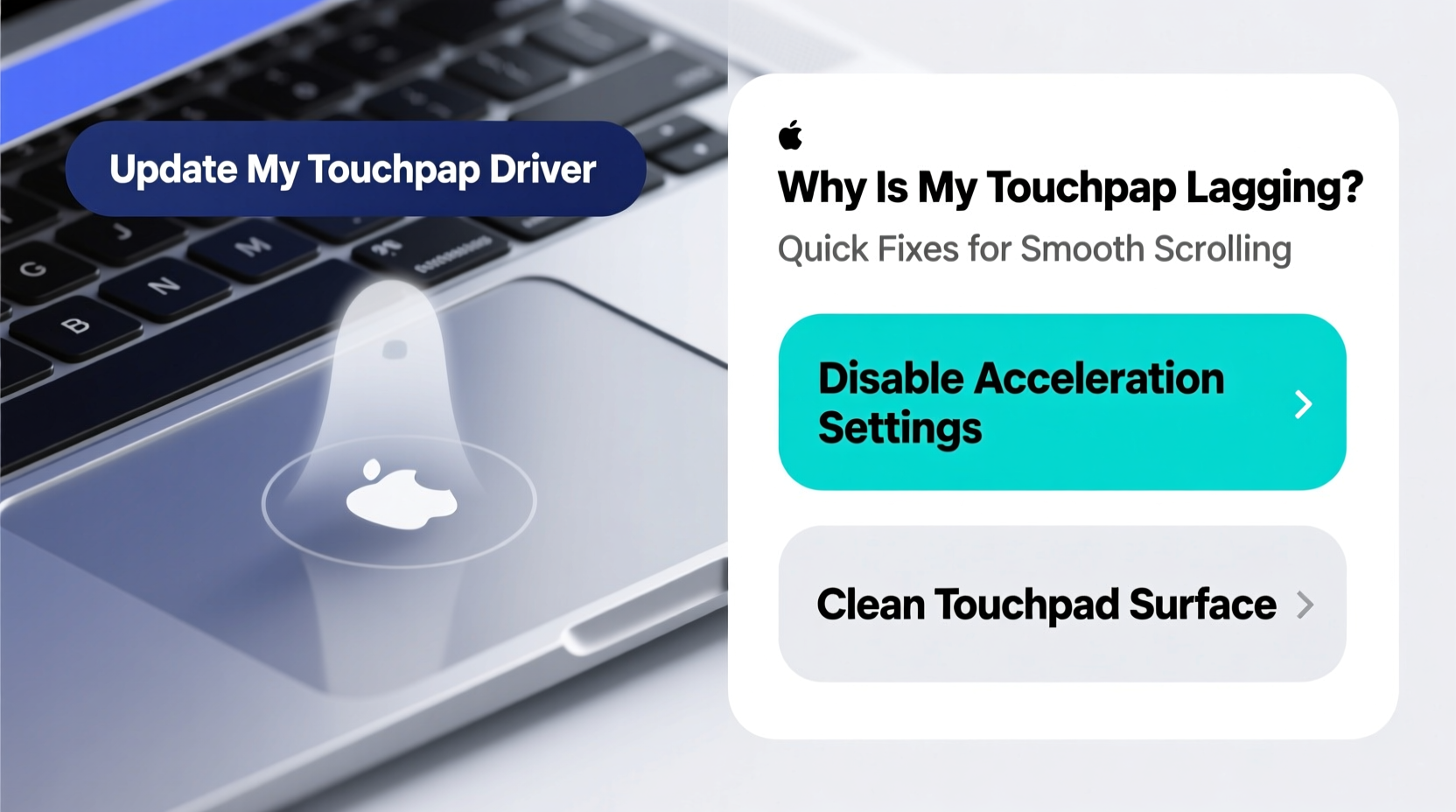
Before diving into fixes, it's crucial to understand what might be causing the delay. Identifying the source helps avoid unnecessary troubleshooting and speeds up resolution.
- Outdated or corrupt drivers: Drivers act as communication bridges between your operating system and hardware. If they’re outdated or damaged, performance suffers.
- High CPU or disk usage: Background applications consuming system resources can interfere with input responsiveness.
- Incompatible touchpad settings: Overly sensitive gestures, high pointer speed, or disabled acceleration can create a laggy feel.
- Power-saving modes: Some laptops throttle input devices to save battery, which reduces touchpad responsiveness.
- Hardware issues: Physical damage, dust buildup under the touchpad, or aging components may contribute to sluggish behavior.
- Software conflicts: Third-party mouse utilities, remote desktop tools, or accessibility software can interfere with native touchpad functions.
Step-by-Step Fixes for Smooth Scrolling
Follow this structured approach to diagnose and resolve touchpad lag efficiently. Start with the simplest checks and move toward deeper system adjustments.
- Restart your computer. A reboot clears temporary glitches and resets driver states. It’s surprising how often this resolves minor hiccups.
- Check for physical obstructions. Wipe the touchpad surface with a dry microfiber cloth. Oils, dirt, or moisture can interfere with capacitive sensing.
- Disable external mice temporarily. Connected USB or Bluetooth mice sometimes conflict with internal touchpad drivers.
- Update your operating system. OS updates often include critical driver patches and firmware improvements.
- Verify touchpad functionality in Device Manager (Windows) or System Settings (macOS).
Update or Reinstall Touchpad Drivers (Windows)
Driver issues are among the most frequent culprits. Here’s how to address them:
- Press Win + X and select Device Manager.
- Expand the section labeled Mice and other pointing devices.
- Right-click your touchpad (often listed as “Synaptics,” “ELAN,” or “HID-compliant touchpad”) and choose Update driver.
- Select Search automatically for updated driver software.
- If no update is found, visit your laptop manufacturer’s support website (e.g., Dell Support, HP Customer Care), enter your model number, and download the latest touchpad driver.
- Alternatively, right-click the device and select Uninstall device, then restart your PC. Windows will reinstall the default driver.
“Over 60% of reported touchpad issues in enterprise environments are resolved by driver reinstallation.” — IT Support Lead, TechCare Solutions
Adjust Touchpad Sensitivity and Scrolling Settings
Sometimes, the touchpad isn’t lagging—it’s misconfigured. Adjusting sensitivity and gesture behavior can make a dramatic difference.
On Windows:
- Go to Settings > Devices > Touchpad.
- Set pointer speed to “Medium” or “Medium fast.” Avoid extremes.
- Enable Scroll inactive windows when I hover over them if available.
- Under Scroll and zoom, ensure two-finger scrolling is enabled and inertia is turned on for smoother motion.
- Disable palm rejection if it's overly aggressive and blocking intended inputs.
On macOS:
- Navigate to System Settings > Trackpad.
- Adjust tracking speed to a comfortable level—usually 5 or 6 out of 10.
- Ensure Scroll direction: natural matches your preference.
- Turn on Tap to click and test responsiveness.
- Reduce the number of fingers required for gestures if multi-finger swipes feel delayed.
Optimize System Performance to Reduce Input Lag
A sluggish system affects all input devices. Even if the touchpad hardware is fine, poor performance creates perceived lag.
Monitor Resource Usage
Open Task Manager (Ctrl+Shift+Esc on Windows) or Activity Monitor (macOS) and check:
- CPU usage above 80% for extended periods
- Disk usage stuck at 100%
- Multiple background apps running unnecessarily
If resource usage is high, close unused programs, disable startup apps, and consider scanning for malware.
Adjust Power Settings
Power-saving modes often limit peripheral performance. Switch to a balanced or high-performance plan:
- Go to Control Panel > Hardware and Sound > Power Options.
- Select High performance or Balanced.
- Click Change plan settings > Change advanced power settings.
- Expand USB settings > USB selective suspend setting and set to Disabled.
- Look for PCI Express > Link State Power Management and set to Off.
These changes prevent the system from throttling input devices during low activity.
Do’s and Don’ts: Best Practices for Touchpad Health
| Do’s | Don’ts |
|---|---|
| Keep your hands clean and dry before using the touchpad | Use excessive force when tapping or swiping |
| Regularly update your OS and drivers | Ignore firmware update notifications from your manufacturer |
| Use keyboard shortcuts to reduce touchpad dependency | Spill liquids near the touchpad area |
| Test touchpad function after major software installations | Install untrusted third-party mouse enhancement tools |
| Store your laptop in a cool, dry place to prevent component degradation | Place heavy objects on the closed laptop that press into the touchpad |
Real-World Example: Fixing a Lagging HP Laptop Touchpad
Consider Sarah, a freelance writer using an HP Pavilion laptop. She noticed her touchpad began skipping during scrolling, especially in long documents. At first, she assumed it was age-related wear. However, after testing in Safe Mode, she realized the touchpad worked perfectly—indicating a software conflict.
She opened Task Manager and discovered Adobe Creative Cloud was using 45% of her CPU continuously. After uninstalling unused Adobe apps and disabling the helper service, her touchpad responsiveness returned immediately. Additionally, she updated her Synaptics driver via HP Support Assistant, which improved gesture accuracy.
This case illustrates how background processes—not hardware failure—can mimic touchpad lag. A methodical diagnosis saved her from unnecessary repair costs.
Quick Fix Checklist
Use this checklist to systematically eliminate common causes of touchpad lag:
- ✅ Restart the laptop
- ✅ Clean the touchpad surface with a dry cloth
- ✅ Disconnect external mice and Bluetooth input devices
- ✅ Check CPU and disk usage in Task Manager / Activity Monitor
- ✅ Update the operating system
- ✅ Update or reinstall touchpad drivers
- ✅ Adjust pointer speed and scrolling settings
- ✅ Disable power-saving features affecting USB/peripherals
- ✅ Boot into Safe Mode to isolate software conflicts
- ✅ Reset touchpad settings to default and reconfigure preferences
Frequently Asked Questions
Why does my touchpad work fine sometimes but lag at others?
Intermittent lag often points to variable system load. When background apps spike CPU or disk usage, input responsiveness drops. Monitor resource usage during lag episodes to identify the culprit. Thermal throttling due to overheating can also cause inconsistent performance.
Can I use an external mouse to bypass touchpad issues permanently?
Yes, but it’s not ideal for portability. An external mouse is a reliable workaround, especially for desktop replacement setups. However, resolving the root cause ensures full functionality when you’re on the go and don’t have accessories handy.
Does screen refresh rate affect touchpad scrolling smoothness?
Indirectly. A higher refresh rate (e.g., 120Hz) improves overall visual fluidity, making scrolling appear smoother. However, touchpad responsiveness depends more on driver efficiency and sensor polling rate than display specs. Still, upgrading to a high-refresh laptop can enhance the perception of smoothness.
Expert Insight: Input Device Engineering Perspective
Modern touchpads use capacitive sensing technology similar to smartphones. Each finger movement alters the electrostatic field, which the controller interprets as motion. Delays occur when data processing is bottlenecked—not necessarily due to the sensor itself.
“The polling rate and driver optimization matter more than people think. A well-tuned driver can deliver 120Hz reporting even on mid-tier hardware.” — Dr. Alan Zhou, Human-Computer Interaction Researcher, MIT Media Lab
This means software plays a bigger role than hardware in perceived lag. Firmware updates that increase reporting frequency or reduce latency can transform an older touchpad’s performance.
Conclusion: Regain Control with Simple Adjustments
Touchpad lag doesn’t have to be a permanent annoyance. In most cases, it’s a solvable issue rooted in settings, software, or system performance—not hardware failure. By following a logical troubleshooting path—from basic cleaning to driver updates and system optimization—you can restore smooth scrolling and precise control.
Start with the checklist, observe patterns, and isolate variables. Small adjustments often yield dramatic improvements. Your laptop’s built-in touchpad is designed for convenience and precision; with a little maintenance, it can perform like new again.




 浙公网安备
33010002000092号
浙公网安备
33010002000092号 浙B2-20120091-4
Comments
No comments yet. Why don't you start the discussion?