
A TV remote that suddenly stops working can be more than just a minor annoyance—it can disrupt your entire evening. Whether it's completely dead, only partially responsive, or failing intermittently, the root cause is often simpler than you think. Most issues stem from basic mechanical or electrical problems that can be diagnosed and resolved at home without technical expertise. Understanding why remotes fail and how to methodically troubleshoot them empowers you to regain control quickly and avoid unnecessary replacements.
Common Causes of Remote Unresponsiveness
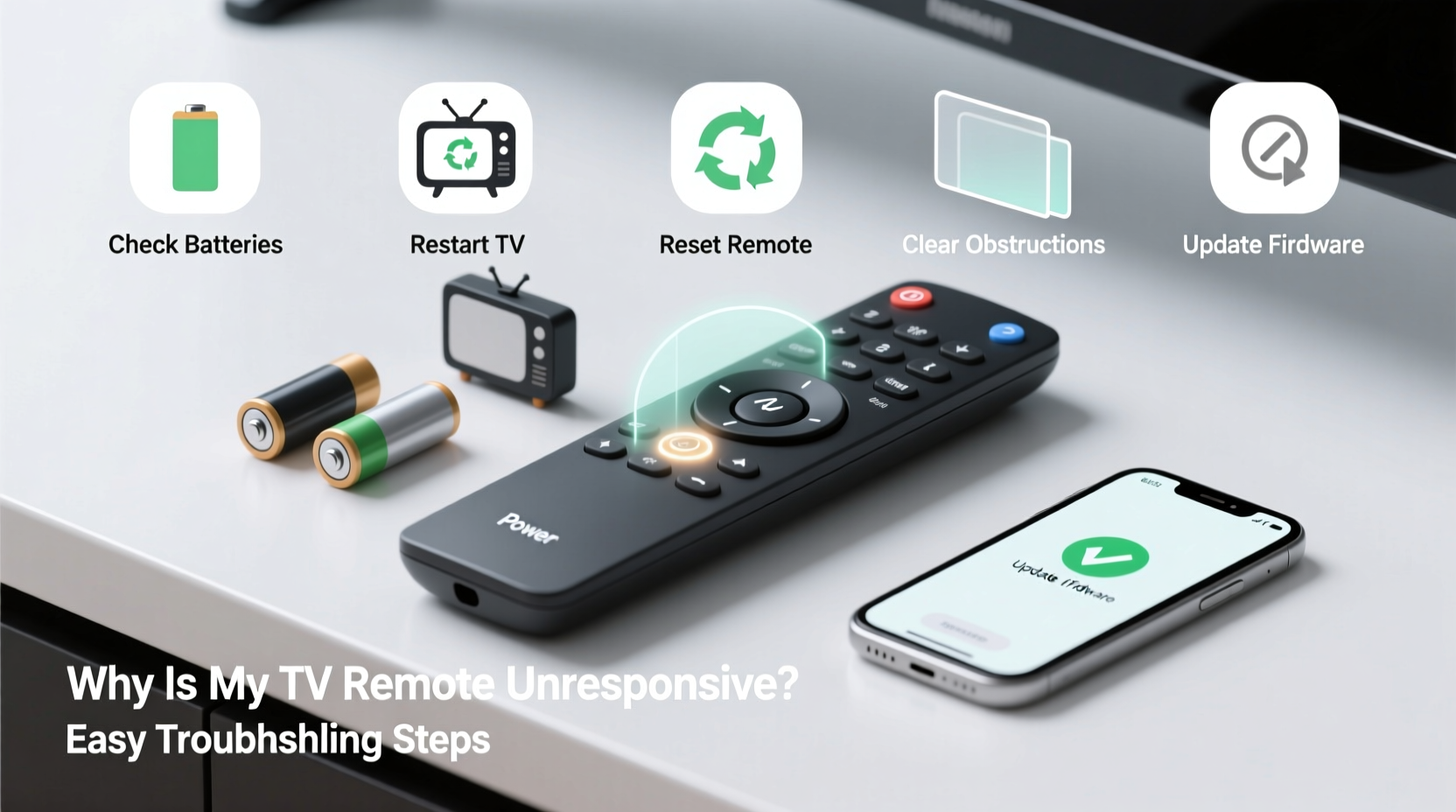
Before diving into fixes, it’s essential to identify what might be going wrong. A TV remote relies on a combination of physical components, power sources, and signal transmission. Any disruption in this chain can lead to poor performance or total failure.
- Dead or weak batteries: The most frequent culprit. Even if the remote lights up slightly, insufficient voltage can prevent signal transmission.
- Dirt or debris under buttons: Over time, dust, oils, and food particles accumulate beneath the keypad, preventing proper contact when pressed.
- Signal interference: Other electronics, strong light sources (especially direct sunlight), or reflective surfaces may block or confuse infrared (IR) signals.
- Obstructed line of sight: IR remotes require a clear path between the remote and the TV’s sensor. Furniture, objects, or even artwork can interfere.
- Internal circuit damage: Drops, spills, or moisture exposure can corrode internal contacts or break delicate traces on the circuit board.
- TV sensor malfunction: Sometimes, the issue isn’t with the remote but with the TV’s IR receiver failing to detect incoming signals.
- Software glitches: Smart TVs or streaming devices may experience firmware bugs that temporarily disable remote input recognition.
Step-by-Step Troubleshooting Guide
Follow this systematic approach to isolate and resolve the issue efficiently. Each step builds on the previous one, minimizing guesswork and saving time.
- Check the batteries
Remove the battery cover and inspect for corrosion (white or green crusty residue). Clean terminals with a cotton swab dipped in rubbing alcohol if needed. Replace with fresh, high-quality alkaline batteries—even if the old ones seem functional. - Test the infrared LED
Use your smartphone camera to check if the remote emits a signal. Point the remote at your phone’s camera lens and press any button. If working, you should see a faint purple or white flicker on the screen. No light means the remote isn’t transmitting. - Ensure clear line of sight
Make sure nothing blocks the path between the remote and the TV’s front panel. Also, avoid aiming from extreme angles or excessive distances (beyond 25 feet). - Eliminate interference sources
Turn off nearby LED lamps, bright overhead lighting, or other potential IR noise emitters. Sunlight streaming through windows can overpower the remote’s signal. - Clean the remote interior
Open the battery compartment and remove the screws (if any) to separate the casing. Gently lift the rubber keypad and use compressed air or a soft brush to remove debris. Wipe conductive pads with isopropyl alcohol and let dry completely before reassembling. - Reset the TV or device
Power cycle your TV by unplugging it for 2–3 minutes. This clears temporary software glitches that may affect input reception. For streaming boxes or soundbars, restart them as well. - Try a universal remote or mobile app
Use a programmable universal remote or your TV manufacturer’s mobile app (e.g., Samsung SmartThings, LG ThinQ) to test whether the TV responds. If these work, the original remote is likely faulty.
Do’s and Don’ts When Fixing Your Remote
| Do’s | Don’ts |
|---|---|
| Use high-quality, name-brand batteries | Never mix old and new batteries |
| Clean contacts with isopropyl alcohol | Avoid using water or household cleaners |
| Store the remote in a dry, cool place | Leave it near drinks or in humid areas |
| Replace worn-out rubber keypads | Press buttons excessively hard |
| Keep spare batteries on hand | Ignore signs of corrosion |
Real-World Example: Resolving an Intermittent Remote Issue
Sarah noticed her remote worked only when she held it at a precise angle. At first, she assumed the TV was broken. After trying a factory reset and cleaning the TV’s front panel, she disassembled the remote and discovered the flexible circuit underneath the keypad had shifted slightly due to repeated drops. Realigning the membrane and wiping the contact points restored full functionality. She now keeps the remote on a designated shelf instead of tossing it on the couch.
This case illustrates how physical wear, not electronic failure, often causes erratic behavior. Simple reassembly and preventive habits made the difference.
Expert Insight on Remote Longevity
“Most remote failures are preventable with routine maintenance. Just like any electronic device, keeping it clean, dry, and properly powered extends its life significantly.” — David Lin, Consumer Electronics Technician with 15+ years of field experience
Lin emphasizes that users often overlook environmental factors. “I’ve seen more remotes ruined by soda spills and pet chewing than by manufacturing defects,” he adds. Regular inspection and gentle handling go a long way in avoiding sudden outages.
Troubleshooting Checklist
Use this concise checklist to quickly verify each potential fix:
- ✅ Replace batteries with fresh ones
- ✅ Inspect for battery terminal corrosion
- ✅ Test IR signal using a smartphone camera
- ✅ Clear any physical obstructions between remote and TV
- ✅ Turn off bright lights or eliminate sunlight interference
- ✅ Clean rubber keypad and internal contacts
- ✅ Restart the TV by unplugging for 2–3 minutes
- ✅ Try a universal remote or mobile app to confirm TV responsiveness
- ✅ Check for available firmware updates on smart TVs
- ✅ Consider pairing a Bluetooth remote if applicable
Frequently Asked Questions
Why does my remote only work when I’m close to the TV?
This typically indicates weak battery power or a failing IR emitter. Try new batteries first. If the problem persists, the internal LED may be degrading and require professional repair or replacement.
Can a phone flashlight interfere with my remote?
No, standard phone flashlights don’t emit infrared light and won’t interfere. However, some security cameras or night-vision devices using IR can create signal noise. More commonly, bright ambient light overwhelms the TV’s sensor, making it harder to detect the remote’s signal.
My remote works sometimes—what could be causing this inconsistency?
Intermittent function usually points to loose internal connections, partial corrosion, or worn-out conductive pads under the buttons. Cleaning the keypad membrane and ensuring firm battery contact often resolves this. If not, internal damage may necessitate replacement.
When to Replace vs. Repair
While many issues are fixable, there comes a point where replacement is more practical. Consider retiring the remote if:
- The circuit board shows visible cracks or burns.
- Buttons are physically broken or missing.
- Corrosion has eaten through metal contacts.
- It’s a proprietary model no longer supported by the manufacturer.
In such cases, investing in a universal remote or voice-enabled alternative (like Amazon Fire Stick’s Alexa-compatible remote) offers better long-term value. Many modern universal models support learning functions, HDMI-CEC control, and even Wi-Fi integration for multi-device management.
Prevent Future Issues
Once you’ve restored functionality, take steps to avoid recurrence:
- Perform quarterly maintenance: Open the battery compartment, inspect for corrosion, and wipe down the casing.
- Use protective covers: Silicone skins or remote sleeves guard against spills and drops.
- Rotate batteries: Even if still functional, replace them every 6–12 months to maintain consistent power output.
- Store safely: Keep the remote on a stable surface away from edges, liquids, and pets.
“Think of your remote as a high-use tool—not disposable, but requiring care. Five minutes of cleaning every few months can add years to its life.” — Maria Tran, Home Automation Consultant
Conclusion
A non-responsive TV remote doesn’t have to mean a trip to the store or a service call. In most cases, the solution lies in straightforward fixes: fresh batteries, a quick cleaning, or eliminating signal interference. By following a logical troubleshooting sequence, you can pinpoint the cause and restore seamless control over your entertainment system. These small efforts save money, reduce electronic waste, and keep your viewing experience uninterrupted.




 浙公网安备
33010002000092号
浙公网安备
33010002000092号 浙B2-20120091-4
Comments
No comments yet. Why don't you start the discussion?