
A blank, black screen on your TV can be one of the most frustrating home entertainment problems. You press the power button, the lights come on, but nothing appears—no picture, no menu, just darkness. Before you assume the worst or call a technician, it's important to understand that this issue is often caused by simple, fixable factors. From loose cables to software glitches, many causes don’t require professional repair. This guide walks through systematic troubleshooting steps to help you identify and resolve the root cause efficiently.
Step 1: Confirm It’s Not Just a Power or Input Issue
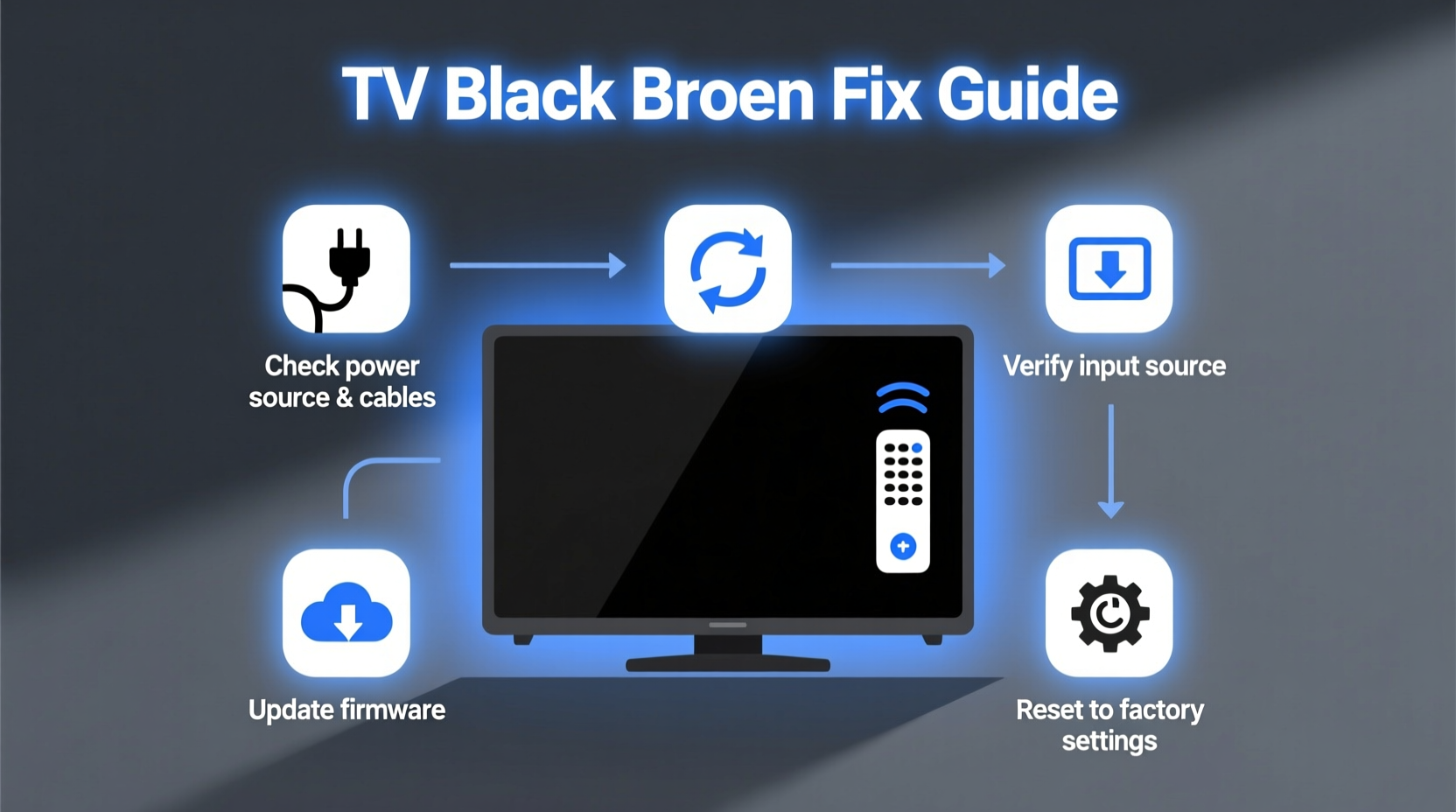
The first step in diagnosing a black screen is determining whether the problem lies with power delivery, input selection, or the display itself. Many users mistake an incorrect input source for a hardware failure.
Start by checking if your TV is truly powered on. Look for indicator lights—many TVs have a small LED near the power button that glows when active. If there’s no light at all, the issue may be with the outlet or power cord. Plug another device into the same outlet to verify power delivery. Try using a different power cable if available.
If the TV powers on but shows a black screen, check the input source. Use your remote to press the “Input” or “Source” button and cycle through HDMI 1, HDMI 2, AV, etc. It’s surprisingly common for the TV to be set to an inactive port—especially after a power surge or accidental button press.
Step 2: Isolate the Problem: TV vs. Source Device
Determining whether the issue is with the TV or the connected device (like a cable box, streaming stick, or game console) is crucial. A quick way to do this is by testing multiple inputs.
- Switch to a different HDMI input where another device is connected.
- If possible, disconnect the current device and plug in something else—a laptop, DVD player, or even a phone via HDMI adapter.
- If the new device displays correctly, the original source device may be faulty.
- If all inputs show a black screen, the problem likely resides within the TV itself.
In some cases, devices like Roku sticks or Fire TV cubes enter standby mode or fail to boot properly. Unplug the source device for 30 seconds, then reconnect it. Wait two minutes for a full reboot before checking the screen again.
Step 3: Inspect Cables and Connections
Loose, damaged, or incompatible cables are among the top causes of black screens. Even high-end setups suffer from poor connections over time due to wear, pets, or accidental tugs.
Begin by examining each cable connection—HDMI, power, antenna, optical audio—ensuring they’re firmly seated at both ends. Gently unplug and reconnect each cable to rule out dust or corrosion interfering with conductivity.
Try swapping HDMI cables with a known working one. Not all HDMI cables support the same bandwidth; older or low-quality cables may fail to transmit 4K or HDR signals, resulting in a black screen despite audio playing.
| Cable Type | Common Issues | Solution |
|---|---|---|
| HDMI | Loose fit, outdated version, bent pins | Replace with certified High-Speed HDMI cable |
| Power Cord | Frayed wires, broken connector | Test with multimeter or substitute with compatible cord |
| Antenna/Cable | Signal loss, poor grounding | Check signal strength in settings or use amplifier |
Also consider trying a different HDMI port on the TV. One port may be malfunctioning while others work fine. If video works on HDMI 2 but not HDMI 1, the first port may need servicing.
Step 4: Software and Firmware Glitches
Modern smart TVs run complex operating systems that can freeze, crash, or fail to initialize the display driver. These issues often manifest as a black screen with sound still functioning—a telltale sign of a software hiccup rather than hardware failure.
To address this, perform a soft reset:
- Turn off the TV using the remote or power button.
- Unplug it from the wall outlet.
- Wait 2–3 minutes to fully discharge residual power.
- Press and hold the power button on the TV (not remote) for 30 seconds.
- Reconnect the power and turn it back on.
This process clears temporary memory and resets internal processors, often resolving frozen interfaces.
If the issue persists, check for firmware updates. Navigate to Settings > System > Software Update (exact path varies by brand). If you can’t see the screen, try initiating an update via USB using the manufacturer’s official update tool (available on Samsung, LG, and Sony support sites).
“Over 40% of ‘dead’ TV reports we receive are resolved with a simple power cycle or firmware refresh.” — David Lin, Senior Support Engineer at LG North America
Step 5: Backlight and Display Diagnostics
If the TV turns on, emits sound, and responds to remote commands—but the screen remains completely black—it may still be producing an image with a failed backlight. To test this:
- Turn the TV on in a dark room.
- Shine a flashlight directly onto the screen surface.
- Look closely for faint images or menus visible under the light.
If you see a dim version of the UI, the LCD panel is working, but the backlight system has failed. This requires professional repair, as backlights involve high-voltage components and precise calibration.
Other display-related failures include vertical/horizontal lines, flickering, or partial blackouts. These often point to failing T-Con (Timing Control) boards or loose internal ribbon cables. While technically repairable, such issues usually require disassembling the TV—best left to authorized technicians.
Mini Case Study: The Phantom Black Screen
Sarah in Austin purchased a new 4K TV and connected her gaming console via HDMI. After setup, the screen went black whenever she launched a game—though she could hear audio. She assumed the TV was defective and nearly returned it.
Instead, she tried switching HDMI ports and discovered the issue only occurred on HDMI 1. Further research revealed that HDMI 1 on her model didn’t support Variable Refresh Rate (VRR), which her console enabled automatically. Disabling VRR in the console settings immediately restored the picture.
This case highlights how compatibility—not hardware failure—can cause black screens. Always check settings on the source device, especially after firmware updates.
Troubleshooting Checklist
Use this concise checklist to methodically eliminate potential causes:
- ✅ Check if the TV is receiving power (LED indicator lit?)
- ✅ Verify the correct input/source is selected
- ✅ Test with a different HDMI cable and port
- ✅ Disconnect and restart all external devices
- ✅ Perform a soft reset (unplug for 2+ minutes)
- ✅ Use flashlight test to check for hidden image (backlight issue)
- ✅ Update TV firmware via USB if screen is unresponsive
- ✅ Factory reset the TV as a last resort (Settings > System > Reset)
Work through each item in order. Skipping steps can lead to misdiagnosis and unnecessary service calls.
When to Consider Hardware Failure
If all troubleshooting fails, the issue may be internal. Common hardware faults include:
- Failed power supply board: Prevents proper voltage distribution, causing no startup or sudden shutdowns.
- Defective mainboard: Controls signal processing; failure results in no boot or intermittent operation.
- Bad capacitors: Swollen or leaking capacitors on internal boards disrupt power flow.
- Inverter or backlight board failure: Causes black screen with sound, especially in older LED/LCD models.
These components are not user-serviceable. Attempting repairs without proper tools and knowledge can void warranties and increase damage risk.
For TVs under warranty, contact the manufacturer directly. For out-of-warranty units, weigh repair costs against replacement value. According to Consumer Reports, repairing a TV typically costs $200–$500, while mid-range models now start below $400.
FAQ
Why does my TV have sound but no picture?
This usually indicates a backlight failure, software crash, or incompatible signal. Try a soft reset first. If the flashlight test reveals a faint image, the backlight or its control board needs repair.
Can a firmware update cause a black screen?
Yes. Interrupted updates or corrupted downloads can leave the OS inoperable. Some brands offer recovery modes via USB. Consult your model’s manual for emergency update procedures.
Is a black screen covered under warranty?
Most manufacturers cover defects in materials and workmanship for one year. Sudden hardware failures like dead backlights or power boards are typically included. Accidental damage, power surges, or liquid exposure are not.
Conclusion: Take Action Before Replacing
A black screen doesn’t automatically mean your TV is beyond repair. In most cases, the solution lies in simple fixes: reseating cables, resetting devices, or updating software. Rushing to replace an expensive television without thorough diagnosis can cost hundreds unnecessarily.
By following the steps outlined here—from basic checks to advanced resets—you gain clarity and control over the situation. Whether you're dealing with a loose HDMI connection or a deeper firmware issue, systematic troubleshooting empowers you to make informed decisions.




 浙公网安备
33010002000092号
浙公网安备
33010002000092号 浙B2-20120091-4
Comments
No comments yet. Why don't you start the discussion?