
If your Wi-Fi cuts out every night without warning, you're not alone. Millions of users experience intermittent disconnections during evening hours, often coinciding with peak internet usage. While it may seem like a random glitch, nighttime Wi-Fi drops are usually rooted in specific technical or environmental causes—many of which are fixable with the right knowledge.
This guide dives deep into the most common reasons behind nightly disconnections, from router firmware issues to network congestion and hardware limitations. More importantly, you’ll find actionable solutions, including optimal router settings, configuration adjustments, and preventive measures that restore stability and keep your connection strong when you need it most.
Understanding the Root Causes of Nighttime Wi-Fi Disconnections
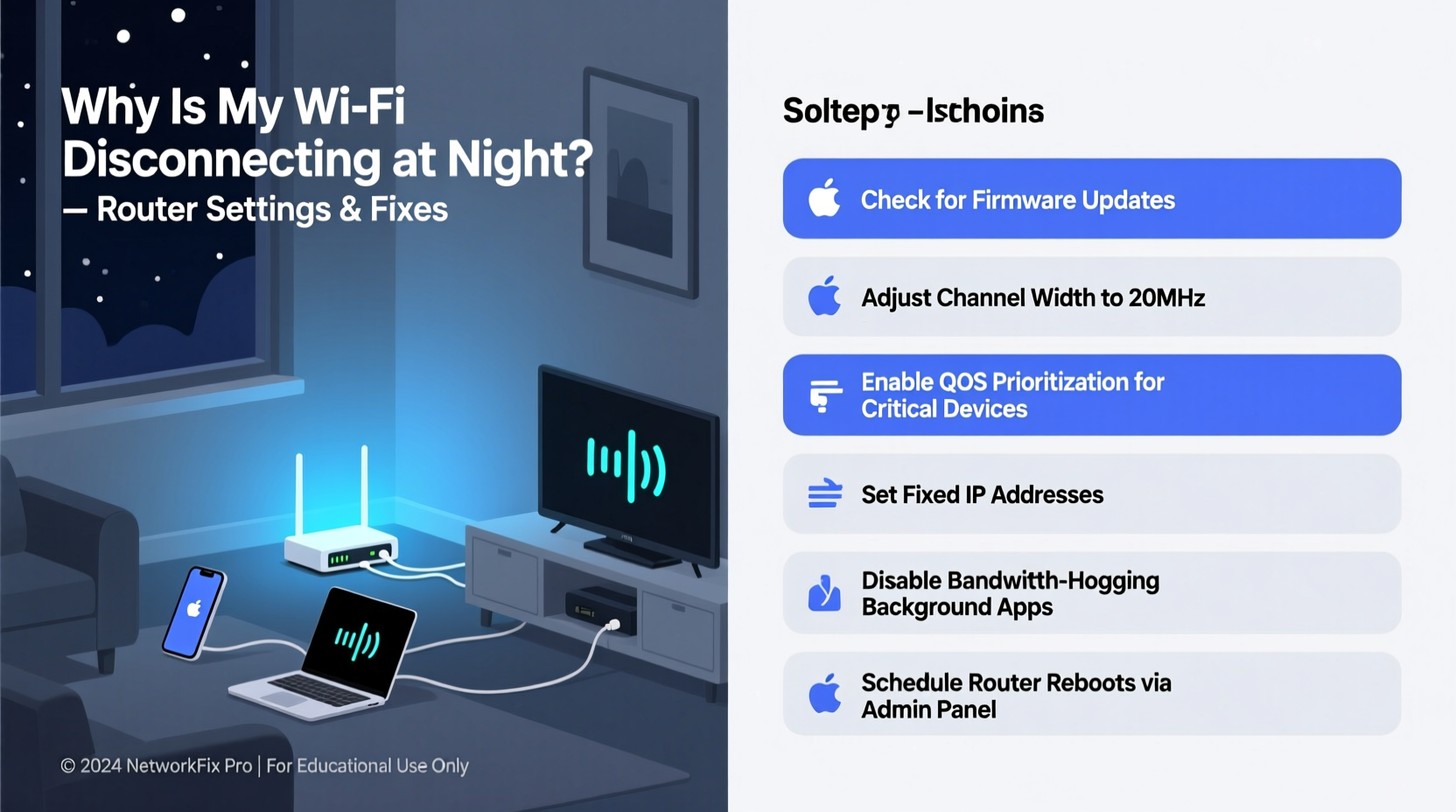
Before jumping into fixes, it’s essential to understand what might be triggering your nightly Wi-Fi dropouts. Unlike daytime connectivity issues, nighttime problems often stem from patterns related to usage, interference, and network load.
- Increased Network Congestion: Neighbors streaming, gaming, or downloading large files can saturate shared frequency bands, especially on 2.4 GHz networks.
- Router Overheating: Routers running for extended periods generate heat. Poor ventilation or enclosed spaces can cause thermal throttling or automatic shutdowns at night.
- Scheduled Reboots or ISP Maintenance: Some internet service providers perform backend maintenance between 10 PM and 6 AM, leading to temporary outages.
- Firmware Bugs: Outdated or buggy firmware may trigger instability under sustained loads, particularly during high-usage hours.
- Channel Interference: The 2.4 GHz band has only three non-overlapping channels (1, 6, 11). If nearby networks shift channels dynamically, interference spikes can disrupt your signal.
- Power-Saving Features: Some routers have energy-saving modes that reduce radio output or initiate sleep cycles after inactivity.
Router Settings That Can Prevent Nighttime Disconnections
Your router’s configuration plays a crucial role in maintaining consistent performance. Adjusting key settings can eliminate many common causes of overnight dropouts.
Enable Automatic Channel Selection (or Choose Manually)
On the 2.4 GHz band, overcrowding is rampant. Most routers default to channel 6, which becomes saturated in dense neighborhoods. Modern routers support \"Auto\" channel selection, but this isn’t always reliable.
Instead, use a Wi-Fi analyzer app (like NetSpot or Wi-Fi Analyzer) to scan surrounding networks and manually set your router to the least congested channel—ideally one of the non-overlapping options: 1, 6, or 11.
Switch to the 5 GHz Band Where Possible
The 5 GHz band offers faster speeds and far less interference than 2.4 GHz. While its range is shorter, it's ideal for devices used in close proximity to the router (e.g., living room TVs, desktops).
Ensure dual-band broadcasting is enabled and encourage household devices to connect to 5 GHz where feasible. This reduces congestion on the 2.4 GHz band, minimizing conflict during peak hours.
Adjust DHCP Lease Time
DHCP lease time determines how long a device keeps its IP address before renewing. A short lease (e.g., 1 hour) can cause devices to disconnect and reconnect frequently—especially noticeable at night.
Set the DHCP lease time to 24 hours or longer to prevent unnecessary renegotiation during quiet hours.
Disable Unnecessary Scheduling Features
Some routers include parental controls or access scheduling features that unintentionally disable Wi-Fi after a certain time. Double-check these settings—even if you didn’t set them, someone else in the household might have.
Update or Disable QoS (Quality of Service) Rules
QoS prioritizes certain types of traffic (e.g., video calls over downloads). However, misconfigured QoS rules can starve bandwidth from active devices, causing perceived disconnections.
If you’re unsure about your QoS setup, disable it temporarily to test stability. Alternatively, configure it precisely based on device needs rather than broad categories.
| Setting | Recommended Value | Purpose |
|---|---|---|
| Wi-Fi Channel (2.4 GHz) | 1, 6, or 11 (least crowded) | Reduce interference from neighbors |
| DHCP Lease Time | 24 hours | Prevent frequent IP renewal |
| Transmit Power | High (not Maximum) | Better coverage without overheating |
| Idle Timeout | Disabled or 30+ minutes | Stop premature disconnects |
| Firmware Update | Latest version | Fix known bugs and security flaws |
Step-by-Step Guide to Diagnose and Fix Nightly Wi-Fi Drops
Follow this structured approach to identify and resolve your issue systematically.
- Confirm the Scope: Determine whether all devices lose connection or just one. If only one device is affected, the problem likely lies with that device—not the router.
- Check Physical Indicators: Look at your router’s lights. Are any blinking erratically? Is the power light flickering? These could indicate hardware failure or unstable power supply.
- Test During Different Times: Try reproducing the issue during the day. If it doesn’t occur, congestion or scheduled events are probable culprits.
- Access Router Admin Panel: Log in via 192.168.1.1 or 192.168.0.1 (check router label). Use admin credentials (often printed on the device).
- Review Logs: Navigate to “System Logs” or “Event Log.” Look for entries around the time of disconnection—keywords like “reboot,” “disconnected,” or “authentication failed” are telling.
- Check for Scheduled Reboots: In advanced settings, verify no automatic reboot is set between 10 PM and 6 AM.
- Update Firmware: Go to the administration section and check for firmware updates. Install if available.
- Change Wi-Fi Channel: As previously discussed, switch to the least congested channel using a Wi-Fi scanner.
- Perform a Ping Test: On a computer, open Command Prompt and run:
ping 8.8.8.8 -t. Let it run overnight. If pings fail at the same time daily, the issue is network-level. - Contact ISP: Share your findings. Ask if they conduct maintenance during those hours or if there are known local outages.
Real-World Example: How One Household Fixed Recurring Nighttime Drops
The Thompson family in suburban Chicago experienced nightly Wi-Fi disconnections starting at 10:45 PM. Streaming would freeze, smart home devices went offline, and phones lost connection. They assumed their ISP was at fault.
After logging into their router, they discovered a firmware update had been pending for two months. Once updated, the issue persisted. Next, they checked system logs and found repeated “Wireless Interface Restarted” messages at 10:45 PM.
Digging deeper, they uncovered a hidden setting labeled “Energy Saving Mode” under Advanced Wireless Settings. It was configured to reduce transmit power after 10:30 PM. Disabling this feature immediately resolved the issue.
Further investigation revealed that their neighbor’s new mesh system operated on the same 2.4 GHz channel. By switching to channel 1 and enabling 5 GHz for primary devices, they achieved full stability—even during Friday movie nights.
“Many nighttime Wi-Fi issues aren’t due to hardware failure but misconfiguration or overlooked settings. A few minutes of diagnostics can save weeks of frustration.” — Raj Patel, Network Systems Engineer at NetSecure Solutions
Essential Checklist for Stable Nighttime Connectivity
Use this checklist to ensure your network is optimized for uninterrupted service:
- ✅ Check for pending router firmware updates
- ✅ Disable any scheduled reboots or access restrictions
- ✅ Verify power adapter is correct and connections are secure
- ✅ Ensure router is well-ventilated and not overheating
- ✅ Set 2.4 GHz to least congested channel (1, 6, or 11)
- ✅ Enable 5 GHz for compatible devices
- ✅ Extend DHCP lease time to 24 hours
- ✅ Turn off power-saving or eco modes in wireless settings
- ✅ Run a continuous ping test overnight to detect drop timing
- ✅ Contact ISP to rule out line-side maintenance or throttling
Frequently Asked Questions
Why does my Wi-Fi disconnect at the same time every night?
This is often caused by a scheduled event such as a router reboot, ISP maintenance window, or a power-saving mode kicking in. Check your router’s admin panel for timers, firmware update schedules, or energy-saving features that activate at night.
Can too many devices cause Wi-Fi to drop at night?
Yes. When multiple devices stream, game, or download simultaneously, they can overwhelm older routers with limited RAM or processing power. Consider upgrading to a modern router with MU-MIMO or OFDMA support (common in Wi-Fi 6 models) to handle high-density usage more efficiently.
Should I restart my router every night to prevent disconnections?
No. While rebooting can temporarily fix issues, doing it nightly indicates an underlying problem. Frequent reboots stress hardware and interrupt services. Instead, diagnose and resolve the root cause—whether it’s overheating, outdated firmware, or interference.
Final Thoughts and Action Plan
Nightly Wi-Fi disconnections are frustrating but rarely mysterious. With methodical troubleshooting and informed router adjustments, most cases can be resolved without replacing equipment or changing providers.
The key is to move beyond guesswork. Use logs, signal analysis, and controlled testing to pinpoint the real cause. Whether it’s a rogue setting, external interference, or aging hardware, clarity leads to effective solutions.
Start tonight: log into your router, review your settings, and run a simple ping test. Small changes today can deliver seamless connectivity tomorrow.




 浙公网安备
33010002000092号
浙公网安备
33010002000092号 浙B2-20120091-4
Comments
No comments yet. Why don't you start the discussion?