
If your Wi-Fi cuts out like clockwork every night—say, at 10:30 PM or midnight—you’re not imagining things. This isn’t random interference or a fluke; it’s a pattern, and patterns have causes. The good news? Most of them are fixable. Whether you're working late, streaming movies, or just trying to browse in peace, consistent nighttime disconnections can be incredibly disruptive. The root cause often lies in your router settings, external network activity, or even your internet service provider's maintenance schedule. Understanding what triggers these nightly dropouts is the first step toward restoring stable connectivity.
Common Causes of Nightly Wi-Fi Disconnections
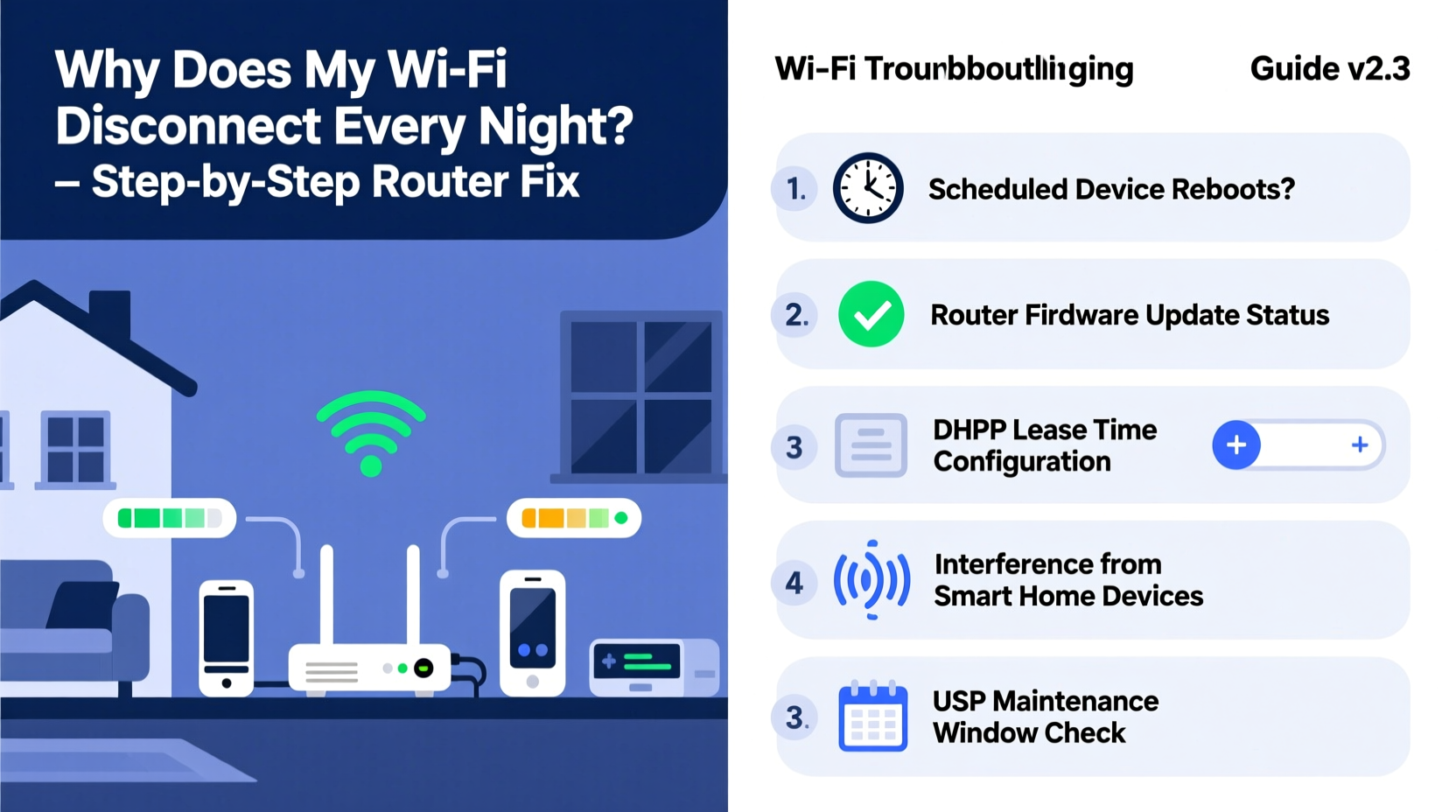
Nighttime Wi-Fi disruptions don’t happen by accident. While signal interference from microwaves or baby monitors might spike randomly, a daily recurrence suggests something more systematic. Here are the most frequent culprits:
- Scheduled router reboot settings: Some routers are configured to restart automatically during off-peak hours to clear memory or apply updates.
- ISP maintenance windows: Internet providers often perform system-wide maintenance between 10 PM and 6 AM when usage is lowest.
- Overheating hardware: After hours of continuous use, especially during peak evening streaming, routers can overheat and shut down temporarily.
- Firmware bugs: Outdated or buggy firmware may trigger instability under load or at certain times due to background processes.
- Parental controls or access schedules: If parental controls are enabled, they might unintentionally restrict access after a set hour.
- Channel congestion: Neighbors coming home and turning on their networks can increase local Wi-Fi traffic, especially on crowded channels like 6 in the 2.4 GHz band.
Step-by-Step Diagnosis and Fix Process
Resolving this issue requires methodical troubleshooting. Follow this timeline to isolate and correct the problem:
- Confirm the timing: Note exactly when the disconnection occurs for three consecutive nights. Use a smart plug with energy monitoring or a connected device logging uptime to verify consistency.
- Check connected devices: Ensure no single device (e.g., a smart TV or gaming console) is initiating reboots or downloads that could overload the network.
- Log into your router: Access the admin interface via its IP address (usually 192.168.0.1 or 192.168.1.1). Look for logs under “System Log” or “Event Log.” Search for entries around the dropout time.
- Review scheduled tasks: Navigate to Maintenance or Administration settings. Check for options like “Auto Reboot,” “Firmware Update Schedule,” or “Night Mode.” Disable any automatic reboots if found.
- Inspect parental controls: Go to Access Control or Parental Controls. Verify no time-based restrictions apply to your network or specific devices.
- Update firmware: Visit the manufacturer’s website and compare your current firmware version with the latest release. If outdated, download and install the update through the router interface.
- Test with a hardwired connection: Plug a computer directly into the router via Ethernet. If the wired connection also drops, the issue is with the router or ISP—not wireless interference.
- Contact your ISP: Ask if they run scheduled maintenance during those hours. Request documentation of any known outages or throttling policies.
Router Overheating and Environmental Factors
Routers generate heat, especially dual-band models handling multiple devices. When placed in enclosed spaces, near TVs, or stacked with other electronics, airflow becomes restricted. After prolonged use, internal temperatures rise—sometimes triggering thermal throttling or automatic shutdowns.
A common but overlooked scenario: You start using high-bandwidth applications in the evening—Netflix, Zoom calls, cloud backups—all increasing CPU load on the router. By 10 or 11 PM, accumulated heat reaches a critical point. The router shuts down briefly, then reboots once cooled, restoring Wi-Fi minutes later.
To test for overheating:
- Feel the router casing at the time of disconnection. Is it hot to the touch?
- Use compressed air to clean dust from vents.
- Consider adding small cooling pads or standoffs to improve airflow.
ISP-Side Issues and Network Congestion
Your internet provider may be the invisible hand behind your nightly woes. Many ISPs deploy automated maintenance routines late at night. These include:
- Backbone network updates
- DNS server rotations
- Bandwidth reshaping or throttling
- Modem firmware pushes
These actions can momentarily sever your connection. Unlike full outages, these blips often last 30–90 seconds and affect all users in a node or neighborhood.
One real-world example involved a Comcast/Xfinity user in suburban Chicago who lost internet every night at 11:45 PM. After ruling out local hardware issues, he called support and learned his node was part of a rolling DOCSIS 3.1 upgrade program that pushed configuration changes nightly. The technician confirmed the window and advised waiting until the rollout completed—after which stability returned.
“Scheduled network optimizations are standard practice, but customers should be notified in advance. Persistent unexplained disconnections warrant investigation.” — Raj Patel, Senior Network Engineer at Midwest Broadband Solutions
Wi-Fi Channel Congestion and Interference Patterns
The 2.4 GHz band has only three non-overlapping channels (1, 6, and 11). In dense housing areas—apartments, townhomes, subdivisions—dozens of nearby networks may crowd these channels. During the day, many neighbors are away. But when people return home between 6–9 PM, their routers power up, creating a wave of interference.
By 10 PM, the airwaves are saturated. Your router struggles to maintain reliable connections, leading to packet loss, latency spikes, and eventual disconnection. Devices may fail to reconnect automatically, appearing as though Wi-Fi has “dropped.”
| Factor | Impact on Nightly Disconnects | Solution |
|---|---|---|
| Auto Reboot Setting | Direct cause – router restarts at fixed time | Disable in admin panel under Maintenance |
| ISP Maintenance | External cause – brief service interruption | Contact ISP for schedule; request change if possible |
| Overheating | Hardware failure due to sustained load | Improve ventilation; replace aging unit |
| Parental Controls | Accidental time-based access block | Review and adjust access rules |
| Channel Congestion | Signal degradation from neighbor networks | Switch to 5 GHz or less crowded channel |
Checklist: How to Fix Scheduled Wi-Fi Dropouts
Use this actionable checklist to eliminate the problem permanently:
- ✅ Confirm disconnection occurs at the exact same time across multiple days
- ✅ Log into your router (check model-specific login guide)
- ✅ Review System Logs for reboot or error messages at dropout time
- ✅ Disable any auto-restart or scheduled reboot functions
- ✅ Turn off parental controls or access scheduling features
- ✅ Update router firmware to the latest stable version
- ✅ Switch to a less congested Wi-Fi channel (use Wi-Fi analyzer app)
- ✅ Move to 5 GHz band where possible for cleaner spectrum
- ✅ Clean dust from router vents and ensure proper airflow
- ✅ Call ISP to confirm no maintenance windows or throttling policies
- ✅ Perform a factory reset (as last resort) and reconfigure securely
Frequently Asked Questions
Why does my Wi-Fi keep disconnecting at the same time only on some devices?
This may indicate device-specific settings. For example, smartphones and laptops often have battery-saving modes that disable Wi-Fi after inactivity. Check sleep settings, Wi-Fi keep-alive options, and background data restrictions on each affected device.
Can a virus or malware cause scheduled Wi-Fi disconnections?
While rare, malicious software can modify router settings remotely if default passwords are still in use. Always change the default admin username and password. Enable WPA3 encryption and disable remote administration unless absolutely necessary.
Should I replace my router if it keeps rebooting at night?
If your router is more than 3–5 years old, it may lack sufficient RAM or processing power to handle modern traffic loads. Frequent reboots, slow response, and inability to hold firmware updates are signs it’s time for an upgrade. Consider a mesh system or Wi-Fi 6 router for better performance and reliability.
Preventative Best Practices for Long-Term Stability
Maintaining a stable home network requires ongoing attention. Beyond fixing the immediate issue, adopt these habits to prevent future disruptions:
- Schedule monthly firmware checks: Set a calendar reminder to verify your router’s firmware status every 30 days.
- Monitor network usage: Use tools like GlassWire, NetSpot, or your router’s built-in analytics to track bandwidth hogs and anomalies.
- Label and document settings: Keep a secure log of custom configurations, including port forwards, DNS settings, and access rules.
- Use static IPs for critical devices: Assign fixed addresses to smart hubs, security cameras, or workstations to avoid DHCP conflicts.
- Enable Quality of Service (QoS): Prioritize traffic for video calls or streaming during peak hours to reduce strain.
Conclusion: Take Control of Your Home Network
Nightly Wi-Fi disconnections aren’t a mystery you have to live with. They’re symptoms of identifiable technical, environmental, or provider-related conditions—all of which can be diagnosed and resolved. From disabling hidden auto-reboot settings to upgrading outdated hardware, the solutions are within reach. Don’t accept intermittent connectivity as normal. With a few strategic adjustments, you can enjoy seamless internet access around the clock.




 浙公网安备
33010002000092号
浙公网安备
33010002000092号 浙B2-20120091-4
Comments
No comments yet. Why don't you start the discussion?