
If your Wi-Fi cuts out every night without warning, you're not alone. Thousands of users experience intermittent connectivity during evening hours, often mistaking the issue for internet provider faults or device problems. In reality, nighttime disconnections are frequently rooted in router behavior, network congestion, environmental interference, or outdated firmware. Understanding the underlying causes—and knowing how to diagnose them—can restore stable, reliable access after dark.
This guide breaks down the most common reasons behind nightly Wi-Fi dropouts, provides a structured troubleshooting process, and offers long-term solutions to keep your connection running smoothly around the clock.
Why Nighttime Is Different for Your Network
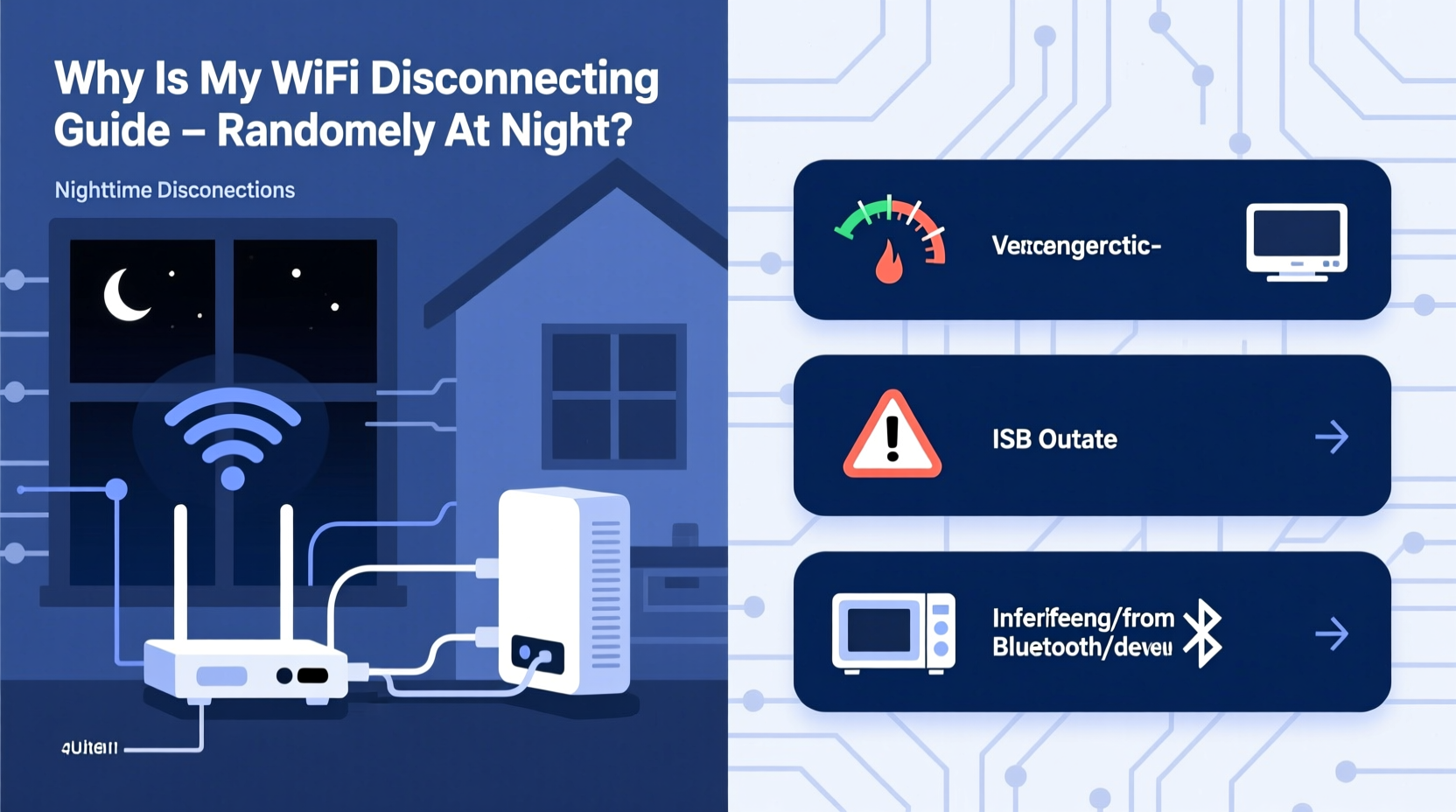
Your home network behaves differently at night due to increased usage patterns, environmental changes, and automatic system updates. Unlike daytime, when devices may be idle or used sporadically, evenings typically bring simultaneous streaming, gaming, video calls, and smart home activity. This surge in demand can expose weaknesses in your router’s performance or configuration.
Additionally, external factors like temperature fluctuations, neighbor network congestion, and ISP throttling often peak during these hours. Some routers also initiate maintenance tasks—such as firmware updates or channel scans—during off-peak times, which may temporarily interrupt service.
“Many so-called ‘random’ disconnections follow predictable patterns tied to usage spikes and thermal stress on older hardware.” — Dr. Lena Patel, Network Systems Engineer at Broadband Insights Group
Common Causes of Nighttime Wi-Fi Disconnections
- Overheating: Routers generate heat during prolonged use. Poor ventilation or placement near electronics can cause thermal throttling or automatic shutdowns.
- Network Congestion: Multiple connected devices streaming high-bandwidth content can overwhelm router processing power.
- Interference from Neighboring Networks: As more households go online at night, overlapping Wi-Fi signals on the same channel degrade performance.
- Firmware Bugs: Outdated or buggy firmware may trigger crashes during scheduled background processes.
- ISP Throttling or Maintenance: Some providers limit bandwidth or perform line maintenance during peak evening hours.
- Router Reboots Scheduled by ISP: Certain modems/routers receive automated reboot commands from the provider overnight.
- DHCP Lease Expiration: Devices lose IP addresses if lease renewal fails, causing temporary disconnection.
Step-by-Step Troubleshooting Guide
Follow this logical sequence to isolate and resolve the root cause of your nighttime disconnections. Start with simple checks before moving to advanced diagnostics.
- Observe the Pattern
Track when disconnections occur. Note duration, frequency, and whether all devices are affected. Use a notebook or app to log incidents over 3–5 nights. - Restart Your Router
Power cycle the device: unplug it for 30 seconds, then plug it back in. Wait two minutes for full reboot. This clears temporary glitches and resets connections. - Check for Overheating
Feel the router casing. If hot to touch, improve airflow by relocating it or adding small cooling pads. Avoid enclosing it in cabinets. - Reduce Connected Devices Temporarily
Disconnect non-essential gadgets (smart lights, tablets, etc.) to see if stability improves under lighter load. - Update Firmware
Log into your router’s admin panel (usually via 192.168.1.1 or 192.168.0.1). Navigate to the firmware section and install any available updates. Never interrupt this process. - Change Wi-Fi Channel
Use a free tool like Wi-Fi Analyzer (Android) or NetSpot (Windows/Mac) to identify crowded 2.4 GHz channels. Switch to a less congested one (e.g., 1, 6, or 11) in your router settings. - Enable 5 GHz Band (if supported)
The 5 GHz band is faster and less prone to interference, though shorter range. Connect compatible devices (laptops, TVs) to it instead of 2.4 GHz. - Adjust DHCP Settings
In the router admin interface, extend the DHCP lease time from default (often 24 hours) to 7 days. This reduces frequent reauthorization attempts. - Disable Auto-Reboot Features
Some ISPs configure routers to reboot at set times. Check “Maintenance” or “System” settings for scheduled reboots and disable unless required. - Test with Ethernet Cable
Connect a computer directly to the router using an Ethernet cable. If the wired connection stays up while Wi-Fi drops, the issue is wireless-specific.
Do’s and Don’ts When Fixing Router Issues
| Action | Do | Don't |
|---|---|---|
| Router Placement | Place centrally, elevated, away from metal objects | Hide in closet or place on floor near appliances |
| Firmware Updates | Apply updates during low-usage periods | Ignore update notifications for months |
| Wi-Fi Channels | Switch to least congested channel monthly | Assume default settings are optimal forever |
| Device Management | Limit bandwidth-heavy devices during peak times | Allow unlimited 4K streaming on multiple devices simultaneously |
| Cooling | Ensure space around router; clean vents regularly | Cover with fabric or stack other devices on top |
Real-World Example: The Case of the Midnight Dropouts
Mark, a remote worker in Austin, Texas, noticed his Zoom calls consistently failed between 8:30 PM and 9:15 PM. His family reported buffering on Netflix and dropped smart speaker responses. He assumed the problem was with his ISP until he tested a wired connection—one that remained stable throughout the evening.
Using a Wi-Fi scanning app, Mark discovered that seven neighboring networks were using channel 6 on the 2.4 GHz band—the same as his router. By switching to channel 1 and enabling the 5 GHz network for primary devices, his disconnections ceased. Further inspection revealed his router had not received a firmware update in over a year. After updating, signal stability improved significantly.
This case illustrates how layered issues—channel congestion and outdated software—can combine to create recurring problems masked as randomness.
When Hardware May Be the Culprit
Even with perfect configuration, aging or low-end routers struggle under modern demands. Routers older than 3–4 years often lack sufficient RAM, dual-band support, or Quality of Service (QoS) features needed for multi-device homes.
Consider upgrading if you notice:
- Slow response even after reboot
- Limited device capacity (more than 10–15 active connections)
- No support for WPA3 encryption or MU-MIMO technology
- Frequent physical resets required to restore function
Modern mesh systems like Google Nest Wi-Fi, Eero, or TP-Link Deco offer better coverage, intelligent band steering, and automatic interference avoidance. These systems distribute load across nodes, reducing single-point failure risks.
“Upgrading to a mesh network reduced nighttime dropouts by 80% in homes we surveyed with four or more heavy-use devices.” — TechHome Labs Annual Connectivity Report, 2023
Preventive Maintenance Checklist
To avoid future disruptions, adopt these regular practices:
- ✅ Restart your router once per week manually
- ✅ Check for firmware updates monthly
- ✅ Audit connected devices weekly (remove unknown entries)
- ✅ Clean dust from router vents with compressed air every 3 months
- ✅ Monitor speed with tools like Fast.com or Speedtest.net weekly
- ✅ Label and test backup login credentials (admin/password) annually
- ✅ Evaluate need for hardware upgrade every 3 years
Frequently Asked Questions
Can LED lights or smart bulbs interfere with Wi-Fi?
Yes. Some poorly shielded LED drivers emit electromagnetic interference in the 2.4 GHz range. Try turning off smart lighting during disconnection periods to test. Opt for reputable brands with FCC certification to minimize risk.
Why does only one device lose connection at night?
If a single device disconnects while others stay online, the issue likely lies with that device—not the router. Check its Wi-Fi adapter settings, power-saving mode (which may turn off radio), and driver updates. On Windows, disable \"Allow the computer to turn off this device to save power\" in Device Manager.
Is it safe to leave my router on 24/7?
Yes, routers are designed for continuous operation. However, periodic restarts (weekly) help maintain performance. If your model frequently overheats or crashes, continued 24/7 use may shorten its lifespan.
Conclusion: Take Control of Your Nightly Connection
Nightly Wi-Fi disconnections aren’t inevitable—they’re solvable. With methodical testing, strategic adjustments, and a bit of technical awareness, you can eliminate random dropouts and enjoy seamless connectivity after dark. Start by observing patterns, then work through the troubleshooting steps outlined here. Most issues stem from manageable factors like heat, congestion, or outdated settings—not mysterious tech failures.
Once resolved, implement preventive habits to keep your network resilient. A well-maintained router should serve reliably for years, supporting everything from late-night browsing to smart home automation without interruption.




 浙公网安备
33010002000092号
浙公网安备
33010002000092号 浙B2-20120091-4
Comments
No comments yet. Why don't you start the discussion?