
If your Wi-Fi keeps dropping at random times—during video calls, while streaming, or in the middle of a download—you're not alone. Millions of users experience this frustrating issue every day. The good news: most causes are fixable without calling a technician. From outdated firmware to interference from household appliances, random disconnections often stem from simple, overlooked factors. This guide walks through practical, step-by-step solutions that anyone can implement, regardless of technical background.
Common Causes of Random Wi-Fi Disconnections
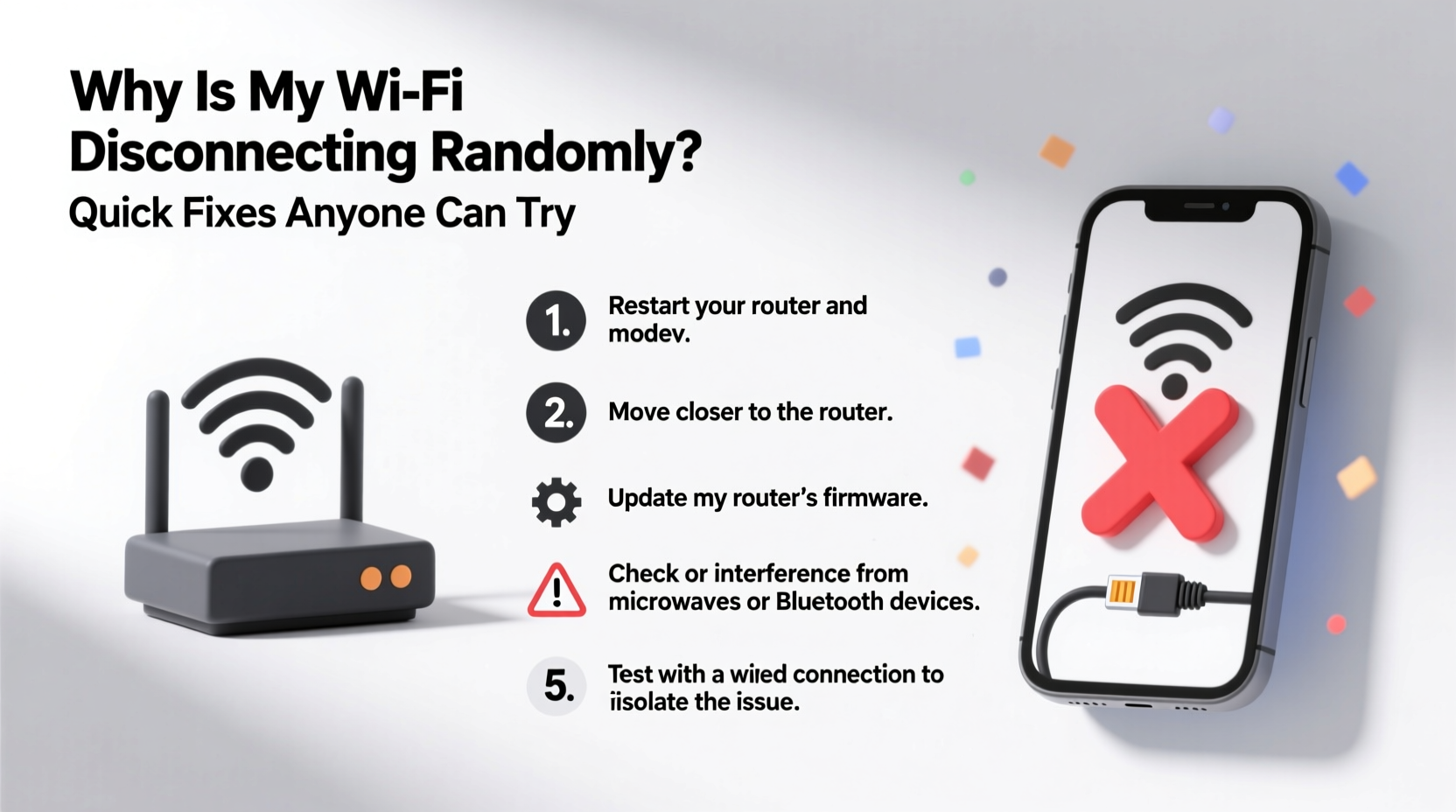
Before jumping into fixes, it helps to understand what might be causing the instability. While each home network is unique, several recurring culprits stand out:
- Router overheating: Routers generate heat, especially when running for days on end. Overheating can cause intermittent shutdowns.
- Signal interference: Microwaves, cordless phones, baby monitors, and even neighboring Wi-Fi networks can disrupt your signal.
- Outdated firmware: Like smartphones, routers need software updates to fix bugs and improve performance.
- Device-specific issues: Sometimes, only one device drops the connection—pointing to its Wi-Fi adapter or settings.
- Network congestion: Too many devices using bandwidth simultaneously can overwhelm your router.
- ISP problems: Your internet service provider may have outages or throttling policies affecting stability.
“Over 60% of reported Wi-Fi issues stem from user-side equipment rather than ISP faults.” — David Lin, Senior Network Engineer at NetSecure Systems
Step-by-Step Troubleshooting Guide
Follow this logical sequence to identify and resolve the root cause of your Wi-Fi disconnections. Start with the simplest checks and work toward more involved solutions.
- Restart your router and modem. Unplug both devices, wait 30 seconds, then plug them back in. This clears temporary glitches and refreshes the connection.
- Check if multiple devices are affected. If only one device disconnects, the issue likely lies with that device—not your network.
- Move closer to the router. Test connectivity near the router to rule out weak signal strength as the cause.
- Look for patterns. Do disconnections happen at certain times? During microwave use? After heavy downloads? Tracking timing helps isolate triggers.
- Log into your router’s admin panel. Check for error messages, connected devices, and firmware version (usually accessible via 192.168.1.1 or similar).
Quick Fixes Anyone Can Try
You don’t need a degree in networking to stabilize your Wi-Fi. These straightforward adjustments can make an immediate difference.
1. Reboot Your Router Regularly
Routers aren’t designed to run indefinitely without a break. Memory leaks and software hiccups accumulate over time. Rebooting every 2–4 weeks prevents slowdowns and disconnections.
2. Optimize Router Placement
Where you place your router matters more than most realize. Avoid basements, closets, or behind metal furniture. Ideal placement is central, elevated, and away from thick walls or large appliances.
3. Reduce Signal Interference
Many household devices operate on the 2.4 GHz frequency—the same as older Wi-Fi standards. To minimize conflict:
- Keep your router at least 5 feet from microwaves, refrigerators, and cordless phones.
- Switch devices like smart speakers or baby monitors to Ethernet where possible.
- Use the 5 GHz band for high-bandwidth activities (if your router supports dual-band).
4. Update Firmware
Manufacturers release firmware updates to patch security flaws and improve reliability. Log into your router’s interface (check the manual for login details) and look for a “Firmware Update” option under settings. Enable automatic updates if available.
5. Limit Connected Devices
Every smart TV, phone, tablet, and IoT gadget consumes bandwidth and processing power. Disconnect unused devices or set up a guest network for visitors to reduce load.
6. Change Wi-Fi Channel
In dense neighborhoods, overlapping channels from nearby networks can cause interference. Use a free app like Wi-Fi Analyzer (Android) to find the least crowded channel, then log into your router and switch to it manually.
| Issue | Solution | Difficulty Level |
|---|---|---|
| Random dropouts across all devices | Reboot router & check for firmware updates | Easy |
| Only one device disconnects | Forget network and reconnect; update device drivers | Medium |
| Dropouts during appliance use | Relocate router or switch to 5 GHz band | Easy |
| Slow speeds with frequent timeouts | Contact ISP to test line quality | Medium |
Mini Case Study: Sarah’s Streaming Struggles
Sarah, a remote worker and mother of two, noticed her Wi-Fi would cut out every evening around 7 PM. Video calls froze, and her kids’ tablets lost connection during online homework. She tried restarting her router nightly, but the problem persisted.
After reading about interference, she used a Wi-Fi scanning app and discovered her neighbor’s network was using the same channel. More importantly, she realized her microwave—used daily at dinner prep—was just three feet from the router.
She moved the router to a shelf above her desk and changed the Wi-Fi channel to a less congested one. Within minutes, her connection stabilized. No more dropouts during peak hours. A $0 fix solved a months-long frustration.
Checklist: 7 Actions to Stabilize Your Wi-Fi Today
Use this actionable checklist to methodically address common causes of random disconnections. Complete each item and test your connection afterward.
- ✅ Reboot your router and modem
- ✅ Verify if the issue affects one or all devices
- ✅ Move closer to the router to test signal strength
- ✅ Check for firmware updates in router settings
- ✅ Relocate router away from appliances and obstructions
- ✅ Switch to the 5 GHz band if available and supported
- ✅ Contact ISP if problems persist after troubleshooting
When to Suspect Your Internet Service Provider
If you’ve tried everything and still face random disconnections, the issue may lie beyond your control. ISPs sometimes experience backbone outages, line degradation, or faulty modems.
Signs your ISP might be the culprit:
- Connection drops occur at the same time daily (e.g., during peak usage hours).
- Your modem’s lights flicker erratically (especially the DSL/Internet light).
- Speed tests show drastic fluctuations even with no devices connected.
- Neighbors report similar issues.
Call your ISP and ask:
- “Are there any known outages in my area?”
- “Can you check the signal levels on my line?”
- “Is my modem operating within normal parameters?”
They can run diagnostics remotely and may offer a replacement modem or technician visit if needed.
“Signal-to-noise ratio and downstream power levels are critical metrics. If they’re outside optimal ranges, your connection will be unstable—even with perfect home setup.” — Maria Tran, ISP Technical Support Lead
Frequently Asked Questions
Why does my phone lose Wi-Fi but my laptop stays connected?
This usually indicates a device-specific issue. Try forgetting the network on your phone and reconnecting. Also, check for OS updates and disable battery-saving modes that turn off Wi-Fi during sleep.
Does turning off Wi-Fi at night help prevent disconnections?
Yes, giving your router a nightly break reduces heat buildup and memory strain. Use a smart plug with a timer to automate shutdowns during low-use hours.
How do I know if my router is failing?
Warning signs include frequent unresponsiveness, inability to access admin pages, burning smells, or constant overheating—even after cleaning vents. Most consumer routers last 3–5 years before performance declines.
Conclusion: Take Control of Your Connection
Random Wi-Fi disconnections are more than an annoyance—they disrupt work, education, and entertainment. But in most cases, the solution doesn’t require expensive upgrades or professional help. By systematically addressing router health, signal interference, device load, and placement, you can restore a reliable connection in under an hour.
The key is consistency: reboot regularly, monitor changes, and don’t ignore early warning signs like slow speeds or intermittent timeouts. Small habits lead to big improvements in network stability.




 浙公网安备
33010002000092号
浙公网安备
33010002000092号 浙B2-20120091-4
Comments
No comments yet. Why don't you start the discussion?