
You run a speed test, and the result looks great—100 Mbps or more. Yet, when you try to watch a movie on Netflix or stream a live game, the screen freezes every few minutes. Buffering interrupts, pixelation, and sudden quality drops are frustrating, especially when your internet plan promises high speeds. The disconnect between fast Wi-Fi and poor streaming performance often lies not in your service provider, but in how your home network is configured and managed.
Streaming services like YouTube, Hulu, Disney+, and Amazon Prime require consistent bandwidth and low latency, not just peak speed. Even with a strong signal, issues like interference, outdated firmware, device congestion, or suboptimal router placement can disrupt smooth playback. The good news: most of these problems can be fixed without upgrading your plan or buying new hardware. With a few targeted adjustments to your router and network habits, you can transform stuttering streams into seamless viewing.
Understanding the Difference Between Speed and Stability
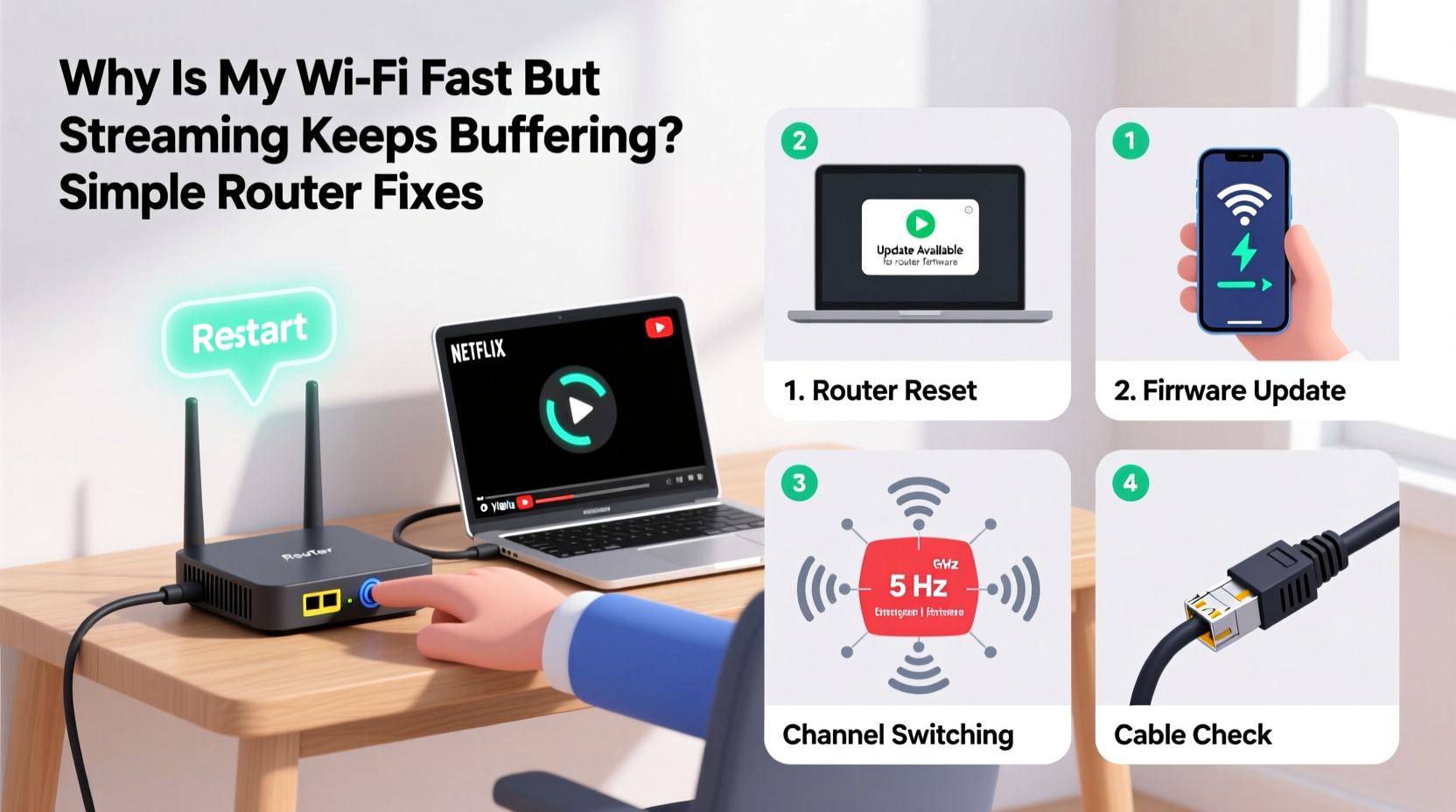
Speed and stability are not the same. A high-speed connection tells you how quickly data can travel under ideal conditions. But for streaming, what matters more is consistency—how reliably that data flows over time. Think of it like driving on a highway: having a powerful car (high download speed) doesn’t help if traffic jams (network congestion), potholes (interference), or road closures (router issues) keep slowing you down.
Streaming platforms adapt dynamically. If your connection wavers, they automatically lower video quality to prevent constant rebuffering. This means you might start at 4K, then drop to 720p mid-show—not because your plan lacks speed, but because your network can't maintain steady throughput.
“Bandwidth isn’t everything. For HD and 4K streaming, jitter, packet loss, and latency matter as much as raw speed.” — David Lin, Network Engineer at Broadband Insights Group
Buffering occurs when the data arrives too slowly to keep up with playback. Even brief interruptions—lasting less than a second—can cause the player to pause and refill its buffer. Common culprits include:
- Wi-Fi interference from neighboring networks or appliances
- Router overheating or running outdated firmware
- Too many devices sharing bandwidth simultaneously
- Poor signal strength due to distance or physical obstructions
- DNS delays or inefficient routing protocols
5 Simple Router Fixes to Stop Buffering
You don’t need technical expertise to improve your streaming experience. These five straightforward fixes target the most common causes of buffering, even when speed tests look fine.
1. Reboot Your Router Regularly
Routers are small computers, and like any device, they benefit from occasional restarts. Over time, memory leaks, background processes, and connection log buildup can degrade performance. A reboot clears temporary glitches and refreshes your connection to your ISP.
2. Optimize Router Placement
Even powerful routers struggle when placed poorly. Thick walls, metal furniture, microwaves, and cordless phones interfere with Wi-Fi signals. Place your router:
- In a central location, elevated off the floor
- Away from large appliances and mirrors
- Not tucked inside cabinets or behind TVs
If your router must stay in a suboptimal spot, consider using a Wi-Fi extender or mesh system to bridge dead zones.
3. Switch to the 5 GHz Band
Most modern routers broadcast two networks: 2.4 GHz and 5 GHz. While 2.4 GHz has better range, it’s slower and more congested. The 5 GHz band offers faster speeds and less interference—ideal for streaming—but shorter range. Connect your streaming devices (smart TV, Roku, Fire Stick) directly to the 5 GHz network if they’re within 20–30 feet of the router.
4. Limit Bandwidth-Hogging Devices
One device downloading updates or backing up photos can consume enough bandwidth to disrupt streaming on others. Use your router’s Quality of Service (QoS) settings to prioritize streaming devices. QoS lets you assign higher priority to specific devices or applications, ensuring smooth playback even during heavy usage.
5. Update Router Firmware
Manufacturers release firmware updates to fix bugs, improve security, and enhance performance. An outdated router may lack optimizations for modern streaming demands. Log into your router’s admin panel (usually via 192.168.1.1 or 192.168.0.1) and check for updates under “Administration” or “Firmware.” Enable automatic updates if available.
Step-by-Step Troubleshooting Timeline
Follow this logical sequence to identify and resolve buffering issues efficiently. Allow 10–15 minutes per step.
- Test Streaming on Multiple Devices – Confirm whether buffering affects all devices or just one. If only one device struggles, the issue may be local (app glitch, outdated OS).
- Reboot Modem and Router – Unplug both devices, wait 30 seconds, then power them back on. Wait 2 minutes for full initialization.
- Run a Real-Time Speed Test During Buffering – Use fast.com or speedtest.net while streaming. Look for fluctuations in download speed and ping.
- Switch to 5 GHz Wi-Fi – On your streaming device, disconnect from the 2.4 GHz network and reconnect to 5 GHz.
- Check for Background Activity – Pause cloud backups, downloads, and software updates on other devices.
- Enable QoS Settings – Access your router’s interface and prioritize your TV or streaming box.
- Update Firmware – Navigate to the firmware section and install any pending updates.
- Change Wi-Fi Channel – In router settings, switch from Auto to a less crowded channel (use apps like Wi-Fi Analyzer to find optimal channels).
Do’s and Don’ts: Router Optimization Table
| Do’s | Don’ts |
|---|---|
| Place the router centrally and elevated | Hide the router in a closet or basement |
| Use 5 GHz for streaming devices nearby | Assume 2.4 GHz is always better for range |
| Enable WPA3 or WPA2 encryption for security | Leave default login credentials unchanged |
| Set up QoS to prioritize media devices | Allow unrestricted peer-to-peer traffic on the network |
| Update firmware monthly or enable auto-updates | Ignore firmware notifications for months |
Real Example: Fixing Sarah’s Weekend Movie Nights
Sarah upgraded her internet plan to 200 Mbps, excited to enjoy 4K movies without interruptions. But every Friday night, just as the film started, her smart TV would buffer. Speed tests showed excellent results, so she assumed the issue was with Netflix. Frustrated, she called her ISP, who confirmed her line was healthy.
On a friend’s suggestion, she tried connecting her TV directly to the router via Ethernet. The buffering stopped instantly. That pointed to a Wi-Fi issue. She moved the router from her entertainment center (surrounded by speakers and a microwave) to a shelf in the hallway. She also switched her TV to the 5 GHz network and enabled QoS through her router’s app. After rebooting, her next movie streamed flawlessly—even with her kids gaming on tablets.
The problem wasn’t speed—it was signal interference and poor prioritization. By making small changes, Sarah restored reliability without spending a dime.
Frequently Asked Questions
Why does my Wi-Fi show full bars but still buffer?
Full signal bars indicate strong reception, not performance. You could have a strong signal with high latency or packet loss due to interference or network congestion. Signal strength ≠ streaming quality. Try moving closer to the router or switching to 5 GHz to see if performance improves.
Can too many devices slow down streaming?
Yes. Every connected device consumes a small amount of bandwidth, even when idle. Devices checking for email, syncing apps, or updating software add overhead. More critically, active devices downloading large files or gaming can saturate your bandwidth. Use QoS or temporarily disconnect non-essential devices during streaming.
Should I upgrade my router if I’m still buffering?
Not necessarily. Many users can resolve buffering with configuration changes. However, if your router is more than 3–4 years old, lacks 5 GHz support, or doesn’t offer QoS, an upgrade may be worthwhile. Look for Wi-Fi 6 (802.11ax) models with beamforming and MU-MIMO for better multi-device handling.
Action Plan Checklist
Use this checklist to systematically eliminate buffering causes:
- ✅ Reboot modem and router
- ✅ Run a speed test while streaming
- ✅ Connect streaming device to 5 GHz network
- ✅ Move router to a central, unobstructed location
- ✅ Enable Quality of Service (QoS) for your TV or streaming box
- ✅ Check for and install router firmware updates
- ✅ Pause large downloads or cloud backups during streaming
- ✅ Change Wi-Fi channel to reduce interference
- ✅ Consider a wired Ethernet connection for critical devices
- ✅ Monitor performance over 48 hours to confirm improvements
Final Thoughts: Smooth Streaming Starts at the Source
Your router is the heart of your home network. When it’s misconfigured or overwhelmed, even the fastest internet plan won’t deliver a smooth streaming experience. The key is consistency, not just speed. By optimizing placement, managing device load, and leveraging built-in features like QoS and dual-band selection, you can eliminate most buffering issues with minimal effort.
Don’t accept constant rebuffering as inevitable. Most solutions are free and take less than an hour to implement. Start with the basics—reboot, relocate, and reconfigure—and build from there. Once your network runs efficiently, you’ll wonder why you ever tolerated choppy playback.




 浙公网安备
33010002000092号
浙公网安备
33010002000092号 浙B2-20120091-4
Comments
No comments yet. Why don't you start the discussion?