
If your laptop zips through videos and downloads while your phone struggles to load a simple webpage, you're not imagining things. This frustrating mismatch is more common than you think. Despite connecting to the same network, devices often perform drastically differently. The reasons lie in hardware limitations, software settings, signal reception, and network configuration. Understanding why this happens—and how to fix it—can transform your mobile internet experience from sluggish to seamless.
Understanding the Core Differences Between Devices
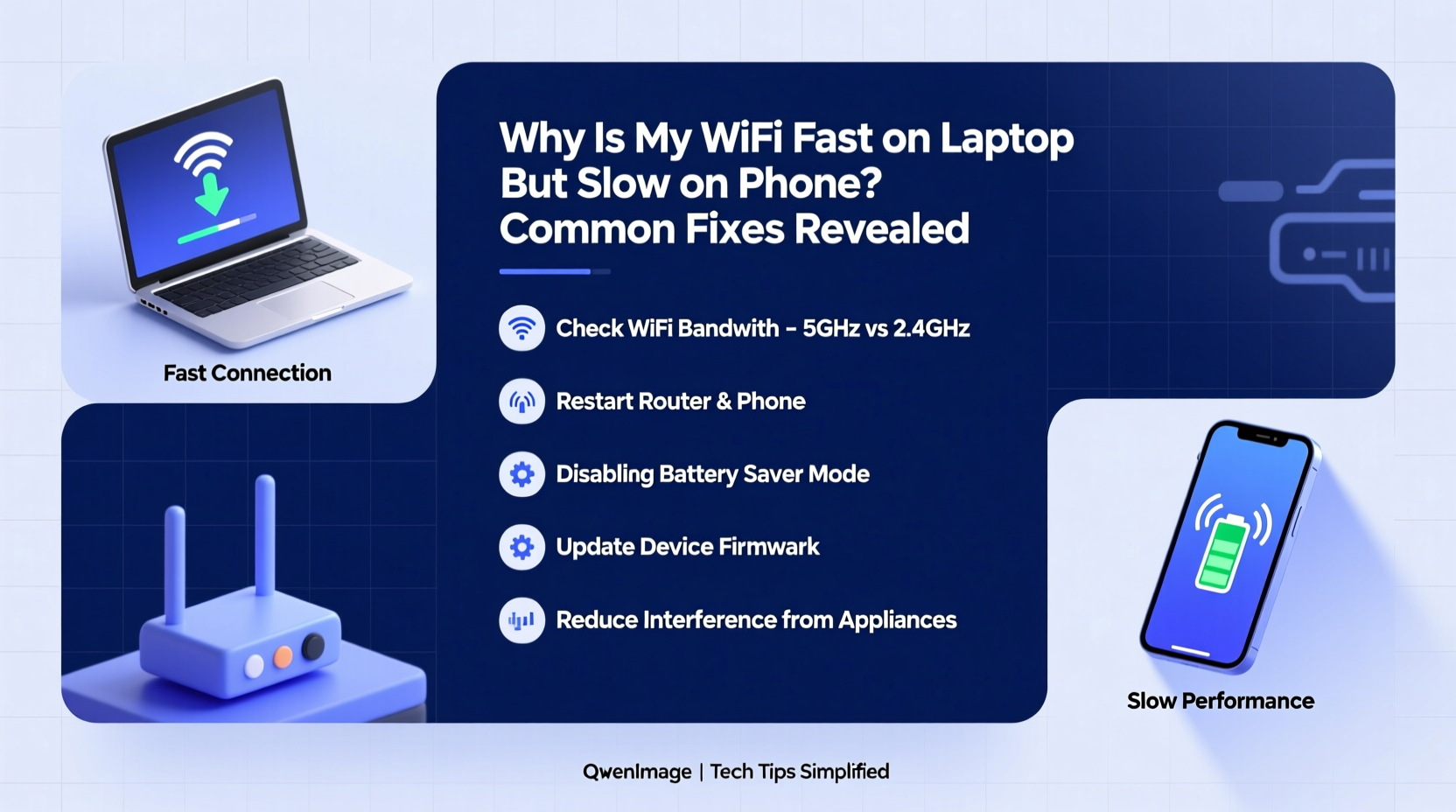
Laptops and smartphones connect to Wi-Fi using different wireless technologies, antenna designs, and processing capabilities. While both may support modern standards like Wi-Fi 5 (802.11ac) or Wi-Fi 6 (802.11ax), their real-world performance varies significantly due to physical and technical constraints.
Most laptops come equipped with larger, more powerful Wi-Fi antennas and dedicated network interface cards. They also draw power from outlets, allowing them to maintain high transmission strength. Phones, on the other hand, are designed for portability and battery efficiency. Their compact size limits antenna size and signal reception. Additionally, background processes, screen brightness, and app activity can further throttle available bandwidth.
“Mobile devices prioritize energy efficiency over peak throughput. Even if they’re on the same network as a laptop, their design inherently caps maximum speeds.” — Dr. Alan Zhou, Network Engineer at OpenSignal Labs
Common Causes of Slow Wi-Fi on Phones
The disparity isn’t always about device quality. Several factors contribute to poor phone performance even when the router shows strong signal bars:
- Distance and Obstacles: Walls, furniture, and appliances weaken signals. Phones with weaker antennas suffer more than laptops.
- Wi-Fi Band Selection: Many phones default to crowded 2.4 GHz bands instead of faster 5 GHz, especially if not manually configured.
- Background App Activity: Social media apps, email sync, cloud backups, and OS updates consume bandwidth silently.
- Router QoS Settings: Some routers deprioritize mobile traffic under Quality of Service rules meant for streaming or gaming.
- Firmware or Software Bugs: Outdated phone OS versions or router firmware can cause compatibility issues.
- Network Congestion: Multiple connected devices strain bandwidth, and phones may lose out in resource allocation.
Step-by-Step Guide to Diagnose and Fix Phone Wi-Fi Issues
Follow this structured approach to identify and resolve the root cause of slow mobile Wi-Fi:
- Test Speeds on Both Devices Simultaneously
Use apps like Speedtest by Ookla on both phone and laptop while standing near each other. If the laptop still outperforms the phone, proceed. - Check Which Wi-Fi Band You’re Using
Go to your phone’s Wi-Fi settings and see if it's connected to 2.4 GHz or 5 GHz. The 5 GHz band offers faster speeds but shorter range. If your phone is stuck on 2.4 GHz despite being close to the router, force reconnection. - Forget and Reconnect to the Network
On your phone: Go to Wi-Fi → Select your network → Forget → Re-enter password. This clears corrupted profiles. - Disable Battery-Saving Modes Temporarily
Battery optimization may throttle Wi-Fi to save power. Disable adaptive battery or Wi-Fi sleep policies during testing. - Update Your Phone’s Operating System
Manufacturers release patches that improve network stack performance. Check for updates in Settings > System. - Inspect Router Settings via Web Interface
Log into your router (usually http://192.168.1.1), check if:- 5 GHz is enabled and broadcasting.
- Band steering is active (helps devices choose optimal bands).
- No MAC address filtering or throttling rules affect your phone.
- Perform a Factory Reset on the Router (Last Resort)
If multiple devices have issues, reset the router and reconfigure with default best practices.
Do’s and Don’ts: Managing Wi-Fi Performance Across Devices
| Do | Don't |
|---|---|
| Position your router centrally, elevated, and away from metal objects | Place the router inside cabinets or behind TVs |
| Use dual-band routers and encourage 5 GHz use for capable devices | Assume all devices automatically pick the fastest band |
| Limit background data usage on your phone via settings | Run large downloads on multiple devices simultaneously without monitoring |
| Upgrade outdated routers (especially those older than 3–4 years) | Expect modern phone speeds from legacy networking hardware |
| Regularly restart your router and modem | Ignore firmware update notifications from your ISP or manufacturer |
Mini Case Study: Sarah’s Streaming Struggles
Sarah upgraded her home internet to 200 Mbps fiber and noticed her laptop streamed 4K Netflix flawlessly. But her iPhone kept buffering. She assumed the service was faulty—until she tested both devices side by side. Her laptop showed 180 Mbps; her phone barely reached 12 Mbps.
After troubleshooting, she discovered her iPhone was locked onto the 2.4 GHz band because she had previously connected to a guest network that only supported that frequency. Once she forgot the network and rejoined, her phone automatically switched to 5 GHz. Speeds jumped to 140 Mbps. The issue wasn’t her phone or internet—it was a hidden setting buried in connectivity history.
This case illustrates how minor misconfigurations can create major performance gaps—even in modern homes with excellent infrastructure.
Expert Tips to Maximize Phone Wi-Fi Speed
Beyond basic fixes, consider these advanced strategies used by network professionals:
- Enable Auto-Join Only for Trusted Networks: Prevents your phone from latching onto weak or outdated access points automatically.
- Turn Off Wi-Fi Assist (iOS) or Adaptive Connectivity (Android): These features switch to cellular when Wi-Fi is “weak,” but sometimes misjudge signal quality, causing instability.
- Use DNS Optimization: Change your phone’s private DNS to 8.8.8.8 (Google) or 1.1.1.1 (Cloudflare) for faster domain resolution.
- Limit Connected Devices: Too many smart home gadgets saturate the network. Disconnect unused ones or set up a separate IoT network.
- Invest in Mesh Wi-Fi Systems: Eero, Google Nest Wifi, or TP-Link Deco systems eliminate dead zones and balance load across devices intelligently.
Checklist: Optimize Your Phone’s Wi-Fi in 7 Steps
Use this actionable checklist to ensure your phone performs at its best:
- ✅ Run a speed test on your phone using a trusted app (e.g., Speedtest, Fast.com)
- ✅ Confirm connection to 5 GHz band (if within range)
- ✅ Forget and reconnect to your Wi-Fi network
- ✅ Disable battery-saving modes affecting Wi-Fi
- ✅ Update your phone’s OS and router firmware
- ✅ Limit background app refresh and auto-updates
- ✅ Position yourself closer to the router for testing
Repeat the speed test after completing these steps. Most users report noticeable improvements within minutes.
Frequently Asked Questions
Why does my phone show full bars but still have slow internet?
Signal strength (bars) indicates connection quality, not speed. Full bars mean your phone is communicating with the router, but congestion, interference, outdated protocols, or throttled bandwidth can still limit performance. Think of it like a wide highway with heavy traffic—you’re on the road, but moving slowly.
Can a better router fix slow phone Wi-Fi?
Yes. Older routers (pre-2018) often lack support for modern Wi-Fi standards like MU-MIMO, beamforming, or band steering—technologies that improve multi-device performance. Upgrading to a Wi-Fi 6 mesh system can dramatically enhance phone speeds, especially in larger homes.
Is it worth buying a new phone just for better Wi-Fi?
Not usually. While flagship phones have superior antennas and Wi-Fi 6E support, most slowdowns stem from network conditions, not hardware. Try optimizing your current setup first. However, if your phone is over five years old and lacks 5 GHz support, an upgrade may be justified.
Conclusion: Take Control of Your Mobile Connection
The gap between laptop and phone Wi-Fi speeds doesn’t have to be permanent. With a methodical approach, you can diagnose and eliminate the bottlenecks holding your mobile device back. From adjusting simple settings to upgrading aging equipment, every step brings you closer to consistent, reliable performance across all your gadgets.
Don’t accept slow loading times as inevitable. Your phone deserves the same fast, responsive internet as your laptop. Apply these fixes today—measure the difference, fine-tune your environment, and reclaim the browsing, streaming, and working experience you paid for.




 浙公网安备
33010002000092号
浙公网安备
33010002000092号 浙B2-20120091-4
Comments
No comments yet. Why don't you start the discussion?