
It’s a common frustration: you’re sitting in the same room, using the same Wi-Fi network, yet your phone loads videos instantly while your laptop crawls through basic web pages. This inconsistency isn’t just annoying—it can disrupt work, streaming, and online learning. The truth is, several technical and environmental factors contribute to this disparity. Understanding them is the first step toward fixing it. Unlike what many assume, the issue often isn’t with your internet plan or router alone. Instead, it’s a combination of hardware capabilities, wireless protocols, interference, and device-specific settings that create uneven performance.
This article breaks down the real reasons behind inconsistent Wi-Fi speeds between devices and provides actionable solutions to level the playing field. Whether you're troubleshooting from a home office or optimizing a busy household network, these insights will help you achieve balanced, reliable connectivity for every device.
Why Phones Often Outperform Laptops on Wi-Fi
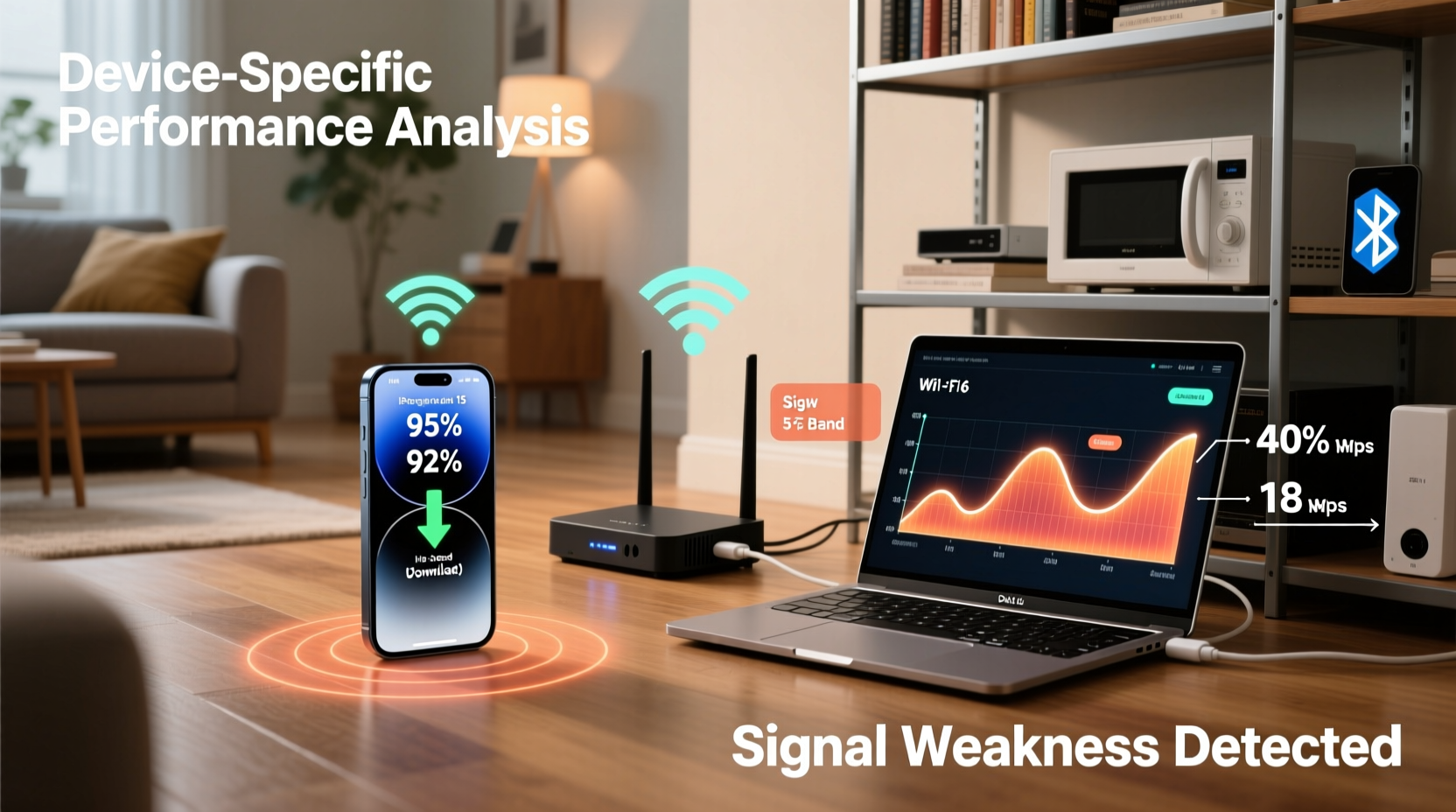
At first glance, it seems counterintuitive. Laptops typically have more powerful hardware than phones, so they should handle internet tasks better. But Wi-Fi performance doesn’t depend solely on processing power. It's influenced by wireless standards, antenna design, and how each device negotiates bandwidth with the router.
Modern smartphones are engineered for mobility and signal efficiency. They use advanced MIMO (Multiple Input, Multiple Output) technology, support newer Wi-Fi standards like Wi-Fi 5 (802.11ac) or Wi-Fi 6 (802.11ax), and are optimized to maintain strong connections even at lower signal strengths. Many recent iPhones and Android devices also support dual-band switching, automatically connecting to the less congested 5 GHz band when available.
In contrast, older or budget laptops may still rely on outdated Wi-Fi adapters—some as old as 802.11n—that max out at 150–300 Mbps under ideal conditions. Even if your internet plan delivers 300 Mbps, an older adapter might only pull 75 Mbps due to distance, interference, or protocol limitations. Additionally, laptop antennas are often smaller and less efficiently placed than those in smartphones, reducing their ability to receive clean signals.
Key Factors Causing Uneven Wi-Fi Speeds
Several overlapping elements explain why one device thrives while another struggles. Identifying these helps target the right fixes.
1. Wi-Fi Band and Channel Congestion
Routers broadcast on two frequency bands: 2.4 GHz and 5 GHz. The 2.4 GHz band travels farther but is prone to interference from microwaves, cordless phones, and neighboring networks. The 5 GHz band offers faster speeds and less congestion but has shorter range and weaker wall penetration. Phones often switch seamlessly between bands; many laptops do not, especially if the Wi-Fi driver doesn’t support band steering.
2. Hardware Limitations
Your laptop’s internal Wi-Fi card may be the bottleneck. For example, a PCIe-based Intel Dual Band Wireless-AC 3165 supports only one spatial stream on 5 GHz, limiting throughput. Meanwhile, your phone likely uses two or three streams, doubling or tripling potential speed.
3. Signal Interference and Physical Obstacles
Concrete walls, metal furniture, and large appliances weaken Wi-Fi signals. If your laptop sits behind a filing cabinet or near a refrigerator, its reception suffers. Phones, being mobile, are often held closer to the router or repositioned intuitively when the signal drops.
4. Background Processes and Network Load
Laptops typically run more background applications—cloud sync tools, updates, antivirus scans—that consume bandwidth silently. A phone, by comparison, tends to use data more predictably and sparingly.
5. Router Quality of Service (QoS) Settings
Some routers prioritize certain devices or traffic types. If QoS is enabled but misconfigured, it might favor mobile devices or video streaming over general laptop browsing, skewing performance unfairly.
“Wi-Fi performance isn’t just about signal strength—it’s about how well the device and router negotiate data transfer under real-world conditions.” — Dr. Lena Patel, Network Engineer at Broadband Insights Group
Step-by-Step Guide to Balance Wi-Fi Speeds
Follow this structured approach to diagnose and resolve speed imbalances between your phone and laptop.
- Test Both Devices Under Identical Conditions
Place your phone and laptop side by side, connected to the same network. Run a speed test (e.g., Speedtest.net) on both. This eliminates location bias and confirms whether the issue is consistent. - Verify Wi-Fi Band Connection
Check which band each device is using. On Windows, go to Settings > Network & Internet > Wi-Fi > Properties to see the network band. On Mac, hold Option and click the Wi-Fi icon. If your laptop is stuck on 2.4 GHz while your phone uses 5 GHz, that’s a primary cause of slowdown. - Update Wi-Fi Drivers and Firmware
Outdated drivers limit performance. On Windows, open Device Manager > Network Adapters, right-click your Wi-Fi adapter, and select “Update driver.” For Mac, ensure macOS is up to date. Also, update your router’s firmware via its admin interface (usually http://192.168.1.1). - Optimize Router Placement and Settings
Position your router centrally, elevated, and away from obstructions. Log into the admin panel and disable legacy modes (like 802.11b/g) that slow down the entire network. Enable band steering if available, allowing devices to prefer 5 GHz. - Enable and Configure QoS
Access your router settings and navigate to QoS (Quality of Service). Set priorities based on application type (e.g., prioritize video calls or downloads) rather than specific devices. This ensures fairness without starving any single machine. - Limit Background Usage on Laptop
Close unnecessary apps, pause cloud backups, and disable automatic updates during critical tasks. Use Task Manager (Windows) or Activity Monitor (Mac) to identify bandwidth-hungry processes. - Consider a Wi-Fi Extender or Mesh System
If your laptop is far from the router, invest in a mesh system like Eero or TP-Link Deco. These provide seamless coverage and allow devices to roam efficiently between nodes.
Hardware and Software Checklist
Use this checklist to systematically improve your laptop’s Wi-Fi performance and align it with your phone’s experience.
- ✅ Confirm laptop supports 5 GHz and Wi-Fi 5/6
- ✅ Update Wi-Fi adapter drivers and OS
- ✅ Reboot router and modem monthly
- ✅ Test speeds with Ethernet (if possible) to isolate Wi-Fi issues
- ✅ Disable Bluetooth when not in use (reduces 2.4 GHz interference)
- ✅ Switch DNS to Google (8.8.8.8) or Cloudflare (1.1.1.1) for faster lookups
- ✅ Replace aging Wi-Fi adapter with a USB 3.0 AC1200+ dongle if internal hardware is obsolete
Comparison Table: Phone vs. Laptop Wi-Fi Performance
| Factor | Typical Phone | Typical Older Laptop |
|---|---|---|
| Wi-Fi Standard | Wi-Fi 5 / Wi-Fi 6 | Wi-Fi 4 (802.11n) or earlier |
| Band Support | Dual-band (2.4 + 5 GHz), auto-switching | Sometimes 2.4 GHz only |
| Antenna Design | Optimized for compactness and signal capture | Limited by chassis size and placement |
| Background Data Use | Low (optimized OS) | High (sync services, updates) |
| Mobility | High – easily repositioned | Low – often stationary in poor locations |
| Driver Updates | Frequent, automatic | Inconsistent, user-dependent |
Real Example: Balancing Speeds in a Home Office
Sarah, a freelance graphic designer, relied on her laptop for client calls and file uploads. Despite having fiber internet, she experienced lag during Zoom meetings while her partner’s phone streamed 4K video smoothly nearby. After testing, she found her 2015 MacBook Pro was connecting only to the 2.4 GHz band, capping speeds at 60 Mbps. Her phone, a newer iPhone, used 5 GHz and achieved 220 Mbps.
She updated her router firmware, renamed the 2.4 and 5 GHz networks separately (to force selection), and manually connected her laptop to the 5 GHz SSID. She also installed an external USB-C Wi-Fi 6 adapter. Within minutes, her laptop’s speed jumped to 180 Mbps, and Zoom calls became stable. By addressing hardware limits and network configuration, she eliminated the imbalance.
FAQ: Common Questions About Wi-Fi Speed Disparities
Can my laptop’s age really affect Wi-Fi speed?
Yes. Laptops older than 2016 often lack support for modern Wi-Fi standards and 5 GHz bands. Their internal antennas and chipsets were designed for slower networks, creating a hard ceiling on performance regardless of router quality.
Why does my phone show full bars but my laptop shows weak signal?
Signal bars are relative and device-specific. Each manufacturer calibrates them differently. Your phone might display full bars at a lower signal strength than your laptop requires for optimal performance. Always rely on actual speed tests rather than visual indicators.
Will upgrading my internet plan fix the issue?
Not necessarily. If your laptop is limited by hardware or interference, a faster plan won’t help. You could have 500 Mbps service but only achieve 50 Mbps on an outdated adapter. Fix the local connection first before upgrading your subscription.
Conclusion: Achieve Fair, Reliable Wi-Fi for All Devices
The gap between phone and laptop Wi-Fi speeds isn’t inevitable—it’s solvable. By understanding the interplay of hardware, environment, and settings, you can eliminate bottlenecks and create a balanced network experience. Start with simple diagnostics: compare speeds side by side, check Wi-Fi bands, and update drivers. Then move to strategic upgrades like external adapters or mesh systems if needed. Small changes often yield dramatic improvements.
Don’t accept slow laptop performance as normal. With the right adjustments, every device in your home can enjoy fast, stable internet. Take action today—your productivity, entertainment, and peace of mind depend on it.




 浙公网安备
33010002000092号
浙公网安备
33010002000092号 浙B2-20120091-4
Comments
No comments yet. Why don't you start the discussion?